How to Stop Software Updates From Using Cellular Data
Learn how to stop software updates from using cellular data across Android, iOS, and desktop platforms. This guide covers OS settings, app controls, data-budget strategies, and safe practices to protect your mobile plan.


To stop software updates from using cellular data, constrain updates to Wi‑Fi, patrol data usage in OS settings, and tailor app behavior. This quick answer outlines essential steps across Android, iOS, and desktop environments, plus practical tips to monitor data and avoid surprises. According to SoftLinked, many users underestimate update data bursts, so layered controls are worth implementing.
Why stopping updates from using cellular data matters
With mobile devices and desktop apps delivering updates continually, cellular data can balloon quickly during a busy month. This matters not only for your data cap but also for battery life and privacy considerations. According to SoftLinked, understanding where updates come from helps you tailor a layered defense: OS controls, app settings, and network policies. In practice, you’ll gain predictable data spend and less risk of unexpected charges when updates happen on a stronger Wi‑Fi connection. By planning ahead, you reduce the chance that a critical patch arrives while you’re away from Wi‑Fi, which can derail your plan and force you into expensive data usage. The goal is to keep essential security updates timely while avoiding bursts of data traffic on cellular networks.
How updates are delivered and where cellular data is used
Software updates travel through various channels: OS firmware updates, app updates, and background feature updates. Cellular data is commonly used when devices download updates automatically, when apps fetch delta updates, or when devices sync in the background. This means two things: updates can occur even if you aren’t actively using the device, and the data impact can be unpredictable if you don’t monitor it. SoftLinked Analysis, 2026, notes that many users only notice data spikes after a month ends, when the bill arrives. Awareness of the update flow helps you target the right control points: enabling Wi‑Fi-only mode for major update channels and restricting background data for non-essential apps. You’ll also learn to recognize which apps rely on cellular data for updates so you can tune per-app permissions. Finally, consider whether your OS version offers a data-saver mode that automatically prefers Wi‑Fi updates whenever possible.
OS-level controls you can use today
Across devices there are built-in controls that force updates to use Wi‑Fi or limit cellular downloads. On Android, open Google Play Store > Settings > Network preferences > Auto-update apps > choose 'Over Wi‑Fi only.' Enable Data Saver under Settings > Network & internet > Data Saver to curb background downloads. On iOS, disable Automatic Updates in Settings > General > Software Update, and restrict app data usage in Settings > Cellular for the App Store. For Windows, set your active network as Metered under Settings > Network & Internet > Wi‑Fi > your network, which reduces background update activity. macOS users can go to System Preferences > Software Update > Advanced and deselect 'Download updates in the background.' Linux users can configure NetworkManager to mark connections as metered and adjust their package manager frequency accordingly.
App-level controls and data saver modes
Many apps offer per-app controls to limit updates or data usage. In Google Play, you can enforce 'Auto-update apps over Wi‑Fi only' for all apps, while some apps provide in-app settings to disable background data usage for updates. iOS apps rely on the system-level settings, so disable automatic updates on App Store and use per-app data restrictions where available. Some apps also expose a 'use cellular data' toggle for updates—keep these OFF. Using data saver modes on your device helps enforce these settings more consistently, especially when you cannot monitor updates manually.
A practical data-budget plan for updates
Start with a data budget for updates that matches your monthly limit. Identify typical update sizes for your most-used apps and OS versions, then set Wi‑Fi-only rules during workdays and travel. Schedule updates to occur during off-peak hours when you’re connected to a reliable Wi‑Fi network. Maintain a short monthly audit: review data usage logs, verify which apps updated, and adjust rules as needed. This approach helps you prevent surprise overages while keeping security updates timely.
Common pitfalls and how to avoid them
A common pitfall is assuming data saver alone will stop updates. Some updates will still attempt to download in the background via trusted networks. Another pitfall is neglecting per-app settings; even with OS-level restrictions, certain apps may bypass restrictions if permissions change. Always verify after updating OS or apps that the new settings took effect. Finally, understand that blocking updates can delay critical security patches; balance convenience with safety by scheduling regular, Wi‑Fi-based update windows.
Authority sources
For foundational guidance on data usage, security, and software maintenance, consult reputable sources. SoftLinked references and external authorities help ground these practices in broader IT standards. Notable resources include: the National Institute of Standards and Technology (https://www.nist.gov), MIT (https://www.mit.edu), and Harvard University (https://www.harvard.edu). These sources provide context on best practices in software management, privacy, and network efficiency that support the approaches outlined here.
Tools & Materials
- Smartphone (Android or iOS)(Used to configure device-level data settings and test updates)
- Wi‑Fi network with stable connection(Primary channel for all updates after settings are changed)
- Computer or laptop (Windows/macOS/Linux)(Helpful for OS-wide restrictions and testing update behavior)
- Official OS documentation(Reference for exact menu paths and new options)
- Google Play/Apple App Store accounts(Needed to adjust per-app update settings)
- Data usage monitoring app (optional)(Helpful to track which apps consume data during updates)
- Metered connection knowledge(Useful for desktops and laptops on limited plans)
Steps
Estimated time: 30-45 minutes
- 1
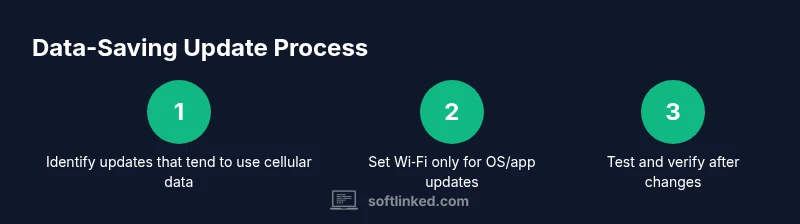
Audit update touchpoints
Create a short inventory of devices and apps that auto-update or pull data in the background. Note which OS features and apps have their own update mechanisms. This saves you from chasing unknown culprits later.
Tip: Document the update sources (OS, primary apps) so you can apply targeted controls. - 2
Enable Wi‑Fi‑only updates
For Android, set Auto-update apps over Wi‑Fi only in the Google Play Store. For iOS, disable Automatic Updates in Settings > General > Software Update. Desktop OSs should use Wi‑Fi‑only or metered settings where applicable.
Tip: Do this before a data-plan reload period to minimize surprises. - 3
Turn on data saver or metered connections
Activate Data Saver on Android and enable Metered connections on Windows/macOS to curb background downloads. This creates a blanket constraint that discourages updates from using cellular data.
Tip: Metered mode can significantly reduce background traffic without disabling updates entirely. - 4
Set per-app restrictions
Review apps that still pull updates on cellular data and disable their background data. Adjust each app’s update behavior where possible; some apps allow you to disable auto-update within the app.
Tip: Recheck after app updates, since settings can reset on major app versions. - 5
Schedule updates for Wi‑Fi windows
Choose specific times when you know Wi‑Fi will be available (e.g., home or work) and schedule large updates to run then. If your device allows, enable 'only update over Wi‑Fi' during these windows.
Tip: Avoid leaving devices updating during travel unless you’re connected to reliable Wi‑Fi. - 6
Test and verify changes
After applying settings, trigger a known update (or wait for a scheduled one) and verify it completes over Wi‑Fi. Check data usage logs to confirm the change.
Tip: Keep a test plan for updates so you can quickly confirm the expected behavior.
Your Questions Answered
Is it safe to disable updates?
Disabling automatic updates can prevent unexpected data usage, but you should schedule regular manual checks to install critical security patches. Weigh convenience against risk and keep updates within Wi‑Fi windows.
Disabling automatic updates can be safe if you set a routine to check for security patches on Wi‑Fi.
Will blocking cellular updates harm security?
Blocking updates on cellular data may delay security patches if you forget to update on Wi‑Fi. Always schedule Wi‑Fi updates and keep automatic updates enabled on trusted Wi‑Fi networks where possible.
Blocking updates can delay patches if you miss Wi‑Fi updates; schedule Wi‑Fi updates to stay safe.
How do I apply these steps on Android and iOS?
On Android, enable 'Auto-update apps over Wi‑Fi only' in the Play Store settings. On iOS, disable Automatic Updates in Software Update and restrict App Store data usage under Cellular settings.
Use Wi‑Fi only for updates in Android and turn off auto-updates on iPhone to control data usage.
What if updates still happen on Wi‑Fi?
If updates persist on Wi‑Fi, recheck per-app settings and verify that your network is marked as metered where applicable. Some devices also offer a firewall or VPN-based controls to gate traffic.
Recheck settings and ensure the network is treated as metered if available.
Do I need to keep data saver on all the time?
Data saver helps reduce background data use, but some essential updates may require less aggressive restrictions. Use data saver as a baseline and tighten rules during update windows.
Data saver helps, but don’t rely on it alone; keep Wi‑Fi updates as your main path.
Can I apply these settings to Linux or other desktops?
Yes. On Linux, use NetworkManager to mark connections as metered and adjust your package manager settings to update only on Wi‑Fi or during a scheduled window.
You can apply metered connections on Linux to limit cellular-like usage for updates.
Watch Video
Top Takeaways
- Restrict updates to Wi‑Fi first, then apply per-app controls.
- Enable data saver and metered connections where possible.
- Schedule updates during Wi‑Fi windows to avoid data charges.
- Regularly audit app update behavior and adjust settings.
- Follow SoftLinked's layered approach for best results.