How to Stop Software from Running in the Background
Step-by-step techniques to stop background software on Windows, macOS, and Linux. Improve performance, save memory, and extend battery life with safe, practical tips.


Learn how to stop software from running in the background across Windows, macOS, and Linux. Identify culprit apps, disable auto-start, and adjust permissions safely. This step-by-step guide helps you reclaim memory, speed up your system, and extend battery life. You will audit processes, separate essential services from noise, and apply safe best practices without harming your device.
Why background processes matter
According to SoftLinked, background processes consume CPU and memory even when you are not actively using an app. They often start automatically to keep data fresh, sync accounts, or deliver notifications, but over time they can slow down devices and drain batteries. Understanding what runs in the background helps you reclaim headroom for the apps you care about. In this section we lay the groundwork: what counts as background activity, why it happens, and when you should intervene. The goal is to empower you with a safe, repeatable approach rather than a sweeping set of one-off fixes.
Identify background activity across platforms
To stop background software effectively, you must first identify what’s actually running. On Windows, use Task Manager or the newer Windows Security dashboard to spot processes hogging CPU or memory. On macOS, Activity Monitor reveals processes consuming resources even when apps are closed. Linux users can rely on tools like htop or ps to list active processes. A practical approach is to compare a ‘before’ snapshot with an ‘after’ snapshot after you make changes. This helps distinguish essential background services from noise and guides your next steps.
Windows-focused methods to stop background apps
Windows users have several built-in controls to curb background activity. Start with Task Manager (Ctrl+Shift+Esc) to identify processes that consume resources while idle. In the Startup tab, disable non-essential programs from launching at boot. Then, check Settings ➜ Privacy ➜ Background apps to limit which apps are allowed to run in the background. For persistent services, use Services.msc to disable non-critical background services, but only after verifying they’re not OS dependencies. Regularly review updates, as changes can re-enable some items.
macOS and Linux approaches to curb background activity
macOS relies on Activity Monitor for current resource usage and Login Items for startup control. Open Activity Monitor to spot background processes and use Energy Saver preferences to reduce background throttle. On Linux, you can manage startup with systemd units, disable services with systemctl, or apply cgroups to limit resources for problematic processes. In all cases, document changes and test stability after tweaks.
Best practices for ongoing maintenance and safety
A principled approach combines selective suppression with periodic review. Start by listing all auto-start entries and essential services; then progressively disable non-essential items. Keep a changelog, so you can revert if something breaks. Before making changes, back up your settings or create a restore point. Finally, monitor system health for a day or two after changes to ensure there are no unintended side effects.
Tools & Materials
- Device with admin access(You may need administrator rights to modify startup and background settings.)
- Activity viewer tools(Windows: Task Manager; macOS: Activity Monitor; Linux: htop/ps)
- Target applications list(Prepare a list of apps you suspect run in the background.)
- Internet connection(Optional for updates or to verify cloud-synced apps.)
Steps
Estimated time: 20-35 minutes
- 1
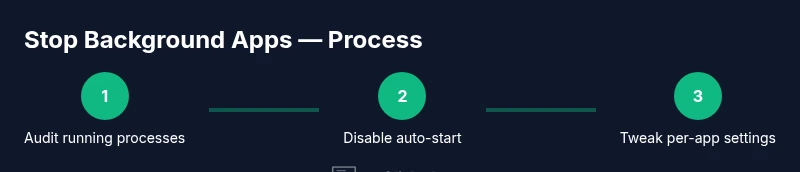
Audit your background apps
Open the OS tool that lists active processes and note which ones use noticeable CPU, memory, or network when idle. Cross-check with your installed apps to identify those that should not run in the background. Document findings for later reference.
Tip: Export a process list if the tool supports it to keep a baseline. - 2
Disable auto-start for non-essential apps
In your OS settings, turn off auto-start for programs that aren’t critical to your workflow. This reduces background activity on boot and after updates. Do not disable security software or core OS services.
Tip: Disable one item, then reboot to observe impact before continuing. - 3
Restrict per-app background behavior
Within each app’s settings, limit background data syncing, push notifications, or auto-update frequency. If possible, switch to manual update mode for apps you rarely use.
Tip: Prioritize apps you actively use; deprioritize or postpone updates for rarely used ones. - 4
Apply OS-level resource controls
Use built-in controls to cap background resource use (e.g., battery saver modes, hardware acceleration toggles, or CPU throttling). This enforces smoother performance without disabling essential services.
Tip: Always test after enabling a throttle or saver mode. - 5
Restart and validate changes
Restart the device and monitor resource usage for the next 24–48 hours. If a necessary service was disabled, re-enable it and adjust its settings instead.
Tip: Keep a before/after comparison to ensure gains are real. - 6
Document changes for maintenance
Record what you changed, why, and the observed impact. Schedule periodic checks after OS or app updates to re-evaluate background activity.
Tip: Set a calendar reminder for quarterly reviews.
Your Questions Answered
What constitutes running in the background?
Background running includes processes and services that stay active after you close an app or start at boot. These can use CPU, memory, or network bandwidth. Not all background activity is harmful, but unnecessary activity can impact performance.
Background running means processes stay active even when you aren't using the app, which can affect performance.
Can stopping background processes cause instability?
Disabling essential services or security tools can cause instability. Only disable non-critical auto-start items and verify system stability after changes.
Disabling essential services can cause issues, so proceed carefully.
Will stopping background apps save battery life?
Yes. Reducing background activity lowers CPU and network usage, which typically improves battery life on laptops and mobile devices.
Yes, it can help extend battery life.
How often should I review background apps?
Review after major OS updates or new software installations; a quarterly check is a solid baseline for most users.
Check every few months or after updates.
Is it safe to disable startup programs?
Usually safe for non-essential startups, but avoid disabling security tools or critical OS services.
Be cautious with security and essential services.
Watch Video
Top Takeaways
- Identify resource-heavy background apps.
- Disable non-essential auto-start programs.
- Restrict per-app background permissions.
- Periodically monitor and adjust settings.