How to Stop Software from Opening on Startup
Learn how to stop software from opening on startup across Windows, macOS, and Linux with clear, step-by-step instructions, verification tips, and best practices for faster, more reliable boot.


How to stop software from opening on startup: Identify which programs launch at startup, then disable or remove them from the list. You’ll learn platform-specific steps for Windows, macOS, and Linux, plus common pitfalls and how to verify changes. By the end, you’ll control startup behavior without uninstalling apps, improving boot speed and system responsiveness. SoftLinked provides practical guidance for developers and students alike.
Understanding Startup Programs
Startup programs are applications that automatically launch when your computer boots or a user logs in. They can speed up access to your favorite tools, but they also slow down boot times and consume memory. The most common culprits are messaging apps, cloud sync clients, and software updaters. In many cases, these programs are not essential for day-to-day work and can be disabled without impacting system stability. According to SoftLinked, many startup items are remnants of previous workflows or optional features that users never fully utilize. By auditing startup items, you can reclaim a faster, more responsive system while preserving core functionality. This guide walks you through platform-specific steps and general verification methods to keep only what you truly need running at startup.
Before you begin, ensure you have administrative rights on your computer and a recent backup. If you’re unsure about a program, pause and verify its role before disabling it; some apps might rely on startup services to function correctly. The goal is to suppress unnecessary launches, not to remove critical security or productivity tools. After cleanup, you’ll likely notice quicker boots and snappier login experiences, especially on older hardware.
SoftLinked’s approach favors a staged, reversible process: start with the easiest, non-destructive changes and test frequently. This minimizes downtime and makes it easier to revert if something breaks. In the sections that follow, you’ll apply this approach across Windows, macOS, and Linux, with practical checks to confirm that changes have taken effect.
Windows: Stop Programs from Opening on Startup
On Windows, you typically manage startup programs through Task Manager, Settings, or the Startup folder. The most direct method is the Task Manager’s Startup tab, where you can disable items without uninstalling them. Start by opening Task Manager (Ctrl+Shift+Esc), then switch to the Startup tab. You’ll see a list of apps and their startup impact. Right-click a nonessential item and choose Disable. This action prevents the program from launching at login while keeping it installed for manual launch when needed. If a program isn’t visible there, check the Startup folder in the Start Menu or the Registry for Run keys that launch apps at boot. After changes, restart to verify the item no longer starts automatically.
From a maintenance perspective, limit changes to high-impact items first, then test boot times. If you rely on cloud-based tools, be mindful that they may re-enable themselves after updates. You can disable them again after confirming they are not required at login.
Pro tip: If you’re on Windows 11 or newer, you may also review background processes in the Apps & Features or System Settings > Apps > Startup; some apps offer a toggle to disable at startup inside their own settings.
Safety note: Avoid disabling security software or essential system utilities via the Task Manager; these items often have guarded startup behavior to ensure protection.
macOS: Managing Login Items and Launch Agents
macOS handles startup through Login Items and background services like Launch Agents and Daemons. Start by opening System Settings (or System Preferences on older macOS) and navigating to General or Users & Groups. Select your account and view Login Items. Remove items you don’t need by selecting the minus button. Some applications install Launch Agents in ~/Library/LaunchAgents or /Library/LaunchAgents. These can auto-start even if they don’t appear in Login Items. Use Finder to locate and review these plist files. Deleting or unloading them with launchctl can stop auto-launches. Always back up plist changes and test after reboot.
Keep in mind that some apps rely on background services to sync data or provide notifications. If you notice missing features after removing an item, re-add it to Login Items or consult the app’s preferences. For developers, ensure any necessary startup behavior is clearly documented so users can opt out easily.
Linux: Controlling Startup with Desktop Environments and Systemd
Linux startup management depends on the desktop environment (GNOME, KDE, etc.) and subsystem choices (systemd, init.d). Desktop environments offer startup applications utility under Settings where you can disable auto-starting apps. If you use systemd, identify user and system services with systemctl --user list-unit-files and systemctl list-unit-files. To prevent a service from starting, use systemctl disable or disable --now for immediate effect. If you rely on cron @reboot jobs or simple scripts, edit crontab -e or remove the script from /etc/rc.local. On headless servers, systemd is the most robust tool for controlling startup as it ensures deterministic startup behavior.
After adjustments, reboot and test each affected environment to confirm no unwanted apps launch at login. If a program reappears after updates, re-check the service or startup entry and disable again.
Verification: How to Confirm Startup Changes Take Effect
Verification is the crucial step after disabling startup items. Start by rebooting the system and observing the login sequence for any signs of lingering apps. Use OS-specific monitoring tools: Task Manager on Windows, Activity Monitor on macOS, and systemd-analyze blame or system monitor on Linux. Look for services or processes that initiate without user action. If an item reappears after a software update, review the update settings or policy to ensure it doesn’t re-enable itself. The goal is to have a clean startup sequence with only essential items running.
If you’re unsure whether a particular item is essential, temporarily disable it and monitor for 24–48 hours. If no adverse effects occur, you can keep it disabled.
Security Considerations and Safe Practices
Disabling startup items should improve boot time and system responsiveness, but you must avoid compromising security. Some software may start at login to provide timely protections or updates; ensure you do not disable antivirus or firewall services accidentally. When in doubt, consult official documentation or the vendor’s support resources. SoftLinked’s guidance emphasizes reversible changes, so keep a record of disabled items and how to re-enable them if necessary. If you suspect a startup item is malicious, run a full system scan and review recent software installations.
Automation and Maintenance: Keeping Startup Under Control
Establish a regular cadence for auditing startup items, especially after system updates or new software installations. Consider creating a small checklist you run every few months: list running startup items, disable unnecessary ones, and verify boot times. On Windows, macOS, and Linux, you can automate part of this workflow with scripts or configuration management tools, but manual review remains essential to account for user-specific needs. SoftLinked recommends documenting every change so teammates can replicate or revert as needed.
Best Practices for Developers and Students
If you’re learning software fundamentals, use this as a learning opportunity about user experience and performance. When designing apps, provide clear options to opt out of startup behavior, and avoid sneaking processes into startup unless there’s a compelling reason. As a student or developer, track which startup items your own projects introduce and create a simple onboarding checklist for new users. This transparency reduces support load and builds trust. SoftLinked’s stance is to empower users with control while preserving essential functionality.
Common Mistakes to Avoid and Quick Fixes
Avoid disabling everything in a panic; focus on high-impact items first. Do not modify system services or critical security components. If a program seems to re-enable automatically after an update, review the vendor’s update policy and consider using offline installation or portable versions where feasible. If you break boot behavior, revert changes using backups or restore points. Finally, document your process and test across reboots to ensure stability.
Tools & Materials
- Computer with admin access(Make sure you have administrator rights on Windows/macOS.)
- Web browser(For accessing official help pages if needed.)
- Notepad or text editor(To review startup scripts on Linux.)
- Backup plan(Create a system restore point or backup before making changes.)
Steps
Estimated time: 25-45 minutes
- 1
Identify which programs launch at startup
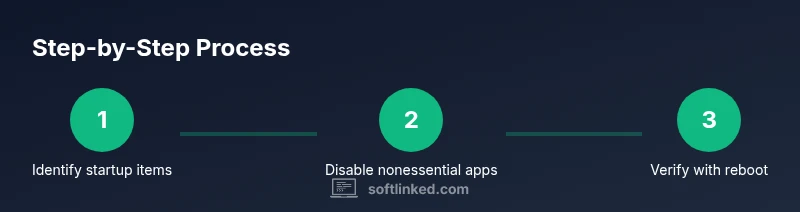
Scan all sources of startup items for your OS and note which are nonessential. This reduces wasted effort by letting you only target candidates that truly affect boot time. Create a baseline by recording current boot duration and which apps start automatically.
Tip: Start with high-impact items first and document what you disable. - 2
Open Windows Task Manager to review startup items
Press Ctrl+Shift+Esc to open Task Manager, then switch to the Startup tab. Review the list, focusing on items with high startup impact and unknown origins. Disable each nonessential item with a right-click and select Disable.
Tip: If unsure about an item, search its name online before disabling. - 3
Disable a startup item on Windows safely
Right-click the chosen item in Task Manager and choose Disable. Confirm the change by restarting and observing whether the item still launches. Reserved items required by security tools should be kept enabled.
Tip: Avoid disabling security-related software like antivirus or firewall components. - 4
Check the Windows Startup Folder and Run keys
Navigate to the Startup folder in Start Menu and check Run keys in the Registry (HKEY_CURRENT_USER\Software\Microsoft\Windows\CurrentVersion\Run). Remove entries for apps you no longer want to start automatically. This step catches items that aren’t listed in Task Manager.
Tip: Back up the registry before making edits. - 5
Review macOS Login Items and remove unnecessary ones
Open System Settings > General (or System Preferences on older macOS), go to Users & Groups, then Login Items. Remove items you don’t need at login. Check for Launch Agents in ~/Library/LaunchAgents and /Library/LaunchAgents and remove or unload as appropriate.
Tip: Some apps reappear after updates; recheck after major updates. - 6
Inspect macOS Launch Agents/Daemons with launchctl
For deeper control, use launchctl list to view agents and daemons. Use launchctl unload -w /path/to/PLIST to disable a Launch Agent, but only if you understand the plist’s purpose.
Tip: Only unload items you recognize or from trusted sources. - 7
Linux: manage startup through Desktop Environments and systemd
In GNOME/KDE, use the Startup Applications utility to disable items. For systemd, run systemctl --user list-unit-files and systemctl disable --user <service> to prevent user services from starting at login. For system-wide services, use systemctl disable <service>.
Tip: Be careful with systemd services; disabling critical services can impact system behavior. - 8
Verify with a reboot and monitor boot performance
Restart your system and observe whether the previously disabled items still launch. Use tools like Task Manager (Windows), Activity Monitor (macOS), or systemd-analyze blame (Linux) to quantify improvements and catch any lingering items.
Tip: If boot speed hasn’t improved, re-check recent changes or look for auto-start entries in apps themselves. - 9
Handle apps that keep re-enabling themselves
Some software re-enables at startup after updates or policy enforcement. Reopen the relevant tool, disable the setting, or contact IT support if needed. Document the reason and method for future reference.
Tip: Keep a changelog of items re-enabled by updates. - 10
Establish a maintenance routine
Schedule periodic audits (every 1–3 months) to prevent startup bloat. Maintain a list of essential items and a quick rollback plan if a critical program starts at boot again.
Tip: A simple checklist helps sustain clean startups over time. - 11
Test for stability after changes
Run common workflows you rely on after each major change to ensure nothing breaks. If any essential app no longer behaves as expected, re-enable it and revisit its startup configuration.
Tip: If in doubt, reintroduce the item temporarily to test impact. - 12
Document changes for teammates
Record which items you disabled, why, and how to revert. This makes it easier for others to reproduce your setup and maintain consistent startup behavior across devices.
Tip: Share the checklist with teammates to prevent disagreements later.
Your Questions Answered
What is considered a startup program and why does it matter?
Startup programs are apps set to launch automatically when your computer boots or you log in. They matter because too many can slow boot times and consume memory, affecting performance. Removing unnecessary startup items helps you achieve faster startup and better system responsiveness.
Startup programs are apps that launch automatically at login, and reducing them speeds up your boot and frees memory.
Can disabling startup programs affect system security?
Disabling nonessential startup programs generally improves performance and does not inherently reduce security. However, you should avoid turning off security tools like antivirus or firewall services. If unsure, verify with official documentation before disabling.
Disabling nonessential startup apps usually helps performance, but don’t disable security tools.
What should I do if a program keeps re-enabling itself at startup?
Some apps re-enable themselves after updates or due to built-in startup features. Recheck the app’s own settings, disable its auto-start option, or exclude it from startup in the OS tools. If necessary, contact support.
If a program keeps turning back on, check its own startup options or contact support.
Is it safe to delete LaunchAgents/LaunchDaemons on macOS?
Only delete LaunchAgents/Daemons you recognize or that are clearly unnecessary. Incorrect removals can affect system behavior. Back up before making changes and use launchctl with caution.
Only remove LaunchAgents you understand, and back up first.
How can I verify that changes actually saved after reboot?
Reboot and monitor startup with OS tools (Task Manager, Activity Monitor, systemd analysis). Confirm the specific apps no longer launch and record boot time improvements.
Reboot and check that the apps no longer start automatically.
What is the difference between Login Items and Launch Agents on macOS?
Login Items are user-specific startup apps shown in System Preferences. Launch Agents/Daemons run in the background and can start before or without user login. Managing both ensures comprehensive startup control on macOS.
Login Items start after login, Launch Agents run in the background before or during login.
Watch Video
Top Takeaways
- Identify nonessential startup items first
- Use platform-specific tools to disable startup apps
- Verify changes with reboots and performance checks
- Avoid disabling critical security or system services
- Maintain a simple, documented maintenance routine