How to Run a Program at Windows Startup
Learn how to run a program automatically when Windows starts using the Startup folder, Task Scheduler, or Registry. Safe, practical steps, testing, and troubleshooting for reliable startup behavior.


This guide shows how to run a program automatically when Windows startup. You'll learn three paths: using Startup folder, Task Scheduler, and Windows Registry, plus safety checks and troubleshooting. By the end, you can pick the method that fits your needs and confirm startup behavior across Windows versions. This content draws on SoftLinked analysis to ensure practical steps and security considerations.
how to run program when Windows startup
Starting a program automatically when Windows boots can save time and ensure essential tools are ready at login. This guide shows how to run a program when Windows startup, with safe, tested methods that fit different risk tolerances and skill levels. You will learn three proven approaches—using the Startup folder, Task Scheduler, or the Windows Registry—and how to pick the right one for your scenario. This content reflects SoftLinked's practical software fundamentals approach, prioritizing reliability, security, and maintainability. By the end, you should be able to enable a trusted application to launch on startup and verify that it behaves correctly after logon. Key considerations include avoiding startup bloat, verifying that the program has appropriate privileges, and ensuring a clean rollback if changes cause issues. We'll also cover common mistakes, troubleshooting steps, and how to document the configuration so future you (or teammates) understand why the setting exists.
When to use Startup Folder vs Task Scheduler vs Registry
Windows offers several routes to auto-start programs. The Startup folder is quick and user-friendly for single-user setups. Task Scheduler provides robust timing options, delayed starts, and system-level triggers. The Windows Registry, while powerful, is the most fragile and least forgiving choice, suitable only for advanced users who need system-wide behavior. Understanding the trade-offs helps you minimize boot impact and security risks. According to SoftLinked, start with the simplest method that meets your needs, then escalate only if you require additional control or reliability.
Method 1: Using the Startup Folder
The Startup folder is the easiest way to run a program when you log in. Place a shortcut to the executable in the folder specific to your user account, or in the All Users folder for system-wide startup. The Windows path typically looks like C:\Users<username>\AppData\Roaming\Microsoft\Windows\Start Menu\Programs\Startup for a user, or C:\ProgramData\Microsoft\Windows\Start Menu\Programs\Startup for all users. When you log in, Windows reads this folder and launches the items found there. This method is ideal for personal scripts or utilities that don’t require elevated privileges. Ensure the shortcut points to a valid, signed executable and test after a reboot.
Method 2: Using Task Scheduler
Task Scheduler offers more precision: you can trigger at log on, at startup, or on a schedule, and you can set conditions like only when the computer is idle or when a user is connected. Create a new task, specify the program to run, and choose the trigger: At log on or At startup. Configure actions, set 'Run with highest privileges' if needed, and adjust conditions to avoid running when on battery or when the network is unavailable. This method is best for programs that require reliability, delays, or environment-specific conditions. Always test with multiple user accounts to confirm consistent behavior.
Method 3: Modifying the Windows Registry (advanced)
Editing the Registry to run a program at startup gives system-wide control but carries risk. The typical key is HKEY_LOCAL_MACHINE\SOFTWARE\Microsoft\Windows\CurrentVersion\Run for all users, or HKEY_CURRENT_USER\Software\Microsoft\Windows\CurrentVersion\Run for a single user. Each value is a string containing the path to the executable and any arguments. Always back up the registry before making changes, verify the path, and ensure the program won’t prompt for user input at startup. This approach should be reserved for experienced users and environments that demand strict startup behavior.
Safety and security considerations
Startup programs can impact boot time and system performance. Only enable trusted, signed executables from reputable sources. Use the minimum required privileges to reduce the attack surface. Keep an audit trail of what you enable and why, and document the exact registry paths, scheduler tasks, or startup folder entries. SoftLinked recommends reviewing startup items periodically to remove unused entries and prevent drift over time.
Troubleshooting common startup issues
If a program fails to start at boot, check the exact path and executable name, ensure the user context is correct (current user vs all users), and confirm privileges. Look for policy-restricted paths or antivirus interference. For Task Scheduler, review the history of the task and ensure the trigger matches the intended event. For Registry-based startups, confirm there are no typos and that the Run entry is not blocked by security software. Inconsistent behavior may require a clean reconfiguration or a rollback to a previous stable state.
Compatibility across Windows versions
Windows 10 and Windows 11 share similar startup mechanisms, but some UI paths and permissions may differ. For enterprise environments, group policy can override local startup settings, so verify policy precedence. If you rely on scripting, ensure compatibility with the system's PowerShell version and .NET framework. Always test across the Windows versions you intend to support, and consider documenting version-specific notes.
Testing startup behavior
After configuring the startup method, restart the computer to observe the result. Confirm the program launches without user interaction, check for error prompts, and verify that it closes correctly on shutdown. If you expect delayed startup, monitor load times and adjust triggers or delays accordingly. Maintain a test log noting the date, method used, and observed behavior for future reference.
Common mistakes and how to avoid them
Avoid placing heavy applications in startup without considering boot time. Do not use hard-coded absolute paths with environment-dependent directories. Never grant elevated rights to untrusted software via startup methods. Always back up before editing the registry and test changes in a controlled environment before rolling out broadly. Documentation is essential to prevent drift.
How SoftLinked approaches startup programs
SoftLinked emphasizes practical, low-risk strategies first. We recommend starting with the simplest option (Startup folder) and only moving to Task Scheduler or Registry if you need advanced controls. Our approach includes testing, security checks, and clear rollback plans to maintain system stability. By prioritizing user-friendly methods and clear documentation, you can maintain reliable startup behavior with confidence.
Final notes on monitoring and maintenance
Set up a simple monitoring routine to spot startup failures early. Keep a changelog of startup items and perform periodic cleanups. When software updates or OS upgrades occur, re-validate startup behavior to ensure compatibility. A proactive approach saves time and reduces user frustration over time.
Tools & Materials
- Trusted executable or script(Ensure it's signed, legitimate, and tested)
- Windows admin rights(Needed for registry or system-wide tasks)
- Backup/restore plan(Create a registry backup or system restore point)
- Test machine or VM(Use for pre-release testing before production rollout)
- Documentation template(Record method, path, and rationale)
Steps
Estimated time: 15-30 minutes
- 1
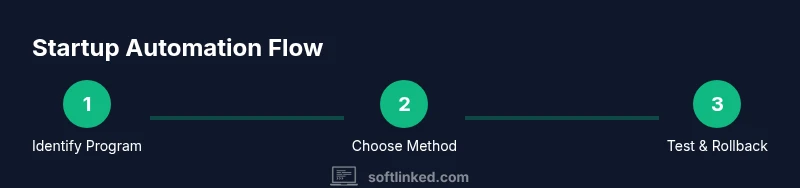
Identify the program to auto-start
Choose the exact executable or script you want to run at startup. Verify it runs cleanly when launched manually, and note any required arguments. If the program requires elevated privileges, plan for a method that supports that capability securely.
Tip: Test the program standalone before configuring startup to rule out path or permission issues. - 2
Decide the startup method
Based on your needs (per-user, system-wide, timing), pick Startup Folder, Task Scheduler, or Registry. Start with Startup Folder for simplicity; move to Task Scheduler or Registry if you need delayed or conditional launches.
Tip: Avoid Registry unless you need system-wide behavior and you’re comfortable with backing up the registry. - 3
Configure the chosen method
Implement the chosen method exactly: add a shortcut to the Startup folder, create a Task Scheduler task with the correct trigger, or edit the Registry Run key with a properly escaped path. Double-check the path and arguments.
Tip: Include a fail-safe by testing under multiple user accounts or with different startup conditions. - 4
Test startup behavior
Reboot the computer and observe whether the program launches as expected. Confirm it doesn’t block other startup items and that it terminates cleanly on shutdown. Document any issues and how you mitigated them.
Tip: If it doesn’t start, review event logs (Windows Event Viewer) for clues. - 5
Create rollback plan
Prepare a safe rollback: remove the startup entry or disable the task, and record steps to revert to a known-good state. Ensure you can undo changes quickly if the startup causes problems.
Tip: Keep a rollback script or documented steps accessible during rollout.
Your Questions Answered
Is it safe to modify the Windows Registry for startup programs?
Modifying the Registry for startup is advanced and carries risk. Always back up the registry and create a system restore point before making changes. Prefer Startup Folder or Task Scheduler for simple needs when possible.
Modifying the registry is advanced and you should back up first. Use startup folders or Task Scheduler for common tasks.
Will startup programs slow down boot time?
Yes, startup items can extend boot time if many programs load at startup. Limit startup items to essential software and stagger non-critical tasks if possible.
Startup items can slow boot time; limit to essentials and stagger non-critical launches.
How do I remove a startup program?
Delete the shortcut from the Startup folder, disable or delete the Task Scheduler task, or remove the Run entry from the Registry. Then reboot to confirm removal.
To remove a startup item, delete its startup entry or disable the task, then reboot.
Can I run a startup program for all users?
Yes, use the All Users Startup folder or a system-wide Task Scheduler task. Administrative privileges are typically required for system-wide changes.
Yes, with all-users startup methods and admin rights.
What should I do if startup fails after an OS upgrade?
Re-evaluate the startup method, verify compatibility with the new OS, and re-test. If needed, revert to a previous configuration or adjust the path and permissions.
If startup fails after an OS upgrade, re-test and adjust as needed.
What is the difference between Startup Folder and Task Scheduler?
Startup Folder runs at logon with minimal settings, while Task Scheduler offers conditional triggers, delays, and elevated privileges. Use the Scheduler for reliability and control when needed.
Startup Folder is simple; Task Scheduler provides more control and reliability.
Watch Video
Top Takeaways
- Choose the simplest startup method first
- Validate startup behavior across accounts and OS versions
- Prioritize security: trust and sign startup executables
- Document changes and maintain a rollback plan