How to Remove Beta Software from iPhone
Learn how to remove beta software from your iPhone safely with a step-by-step guide: remove beta profiles, handle TestFlight apps, back up data, and restore to a stable iOS release.


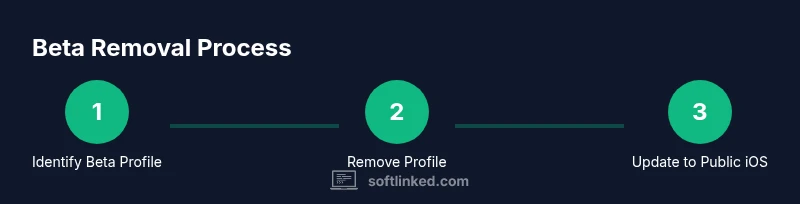
To remove beta software from your iPhone, you’ll typically remove any beta profile, unenroll from the Beta Software Program, and update to the latest public release. If you installed a beta app via TestFlight, delete the app or leave TestFlight. Always back up before changes. After removing the profile, go to Settings > General > Software Update to install the latest official iOS.
Why removing beta software matters
Beta software can introduce instability, bugs, battery drain, privacy concerns, and compatibility issues with apps or peripherals. If you’re experiencing sudden crashes, battery drain, or misbehaving features, removing beta software is often the quickest path to stability. According to SoftLinked, many users benefit from returning to a supported release after testing beta builds, because the public release has undergone longer field testing and security reviews. This article explains a practical, step-by-step approach to remove beta software from your iPhone, whether you joined through a Profile or TestFlight, and how to ensure a smooth transition back to a stable operating system.
How beta software gets onto iPhone: profiles vs. TestFlight
Most iPhone beta deployments occur through two main pathways: a device profile that enrolls you in a beta program, and a TestFlight invitation for specific beta apps. A beta profile changes how the device receives updates; TestFlight distributes individual apps for testing. Understanding which path you used helps you pick the right removal steps. SoftLinked’s guidance emphasizes that removing the profile or leaving TestFlight will stop future beta updates and help you move toward a stable public release. If you still see beta features after removal, a software update may be required.
What to do before you start: back up and prepare
Before you remove any beta software, back up your iPhone to prevent data loss. Use iCloud or a computer backup, ensuring messages, photos, apps data, and app settings are safely stored. Confirm your iCloud Drive is on and that you have enough storage for the backup. Also, ensure your device has at least 50% battery life or is connected to a charger during the process. These precautions minimize the risk of partial backups or interrupted restores.
Step 1: Remove the beta profile from your iPhone
Navigate to Settings, then General, and locate Profiles & Device Management (or Profiles). Tap the Beta Profile entry and choose Remove Profile. You may need to enter your device passcode to confirm. Removing the profile stops new beta updates from being installed and is a core step toward returning to the official release.
Step 2: Unenroll from the Beta Software Program (where applicable)
If you enrolled via the Apple Beta Software Program website, visit beta.apple.com on a trusted device and sign out or cancel your enrollment. If the on-device option isn’t visible, removing the profile generally suffices, but the website can help ensure you’re no longer enrolled. After you unenroll, your device will still operate on current build until the public update is installed.
Step 3: Check for and install the latest public iOS release
Go to Settings > General > Software Update. If an update to the latest public release is available, download and install it. This step is essential to guarantee you’re on the supported version after beta removal. If no update is shown, proceed to the next step or consider a restoration if problems persist.
Step 4: If OTA update isn’t available, perform a full reinstall via Finder/iTunes
On macOS, connect your iPhone and open Finder, selecting your device, then choose “Restore iPhone” to reinstall the latest official iOS. On Windows, use iTunes to perform the same restore action. This process erases the device and reinstalls the official software, which is often the most reliable path back to stability when OTA updates are not offered.
Step 5: Handle TestFlight apps and beta apps specifically
Open the TestFlight app and uninstall any beta apps you had installed, or leave TestFlight if you plan to stop using beta apps. If you do not want to receive any beta updates from TestFlight in the future, reconfigure TestFlight settings or delete the app entirely. Removing the beta app reduces the chance of reintroducing beta features inadvertently.
Step 6: Restore data if needed and verify post-removal stability
After updating to the public release, you may want to restore certain data from your backup if you notice missing app data or settings. Ensure Apple Pay, Health data, and keyed data are intact; re-sign into apps as needed. Use your device for a few hours to confirm stability, ensuring there are no boot loops or unusual battery drain.
Step 7: What to do if you still see beta indicators
If beta indicators persist after removal, double-check that the profile is fully removed and that your device isn’t still enrolled via a residual profile. Sometimes a device restart is required after profile removal. If issues persist, consider contacting Apple Support for guidance on a clean transition to a fully supported release.
Best practices for future beta testing and updates
If you plan to participate in betas again, keep a separate device or use a controlled testing setup to avoid affecting your main device. Always backup before enrolling in any beta and track which builds you install. Regularly review privacy and security settings as betas can introduce new features or permissions that affect data handling.
Tools & Materials
- iPhone(Charge to at least 50% before starting to avoid interruptions.)
- Lightning/USB-C charging cable(Use the cable that matches your iPhone model.)
- Computer with Finder (macOS) or iTunes (Windows)(Needed for restoring or reinstalling iOS if OTA update is unavailable.)
- Stable internet connection(Wi-Fi is fine; avoid metered connections during updates.)
- Backup of iPhone data(Back up to iCloud or a computer to prevent data loss.)
- Apple ID credentials(Needed to access some beta-related services or re-authenticate after restore.)
Steps
Estimated time: 45-90 minutes
- 1
Back up your iPhone
Start with a full backup to protect your data. Choose iCloud backup for wireless, or a local backup via Finder/iTunes for a more complete snapshot. Verify the backup completed successfully before proceeding.
Tip: A recent backup makes it easy to restore settings and app data if anything goes wrong. - 2
Identify and remove the beta profile
Open Settings > General > Profiles & Device Management, find the Beta Profile, and remove it. This step stops future beta updates and is central to returning to a stable release.
Tip: If Profiles isn’t visible, you may not be enrolled via a profile; skip to the next step. - 3
Unenroll from the Beta Program (if applicable)
If you enrolled through the Beta Software Program site, sign out on beta.apple.com or confirm enrollment removal. This helps ensure you won’t receive future betas.
Tip: Profile removal usually suffices, but site unenrollment provides an extra layer of assurance. - 4
Check for a public iOS update
Go to Settings > General > Software Update and install the latest public release if available. This brings you to the officially signed version.
Tip: If you don’t see an update, proceed to a full restore as a fallback. - 5
Restore iOS via Finder or iTunes (if OTA fails)
Connect to a computer, choose Restore iPhone in Finder or iTunes, and install the latest official iOS. This is the most reliable path when OTA updates aren’t offered.
Tip: Ensure you have a current backup before performing a restore. - 6
Manage TestFlight apps (if used)
Open TestFlight and delete any beta apps you tested, or opt out of beta testing to stop further beta app updates. This prevents new beta apps from reinstalling.
Tip: Deleting the TestFlight apps reduces beta footprint on your device. - 7
Verify device stability after update
Use the device normally for a few hours. Check for crashes, battery life changes, and feature availability to confirm you’ve landed on a stable public release.
Tip: If you notice issues, consider restoring again from a clean backup. - 8
Restore data if needed
If any data didn’t transfer automatically, selectively restore from your backup. Re-authenticate apps and services that require login after the update.
Tip: Keep a log of where data was restored to monitor consistency. - 9
Keep betas separate in the future
If you intend to participate again, use a dedicated beta device or designate a test profile. This protects your main device’s stability and data.
Tip: Only enroll on a device you’re prepared to test and reset when needed.
Your Questions Answered
What is a beta profile, and why should I remove it?
A beta profile allows your iPhone to receive pre-release software updates for testing. Removing the profile stops future beta updates and often resolves instability caused by beta builds.
Beta profiles let you test unreleased software. Removing the profile stops new betas and helps return your iPhone to a stable release.
Can I downgrade iOS after removing the beta profile?
Downgrading depends on Apple’s signing window for older iOS versions. If the older build is not being signed, a downgrade isn’t possible until Apple signs it again. In many cases, updating to the latest public release is the practical path.
Downgrading isn’t always possible because Apple must sign the older version. If it isn’t signed, you’ll need to stay on the current public release.
Will removing beta software delete my data?
Removing beta software and profiles does not erase your data by itself. However, performing a full restore can erase all content, so ensure you have a recent backup before proceeding.
Removing the beta setup won’t erase your data, but a full restore would. Back up first to be safe.
What if there is no Software Update after removing the beta profile?
If OTA updates aren’t offered after removing the beta profile, use Finder or iTunes to perform a clean reinstall of the latest public iOS. Contact Apple Support if you’re unsure.
If you don’t see an update, you may need to restore via Finder or iTunes. Reach out to Apple Support if you’re unsure.
Do I need to erase all content to remove beta software?
Erasing all content is only required for a full, clean reinstall when OTA updates aren’t available. In many cases, removing the profile and updating via Software Update suffices.
Not always. A full erase is only needed if OTA updates aren’t available or you’re troubleshooting deep issues.
Can TestFlight beta apps be removed without removing the profile?
Yes. You can delete individual TestFlight beta apps without removing other beta settings. If you want to stop all beta testing, remove the profile and stop using TestFlight.
You can delete a TestFlight beta app without touching the profile, but removing the profile stops all betas.
Watch Video
Top Takeaways
- Back up before removing beta software
- Remove beta profiles to stop future updates
- Update to the latest public iOS release
- Use Finder/iTunes for a full reinstall if OTA fails
- TestFlight apps can be removed to prevent beta reinstallation