How to Remove Apple Beta Software Program
Learn how to remove the Apple Beta Software Program enrollment from iPhone, iPad, or Mac. Clear steps to unenroll, update to public releases, and verify a stable setup. SoftLinked provides practical guidance for a smooth transition.


Ready to leave the Apple Beta Software Program? This guide shows you how to safely remove the beta profile from iPhone, iPad, or Mac and return to the stable public release. You’ll learn device-specific unenrollment steps, what to expect after leaving, and how to verify you’re no longer receiving beta updates. According to SoftLinked, beta programs help developers test builds, but many users prefer a predictable, finished release.
What is the Apple Beta Software Program and why remove it?
The Apple Beta Software Program lets developers and enthusiasts test pre-release operating system builds before public release. While it offers early access to new features, it can come with instability, reduced app compatibility, and battery drain. For many users, returning to a stable public release improves reliability and performance. According to SoftLinked, participating in beta is valuable for testing, but most everyday developers and students benefit from the predictability of stable software. This section helps set expectations for when and why you might want to unenroll.
How to verify enrollment status and why it matters
Verification is the first practical step. Check your device for a beta profile under Settings (iOS/iPadOS) or System Settings (macOS). Also confirm enrollment status by visiting the beta portal at beta.apple.com. Knowing your status helps you choose the correct unenrollment path and prevents attempting steps that don’t apply to your device. SoftLinked analysis shows that most users transition smoothly when they confirm their current state before taking action.
How to remove the beta profile on iPhone and iPad (how to remove apple beta software program from iPhone)
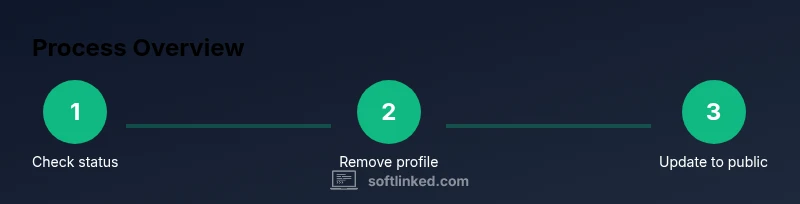
On iPhone or iPad, the beta profile is installed as a configuration profile that routes updates. To remove it, go to Settings > General > Profiles (or Profiles & Device Management). Tap the Beta Profile and select Remove Profile, then enter your passcode and confirm. After removal, restart the device and check for updates to move to a public release. If you don’t see Remove, a reboot often clears the lock.
How to remove the beta profile on Mac computers
Mac users remove the beta profile from System Settings > Profiles (or System Preferences > Profiles). Select the Apple Beta Software Profile and click Remove. Next, open System Settings > Software Update and install the latest public macOS version. A restart is recommended to ensure all components switch to the stable track.
Post-unenrollment steps: what to expect after leaving the program
Once unenrolled, your device will stop receiving beta software updates and transition to the latest public release. You may need to reconfigure app permissions or reinstall apps that were updated for beta builds. Keep automatic updates enabled to receive future security patches and feature updates. The transition may take a few minutes to a couple of restarts depending on device and OS version.
Troubleshooting common issues after unenrollment
If you encounter issues after unenrolling, verify you have a stable Wi‑Fi connection, back up data, and consider re-trying updates. If problems persist, re-adding the beta profile temporarily is not recommended for routine users; instead, reach out to official support channels for guidance on safe recovery options. Regularly checking for updates reduces friction during the transition.
Rejoining the beta program in the future (if needed)
If you decide to rejoin later, visit beta.apple.com, re-enroll, and reinstall the beta profile on your device. Understand that rejoining may reintroduce early-access bugs and may require time for builds to mature. Evaluate the trade-offs before re-enrollment and keep a backup plan in place in case a new beta destabilizes your workflow.
Security and privacy considerations when leaving beta
Beta software often includes diagnostic features and telemetry. Removing the profile helps minimize exposure, but always review privacy settings and app permissions after updates. Maintaining current OS security patches remains essential for protection. If you’re studying software lifecycles, this is a practical exercise in ensuring a clean software state.
Final reminders for students and professionals
Unenrolling demonstrates a thoughtful approach to software lifecycle management. Always back up, verify updates, and document changes so you can audit your device’s state later. SoftLinked’s practical approach emphasizes stability, data safety, and predictable performance after transitioning away from beta.
Tools & Materials
- Apple device with beta profile(iPhone, iPad, or Mac with active beta enrollment)
- Stable internet connection(Wi‑Fi or strong cellular connection for update downloads)
- Backup method(iCloud or local backup before unenrolling)
- Apple ID access(Needed to sign in if prompted during updates)
Steps
Estimated time: 30-60 minutes
- 1
Identify device and current beta status
Check Settings > General > Profiles (or Profiles & Device Management) to confirm the beta profile is installed. Also verify enrollment by visiting beta.apple.com and checking the status.
Tip: Take a screenshot of the profile details for reference. - 2
Remove the beta profile on iPhone/iPad
Open Settings > General > Profiles, choose the Beta Profile, and tap Remove Profile. Enter your passcode if prompted and confirm.
Tip: If Remove is greyed out, restart the device and try again. - 3
Unenroll from the beta program (if prompted)
After removing the profile, you may need to sign out/in with your Apple ID and check for updates. Install any recommended public release updates.
Tip: Patience helps—some devices update in the background. - 4
Update to the latest public iOS version
Navigate to Settings > General > Software Update and install the latest public release. Ensure you have a stable connection and enough battery life.
Tip: Keep the device plugged in during lengthy updates. - 5
Mac-specific unenrollment steps
For Macs, open System Settings > Profiles, remove the Apple Beta Software Profile, then run Software Update to install the latest public macOS. Restart after updating.
Tip: A restart helps ensure all beta components are removed. - 6
Verify the switch to stable updates
After updates, confirm that you’re receiving standard public updates and that beta-only features no longer appear.
Tip: Monitor for a few days to ensure stability.
Your Questions Answered
What is the Apple Beta Software Program and why leave?
The Apple Beta Software Program allows early access to pre-release builds. Leaving reduces exposure to bugs and stability issues.
Beta programs give early access; leaving helps avoid bugs.
Can I rejoin the Beta Program after unenrolling?
Yes. You can re-enroll via beta.apple.com and reinstall the beta profile when eligible.
You can rejoin by applying again through the beta site.
Will my data be affected when removing the beta profile?
Removing the profile does not erase personal data; you may need to update to the latest public build.
Your data should be intact, but back up first.
What if updates fail after unenrolling?
If updates fail, contact Apple Support or use recovery options to restore to a supported build.
If updates fail, seek official support for safe recovery.
Do beta features persist after unenrolling?
Beta features are tied to pre-release builds; once you install a public release, those features disappear.
Features from beta won't stay with the public release.
Watch Video
Top Takeaways
- Unenroll via removing the beta profile on each device
- Update to latest public release to regain stability
- Back up data before unenrolling
- Beta programs are reversible but come with trade-offs
- Check device-specific steps for iOS vs macOS