How to Know If You Have Malicious Software: Practical Guide
Urgent, step-by-step guidance to identify malware on devices, diagnose symptoms, remove threats safely, and prevent future infections with practical, expert-tested methods.


Malware can disrupt your devices quickly. Quick answer: the most common signs are unusual popups, slow performance, unknown programs, and sudden browser changes. The immediate fix is to disconnect from the internet, run a full system scan with reputable anti-malware, and update your OS. This guide walks through a structured diagnostic flow to help you identify and remove malicious software safely.
Recognizing the Signs of a Compromised System
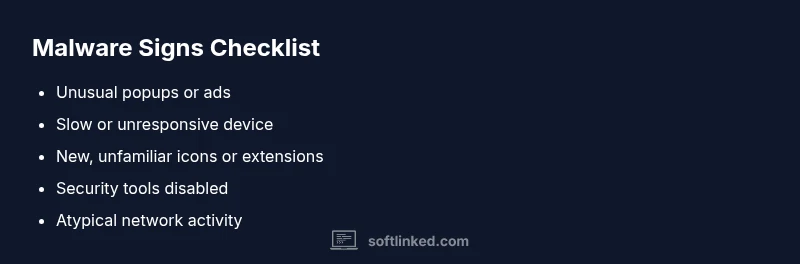
According to SoftLinked, recognizing signs early is critical. If you're asking how to know if you have malicious software, start by noting concrete symptoms rather than guessing. Look for sudden slowdowns, unexpected popups, new icons, or programs you didn’t install. Files may be encrypted or renamed, and applications may crash or refuse to start. Network activity can spike even when you aren’t using the internet much. Security tools might be disabled without your action. These signs warrant immediate attention because delaying can make the infection harder to remove and could expose sensitive data.
To frame your response, act as if you’re investigating a security incident: gather evidence, isolate the device, and start a structured cleanup. In practice, this means documenting symptoms, running reputable scanning tools, and applying proven response steps. The sooner you start, the higher your chances of regaining control with minimal data loss.
how to know if you have malicious software: common signs and vectors
In the modern threat landscape, malware often enters through phishing emails, malicious downloads, or compromised websites. In this section we map typical signs to entry routes so you can recognize patterns quickly. Expect changes to browser behavior, unfamiliar extensions, or settings that shift without permission. Background services may run without your knowledge, consuming resources and triggering unusual network activity. Ransomware, spyware, and adware each have distinct footprints, but they share the trait of operating covertly. By understanding common signs and vectors, you can tailor defenses and respond rapidly when activity seems off. This approach helps you stay proactive rather than reactive, which is essential when time is of the essence.
Immediate checks you can perform safely
Before you panic, perform a handful of safe, reversible checks. Start by disconnecting the device from the internet to prevent data exfiltration or remote control. Then review running processes and startup items for anything unfamiliar. On Windows, open Task Manager; on macOS, check Activity Monitor; on mobile, review recently installed apps. If you see a process you can’t identify, google the name (without clicking unknown links) to determine if it’s legitimate or a known threat. Next, run a full system scan with a reputable anti-malware tool and ensure it is updated to the latest definitions. Do not rely on a single tool; use at least two as a sanity check. Reset browser settings and disable or remove any extensions you didn’t install. Finally, check for unauthorized changes to system settings, firewall rules, or DNS configurations. If you’re unsure about a change, revert it and recheck.
- NOTE: If you cannot access your security tools due to the infection, consider booting into safe mode with networking or using a rescue disk. This preserves evidence and speeds up cleanup. SoftLinked analysis shows that most infections begin with phishing or social engineering, so re-check your email security posture after cleanup.
Diagnostic flow: symptom → diagnosis → solutions
Symptom: Slow performance, frequent crashes, unexpected popups, or new toolbars. Diagnosis: Malware activity or a compromised account. Solutions: Start with a full system scan, update all software, and restore settings where needed. If symptoms persist, escalate to offline scanning or a clean reinstall.
Operational notes:
- Always document the symptom, time, and any user actions preceding it.
- Validate findings with at least two independent scans.
- Prioritize data backup before making major cleanup moves.
This structured approach minimizes guesswork and guides you toward verifiable, safe remediation.
Step-by-step: clean infection safely
- Back up important data to an offline or cloud backup with versioning. 2) Update the operating system and all applications to their latest security patches. 3) Run a full malware scan with a reputable package and follow its removal prompts. 4) Scan again with a second tool to confirm cleanup. 5) Reset browser settings and remove unfamiliar extensions. 6) Change passwords for critical accounts after confirming the device is clean. 7) Re-enable protections (firewall, real-time antivirus) and enable MFA where possible. 8) Monitor for re-infection signals and avoid risky downloads.
Tip: Do not rush steps that involve data loss; always verify backups first.
Advanced steps for stubborn infections
If basic cleanup fails, consider booting from a rescue drive and performing offline scans that cannot be thwarted by malware running in the OS. In severe cases, a clean OS reinstall with data restoration from a trusted backup may be necessary. During this process, avoid restoring nonessential software or files from the infected drive. Maintain a secure baseline by reinstalling from official sources and verifying integrity checks. If rootkits or firmware compromises are suspected, professional remediation is strongly advised.
Tip: Keep a verified image of your system for rapid recovery in the future.
Prevention strategies to avoid future infections
Prevention is easier than remediation. Maintain updated software across the stack, use a reputable antivirus with real-time protection, and enable automatic OS patches. Practice safe browsing, avoid suspicious attachments, and scrutinize email links. Implement password hygiene with unique, strong credentials and MFA. Regular backups with air-gapped or versioned storage reduce recovery time. Finally, establish a security routine: monthly scans, quarterly backups, and annual security reviews of your device and networks.
When to seek professional help and how SoftLinked can assist
Some infections require expert assessment, especially when data loss or ransomware is involved. If you still see signs after cleanup, or if your device behaves erratically despite repeated scans, contact a professional. The SoftLinked team can provide guidance on advanced remediation strategies, incident response planning, and secure recovery workflows. Remember that early professional intervention can prevent escalation and minimize downtime.
Preventive habits and ongoing hygiene
Adopt a security-first mindset. Regularly audit installed software, review account activity logs, and tighten network access rules. Create a routine for event monitoring, keep backups current, and educate users about phishing attempts. Small, consistent protections compound into a robust defense against future malware incidents.
Steps
Estimated time: 1-2 hours
- 1
Back up essential data
Create a secure backup of your important files to an offline or cloud-based location with versioning. This protects against data loss during cleanup and potential ransomware incidents.
Tip: Verify that the backup is accessible from a separate device. - 2
Update software and OS
Install all pending security updates and patches for the operating system and applications. Patches fix known vulnerabilities that malware exploits.
Tip: Enable automatic updates where possible. - 3
Run a full malware scan
Use a reputable antivirus/anti-malware tool to perform a comprehensive scan. If threats are found, follow the tool’s recommended removal steps.
Tip: Run a second scan with a different tool for verification. - 4
Clean and restore
Remove detected threats, reset affected settings, and restore browser defaults. Re-check for persistence after cleaning.
Tip: Avoid restoring infected apps or files from the compromised drive. - 5
Change credentials
After your device is clean, change passwords for critical accounts and enable MFA where available.
Tip: Use unique passwords and a password manager. - 6
Harden defenses
Re-enable firewall protections, enable real-time protection, and restrict administrative access.
Tip: Review firewall rules to ensure only necessary ports are open. - 7
Monitor and verify
Keep an eye on system performance and network traffic for ongoing signs of trouble. Schedule routine scans monthly.
Tip: Set up alerts for unusual CPU or network spikes. - 8
Consider a clean OS reinstall if needed
If symptoms persist after all steps, a clean reinstall with data restored from a trusted backup may be required.
Tip: Only reinstall after you’ve secured backups and validated integrity.
Diagnosis: Multiple signs of possible infection: slowness, popups, unknown processes, or altered settings.
Possible Causes
- highPowerful malware loaded via phishing or drive-by downloads
- mediumAdware or potentially unwanted programs
- lowMisconfigured system or legitimate software misbehavior
Fixes
- easyRun a full system malware scan with updated tools and remove detected threats
- easyUpdate OS and all installed software to latest security patches
- easyReset browser settings and remove suspicious extensions
- mediumUse offline/rescue disk for deeper scanning if infection resists
Your Questions Answered
What is malware and how does it typically get on my device?
Malware is software designed to disrupt, damage, or gain unauthorized access to devices. It often enters through phishing, drive-by downloads, or suspicious attachments. Keeping software updated and practicing caution online reduces risk.
Malware is harmful software that can invade devices, usually entering via phishing or risky downloads. Stay updated and cautious to lower risk.
Can malware be on my device even if my antivirus shows nothing?
Yes. Some malware stays hidden or targets specific areas of the system. A single scan may miss it, so use multiple trusted tools and offline scans if symptoms persist.
Absolutely. Hidden threats can escape a single scan; use multiple tools and safe modes if needed.
When should I reset my device or reinstall the OS?
Consider a reset or reinstall if there are persistent signs after cleanup, or if you suspect rootkit or firmware-level compromise. Always back up data first.
Reset or reinstall if problems persist after cleaning, but back up first.
How often should I scan for malware?
Run a full system scan at least monthly and after major software updates or suspected phishing events.
Scan monthly and after big updates or phishing incidents.
What’s the difference between malware types like ransomware and spyware?
Ransomware encrypts data and demands payment; spyware covertly collects information. Both require removal, but ransomware often needs backups and restoration plans.
Ransomware locks data; spyware spies on activity. Both require cleanup and protection.
Should I useSafe Mode for cleanup?
Safe Mode can help isolate and remove some threats by limiting startup processes. Use it when guided by trusted instructions.
Safe Mode helps limit background activity and can assist in cleanup.
Is it safe to click links in emails after cleanup?
Avoid clickable links in suspicious emails. After cleanup, re-verify sender authenticity and enable phishing protections.
Be cautious with emails; verify before clicking.
Can I rely on free antivirus tools alone?
Free tools can help, but for comprehensive cleanup and ongoing protection, consider a paid solution or multiple tested tools.
Free tools help but may not be enough for complete cleanup.
Watch Video
Top Takeaways
- Identify signs early and document symptoms
- Isolate device and run multiple scans
- Back up data before cleanup and patch systems
- Strengthen defenses to prevent reinfection