How to Clean Software on a Laptop
Learn how to clean software on a laptop safely and effectively. This step-by-step guide covers backups, uninstalling unused apps, clearing caches, managing startup programs, and maintaining privacy and security for better performance.


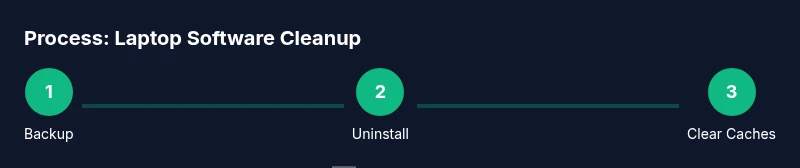
Clean software on a laptop by backing up data, uninstalling unused apps, clearing caches and temporary files, managing startup programs, and tightening privacy and security settings. You’ll use built-in OS tools, safe utilities, and a regular maintenance routine to boost performance, storage efficiency, and reliability without risking data loss. This approach minimizes disruption and keeps software healthy.
Why cleaning software on a laptop matters
According to SoftLinked, keeping your laptop's software clean improves responsiveness, stabilizes performance, and protects privacy. Cleaning software is not erasing your memory; it is trimming the digital clutter that accumulates when you install programs, browse the web, and update apps. Over time, background processes, leftover caches, and misconfigured settings can slow boot times, drain battery, and create software conflicts. A routine cleanup helps you avoid these problems by focusing on the right targets: unnecessary apps, bloated caches, stray temporary files, and unused browser extensions. When you address these areas thoughtfully, you’ll notice faster startups, smoother software updates, and fewer crashes during critical tasks. In addition, a tidy software environment reduces the risk of malware hiding in stale files and gives you clearer visibility into what’s consuming disk space. This block outlines the key benefits, common misconceptions, and a practical approach you can apply on Windows, macOS, or Linux laptops.
Before you start: safety and planning
Before making changes, plan a safe cleanup session. Start with a full data backup to another drive or cloud storage and verify the backup. Create a system restore point (or a similar recovery option) if your OS supports it, so you can revert risky changes. Run a quick malware scan to ensure you’re not cleaning in the middle of a malware infection. Finally, outline what you intend to change: apps to remove, caches to clear, privacy settings to adjust. SoftLinked emphasizes that clear preparation reduces the chance of accidental data loss and allows you to track what you changed for future maintenance.
Tools and settings to prepare
Prepare the right tools and settings before you begin. Ensure you have admin access on the laptop and a backup destination accessible from the machine. Use built-in OS tools first (Windows Disk Cleanup and Storage Sense, macOS Manage Storage and Optimize Storage, or Linux equivalents). Disable automatic cloud backups temporarily during cleanup if you’re cleaning large caches or reinstalling applications to avoid duplicate data. Have a malware scanner ready and ensure browser sync is paused if you plan to clear data across devices. This preparation step minimizes surprises and keeps the cleanup focused and safe.
Uninstall unused apps and manage startup programs
Start by inventorying installed software and removing applications you no longer use. Prioritize removing bloatware and duplicate utilities that provide overlapping functionality. After uninstalling, review startup programs and disable items that launch at boot but aren’t essential. This reduces boot time and frees up CPU and memory resources for your active tasks. Revisit software you might still need but which is rarely used; consider keeping it but adjusting its startup behavior to run only when opened manually. This targeted pruning keeps the system lean without sacrificing needed capabilities.
Clear caches, temp files, and browser data
Caches and temporary files accumulate quickly and can waste disk space and slow performance. Clear system caches, DNS caches, and app caches where appropriate, being careful not to delete essential system files. In browsers, delete cached files, cookies, and history in a controlled way, and consider disabling or limiting extensions that track activity. Removing stale data also helps protect privacy and reduces the attack surface for malware or data leaks. Always run a fresh browser session after clearing to ensure you’re not logged into insecure sessions.
Privacy, security, and ongoing maintenance
As you tidy software, review privacy and security settings. Limit unnecessary data collection, review app permissions, and enable automatic security updates where appropriate. Keep a watchful eye on startup items after changes, and schedule periodic scans for malware and adware. Consider enabling a lightweight ongoing maintenance routine, such as monthly cache cleanup and quarterly software reviews. Writing down what you changed helps you reproduce the process later and informs future decisions about when to repeat maintenance.
Optimize storage with built-in tools and OS features
Leverage built-in storage optimizers to reclaim space and organize data. Use disk analysis tools to identify large, unused files and move or delete them. Enable automatic storage management features where available, and consider using cloud storage or local external backups for large media libraries or archives. Regular storage analysis keeps your laptop responsive and ensures you don’t lose track of why disk space is reclaimed. By pairing analysis with a scheduled cleanup, you maintain long-term performance gains.
Create a maintenance routine and monitoring
Finally, establish a maintenance cadence that fits your usage. A lightweight monthly cleanup, a deeper quarterly review, and an annual full system audit can strike a balance between effort and payoff. Use automated reminders to stay on track, and keep a log of changes so you can measure impact over time. Regular monitoring helps you catch issues early, such as unusual disk usage, unexpected startup items, or creeping software updates that cause compatibility problems. A predictable routine makes cleanup less intimidating and more effective.
Tools & Materials
- Backup destination(External drive or cloud storage with enough space for important files)
- Administrative access(Admin rights on the operating system to install/remove apps and modify settings)
- Antivirus/malware scanner(Up-to-date protection to safely scan before changes)
- Internet-connected computer(Needed to download fresh tools or access support docs if needed)
- Built-in OS tools (Disk Cleanup/Storage Sense or equivalent)(Use first before third-party cleaners)
- Optional third-party cleaning utilities(Use with caution; prefer reputable sources and backups)
Steps
Estimated time: 60-120 minutes
- 1
Back up data
Connect your backup destination and copy critical files. Confirm the backup completed successfully by opening a few key documents from the backup. This protects you if something goes wrong during cleanup.
Tip: Verify the backup by attempting a file restore on a test file. - 2
Update OS and apps
Install the latest operating system updates and app patches. Reboot if required to apply changes. Updated software reduces compatibility issues during cleanup.
Tip: Enable automatic updates after you finish the cleanup to maintain security. - 3
Uninstall unused apps
Review installed programs and remove those you no longer need. Focus on software with heavy background services or redundant functionality. This frees disk space and reduces potential conflicts.
Tip: Keep a short list of essential apps and test removal in small batches to avoid accidental loss of needed functionality. - 4
Manage startup programs
Open the startup manager and disable nonessential programs from launching at boot. This speeds startup and reduces memory usage during daily work.
Tip: If unsure, disable one item at a time and monitor system behavior for 24 hours. - 5
Clear caches and temp files
Clear system caches and browser caches in a controlled manner. Do not delete critical system files. Clearing caches can reclaim space and improve responsiveness.
Tip: Restart after clearing caches to ensure changes take effect. - 6
Tidy browser data
Clear history, cookies, and cached data selectively. Review extensions and disable or remove those you don’t trust or rarely use.
Tip: Disable synchronized data if you’re performing a privacy-focused cleanup. - 7
Scan for malware
Run a full malware scan to detect and remove threats before you proceed with further cleanup steps. Quarantine any suspicious files and re-scan.
Tip: Consider a second scan after cleanup to confirm artifacts aren’t left behind. - 8
Review storage and plan ongoing maintenance
Analyze what occupies disk space and categorize files for ongoing cleanup. Schedule monthly quick cleans and quarterly deeper audits.
Tip: Maintain a simple log of changes to track impact over time.
Your Questions Answered
What does 'cleaning software' mean on a laptop?
Cleaning software involves removing unnecessary applications, clearing caches, managing startup programs, and tightening privacy and security settings to improve performance and reliability.
Cleaning software means pruning apps, clearing caches, and tightening privacy settings to keep your laptop fast and secure.
Is it safe to uninstall programs I don’t recognize?
Only remove applications you recognize as non-essential. If unsure, research the program or temporarily disable it to observe system behavior before fully removing it.
Only uninstall programs you recognize. If unsure, research first or disable them temporarily before removing.
Can I use third-party cleaning tools?
Third-party tools can help, but choose reputable sources and back up data first. Rely primarily on built-in OS tools to minimize risk.
Third-party tools can help, but pick reputable ones and back up first; prefer built-in tools when possible.
How often should I perform this cleanup?
A light monthly cleanup plus a deeper quarterly review strikes a balance between effort and benefit for most laptops.
Do a light cleanup monthly and a deeper one every three months.
What should I back up before cleaning?
Back up important documents, photos, and any work files. If you plan to reset or reinstall, back up application data as needed.
Back up your important files first, especially documents and work data.
What if the laptop slows down after changes?
If performance worsens, revert changes via a restore point, re-enable essential startup items, or re-run a malware scan.
If it slows after cleanup, revert changes or re-scan for issues.
Watch Video
Top Takeaways
- Back up before making changes
- Uninstall unused software to reclaim space
- Clear caches and browser data safely
- Review startup items to improve boot times
- Establish a regular maintenance routine