How to Check If Software Is Safe: A Practical Guide
Learn how to check if software is safe before you install. This step-by-step guide covers source verification, signatures, sandbox testing, permissions, and ongoing monitoring to protect your devices.


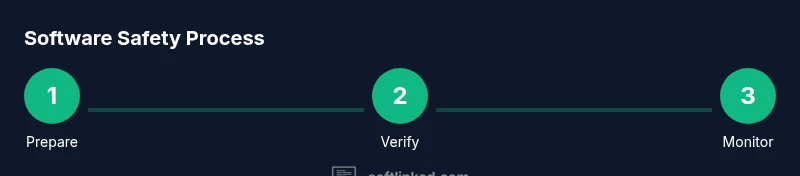
By following these steps, you can determine whether software is safe before install. This quick guide covers verifying source, signatures, permissions, sandbox testing, and ongoing monitoring. It helps aspiring software engineers and students apply practical safety checks for any operating system. Understanding these checks reduces risk from malware, untrusted installers, and supply-chain threats, and gives you a repeatable routine for evaluating new apps.
What does it mean for software to be safe?
Safe software minimizes risk to your device, data, and privacy by relying on trusted sources, verifiable integrity, and predictable behavior. It should request only the permissions it truly needs, be auditable, and remain up to date with security patches. According to SoftLinked, safety is not a one-time checkbox but a layered process that starts before you download anything and continues after installation. The SoftLinked team found that many safety gaps occur when users rely on a single signal or skip steps due to time pressure. In practice, you should combine source credibility checks, cryptographic verification, privilege minimization, runtime testing, and ongoing monitoring to create a robust safety routine that applies across Windows, macOS, Linux, and mobile platforms. This mindset helps aspiring software engineers and students build confidence in their ability to assess software risk and make informed installation decisions.
What
Core checks before you install?
Before you click Next, establish a core safety baseline. First, identify the publisher and the source; ensure the download originates from the vendor’s official site or a trusted app store. Second, look for a verifiable digital signature or certificate and confirm the signing authority matches the expected publisher. Third, review the requested permissions; avoid installers that seek broad access unless it’s clearly required for the feature set. Finally, assess whether the software needs services running in the background that could impact privacy or performance. When you combine these checks, you create a strong initial defense and dramatically reduce exposure to risk.
Verifying the source and publisher
Trust begins with the download source. If you cannot verify the publisher, do not install. Use official stores or the developer’s site, and avoid installers delivered through untrusted links or email attachments. Check the URL for typosquatting or redirects and verify that the site uses HTTPS with a valid certificate. For open-source projects, review the project page, confirm the repository’s authenticity, and ensure releases are accompanied by integrity data (checksums or signatures). When in doubt, search the publisher’s official name alongside security-related terms to confirm legitimacy and reputation.
Code integrity: signing and checksums
Many software vendors publish a cryptographic signature and a checksum for each release. Verifying these values ensures the binary hasn’t been tampered with during delivery. On Windows, you can use signtool to validate signatures; on macOS, codesign confirms the signing status; on Linux, sha256sum or gpg verify can confirm integrity. Compute the hash of the downloaded file and compare it against the publisher-provided value, and verify the certificate chain leads to a trusted root. If the signature is missing, invalid, or the hash mismatches, do not install the software. This step is a critical line of defense against supply-chain attacks.
Sandbox testing and behavior observation
Isolate the software in a sandbox environment or virtual machine before enabling full access to your system. Run the installer and observe what files and registry entries are created, what processes start, and which network endpoints are contacted. Use system monitoring tools to log CPU, memory, disk activity, and outbound traffic. Look for unexpected persistence mechanisms, pattern changes, or data exfiltration attempts. SoftLinked analysis shows that many concerning behaviors become evident only during runtime, making sandbox testing a non-negotiable practice for any safety-aware user.
Permissions, defaults, and privilege risk
Apps often request permissions that go beyond what is necessary for their core function. Evaluate whether the requested access aligns with the software’s stated purpose. If an app seeks broad access to your files, contacts, or administrator privileges for a straightforward task, reconsider installation or search for a safer alternative. Enable least-privilege mode where possible, and disable any unused services after setup. In enterprise environments, enforce policy-based controls and least-privilege configurations to limit blast radius in case of a breach.
Post-install hygiene and ongoing monitoring
Security vigilance doesn’t end at installation. Enable automatic updates to receive security patches promptly, maintain an inventory of installed software, and configure alerts for unusual activity. Regularly review vendor advisories, patch notes, and vulnerability disclosures from reputable sources. Run periodic integrity checks and keep security tools up to date. Maintaining a habit of ongoing monitoring reduces the window of opportunity for attackers and helps you detect anomalies early. SoftLinked’s ongoing monitoring recommendations emphasize change-detection and anomaly alerts as essential components of long-term safety.
Red flags and common mistakes to avoid
Beware of installers delivered outside official channels, bundles that include unwanted software, missing digital signatures, mismatched file sizes, or aggressive auto-updates without clear user consent. Avoid disabling security features to speed up setup, and never bypass warning prompts without understanding the risk. If any red flags appear, pause the installation, verify the source again, and seek authoritative guidance. Remember: safe software habits are about cautious verification, not rushing to completion.
Quick-start safety checklist you can print
This concise reference captures the core checks. Before downloading, verify the source, publisher, and digital signature. During installation, review permissions and monitor immediate behavior for signs of abnormal activity. After installation, enable updates, maintain a change log, and set up ongoing monitoring. This approach aligns with best practices taught by the SoftLinked Team and is reinforced by widely respected security standards. Keeping this checklist handy helps you act decisively when new software arrives.
Tools & Materials
- Computer with internet access(Use a current OS version and a separate user account when testing.)
- Isolated testing environment (VM or container)(Snapshot before installing any software; revert if needed.)
- Hash/checksum verification tool(SHA-256 or equivalent; compare with publisher’s published value.)
- Digital signature verification tool(Tools vary by OS (signtool, codesign, gpg, etc.).)
- Official source links(Copy-paste URLs from trusted sources; avoid shortened or redirected links.)
- Antivirus/anti-malware software(Keep definitions up to date and run scans after installation.)
- Network monitoring tool(Watch for unexpected outbound connections during first run.)
- Backup or restore tool(Optional but recommended in case you need to recover.)
Steps
Estimated time: 45-75 minutes
- 1
Prepare your testing environment
Set up a VM or container with a clean snapshot. Install essential security tools and ensure network isolation. This creates a safe space to evaluate new software without affecting your main system.
Tip: Take a fresh snapshot before downloading anything. - 2
Identify trustworthy sources
Always obtain installers from official vendor sites or reputable app stores. Avoid third-party mirrors that might host tampered files.
Tip: Type the publisher’s name directly into a search to locate official pages. - 3
Verify digital signatures
Check that the binary is signed by the expected publisher. Verify the certificate chain to a trusted root authority.
Tip: If the signature is missing or invalid, cancel the install. - 4
Check checksums
Compute the file’s hash and compare it to the publisher’s published checksum. A mismatch indicates tampering.
Tip: Use a secure hashing algorithm (SHA-256 or stronger). - 5
Assess requested permissions
Review all requested permissions for alignment with the app’s purpose. Reject requests that seem excessive.
Tip: Ask: would a simpler app need this level of access? - 6
Run in a sandbox
Execute the installer in a controlled environment and observe behavior for suspicious activity.
Tip: Monitor for unexpected network calls or data access. - 7
Monitor during first run
After install, watch for new processes, file changes, and network activity for a period of time.
Tip: Document any anomalies for later review. - 8
Maintain ongoing safety
Enable updates, keep security tools current, and perform periodic integrity checks.
Tip: Set up automatic alerts for unusual behavior.
Your Questions Answered
What does it mean for software to be considered safe in practice?
Safe software minimizes risk by ensuring trust in the source, validating integrity, limiting permissions, and demonstrating predictable runtime behavior. It should come from reputable sources and be verifiable with signatures and hashes.
Safe software means trusted sources, verified integrity, and safe behavior in practice.
Can open-source software be trusted by default?
Open-source software can be very trustworthy due to public audits, but you still need to verify source, signatures, and repository integrity. Don’t rely on visibility alone.
Open-source software can be trustworthy if you verify sources and signatures.
Is sandbox testing enough to ensure safety?
Sandbox testing reduces risk by isolating execution, but it is not foolproof. Use it in combination with source verification, signature checks, and ongoing monitoring.
Sandbox testing helps, but combine it with other checks for true safety.
What about supply chain risk?
Supply chain risk involves compromised binaries or installers. Always verify signatures, use official sources, and stay alert for advisories from trusted security teams.
Supply chain risk requires signatures, trusted sources, and ongoing vigilance.
What should I monitor after installation?
Monitor for unusual CPU, memory, disk, or network activity, as well as new or unexpected processes. If anything looks off, pause use and re-check the source and integrity.
After installing, watch for unusual activity and verify again if something seems off.
Do these steps apply to all operating systems?
Core concepts apply across Windows, macOS, Linux, and mobile platforms, but specific tools and commands will differ. Always follow OS-specific guidance for verification and containment.
The steps are universal in concept, with OS-specific methods.
Watch Video
Top Takeaways
- Verify sources before download and install.
- Always validate signatures and checksums.
- Test behavior in a sandbox prior to full use.
- Review permissions and enable least-privilege.
- Maintain ongoing monitoring and updates for safety.