How to Check If Software Is Installed on Linux
Learn reliable methods to verify software installation on Linux using package managers, commands, and logs. A practical, developer-friendly guide by SoftLinked.


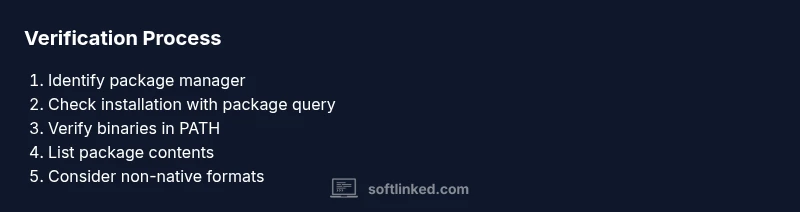
To check whether software is installed on Linux, start with your package manager: dpkg -s <pkg> or rpm -q <pkg> to see installed status, or use pacman -Q <pkg> on Arch-based systems. You can also locate the executable with which <cmd> or type -a <cmd>. For file-level verification, list package contents with dpkg -L or rpm -ql.
Understanding Linux package managers and why the check matters
In Linux, software installation is tracked by a package manager. Knowing how to check if software is installed on linux helps with debugging, auditing, and ensuring reproducible environments. Whether you're a student learning the fundamentals or a developer maintaining a setup script, understanding package managers is essential. This guide uses practical, real-world steps to anchor your learning and connect commands to outcomes. Different families—Debian-based, Red Hat-based, Arch-based—use distinct tools and workflows, but the core idea remains the same: verify the package's presence, its version, and its binaries. In this section, we lay the groundwork for reliable checks across distributions and explain the general concepts that underlie every Linux environment. The SoftLinked team emphasizes practical methods that work on real machines and in research settings. This approach aligns with SoftLinked Analysis, 2026, which found that beginners benefit from consistent verification steps rather than guesswork.
How to check on Debian-based systems (dpkg and apt)
Debian-based distributions use dpkg as the backend and apt as the user-friendly front end. To answer how to check if software is installed on linux on these systems, start with dpkg -s <package> to view status, version, and description. If you need metadata, apt-cache show <package> provides dependencies and origin details. If the package is not installed, these commands will usually exit with a nonzero status. For quick confirmations, dpkg -L <package> lists all files the package installed, which helps confirm the presence of binaries and config files. Keeping a short list of target packages helps you audit environments quickly.
How to check on Red Hat-based systems (rpm and dnf)
Red Hat family systems rely on rpm for status information and dnf for modern, robust querying. To verify installation, rpm -q <pkg> returns installed status and version. For richer data, dnf info <pkg> or dnf list installed <pkg> shows dependencies, architecture, and repository origin. A successful response indicates the package exists on the system; failed queries can point to naming mismatches or missing repositories. You can also list installed files with rpm -ql <pkg> to verify the footprint.
How to check on Arch-based systems (pacman)
Arch Linux and its derivatives use pacman as the primary package manager. The simplest check is pacman -Q <pkg> to confirm installation, while pacman -Qi <pkg> reveals a full metadata block with version, install date, and description. If a package is not found, double-check the exact name since Arch package names sometimes differ from common binaries. Pacman also offers pacman -Ql <pkg> to list installed files and their system paths, which is useful for auditing and troubleshooting.
Checking via PATH and shell utilities (which, type, command -v)
A program being installed does not guarantee it is in your PATH. Use which <cmd>, type -a <cmd>, or command -v <cmd> to locate the binary and confirm executability from your shell. If these utilities return a path, the binary exists and can be run. If nothing is returned, the program may be absent from PATH or not installed at all. This quick check complements package manager queries and helps you assess immediate usability.
Verifying package contents and footprints (list files)
Beyond status, listing a package contents confirms the exact files placed on the system. Debian-based systems: dpkg -L <pkg>, Red Hat-based: rpm -ql <pkg>, Arch-based: pacman -Ql <pkg>. Review the main binary, man pages, and configuration directories to ensure the installation matches your expectations. Cross-checking with the program's own help output can further confirm a successful setup and proper integration with your environment.
Handling non-native formats: Snap, Flatpak, AppImage
Not all software on Linux comes through the distro's native package manager. Snap, Flatpak, and AppImage installations may not appear in dpkg, rpm, or pacman databases. To verify, use snap list for Snap, flatpak list for Flatpak, and inspect AppImage locations or run the AppImage directly. Keep in mind that these formats have distinct update and isolation models, which can affect how you verify installation status.
Source builds and manual installs (from source)
Software built from source or installed manually is not tracked by the package manager. Look for binaries in common locations such as /usr/local/bin, /usr/bin, or /opt. If you built from source, the installation path is often recorded in a build log or README. Verifying installation in this case means checking viable executables, library presence, and the ability to run the program with a version flag. Documentation of origin is crucial for reproducibility.
Dealing with multiple versions and conflicts
Sometimes more than one version of a tool exists on a system. Compare versions using the package manager's version query or binary --version output. If PATH precedence causes older or newer versions to run unexpectedly, adjust PATH or use alternatives features (like update-alternatives on Debian-based systems) to select the desired version. Clear version management reduces conflicts in scripts and manual workflows.
Practical troubleshooting tips when checks fail
If a check fails, refresh metadata first with apt update, dnf update, or pacman -Syu as appropriate. Re-run the checks to confirm outcomes. Look for typos in package names, repository problems, or cached metadata mismatches. When in doubt, search the distro's package database or documentation for renamed packages or deprecated options. These steps save time and keep your environment trustworthy.
Best practices for repeatable checks and audits
Document each verification step in a README or script, including distro, version, and exact commands used. Store outputs to a log for future audits or CI pipelines. Keep a minimal, portable set of commands that work across your typical environments. This discipline makes software verification resilient to changes in packaging and distributions.
Automating checks in scripts for consistency and speed
Embed these checks in shell scripts to enforce requirements before deployment. Use exit codes to signal success or failure, and log all outputs for review. For portability, detect the package manager at runtime and adapt commands accordingly. The goal is to produce reliable results with minimal manual effort, enabling you to scale learning and implementation alike.
Tools & Materials
- Terminal or SSH session(A Bash or Zsh shell is fine)
- Package manager access (apt, dnf, pacman, etc.)(Ensure you can run package-manager commands)
- Target software list (names to check)(Have 3-5 common examples ready)
- Sudo privileges(Needed for system-wide updates or verbose checks)
- Knowledge of alternative formats (Snap, Flatpak, AppImage)(Helpful for non-native installs)
- Internet access(May be needed to refresh metadata)
Steps
Estimated time: Total time: 25-40 minutes
- 1
Identify your package manager
Open a terminal and determine which package manager your distribution uses. This guides which commands you will run later and ensures you query the correct database for installed software.
Tip: Run 'echo $SHELL' and 'cat /etc/os-release' to confirm your environment. - 2
Check installation status with dpkg, rpm, or pacman
Use the distro-specific command to verify installation: dpkg -s <pkg>, rpm -q <pkg>, or pacman -Q <pkg>. If the command returns information including a status and version, the package is installed.
Tip: Replace <pkg> with the exact package name; misnaming is a common source of confusion. - 3
Query package metadata
For Debian-based systems, apt-cache show <pkg> can reveal dependencies and metadata. For Red Hat-based, dnf info <pkg> provides similar details. This helps confirm not only installation but also compatibility and origin.
Tip: Metadata helps avoid installing conflicting or deprecated versions. - 4
Verify binary presence in PATH
Check whether the executable is accessible: which <cmd>, type -a <cmd>, or command -v <cmd>. If a binary is found, it is likely ready to run from your shell.
Tip: If nothing is returned, the program may be absent from PATH or not installed. - 5
List files installed by the package
List the package contents to confirm critical files are present: dpkg -L <pkg>, rpm -ql <pkg>, or pacman -Ql <pkg>. This step helps verify the installation footprint.
Tip: Look for the main binary and configuration files relevant to your use case. - 6
Check non-native install formats
If you use Snap, Flatpak, or AppImage, use snap list, flatpak list, or locate the AppImage file. These formats aren’t always tracked by the distro’s native package manager.
Tip: Non-native formats can cause confusion if you rely only on apt/dnf/pacman. - 7
Inspect for source-based installations
When software is built from source, the package manager won’t show it. Look for binaries in common locations such as /usr/local/bin, check for a build directory, or use the program’s own --version flag.
Tip: Document the build origin to maintain reproducibility. - 8
Test the software version
Run <pkg> --version or <cmd> -v to confirm the program starts and reports a version number. This verifies a usable installation beyond metadata.
Tip: Some commands require specific flags; try --help if --version fails. - 9
Document results for audits
Save the outputs to a log file and note distro, release, and package names. Documentation aids future maintenance and CI checks.
Tip: Use a consistent log format to simplify parsing later.
Your Questions Answered
What qualifies as installed on Linux for the purpose of verification?
In Linux, installed typically means the package is registered with the system package manager and its files are present. Verification includes status, version, and a reachable binary. If a package reports installed, you should be able to locate its files and run its executable.
Installed means the system records the package and its files; you should be able to run the program from the command line.
How do I verify installation for another user or a minimal environment?
Verification methods are user-agnostic: use package manager queries as the target user, and check the PATH for the executable. If permissions or environments differ, consult system-level logs or admin policies to confirm access. The goal is consistent results regardless of user context.
Use the same package manager queries and PATH checks, then consider user permissions if results differ.
Does this approach work with container images or isolated environments?
Containers can have separate file systems; verify inside the container using the same package manager commands or inspect installed images with container-specific tools. Outside the container, your host OS checks may not reflect container contents. Treat containers as separate environments for verification.
Inside the container, use the same checks as on the host; containers are separate environments.
What if I installed from source or via a non-packaged method?
If software was built from source, it may not appear in package databases. Look for binaries in common locations, check for a configure or build log, and verify the executable directly. Documenting the origin helps future maintenance and reproducibility.
Source builds won’t show up in package managers; verify binaries directly and note the origin.
Should I trust package manager outputs completely?
Package managers are reliable indicators of installation status, but they may not cover non-native formats or incomplete installations. Combine package queries with binary checks and file listings for a complete picture. Always consider edge cases like partial installs or broken packages.
Package managers are trustworthy, but combine checks for a complete picture.
How can I automate these checks in scripts?
Embed the checks in a shell script that detects the distro, queries the package manager, validates PATH, and logs results. Use exit codes to signal success or failure and structure logs for easy parsing. Automation improves consistency across machines.
Yes, you can automate with a script that runs the queries and logs results.
Watch Video
Top Takeaways
- Know your distro's package manager and commands
- Use multiple checks for accuracy
- Verify both installation status and executable availability
- Automate checks to stay current