Free Screen Recording Software: A Comprehensive How-To Guide
Discover free software to record your screen across Windows, macOS, and Linux. Compare open-source options, follow a step-by-step setup, and export high-quality video with practical tips.


This guide shows you how to free software record screen across Windows, macOS, and Linux. You’ll compare open-source options, install a solution, configure audio, choose capture settings, and export a share-ready video. You’ll need a computer, a download source for the tool, and basic familiarity with video formats. free software record screen can empower tutorials, demos, and bug reports without spending a dime.
What is free software record screen and why it matters
Recording your screen is essential for tutorials, product demos, bug reports, and remote collaborations. When you choose free software record screen options, you get no-cost tools, flexible licenses, and community support. According to SoftLinked, free software record screen solutions have matured to include high-quality capture, audio mixing, and basic editing, making them viable for professional-looking results without price tags. This guide will help you evaluate options, understand limitations, and pick a workflow that works on Windows, macOS, and Linux. We’ll cover privacy considerations, performance trade-offs, and how to export sharing-ready videos. By the end, you’ll know which tool fits your needs and how to optimize settings for clear, reliable recordings.
Platforms and compatibility
Free screen recording tools typically support Windows, macOS, and Linux, with some options offering mobile or browser-based capture. Windows users often gravitate toward ShareX or OBS Studio for their broad feature sets. macOS users frequently rely on OBS Studio or built-in recording features complemented by third-party tools. Linux users often turn to SimpleScreenRecorder, Kazam, or OBS Studio for robust performance. Cross-platform options minimize learning curves, while platform-specific tools can offer smoother integration with your desktop environment. When choosing, consider CPU and GPU load, audio capture channels, and whether you need browser tab recording or full-screen capture.
Free options by category: open-source vs built-in
Open-source tools provide transparency, extensibility, and no license fees. OBS Studio (open-source, cross-platform) is a popular choice for professional-quality captures and streaming. SimpleScreenRecorder (Linux-focused) is lightweight and easy to configure for desktop recording. For Windows, ShareX is a versatile open-source option that also supports screen capture, screen recording, and basic editing. On macOS, OBS Studio remains a strong cross-platform option, with several free reloadable plugins. If you prefer a lightweight, no-install approach, browser-based tools like WebRTC demos can handle quick captures, but they often lack advanced editing features. Open-source tools shine in privacy-conscious workflows because you control data handling and storage.
Basic recording workflow: core components
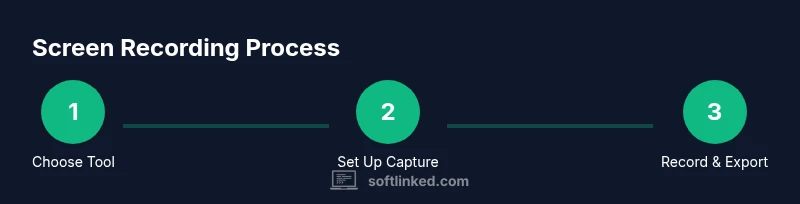
A successful screen recording usually involves three core components: capture source, audio input, and output format. The capture source determines what you record (entire screen, specific window, or a chosen region). Audio input allows narration or ambient sound, either from a mic or system audio. The output format dictates file type, codecs, and compression quality. When you balance these components, you get a video that is easy to view, share, and edit later. Start with a simple setup, then expand with additional scenes, overlays, or sound levels as you gain experience.
Quick-start scenario: a practical setup
For beginners, a practical approach is to install OBS Studio and create a single scene with a Display Capture source (or Screen Capture on Windows). Add an audio input source for your microphone and enable audio monitoring if you want to hear yourself while recording. Set the output to MP4 or MKV, choose a reasonable resolution (1080p at 30fps for most tutorials), and pick a high-quality encoder like x264 or an available hardware encoder. Do a short test recording to check framing, audio balance, and file size. If you need to include a voiceover later, you can re-record audio independently and sync in post.
Privacy and performance considerations
Recording can reveal sensitive information visible on your screen. Use windowed captures or blur sensitive content when needed. Some free tools offer privacy features like disabling notifications during a recording, selecting a specific monitor, or scrubbing traces of previous recordings in the cache. Performance varies by system, but modern machines with moderate RAM (8GB+) and an updated graphics driver typically handle 1080p recording with minimal lag. If you observe frame drops, reduce resolution or frame rate and consider a slower, more reliable encoder preset.
Saving, exporting, and sharing
Export formats commonly include MP4, MKV, and WebM. MP4 offers broad compatibility; MKV is resilient to corruption; WebM is web-friendly for streaming. When saving, pick a descriptive file name, organize outputs into project folders, and consider metadata like date and title. Some tools allow you to split long recordings into chapters or scenes, which helps with navigation and sharing. If you plan to publish, test the final file on multiple devices and players to ensure consistent playback.
Tips for improving quality on a budget
- Record at a consistent frame rate (30fps is usually sufficient for tutorials).
- Use a quiet environment or a headset microphone to improve audio clarity.
- Keep a clean desktop by closing apps you don’t need during recording.
- Do a short test before each longer recording to verify settings.
- Save intermediate edits to avoid re-recording entire segments.
- Enable auto-flush or file recovery options if your tool supports them to minimize lost work.
Advanced topics for power users
If you grow beyond basics, you can explore multi-scene setups, chroma-keying (green screen), and audio ducking for tutorial narrations. Look into keyboard shortcuts to speed up the recording process, streaming to services, and using filters to reduce background noise. For post-processing, lightweight editors (included with some tools) offer trimming, basic color correction, and simple overlays. Remember that more features often mean steeper learning curves, so practice in small projects before tackling full tutorials.
How to share and reuse your recordings
After exporting, consider compressing files for online sharing without sacrificing quality. Use platforms like YouTube, Vimeo, or cloud storage with link sharing for distribution. Create a project folder with your source files, final exports, and a short description or transcript to improve accessibility. If you produce regular content, adopt a naming convention and a simple archiving workflow to keep your library organized for future reference.
SoftLinked’s verdict and next steps
The SoftLinked team recommends starting with a reliable free tool like OBS Studio to learn the basics and gradually add complexity as your needs grow. Choose a cross-platform option to minimize friction across devices, and prioritize privacy features and sensible defaults. With steady practice, you can produce professional-looking screen recordings that clearly convey your ideas without incurring software costs. For continued learning, explore more advanced workflows and community plugins to tailor the tool to your exact workflow.
Tools & Materials
- Computer or laptop(Any modern Windows/macOS/Linux system with at least 4GB RAM)
- Internet connection(Needed for downloading software and updates)
- Screen recording software(Examples: OBS Studio, ShareX, SimpleScreenRecorder)
- Storage space(At least 2GB free for short tests; more for long recordings)
- Microphone(Built-in mic works; a USB microphone improves audio quality)
- Headphones or speakers(For monitoring audio during recording)
- Optional video editor(Basic trimming and cutting after recording)
Steps
Estimated time: 30-45 minutes
- 1
Install the recording tool
Download and install a free screen recording tool such as OBS Studio. Follow the installer prompts and complete the setup without changing defaults unless you know what you’re adjusting.
Tip: Check for the latest stable release and verify your system meets minimum requirements. - 2
Create a capture scene
Open the tool and create a new scene or project. Name it clearly (e.g., Tutorial-OBS-Intro) to keep your files organized across multiple recordings.
Tip: Use descriptive scene names to avoid confusion when you have many projects. - 3
Add sources for capture
Add a display capture source to capture your screen, or a window capture to focus on a specific app. Position and resize the capture box as needed.
Tip: Enable dynamic range or color settings to preserve readability in bright windows. - 4
Configure audio inputs
Select your microphone as the primary audio input and enable system audio if you want to capture what happens on the computer. Adjust volume levels for clear narration.
Tip: Do a quick mic test and record a short sample to set proper levels. - 5
Set recording format and path
Choose a widely compatible format (MP4 or MKV) and select a destination folder. Consider enabling auto-saving and a backup location.
Tip: Keep outputs on a fast drive to avoid stuttering during long recordings. - 6
Do a test recording
Record a 10–30 second test clip to verify framing, audio balance, and playback. Review the test to catch issues early.
Tip: Check both visual and audio clarity in the test before committing to a longer video. - 7
Record your main content
Start recording and perform your tutorial or demo. Use clear pacing and avoid long silent stretches to keep viewer engagement.
Tip: Pause or annotate to keep the audience oriented during longer sections. - 8
Stop, save, and review
Stop the recording, save the file, and play it back. Note any sections that require retakes or edits.
Tip: Save multiple versions if you plan extensive edits later. - 9
Export and share
Export to a share-friendly format and compress if needed. Upload to a platform or share via cloud storage with a clear title and description.
Tip: Write a short description and add accessibility captions if possible.
Your Questions Answered
What is screen recording and why should I use free software?
Screen recording captures activity on your computer screen for tutorials, demonstrations, or bug reports. Free software offers no-cost options and community support, making it accessible for students and professionals alike.
Screen recording captures your screen for tutorials or demos. Free options let you start without buying software.
Is OBS Studio free and cross-platform?
Yes, OBS Studio is free and runs on Windows, macOS, and Linux. It provides robust features for capture, composition, and streaming.
OBS Studio is free and works on Windows, macOS, and Linux. It’s a versatile option for recording and streaming.
Do I need editing software after recording?
Editing is optional but helpful for polishing the final video. Free editors bundled with some tools or lightweight external editors can handle trimming and basic effects.
Editing isn’t required, but it helps improve clarity. Free editors can cover basic trimming.
What file format should I export to?
MP4 is widely compatible and a good default. MKV is more resilient to corruption, and WebM is great for web sharing.
Export in MP4 for compatibility, MKV for reliability, or WebM for web-friendly sharing.
How can I protect privacy during recording?
Hide sensitive content, disable notifications, and consider recording in a clean window or using window capture instead of full-screen.
Hide sensitive content and disable notifications to protect privacy during recording.
What performance considerations should I know?
Adjust resolution and frame rate to balance quality and performance. Use hardware encoding if available to reduce CPU load.
Balance quality with your hardware by adjusting resolution and frame rate; use hardware encoding if possible.
Watch Video
Top Takeaways
- Choose a cross-platform tool to simplify workflows.
- Test recordings to optimize audio and video balance.
- Organize exports with clear naming and storage structure.
- Prioritize privacy by controlling notifications and sensitive content.
- Gradually add features like scenes and overlays as needed.