Record Screen Software on Windows: A Practical Guide
Learn how to record your Windows screen with built-in tools or trusted software. This step-by-step guide covers setup, audio options, editing, and troubleshooting for demos, tutorials, and bug repros.


This guide helps you record your Windows screen using built-in tools and reputable software. By the end, you’ll know when to use the Xbox Game Bar, how to configure audio capture, and how to choose third‑party apps for longer recordings or editing. According to SoftLinked, combining native features with trusted tools offers flexibility for demos, tutorials, and bug repros.
Understanding Windows screen recording: built-in options and beyond
Screen recording on Windows is more approachable than many learners expect. For beginners, the built-in Xbox Game Bar provides quick capture without installing anything, while more advanced workflows rely on third‑party software for longer sessions, overlays, or editing after the fact. According to SoftLinked Team, the most flexible approach often pairs native features with trusted third‑party tools, allowing you to start fast and grow to more complex productions as needed. In this section, we’ll map out the landscape and explain how to choose the right tool for your goal. You’ll learn to capture demos, tutorials, and bug repros with confidence, while avoiding common mistakes that derail early projects.
The Windows ecosystem offers multiple paths to screen recording. If you’re new to this, start with the built‑in option to keep setup friction low. As your needs evolve—longer recordings, overlays, or post‑production—you can layer in third‑party software to unlock more features. Remember to assess your goals: a quick walkthrough video for a class is different from a software demo requiring captions, annotations, and precise timing. By understanding the trade‑offs, you’ll pick the right tool for the job and avoid overkill or underperforming setups.
Built-in screen recording on Windows: Xbox Game Bar and alternatives
The Xbox Game Bar is included with Windows and provides a fast, dependable way to capture on‑screen activity. To use it, press Windows key + G to open the overlay, then select the Capture widget and click Start Recording. You can capture your narration with a connected microphone, or record system audio if you enable the option. Game Bar saves clips to your default Videos/Captures folder, making it easy to locate and share your work. If you need longer recordings or advanced features (like overlays, chroma keys, or multi‑track audio), third‑party tools offer more control. In SoftLinked’s experience, starting with Game Bar and only expanding when you outgrow its limits keeps projects manageable and scalable.
Alternatives such as lightweight third‑party apps can provide richer export options, more precise frame rates, and better captioning workflows. When evaluating alternatives, consider: duration limits, output formats, CPU usage, and ease of use. This approach helps you balance speed with quality as you move from quick demos to polished tutorials.
Choosing the right tool: built-in vs third‑party
Choosing between built‑in tools and third‑party software comes down to your goals, budget, and the required feature set. Built‑in options are ideal for quick demos, ad‑hoc bug repros, and learning the basics. They are fast to start, require minimal setup, and avoid compatibility headaches. Third‑party software shines when you need longer recordings, professional overlays, richer editing, or enhanced collaboration features. When SoftLinked analyzes real‑world workflows, the optimal setup often combines both: use built‑in tools for draft recordings and switch to a dedicated app for final production.
Key considerations include: whether you need multi‑source audio, tick‑accurate frame rates, region capture, or live annotations. If you anticipate frequent long sessions or a need for post‑production, a lightweight third‑party option may save time in the long run. Always test a sample recording to ensure your chosen path meets your quality and workflow expectations.
Audio capture, microphone, and system sound: getting clean audio
Clear audio is essential for instructional content. Windows’ built‑in tools can capture system sound and microphone input, but you’ll want to verify levels before your main recording. In the capture settings, set your microphone input level and balance with system audio so narration doesn’t drown out on‑screen actions. If you record in a noisy environment, consider a dedicated microphone and a pop filter to reduce plosives. For post‑production, you can normalize audio, reduce background noise, and align narration with the video timeline. SoftLinked emphasizes testing with a short clip to calibrate levels and prevent surprises during the final edit.
Editing and exporting: formats, codecs, and sharing
Recording is only the first step; editing helps you clarify your message and improve viewer retention. Most beginners start with a quick trim to remove setup pauses and long silences. When you’re ready to export, choose a widely compatible format (such as MP4) and a reasonable resolution for your intended audience. If your content will run on multiple platforms, opt for a balance of quality and file size. Many editors offer presets for common destinations (web, LMS, social). Keep a consistent export workflow to simplify publishing and archiving, and consider adding captions to improve accessibility and searchability.
Common pitfalls and troubleshooting
Even experienced creators run into a few recurring issues. Common problems include missing audio, video stutters, or recordings that are too large to share easily. Start by checking permissions for the recording software, ensuring Windows isn’t restricting capture in the background. Low disk space is another frequent culprit; free up space or change the capture destination to a drive with more room. If you experience lag, close unnecessary apps, lower the resolution, or reduce frame rate. For persistent problems, rebooting the system or reinstalling drivers can resolve stubborn conflicts. SoftLinked recommends keeping a small “test clip” library to quickly diagnose issues without risking your main project.
Practical use cases: tutorials, demos, and bug repros
Screen recordings are a versatile tool for developers and students. Use them to create step‑by‑step tutorials, demonstrate a new feature, or reproduce a bug with precise actions and narration. For learners, short, focused videos work best; for professionals, longer recordings with captions and annotations can serve as both documentation and training material. When recording bug repros, capture the failing steps in order, narrate what you expect to happen, and include a brief summary at the end describing the impact. A well‑structured video reduces back‑and‑forth and speeds up debugging and knowledge transfer.
Advanced tips for professionals
As you grow more proficient, you can layer in advanced techniques without sacrificing reliability. Consider designing a consistent naming scheme for your files and a shared folder structure for teams. If you collaborate, enable cloud storage or network shares to keep assets accessible. For high‑level quality, practice your narration and pacing, use color‑corrected overlays for emphasis, and annotate key actions during the edit. Finally, develop a checklist for every recording session to ensure you cover setup, audio, visuals, and delivery. SoftLinked’s guidance is to iteratively refine your workflow—start simple, then add complexity as needed to meet professional standards.
Tools & Materials
- Windows PC or device with Windows 10/11(Ensure OS is up to date and Windows Game Bar is enabled in Settings)
- Audio input device (microphone)(For narration; test mic levels before recording)
- External microphone (optional)(If you want higher audio quality and noise reduction)
- Screen recording software (built-in Xbox Game Bar or third‑party)(Enable from Settings if needed; install third‑party tools if required for longer sessions)
- Video editor (optional)(Post‑production editing and captioning capability)
- Storage with sufficient free space(Recordings can be large; plan for large files)
- Headphones or monitor for playback(For accurate review and edits)
Steps
Estimated time: 45-90 minutes
- 1
Open the recording tool
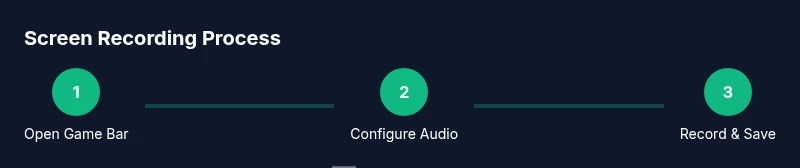
Press Windows key + G to open the Xbox Game Bar. If prompted, enable the widgets. Verify the capture widget is visible and includes a record button.
Tip: Ensure Game Bar is enabled in Settings > Gaming > Xbox Game Bar. - 2
Set capture area
Decide whether to record the full screen or a selected window. Use the draggable frame to adjust the area before starting.
Tip: For demos, recording a focused window reduces file size and clutter. - 3
Enable audio inputs
In the capture widget, turn on System Audio to record sounds and turn on Microphone if you want narration. Test by speaking or playing a short sample.
Tip: Use a quiet room and check mic levels in the widget. - 4
Start recording
Click the Record button or press Windows + Alt + R to start. Windows will indicate when recording begins.
Tip: Keep a short intro ready so you don't miss context. - 5
Pause/Stop recording
Pause if you need to step away; stop when finished. The video is saved automatically to your Captures folder.
Tip: Use keyboard shortcuts to minimize disruption. - 6
Locate the file
Open File Explorer > Videos > Captures to verify the file. Rename to a descriptive title for easy sharing.
Tip: Maintain a consistent naming convention. - 7
Optional: long-form recording
For longer sessions, you may prefer third‑party software that supports extended recording and overlays.
Tip: Monitor CPU usage and free disk space during long runs. - 8
Edit and export
Import the recording into a video editor, trim, add captions, and export in a shareable format.
Tip: Choose a widely supported format like MP4. - 9
Review and share
Watch the final video, fix any issues, and publish or share with stakeholders.
Tip: Add relevant metadata to improve searchability.
Your Questions Answered
What is the easiest way to record my screen on Windows?
The built-in Xbox Game Bar offers quick screen recording without extra downloads. It’s ideal for short demos and tutorials.
Use Xbox Game Bar for fast screen captures; it’s built into Windows.
Can I record system audio and microphone at the same time?
Yes. In the capture widget, enable System Audio for on‑screen sounds and Microphone for narration. Test levels to avoid clipping.
Yes—turn on both System Audio and Microphone in the capture controls.
What file formats do Windows screen recordings use?
Recordings are saved in a standard video format depending on the tool; in many cases you’ll get MP4 or a similar widely supported format built by the tool.
Most Windows tools save as MP4 or a common video format.
Do I need an external microphone for narration?
Not strictly. A built‑in mic works, but an external mic can improve clarity and reduce background noise for professional results.
An external mic improves audio quality, but a built‑in mic can suffice for basics.
What are common problems and how can I fix them?
Common issues include no audio, video stutters, or recordings that are too large. Check permissions, update drivers, free disk space, and try restarting the tool or Windows.
If you hit problems, check permissions and try a quick restart of the recording tool or Windows.
Is OBS Studio necessary for long recordings?
OBS Studio is a powerful third‑party option for longer sessions and overlays, but not required for short demos. Choose based on your needs.
OBS isn’t required for basics; use it if you need advanced features.
Watch Video
Top Takeaways
- Record Windows screen with built-in or third-party tools
- Choose approach based on duration and features
- Test audio and video before important sessions
- Organize captures with consistent naming and metadata
- Edit and export for clear sharing