Can You Undo a Software Update on iPhone? A Downgrade Guide
Can you undo a software update on iPhone? Learn when downgrading is possible, required backups, and step-by-step actions to revert to a signed iOS version safely.


Yes, you can undo a software update on iPhone, but only if Apple is still signing the older iOS version and your model supports it. Downgrading typically requires a computer, the correct IPSW file, and recovery mode; if the signing window has closed, downgrades are not possible. Always back up before attempting, and be aware of risks to data and compatibility.
Can you undo a software update on iPhone? What downgrade means
Downgrading an iPhone OS refers to installing an earlier iOS version than the one currently running. It is not a guaranteed option and depends on Apple's signing status and your device model. In 2026, many downgrades are only possible within a limited signing window. The SoftLinked team emphasizes verifying signing status and backing up data before attempting any downgrade. This preliminary check helps you understand whether reverting to a previous iOS version is feasible and what risks you should expect. Issues that block downgrades include non-availability of older iOS builds for newer devices, iCloud backups not compatible with older versions, and the possibility that certain features or apps require compatibility updates. If downgrade is not possible, alternatives include staying on current version, reporting issues to Apple, or waiting for a fix in a future update. For students and developers, understanding the constraints saves time and reduces the risk of bricking the device.
How iOS downgrades work: Signing window and firmware checks
Apple signs iOS firmware updates for a limited period. If the version you want to install is no longer signed, the downgrade is not possible through standard methods. Even when signing is active, you must use a computer with Finder (macOS Catalina and later) or iTunes (Windows) to reinstall the target IPSW file. Firmware validation checks ensure the IPSW matches your device model and region. Always confirm model compatibility and signing status before proceeding. The signing window is time-bound; once it closes, your downgrade options can vanish, leaving you on the latest signed release.
Backups, data integrity, and compatibility concerns
Downgrading can affect apps, data, and settings. A successful downgrade typically preserves data only if you restore from a compatible backup after the installation. If you install a version that’s different from the backup’s era, apps may behave unexpectedly or require re-authentication. This is why making a current backup before attempting downgrades is crucial, and testing essential apps after the process helps catch issues early. SoftLinked recommends testing key features like mail, messaging, and camera performance after downgrade attempts.
When downgrading is a reasonable choice vs staying on latest
Downgrading might make sense if a new iOS introduces bugs, battery drain, or compatibility problems with critical apps. However, staying on the latest signed version often provides security patches and new features. If you rely on specific third-party apps, verify their compatibility with the target version beforehand. The decision should weigh stability against access to new features and security fixes.
Real-world scenarios and common outcomes
In practice, downgrades are feasible only within the signing window and for certain devices. Some users report temporary performance boosts, while others encounter data loss or failed restores. If you proceed, monitor progress closely and avoid interrupting the device. If the downgrade fails, you may need to restore again using the latest signed version, which could erase data if backups are not present or compatible.
Tools & Materials
- Mac or Windows PC with Finder/iTunes(macOS Catalina or later uses Finder; Windows uses iTunes.)
- Official IPSW file for target iOS version(Only use signed IPSW from trusted sources; verify device model and region.)
- iPhone with a backup(Back up to iCloud or computer before downgrading.)
- Lightning or USB-C cable(Use a data-capable cable to avoid connection drops.)
- Stable internet connection(Used for backup restore or verifying sources.)
Steps
Estimated time: 45-90 minutes
- 1
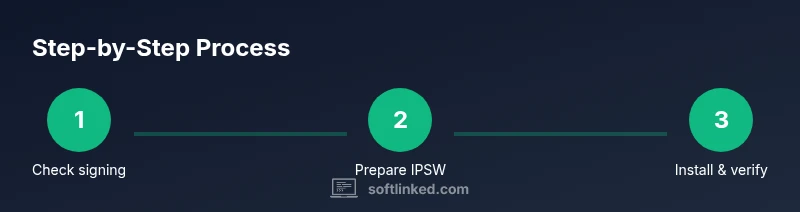
Check signing status and prerequisites
Verify whether Apple is still signing the target iOS version for your device and confirm you have a recent backup. This check determines if a downgrade is actually possible and reduces the risk of data loss.
Tip: If signing has ended, stop — downgrades won't work. - 2
Back up your iPhone
Create a full backup to iCloud or local computer. This backup is essential in case you need to restore data after the downgrade.
Tip: Verify the backup completed successfully before proceeding. - 3
Obtain the correct IPSW file
Download the exact IPSW file for your iPhone model, region, and target iOS version from a trusted source while the version is still signed.
Tip: Double-check model, regional variant, and file integrity. - 4
Connect device and enter recovery/DFU mode
Connect your iPhone to the computer. Enter recovery or DFU mode according to your device model to prepare for the restore.
Tip: Ensure the device remains powered and do not disconnect during the process. - 5
Install the IPSW via Finder/iTunes
In Finder/ iTunes, select the device, then hold Option (Mac) or Shift (Windows) and choose the IPSW file to begin restoration to the target version.
Tip: Use the exact IPSW file that matches your device. - 6
Wait for installation to complete
Allow the install to finish without interrupting. The device will reboot and show the target iOS version once complete.
Tip: If the process stalls, check USB connection and retry. - 7
Restore your backup and verify
After installation, restore from backup if compatible with the target version and verify iOS features work as expected.
Tip: Test key apps and settings for proper operation. - 8
Assess post-downgrade stability
Monitor battery life, performance, and app compatibility for several days to confirm the downgrade outcome.
Tip: If issues arise, you may need to re-upgrade to latest signed iOS.
Your Questions Answered
Can you undo a recent iPhone software update?
You can undo only if Apple is still signing the older version and your device is compatible. If signing has ended, downgrading isn’t possible with standard methods.
Downgrading is possible only while Apple signs the older version; otherwise, it isn’t.
Is downgrading officially supported by Apple?
No. Apple does not advertise downgrades; it’s possible only within signed windows and requires careful steps with a computer.
Apple doesn’t officially support downgrading; it’s only possible when the version is still signed.
What are the main risks of downgrading?
Data loss, app incompatibilities, and potential security vulnerabilities can occur if downgrades fail or backups are not compatible with the target version.
Downgrades can cause data loss or app issues; backups are essential.
Do I need a computer to downgrade?
Yes. A computer with Finder or iTunes is typically required to install the IPSW file and perform the restore.
A computer is required to downgrade using the IPSW file.
What should I do if downgrading fails?
If a downgrade fails, you may need to restore to the latest signed version and reapply a backup if compatible. Seek professional help if unsure.
If downgrade fails, revert to the latest signed iOS and try again only if you have a compatible backup.
How long does a downgrade take?
Downgrade times vary by device and IPSW size; typically 30-60 minutes plus verification after installation.
Downgrades usually take around 30 to 60 minutes.
Watch Video
Top Takeaways
- Verify signing status before downgrading
- Back up data to avoid loss
- Only use signed IPSWs compatible with your device
- Downgrades are time-sensitive and not universally available
- Restore and test essential apps afterward