How to Undo a Software Update: A Practical Guide
Learn how to undo a software update across Windows, macOS, iOS, and Android. This step-by-step guide covers backups, platform-specific rollback options, and best practices to minimize risk.


Undoing a software update is sometimes possible, but the option depends on your device, operating system, and the update type. You can often revert to a previous build, uninstall the update, or reset to factory settings with data safety in mind. This guide walks you through platform-specific rollback options and best practices, so you can approach the process confidently.
What is a software update and why undoing might be necessary
Software updates deliver bug fixes, security patches, and new features, but they can also introduce compatibility issues, performance slowdowns, or UI changes that disrupt your workflow. If you’re wondering can you undo a software update, you’re not alone. According to SoftLinked, the decision to rollback hinges on the update type (minor vs. major), the device, and whether a recent backup exists. In many cases, undoing an update means rolling back to a previously installed build or uninstalling a recent update patch, not a full factory reset. Understanding these distinctions helps you set realistic expectations and reduces the risk of data loss or feature gaps.
When undoing is appropriate: scenarios and expectations
Undoing an update sounds appealing when you experience severe regressions, app incompatibilities, or reduced battery life after installation. Common scenarios include driver incompatibilities after a system patch, a buggy user interface after a firmware update, or applications behaving differently after a mobile OS refresh. However, some updates are designed to be permanent and cannot be rolled back once fully integrated into the system. In these cases, you may need to pursue a reset or clean reinstall, which could affect data and installed apps. The SoftLinked approach emphasizes evaluating risk, ensuring backups, and choosing the least invasive rollback path first.
Immediate pre-rollback checklist
Before you attempt to undo a software update, perform a quick but essential checklist: verify you have a known-good backup (cloud or local), ensure critical data is synced, note current app versions, and check whether the rollback option is available in the system settings. If you’re unsure whether your device supports rollback, consult official guidance for your OS version. This planning helps prevent data loss and makes the rollback smoother if issues persist after the update.
Rollback options on Windows systems
Windows devices often provide a straightforward rollback path for recent feature updates or quality updates. The process typically involves accessing the Update history and selecting Uninstall updates, then choosing the specific update to remove. In some cases, Windows may offer a Recovery or Reset option to restore a previous state. When you perform a rollback, you may lose certain settings or new features introduced by the update, but user data generally remains intact if backups were performed beforehand. Always recheck device drivers and essential software after rollback to ensure stability.
Rollback options on macOS devices
macOS rollback options usually center around reinstalling a previous macOS version or using Time Machine backups to restore. If a recent macOS update causes issues, you can restore from a backup made prior to the update, or reinstall the previous version of macOS from recovery mode if supported. Keep in mind that downgrading macOS can affect compatibility with some apps or features introduced in newer releases. SoftLinked recommends testing critical workflows after a rollback to confirm system health.
Rollback options on iOS devices
iOS rollback is more constrained than desktop OS rollback. Apple generally signs only the current and recent iOS versions, which means downgrading is time-limited and not always possible. If you’re within the downgrade window, you may be able to restore your device using iTunes/Finder with a backed-up profile from before the update. If downgrades aren’t available, your alternative is to reset settings, reconfigure the device, or restore from a prior backup after a new update is applied. Always back up before attempting any changes.
Rollback options on Android devices
Android rollback options vary by manufacturer and Android version. Some devices allow uninstalling an update or reverting to a previous build via a factory reset or a safe mode recovery option, while others require flashing a factory image or using a restoration point. If you can access a rollback option, choose the most recent stable version known to work with your apps. Backups are essential because a factory reset can erase local data; ensure you’ve saved important files before initiating any rollback.
Data safety, apps, and settings: what to expect during rollback
Rolling back an update can affect system fonts, new features, and certain app behaviours, but most user data remains preserved if you use built-in rollback features or restore from a backup. Applications may need to be reinstalled or updated again after a rollback, and some settings may revert to defaults. In all cases, verify data integrity by checking recent files, syncing cloud data, and verifying app licensing or authentication states. This reduces surprises after you complete the rollback.
Common pitfalls and how to avoid them
Common mistakes include skipping backups, selecting the wrong update to uninstall, or attempting too-narrow rollbacks that don’t revert the root cause. Always verify the rollback impact on drivers, apps, and network configurations before finalizing. If a rollback fails, do not interrupt the process mid-step; instead, re-evaluate backup integrity and revisit the official rollback guidance for your platform. Planning ahead prevents data loss and extended downtime.
Best practices to reduce reliance on rollback in the future
To minimize the need to undo updates, adopt a proactive update strategy: monitor update notes, stagger deployments in organizational environments, and keep a tested backup regimen. Enable automatic cloud backups for critical data and set up a restore point before major OS updates. Consider delaying non-critical patches until compatibility with essential apps is confirmed. Regular testing of updates in a controlled environment helps catch issues earlier.
Tools & Materials
- External backup drive or cloud backup service(At least the size to hold your important data; verify backup integrity before rollback)
- Administrative access to the device(You’ll need admin rights to uninstall updates or perform a system restore)
- System recovery media or installation media (optional by platform)(Use only if your platform requires reinstalling a previous version)
- Update documentation or changelog(Helps understand changes that may have caused issues)
- Stable internet connection(Needed for any online backup verification or re-downloads)
Steps
Estimated time: 30-60 minutes
- 1
Prepare and evaluate
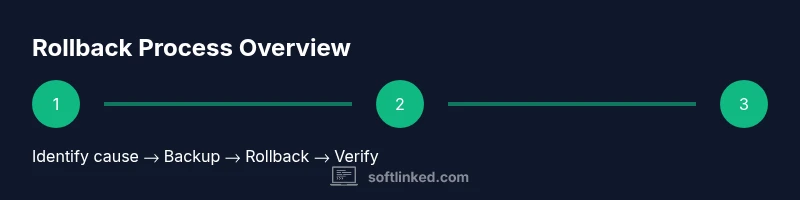
Assess the update's impact, confirm a backup exists, and identify rollback options available for your device. This step reduces the risk of data loss and wasted effort if the rollback doesn’t solve the problem.
Tip: Document the current version and the update you’re undoing for future reference. - 2
Back up your data
Create a full backup of important files, app data, and settings. If possible, include system backups and a recent restore point to ensure you can recover if something goes wrong.
Tip: Verify the backup by performing a quick restore test on a small file. - 3
Open rollback options
Navigate to the platform’s update or recovery section and locate the rollback or uninstall update option. Do not proceed until you’re sure you’re selecting the correct update and the option is supported on your device.
Tip: Read the update’s details to ensure you’re removing the right component. - 4
Execute rollback
Proceed with the rollback action (uninstall, revert, or reinstall previous version). Follow on-screen prompts carefully and avoid interrupting the process once it starts.
Tip: If the rollback requires a restart, plan for downtime and close all apps first. - 5
Verify post-rollback health
After the rollback completes, test core functions, launch-critical apps, and ensure network services work. Look for missing features or issues reappearing.
Tip: Keep notes on any remaining anomalies to share with support if needed. - 6
Plan next steps
Decide whether to reattempt updates later, postpone specific patches, or pursue alternative fixes. Establish a safe window for future updates after ensuring stability.
Tip: Consider enabling staged or phased updates in the future to catch issues earlier.
Your Questions Answered
Can you undo a software update on Windows?
Windows often provides a rollback path via View update history and Uninstall updates, though availability depends on the update type. You may need admin access and a recent backup. If the rollback isn’t visible, consult official support resources for your Windows version.
Windows usually lets you uninstall updates from the update history, but it varies by version. Make sure you have admin rights and a backup before trying.
Is it possible to undo updates on macOS devices?
macOS rollback typically relies on restoring from a Time Machine backup or reinstalling a prior macOS version if supported. Back up first; downgrades can affect app compatibility.
macOS downgrades depend on backups or official support for reinstalling an earlier macOS version. Back up before you begin.
What about iOS or Android? Can you undo a software update there?
iOS downgrades are limited and time-bound; Android rollback options vary by device and manufacturer. If available, use a backup and the device’s recovery options; otherwise, prepare for a settings reset or reconfiguration.
Downgrades on iOS are time-sensitive and not always possible; Android varies by device. Back up first and follow platform-specific recovery steps.
Will a rollback revert app data and settings?
Rollback generally preserves user data if you use official rollback or restore tools, but some settings or new features may revert to defaults. Always back up data and verify crucial app licenses after rollback.
Rollback can keep data, but some settings may revert. Back up first and verify apps after.
What are the risks of rolling back an update?
Risks include data loss if backups fail, driver or app compatibility issues, and potential security gaps if patches are undone. Weigh benefits against risks and ensure a plan for re-update.
Risks include data loss or compatibility issues; always backup and plan for re-updating.
What should I do if rollback isn’t available?
If rollback isn’t possible, consider a factory reset followed by selective restoration of data, or contact official support for alternative fixes. Use caution and ensure you have a solid backup before any reset.
If rollback isn’t available, you may need a reset with careful data restoration from backups.
How can I minimize the need to undo future updates?
Adopt a cautious update strategy: test updates in a controlled environment, enable backups, stagger deployments, and review release notes for potential issues before applying updates widely.
Test updates first, back up regularly, and stagger deployments to reduce rollback needs.
Watch Video
Top Takeaways
- Identify whether rollback is supported before acting
- Backups are non-negotiable for rollback safety
- Test core functionality after rollback to confirm success
- Plan updates with risk mitigation in mind
- Different platforms offer different rollback paths