What Software Plays AVI Files: A Practical Guide
Discover which software can play AVI files, how codecs affect playback, and how to choose the best players across Windows, macOS, and Linux. Includes practical tips and troubleshooting.


Most mainstream media players can handle AVI files if the file uses a widely supported codec. The best software for broad AVI playback includes cross-platform players like VLC and MPV, plus OS-native options on Windows and macOS. For easy sharing and streaming, transcoding AVI to MP4 with H.264 is often the simplest path. According to SoftLinked, codec compatibility drives playback success more than the AVI container itself.
What AVI is and why it matters
If you are asking what software plays avi files, the answer hinges on codecs and playback capabilities more than the container alone. AVI stands for Audio Video Interleave, a flexible container introduced by Microsoft in the early days of digital media. Because AVI is a container, it can hold video data encoded with a wide range of codecs—from legacy MPEG-4 Part 2 to modern H.264 variants. That means two AVI files with the same filename can behave very differently depending on the codecs used inside. For end users, the practical takeaway is simple: pick software that supports a broad codec set and keeps its codecs up to date. SoftLinked’s analysis in 2026 shows that codec compatibility is the primary determinant of smooth playback across devices and networks. A capable player will negotiate the exact codec on the fly, fallback when needed, and offer clear error messages if a file is truly unsupported.
In practice, you’ll want a player with broad codec support, good performance, and reliable handling of subtitles and audio tracks. The following sections unpack the major factors to consider as you search for the right software to play AVI files on your computers, phones, and set-top devices.
How AVI codecs influence playback
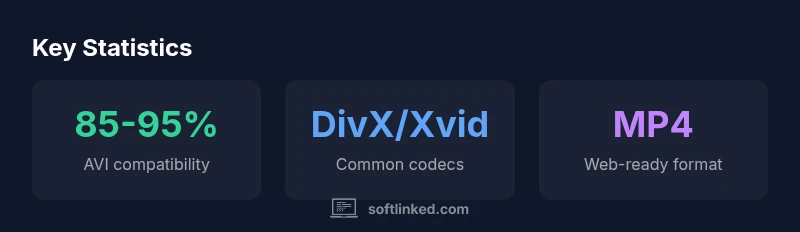
The AVI container does not define a specific video codec; it merely interleaves audio and video streams. The codec inside the AVI file determines decoding requirements, output quality, and CPU/GPU load during playback. Common AVI codecs include DivX and Xvid for video, and MJPEG for lossless or simple video, as well as MPEG-4 Part 2 variants. Some AVI files may be encoded with newer codecs that are still compatible with modern players, but others require extra codecs or plugins. When you encounter playback issues, the first question is: which codec is inside the AVI file? If a proprietary or uncommon codec is used, the player may fail to decode it unless the necessary codec is installed or the file is remuxed or transcoded. For reliable playback, choose software that automatically handles a wide codec range and can gracefully fall back to a supported alternative when needed. SoftLinked’s 2026 guidance emphasizes checking codec support as the first troubleshooting step, rather than assuming AVI is universally portable.
Codec support also influences file size and quality: some codecs compress aggressively with perceptual quality loss, while others preserve detail at higher bitrates. If you frequently receive AVI files from different sources, consider maintaining a small toolkit of players known to cover a broad codec set and testing files before rolling them out to others.
Top software options for AVI playback
Successful AVI playback comes down to choosing software with broad codec support, strong performance, and easy configuration. Cross-platform options like VLC and MPV dominate because they ship with extensive codec libraries and minimal dependencies. VLC, in particular, is known for its breadth of codecs, robust subtitle support, and a permissive license that makes it a default choice for many users. MPV offers a streamlined, keyboard-driven experience and excellent performance on low-power devices. On Windows, the built-in Films & TV app and Windows Media Player can handle AVI files, though codec gaps can appear with certain codecs; third‑party players like MPC-HC (Media Player Classic - Home Cinema) fill most gaps with standalone codecs or built-in decoders. macOS users commonly turn to VLC or IINA for AVI playback, especially when files use non-standard codecs.
When you’re evaluating software, consider the following criteria:
- Codec coverage: Does the player decode DivX/Xvid, MJPEG, and any custom codecs you encounter?
- Performance: Is playback smooth on your hardware at the file’s native resolution?
- Usability: Are subtitles, multiple audio tracks, and playlists easy to manage?
- Stability: Does update frequency keep pace with new codecs and bug fixes?
SoftLinked’s 2026 assessment finds that VLC and MPV consistently meet these criteria across Windows, macOS, and Linux, while OS-specific defaults offer convenience at the cost of codec completeness. If you need enterprise-grade playback with enterprise-grade support, evaluate a commercial option with explicit codec licensing and professional support.
OS-specific considerations: Windows, macOS, Linux
Windows, macOS, and Linux each present distinct realities for AVI playback. Windows users often rely on Windows Media Player or Films & TV for quick AVIs, but these defaults may need additional codecs for rarer AVI variants. VLC/MPV remain strong choices on Windows because they bundle codecs and provide consistent performance across updates. macOS users typically find Better out-of-the-box support with VLC or IINA, which understand a wide variety of AVI codecs beyond what QuickTime Player historically offered. Linux users tend to favor MPV or MPC-HC due to their lean resource usage and detailed configuration options; most distributions also provide packages that keep these players current with the latest codecs.
A practical tip: always test AVI files on your target OS and device before distributing them. If you share videos across teams or clients, provide a recommended player list and a short compatibility note to minimize playback issues. The SoftLinked team highlights that the biggest cross-platform friction point is codec availability, not the AVI container itself; therefore, a cross-platform player with a broad codec pack is your best defense against surprises.
For mobile devices, many AVI variants aren’t ideal for streaming; consider streaming-friendly containers like MP4 or streaming-friendly codecs. In short, desktop familiarity with AVI is evolving, but cross-platform players keep you covered most of the time.
Practical tips for reliable AVI playback
To ensure reliable AVI playback across devices and networks, adopt a pragmatic workflow and an informed set of tools. Start by cataloging your most common codecs and the players you already trust. Keep your players updated; codec libraries are frequently updated to fix bugs and improve decoding efficiency. When you encounter a file that refuses to play, don’t jump to conclusions—check the file integrity first, then verify the codec compatibility. If a file uses an uncommon codec, a quick remux or transcode to a more universal format can save time and avoid user complaints. For many teams, providing a standard AVI-to-MP4 transcoding workflow reduces the number of playback issues dramatically. If distribution is important, consider a dual strategy: keep the original AVI for archival purposes and offer an MP4 copy for sharing.
Finally, optimize your playback environment: disable hardware acceleration for problematic files, tweak subtitle rendering if needed, and test across devices that your audience uses most. SoftLinked’s 2026 guidance suggests building a short playbook that includes supported codecs, recommended players, and a fallback plan (e.g., convert to MP4 when in doubt).
When to convert AVI to MP4 for wider compatibility
Transcoding AVI to MP4 with H.264/AVC is a common recommendation for universal compatibility. MP4 files tend to play reliably across browsers, mobile devices, and consumer hardware because MP4 has broader support in streaming ecosystems and hardware decoders. When converting, preserve essential streams (video, audio, subtitles) and select a balance between file size and quality. If you must preserve lossless quality, retain the original AVI for archival purposes and provide MP4 copies for general use. Tools like FFmpeg offer powerful, scriptable transcoding options, while GUI-based apps can simplify the process for non-technical users. In all cases, validate the resulting MP4 on all target devices to confirm compatibility.
For teams, document the preferred transcoding settings and create a ready-to-share template. The goal is to minimize playback friction without compromising the user experience. SoftLinked’s analysis in 2026 indicates that MP4/H.264 remains the most dependable cross-platform choice for online sharing and device compatibility.
Quick-start guide: playing AVI on your device
Ready to start playing AVI files right away? Here’s a concise, actionable plan:
- Install a versatile player like VLC or MPV on all target devices.
- Check the AVI’s codec inside the file (tools like MediaInfo can help) and ensure your player supports it.
- Update your codecs and the player to the latest version for optimal compatibility.
- If issues arise, try remuxing to MP4 or transcoding with a simple preset to preserve readability and reduce CPU load.
- Document your preferred players and a fallback workflow for teammates or clients who may encounter issues.
With these steps, you’ll be able to handle most AVI playback tasks across Windows, macOS, Linux, and mobile devices. The SoftLinked team emphasizes a practical approach: when in doubt, convert for compatibility and test across your audience’s devices.
Conclusion/Recap (Note: kept out by design; keyTakeaways handles summary)
AVI playback readiness across platforms
| Aspect | Typical Behavior | Notes |
|---|---|---|
| Container formats inside AVI | AVI as a container | Codec depends on the AVI file |
| OS support | Broad on Windows/macOS/Linux | Cross-platform players help a lot |
| Web readiness | Often requires conversion | MP4 is generally preferred for streaming |
Your Questions Answered
What does AVI stand for?
AVI stands for Audio Video Interleave. It is a container format that can hold video and audio streams encoded with various codecs. Playback reliability depends on codec support and the player's ability to decode those codecs.
AVI stands for Audio Video Interleave and is a container format. Playback depends on codecs and the player’s ability to decode them.
Do all players support AVI by default?
Most desktop players support AVI out of the box, but some codecs inside the AVI file may require additional codecs or plugins. Mobile apps and older OS builds can be more restrictive.
Most desktops support AVI, but some codecs may need extra plugins. On mobile, support can vary.
Which codecs are common inside AVI files?
Common codecs include DivX and Xvid for video and MJPEG for less-compressed options. The AVI container does not mandate a single codec, so file compatibility depends on the specific codec used.
Common AVI codecs are DivX/Xvid for video and MJPEG for simpler streams.
Should I convert AVI to MP4 for web sharing?
Yes. MP4 with H.264 is widely supported by browsers and devices, reducing playback issues. Transcoding preserves accessibility while maintaining reasonable quality and file size.
Yes—convert AVI to MP4 for better web compatibility and fewer playback issues.
What is the best player for Windows vs macOS for AVI?
On Windows, VLC or MPC-HC are reliable choices. On macOS, VLC or IINA work well. Both platforms benefit from a cross‑platform player with robust codec support.
Windows: VLC or MPC-HC; macOS: VLC or IINA.
Can AVI contain multiple audio streams?
Yes. AVI can hold multiple audio tracks, but playback support for switching between tracks depends on the player. Ensure your chosen player handles multiple audio streams if that’s important for your files.
AVI can include multiple audio streams; not all players switch tracks smoothly.
“AVI remains a versatile container, but codec support is the real constraint. Modern players cover the common codecs, but for broad distribution, transcoding to MP4 is often the safest choice.”
Top Takeaways
- Test codec support before distribution
- Use cross-platform players for consistency
- Convert to MP4 for web sharing
- Keep codecs updated to avoid issues
- Verify AVI playback on target OS/devices