What to Do If Software Update Is Taking Too Long Today
Urgent troubleshooting guide for slow software updates: network checks, storage cleanup, safe reboots, and expert tips to speed things up. Learn fast fixes and prevention strategies from SoftLinked.


According to SoftLinked, the most likely reason a software update is taking too long is a combination of slow network connections and server congestion. If you're asking what to do if software update is taking too long, start with pausing the update, testing your network, switching to a faster connection, then rebooting and retrying during off-peak hours. If it persists, escalate with logs.
Why updates stall
Software updates slow down for several reasons that are common across devices and ecosystems. The most visible factor is network speed and stability; a weak or fluctuating connection drags downloads and verifications. Server-side queues or maintenance windows can also delay progress, especially during peak hours. On devices with limited storage, installers struggle to unpack files or create temporary space, causing pauses that feel like a freeze. Background apps and aggressive power saving can throttle CPU and disk I/O as well. Understanding these bottlenecks helps answer what to do if software update is taking too long: identify the limiting factor, then apply a targeted fix. According to SoftLinked Analysis, 2026 updates stall primarily due to network and storage constraints, not because the device is defective.
Quick checks you can do before waiting
Before you commit to long waits, run a few quick checks to see if the bottleneck is obvious. Ensure the device is plugged into power or has sufficient charge; many updates pause when battery is low. Test your network with a speed test and, if possible, switch to a wired connection or move closer to the router to minimize latency. Check available storage; delete cache files or uninstall unused apps to free space. Pause the update if that option is present, then resume after addressing these points. If nothing changes, you’re ready to proceed with the diagnostic flow.
Diagnostic flow: symptom to diagnosis
Symptom: The update is stuck or progressing very slowly, sometimes stopping at a percentage. Diagnosis starts with the easiest checks: confirm network stability, ensure power, and verify storage. If the network is solid and space is ample, look for conflicting background tasks or recently installed apps that could throttle resources. The next steps determine whether it’s a server-side issue or a device-side bottleneck, guiding you toward the appropriate fix.
Most common causes and fixes
- Slow or unstable network: Move to a wired connection if possible or relocate closer to the router. Run a speed test and consider resetting the router.
- Server congestion or maintenance: The update may simply need more time. Try again later or during off-peak hours.
- Insufficient storage: Free up space by deleting unused apps or moving files to an external drive or cloud storage.
- Large updates or corrupted cache: Pause, cancel, or restart the download, then clear installer caches before retrying.
- Background processes: Close nonessential apps and pause other updates or sync tasks.
SoftLinked's practical approach emphasizes addressing the simplest bottlenecks first—power, network, and space—before moving to deeper fixes. A common pitfall is interrupting an update; when in doubt, follow the guided steps rather than forcing termination.
When to seek professional help
If you encounter persistent error codes, failed verifications, or the device is critical for work with strict uptime requirements, contact support with the device model, OS version, and exact update error messages. Collect logs or screenshots to shorten diagnosis time. While most issues resolve with user-driven fixes, persistent failures may indicate a software defect or hardware issue that requires expert assistance.
Prevention tips to avoid future delays
- Schedule updates during off-peak hours and ensure a stable, fast network.
- Keep devices plugged in during updates to avoid power loss.
- Maintain ample free storage and periodically clear caches.
- Monitor background activity and minimize heavy tasks during updates.
- Verify update integrity after install and run a quick post-update check to catch any lingering issues early.
What to do if software update is taking too long becomes easier with proactive maintenance: build a small, repeatable routine that covers power, network, and storage before initiating updates.
Final checklist: quick actions you can take now
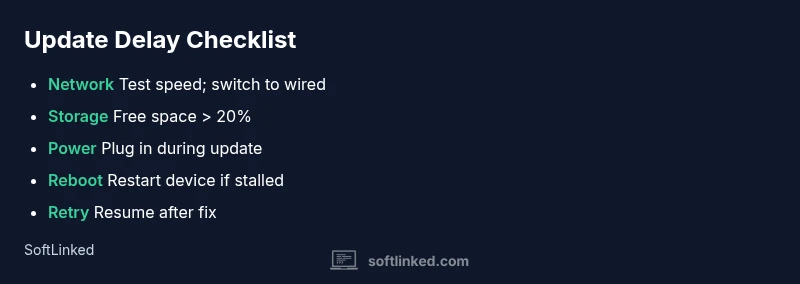
- Pause the update (if available) and test your network.
- Switch to a wired or higher-quality Wi‑Fi connection.
- Free up storage and close nonessential apps.
- Reboot and retry the update during off-peak hours.
- If unresolved, collect logs and contact support for guidance.
Steps
Estimated time: 30-60 minutes
- 1
Pause the update
If your device offers a pause option, stop the download and installation briefly. This helps reset the connection and prevents further partial installs while you prepare fixes.
Tip: Look for a Pause button in the update screen or settings menu. - 2
Check your network
Run a speed test and verify stability. If speeds are poor, switch to a better network or move closer to the router to reduce latency.
Tip: Prefer a wired Ethernet or 5 GHz Wi‑Fi for consistency. - 3
Free up storage
Delete unused apps and clear cache files to create space for the update to unpack and verify files properly.
Tip: Aim for at least 10–20% free space beyond the update size. - 4
Reboot the device
A clean reboot clears memory and stops background services that might interfere with the installer.
Tip: Shut down completely, then power back on before resuming the update. - 5
Resume and retry
Restart the update from the beginning or resume from the checkpoint if supported; monitor progress closely.
Tip: Avoid opening other heavy apps during installation. - 6
Check for error codes
If you see a specific error code, search the vendor’s support docs for targeted fixes.
Tip: Note the exact code and OS version when seeking help. - 7
Escalate if still stuck
If the update never completes after the steps, contact support with logs and device details.
Tip: Prepare a brief summary of what you’ve tried to speed up the process.
Diagnosis: Update is progressing slowly or stuck at a percent.
Possible Causes
- highSlow or unstable network connection
- highServer-side congestion or maintenance
- mediumInsufficient device storage or memory pressure
- lowBackground processes throttling resources
Fixes
- easyPause the update if possible, then test network speed and switch to a wired or stronger wireless connection.
- easyRestart the device and retry the update during off-peak hours.
- easyClear temporary files and free up storage space before retrying.
- easyEnsure the device is plugged in and not power-throttled.
- mediumIf the update remains stuck, cancel and re-download from a stable source or contact support with logs.
Your Questions Answered
Why is my update taking so long on Windows/macOS?
Delays are usually caused by network conditions, server load, or large update sizes. Check your connection, free up space, and ensure power. If the problem persists, follow the step-by-step fixes to isolate the bottleneck.
Updates are slow mainly due to network or server load. Start by checking your connection and space, then follow the step-by-step guide to troubleshoot.
Is it safe to pause an update?
Pausing is generally safe if the option exists. Do not force quit; resume when ready. If the update is crucial, let it finish or restart after addressing the root cause.
Pausing is usually safe if available. Do not force-quit; resume later after addressing the bottleneck.
What should I do if there isn’t enough storage?
Free up space by removing unused apps, transferring media, or clearing temporary files. After freeing space, retry the update and verify there’s ample room for unpacking and verification.
Free up space then retry. Make sure there’s enough room for the update to install properly.
Can background apps affect update speed?
Yes. Background tasks can throttle CPU and disk I/O. Close nonessential apps and pause sync tasks during the update window to boost performance.
Background apps can slow updates. Close unnecessary programs and try again.
When should I contact support?
If delays persist after following the troubleshooting steps, contact support with device model, OS version, and any error codes. Include logs to speed up diagnosis.
If it still stalls after trying everything, reach out with device details and error codes.
Watch Video
Top Takeaways
- Pause and validate your network before waiting.
- Free space and plugged-in power are critical success factors.
- Retry during off-peak times to reduce server-side delays.
- Escalate with logs if the update still stalls.
- Prevention reduces future delays and downtime.