Why is software update temporarily unavailable? A practical troubleshooting guide
A comprehensive, urgent guide to diagnose and fix temporary software update unavailability across devices and networks. Learn common causes, steps, and prevention.


Facing a software update that’s temporarily unavailable? Start with the simplest checks: confirm if the update server is online, verify your network connection, and ensure your device clock is accurate. If those basics pass, follow this structured flow to diagnose and fix the most common causes quickly. This guide, informed by SoftLinked, helps you regain updates fast and safely, with clear steps and a path to expert help if needed.
Why the update becomes temporarily unavailable
According to SoftLinked, many users encounter a temporary, non-damaging interruption when trying to install software updates. The cause is often outside the immediate device and stems from server maintenance, network hiccups, or strict security configurations. The impact can range from a minor delay to a complete pause in the update process. Understanding that these incidents are frequently short-lived helps you stay calm and act methodically. In this guide, we outline a practical troubleshooting flow you can follow regardless of your operating system or device type. By approaching the problem with focus, you can distinguish between a local issue and a broader outage, reducing downtime and preserving security posture.
Key takeaway: most temporary unavailability is fixable with systematic checks, quick reattempts, and a plan for escalation when needed.
Common causes you should check first
There are several frequent culprits behind a temporarily unavailable update: (1) server-side outages or maintenance on the update service, (2) unstable or restricted network access preventing reach to update servers, (3) clock/time drift on the device causing certificate or TLS validation issues, (4) firewall, proxy, or security software blocking the update domain, and (5) a corrupted or partial update cache on the device. Start with the easiest checks: confirm server status, test connectivity, and verify time. This helps you rule in or out the most likely causes before moving to deeper troubleshooting. SoftLinked’s experience shows addressing the top three causes often resolves the problem quickly.
If you observe a server status message or maintenance window, you’ll know the fault lies outside your device.
How to verify if the outage is server-side and not a local issue
Begin by checking official status pages or the vendor’s health feed for any announced maintenance or outages. If the status page shows an ongoing incident, patience and scheduled retry windows are usually the recommended path. No status update yet? Test your network by pinging the update domain, running a traceroute, or trying a different network (for example, mobile data). If other services are reachable but the update service isn’t, this strongly points to server-side factors. In any case, plan a retry after a few minutes and document the times you attempted the update for reference.
Note: keep a record of the status and your retry times to share with support if needed.
Diagnostic flow overview you can follow in real time
Using a structured diagnostic flow helps you isolate the problem quickly. Start with the simplest checks (server status, network reachability, clock accuracy) and progress to configuration and cache checks. If the flow reveals a server outage, move to monitoring and planned retry. If it’s a local issue, continue with network and device-specific steps. Always document each step and its result, so you have a clear trail when seeking support. The flow below matches common real-world scenarios and is designed to be device-agnostic.
Flow goal: identify whether the root cause is server-side, network-related, time-related, or cache/proxy-related, then apply the corresponding fixes.
Step-by-step fixes for the most common cause: server-side outage or network block
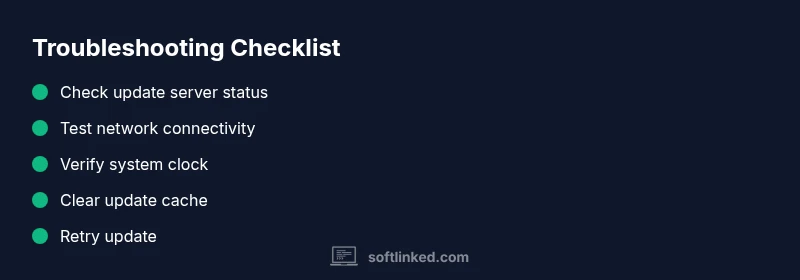
- Confirm server status and retry window. If outages are reported, wait for the issuer’s recommended window and retry. 2) Verify network connectivity to the update server. Use a different network if possible to rule out ISP blocks or local routing issues. 3) Temporarily disable non-critical security tools that might block the update domain, then re-enable after you test. 4) Clear the update cache to remove partial or corrupted downloads. Reattempt the update from a clean slate. 5) Check your device time and date settings; ensure automatic time sync is enabled. 6) If the issue persists, contact support with the retry history and any error codes. 7) For enterprise deployments, verify group policy or MDM configurations that might throttle or block updates. 8) Document outcomes and establish a follow-up plan with the support team.
Safety, network considerations, and best practices
Always maintain a backup of critical data before applying updates. Do not leave update tools disabled for extended periods in high-security environments. When testing network changes, re-enable any firewall rules or proxies after confirming the update path works. Use secure, trusted networks to avoid tampering or interception of the update package. Avoid abrupt, large-scale changes during a live update to minimize the risk of partial installs. If you are unsure about a setting, revert to a known-good configuration and seek guidance from an IT professional.
Prevention and future-proofing your update process
Enable automatic updates where appropriate, but ensure you have a rollback plan if an update fails. Regularly test updates in a staging environment before broad rollout, especially for critical systems. Maintain a health-monitoring dashboard that tracks update status across devices, networks, and regions. Keep an updated list of trusted update servers and certificate authorities to prevent TLS-related failures. Regularly review security software configurations to avoid overzealous blocking of legitimate update domains. By building resilience into your update workflow, you reduce the risk and duration of future outages.
When to seek professional help and what information to gather
If the update remains unavailable after the basic checks and diagnostic flow, professional support is warranted. Gather device model, OS version, error messages or codes, timestamps of failures, network details, and any security software configurations. Share this information with the support team to accelerate the diagnosis. In enterprise environments, involve your IT leadership to coordinate potential outages with service providers and to plan a controlled retry window.
Steps
Estimated time: 30-45 minutes
- 1
Prepare your environment
Ensure the device is connected to a stable network and backed up if applicable. Verify you have the latest version of the update client and that all essential services running in the background are not being terminated by energy-saving settings. This foundation reduces interference during the update retry.
Tip: Have a secondary network option ready in case the primary network is slow or flaky. - 2
Check server status and retry
Visit the official status page for the update service and confirm no outage is declared. If an outage is reported, follow the vendor's recommended retry window and document the times you attempted the update. If no outage is listed, proceed to testing connectivity.
Tip: Note the exact error code shown during the failure for reference with support. - 3
Test network connectivity
Ping the update domain and run a traceroute to identify any hops causing delays. Try a different network (for example, mobile hotspot) to isolate ISP or local network issues. If other online services work but the update domain doesn't, this points to a network path problem.
Tip: Disable VPNs temporarily to rule out VPN-related path issues. - 4
Verify device time and date
Ensure the system clock matches your time zone and that automatic time synchronization is enabled. TLS certificates may fail validation if the clock is skewed, causing the update to appear unavailable. Correcting the time often resolves the problem.
Tip: After syncing time, reattempt the update within the next 10 minutes for best results. - 5
Check firewall, proxy, and security software
Temporarily pause or adjust firewall and proxy rules to allow access to the update domain. If the update succeeds, reconfigure with stricter rules while leaving the necessary domains open. Do not leave security software disabled longer than necessary.
Tip: Document any rule changes so you can revert them if needed. - 6
Clear update cache and retry
Delete or reset the update cache to remove corrupted or partial downloads. Restart the update client and attempt the download again from the beginning. If the cache is large, this can free up resources that were blocking progress.
Tip: Perform this step after ensuring network paths are open. - 7
If still unresolved, contact support
Provide the exact error messages, timestamps, device details, network environment, and steps you’ve already tried. A support specialist can determine if there is a broader outage or route you through a deeper diagnostic.
Tip: Prepare a concise, reproducible incident report to speed up resolution.
Diagnosis: Software update fails to start or reports temporarily unavailable
Possible Causes
- highServer-side outage or maintenance on the update service
- mediumNetwork connectivity issues preventing access to update servers
- mediumIncorrect system clock causing certificate validation or TLS issues
- mediumFirewall, proxy, or security software blocking update domains
- lowCorrupted update cache or partial download
Fixes
- easyCheck the update service status page or vendor health feed; wait if outage is confirmed
- easyTest network access to update servers (ping, traceroute, try a different network)
- easyEnsure system time is correct and TLS certificates are valid; resync time if needed
- easyDisable or configure firewall/proxy temporarily to allow update domains; re-enable after
- easyClear update cache and retry download; pause if a partial file exists
Your Questions Answered
Why is the software update temporarily unavailable on my device?
Temporary unavailability often results from server maintenance, network blocks, or clock discrepancies. By following the diagnostic flow and steps, you can quickly identify and address the root cause. In many cases, the issue resolves within a short retry window.
Temporary update unavailability is usually due to server maintenance, network blocks, or clock problems. Follow the steps to identify and fix the cause quickly.
What should I do first when an update fails to start?
Begin with checking the update server status, then test your network connectivity and ensure the device clock is correct. If these checks pass, move through the diagnostic flow to isolate the issue.
First, check server status, then test connectivity and clock. If those pass, use the diagnostic steps to pinpoint the problem.
Can I update manually if automatic updates fail?
Some platforms offer manual update options or offline installers. Use those only if recommended by the vendor, and verify the source integrity before installing. Automatic updates are preferred for timely security patches.
Manual updates are sometimes available, but only use vendor-approved sources and verify integrity.
Will update unavailability affect security or data?
Prolonged unavailability can delay security patches. If updates are critical, contact support and implement temporary mitigations while awaiting a fix. Do not ignore update failures for extended periods.
Delays in updates can affect security; contact support if updates linger, and use interim mitigations as advised.
When should I contact professional support?
If basic checks and the diagnostic flow do not resolve the issue within an hour, engage professional support. Provide error codes, timestamps, and steps taken to speed up resolution.
If the problem persists after basic checks, contact professional support with your error codes and steps you've tried.
Watch Video
Top Takeaways
- Identify whether outage is server-side or local
- Verify network access before deep troubleshooting
- Time synchronization matters for TLS validation
- Clear caches to remove partial downloads
- Escalate with documented evidence when needed