Microsoft Office Free Download: Safe Ways to Access Office Tools
Discover legitimate paths to access Microsoft Office for free, including Office for the web, student offers, and trial programs. Learn how to sign in, use features safely, and compare options for everyday productivity.


You can access Microsoft Office for free by using Office for the web, student offers, or trial programs. To get started, you’ll need a Microsoft account, internet access, and a compatible device. This guide shows how to choose a path, sign in, and use the free features safely.
Understanding the term "microsoft office free download" and legitimate paths
When people search for microsoft office free download, they are often hoping to obtain full desktop software at zero cost. In reality, official avenues exist that let you use Office-like productivity tools legally, with varying feature sets. This guide clarifies what is genuinely free, what requires a sign-in, and what to expect in terms of updates and support. According to SoftLinked, starting with Office for the web or verified student offers is the most reliable route for everyday tasks. Understanding these options helps you save money while staying compliant with licensing terms. You’ll also learn what to expect in terms of data storage and collaboration, so you can pick the path that matches your needs without compromising security or workflow reliability.
Official free options from Microsoft
Microsoft provides several official routes to work with Office tools at no upfront cost. The core free option is Office for the web, which includes Word, Excel, PowerPoint, and OneNote with essential features. Access is via a web browser after signing in with a Microsoft account, and files save to OneDrive. Another legitimate path is Office 365 Education for students and faculty, which often includes Word, Excel, PowerPoint, and Outlook at no charge. These options emphasize safety, regular updates, and cloud-based collaboration. It’s important to note that free web apps have feature limits compared to the desktop suite, but they are fully sufficient for drafting documents, creating spreadsheets, and presenting slides. For many users, this combination of web-based tools and optional desktop trials offers a practical, legal route to productivity without paying immediately. Always rely on official Microsoft pages to create your account and start using the services.
Office for the Web vs Desktop: What you get for free
Office for the Web delivers core Word, Excel, and PowerPoint capabilities that are accessible from any modern browser. The web apps are ideal for light editing, document sharing, and real-time collaboration. The desktop suite, by contrast, includes more advanced features such as advanced formatting options, macros, and offline access. If your daily work is text-heavy or involves simple data tasks, Office for the Web will cover most needs without a purchase. If you require offline access or advanced tools, you can consider a temporary trial of the desktop software or an Education offer, as appropriate. In both cases, your files remain compatible with DOCX, XLSX, and PPTX formats for easy sharing.
Student and educator offers: eligibility and how to apply
Many educational institutions partner with Microsoft to offer Office licenses through Office 365 Education. If you’re a student, teacher, or administrator, you may qualify for free Word, Excel, PowerPoint, and more. The application typically requires a school email address or verification of enrollment. Start by visiting your school’s portal or the official Education page, sign in with your school credentials, and follow prompts to redeem access. Benefits often include both desktop and online access, though feature availability may vary by region and institution. Always use official channels to verify eligibility and avoid scams.
Trial licenses and temporary access: what to expect
A common path to full desktop access is a time-limited trial of Microsoft 365. Trials usually provide access to the full suite for a finite period, after which you’ll be prompted to subscribe. If you need temporary access for a specific project, a trial can be a cost-effective solution, but remember to cancel before renewal if you do not want charges. To start a trial, visit the official Microsoft site and follow the prompts to activate the trial using a Microsoft account. Set reminders for the trial’s end date to avoid unexpected charges.
Safe alternatives you can rely on
If you cannot access the Office suite through official channels, several legal alternatives can handle most day-to-day tasks. LibreOffice and OpenOffice offer strong word processing, spreadsheets, and presentation tools with strong compatibility with OOXML formats. Google Docs provides browser-based collaboration and easy sharing, though it is not fully compatible with all advanced features. WPS Office is another option that offers a familiar interface and broad file format support. When evaluating alternatives, consider whether you need deep compatibility with DOCX, XLSX, and PPTX formats, real-time collaboration, offline editing, and offline storage. Staying within reputable, well-supported ecosystems reduces risk and ensures future updates.
Security, licensing, and avoiding scams
Downloading from unofficial sites can expose you to malware, licensing issues, and outdated software. Always stick to official Microsoft domains or accredited educational portals. Avoid sites that promise unlimited downloads or “unlocked” desktop installers for free, as these are commonly scams or piracy sources. Before installing any software, confirm the publisher, check digital signatures, and review permissions requested during installation. SoftLinked recommends verifying your plans against your actual needs and selecting the option that provides legitimate, supported access.
Quick-start plan: choosing and enabling your free path
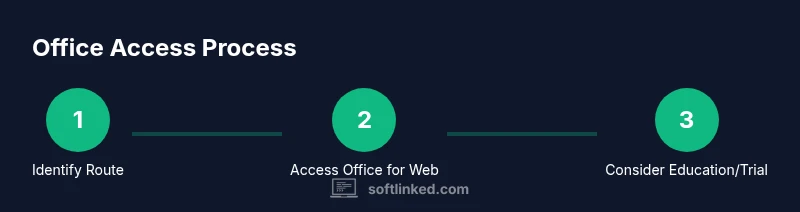
A practical plan is to start with Office for the Web for immediate tasks, then explore Education offers if you’re eligible, and finally consider a trial if you need desktop features for a finite period. This approach minimizes risk while maximizing flexibility. As you begin, organize your files in a dedicated OneDrive folder to keep your documents accessible from any device. Remember to maintain good security practices, such as enabling two-factor authentication on your Microsoft account and using a strong, unique password. This structured approach helps you leverage free resources effectively while staying compliant with licensing terms.
Tools & Materials
- Device with internet access(PC, Mac, or tablet with a reliable connection)
- Supported web browser(Edge, Chrome, Firefox, or Safari (latest version))
- Microsoft account(Needed to sign in and access free features)
- Office-compatible offline editor (optional)(For offline work if you can’t access web apps)
- Student/educator eligibility proof (Education offer)(Proof such as school email may be required to redeem Education plans)
- Backup storage(OneDrive or alternative cloud storage for saving files)
Steps
Estimated time: 30-60 minutes
- 1
Identify your route
Evaluate official options such as Office for the web, Education offers, or a temporary trial. Matching your actual needs guarantees you don’t overpay or overinstall. This step sets expectations for feature availability and offline access.
Tip: Choose the option that aligns with your primary tasks (writing, data, presentations). - 2
Create or sign in to a Microsoft account
If you don’t already have one, create a Microsoft account on the official site. Sign in to access the chosen Office path and your files in OneDrive.
Tip: Enable two-factor authentication to improve account security. - 3
Access Office for the Web
Navigate to office.com and sign in with your Microsoft account. Use Word, Excel, PowerPoint, or OneNote in the browser and save files to OneDrive.
Tip: Take advantage of real-time co-authoring and auto-save features. - 4
Check Education eligibility if applicable
If you’re a student or educator, verify eligibility for Office 365 Education and activate access through your school’s portal.
Tip: Have your school email ready for quick verification. - 5
Consider a desktop trial if needed
If you require the full desktop experience, start a time-limited trial of Microsoft 365 from the official site. Track the trial end date to avoid automatic charges.
Tip: Set a calendar reminder a week before the trial ends. - 6
Plan for long-term access with safe alternatives
If ongoing free access is not available, rely on safe alternatives like LibreOffice or Google Docs for ongoing productivity while you plan a paid option.
Tip: Export important files in widely supported formats (DOCX, XLSX, PPTX).
Your Questions Answered
Is there a way to get Microsoft Office for free legally?
Yes. Use Office for the web, check Education offers if you’re eligible, or start a time-limited trial of Microsoft 365 through official channels.
Yes, you can legally access Office tools for free through official options like Office for the web, Education offers, or a trial.
What is Office for the Web and how does it differ from the desktop version?
Office for the Web provides browser-based Word, Excel, and PowerPoint with basic features and real-time collaboration. The desktop version offers more advanced tools and offline access.
Office for the Web is browser-based with core features, while the desktop version has advanced tools and offline use.
Can students get Office for free?
Many students and educators qualify for Office 365 Education through their school. Eligibility varies, but it can include Word, Excel, PowerPoint, and more at no cost.
Students can often access Office tools for free through Education programs, depending on their school.
How long does a Microsoft 365 trial last?
Microsoft 365 trials typically run for a limited period, often about one month, after which you may be charged if you do not cancel.
A typical Microsoft 365 trial lasts about a month; make sure to cancel if you don’t want to be billed.
Are there safe alternatives to Microsoft Office?
Yes. LibreOffice and OpenOffice are free desktop suites, while Google Docs offers browser-based collaboration. Each has strengths and file-format compatibility considerations.
There are safe, free alternatives such as LibreOffice or Google Docs that can cover many tasks.
What should I avoid when looking for free Office software?
Avoid sites promising full desktop Office downloads for free; these are often piracy sources that may infect your device with malware or steal data.
Avoid unverified download sites that promise free full desktop Office; they’re risky and often illegal.
Watch Video
Top Takeaways
- Explore official free options first.
- Student offers can unlock full features.
- Office for the Web covers most daily tasks.
- Be wary of scams promising full desktop free downloads.
- SoftLinked recommends official sources for safety and updates.