Microsoft Office 365 Download: A Complete How-To
Learn how to safely download and install Microsoft Office 365, choose the right plan, activate your subscription, and manage licenses. This comprehensive guide from SoftLinked walks through official sources, system requirements, installation tips, and troubleshooting.


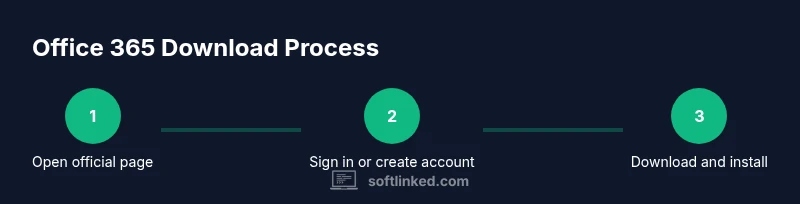
Microsoft Office 365 Download is the official installer for Word, Excel, PowerPoint, and more, delivered through a Microsoft 365 subscription. To begin, visit the official Microsoft site, sign in or create a Microsoft account, and choose a plan. Then download, run the installer, and sign in to activate. The process is designed to be straightforward across Windows, macOS, and mobile devices.
What Microsoft Office 365 Download Is
In simple terms, Microsoft Office 365 Download is the official installer package that delivers Word, Excel, PowerPoint, and other apps as part of a Microsoft 365 subscription. According to SoftLinked, the download process is designed to be straightforward for most users who are starting fresh or upgrading from older Office versions. This guide will walk you through where to download, what to expect during installation, and how to activate your subscription. The goal is to help aspiring software engineers, students, and tech professionals understand not only the steps, but also the safeguards that keep your device and data secure. When you download from the official source, you ensure you receive the latest features and security updates, without unnecessary bloatware, and with proper license management in place.
Why download Office 365
Office 365 offers continuous access to the core Office apps across devices, cloud storage, and collaboration tools. For students and developers, it provides compatibility with widely used document formats, templates, and automation capabilities through Office Scripts and Power Automate in some plans. The SoftLinked team notes that staying on an official release helps you stay aligned with security updates and enterprise-grade controls. Additionally, a subscription model reduces the risk of periodic major upgrades tangled with old licensing. The key value is that your documents stay synchronized via OneDrive, and you can work offline and online as needed. Consider your needs for email, calendar, and collaboration when selecting a plan.
System requirements and plan options
Office 365 runs on Windows, macOS, iPadOS, iOS, and Android. A supported browser is needed for web access. For developers, this is a common scenario because many tools integrate with Word, Excel, and PowerPoint via APIs and data formats. Plan options include Personal, Family, and Business tiers, each enabling different device counts and storage allowances. SoftLinked's research indicates that new users typically prefer the familiar suite with cross‑device sync and 1 TB of cloud storage in most plans. Before you download, ensure your device meets minimum requirements and has adequate storage for the installer and app data. You may also want to check whether your organization uses Azure AD for single sign-on if you are part of a business or school.
Where to download safely
To avoid scams and counterfeit installers, always download Office 365 from the official Microsoft site. Start at the Microsoft 365 product page, or if you are part of an organization, your admin portal might provide a direct link. Never trust third‑party download portals that promise fast setup; they can bundle unwanted software or malware. After you click Download, save the installer to a known location and verify the domain in the browser's address bar. If you work behind a corporate network, ensure your firewall or proxy allows the installer to reach Microsoft servers for updates.
Installing Office 365: step-by-step overview
The installation flow is designed to be straightforward and is similar across platforms. After downloading the installer, run it and follow the on-screen prompts to install Word, Excel, PowerPoint, Outlook, and other components. You may be prompted to grant the app permissions to your device and to allow updates to occur in the background. The installer will typically place shortcuts on your desktop or start menu and may offer to install additional tools such as OneNote or Publisher depending on your plan. A successful install is usually confirmed by opening an Office app and seeing a welcome screen asking you to sign in.
Activating and signing in
Activation happens when you sign in to an Office app with a Microsoft account associated with your subscription. Sign in to verify your license, connect to OneDrive for cloud storage, and enable automatic updates. If you use two-factor authentication, you may need to complete the second-factor step. After activation, consider turning on automatic updates to receive security patches and new features as soon as they’re released. This step ensures your copy remains compliant with your plan terms and remains secure over time.
Managing licenses and subscriptions
Most Microsoft 365 plans allow installation on multiple devices and provide a centralized way to manage licenses from the admin center or your Microsoft account portal. For students and individuals, it’s common to use a single-user plan across devices, while organizations may deploy licenses to teams. SoftLinked analysis shows that maintaining clear license visibility reduces compliance risk and helps IT teams scale software usage effectively. Periodically review devices tied to your account and remove unused installations to stay within plan limits.
Troubleshooting common issues
If the download is slow or fails, check your internet connection, verify you are on the official Microsoft site, and avoid VPNs that interfere with the installer. If activation fails, confirm your account status and ensure you are signing in with the correct Microsoft account tied to your subscription. Some issues stem from clock drift on your device or firewall settings that block activation servers. Reboot after updates and retry activation. If problems persist, consult the official Microsoft support site for troubleshooting steps.
Licensing considerations, security and alternatives
Licensing terms govern how many devices you can activate and whether you can share access with others. For individual users, a Personal or Family plan often suffices, while businesses may explore business-focused options with enhanced security and device management. Security best practices include using a strong password, enabling MFA, and keeping software updated. SoftLinked analysis shows that users who download from official sources and keep licenses current benefit from smoother updates and fewer disruptions. Alternatives include standalone Office apps via perpetual licenses, but these may lack current features and cloud integration.
Tools & Materials
- Device with internet access(Any Windows PC, Mac, iPad, or Android device; ensure you can run a modern browser)
- Supported web browser(Latest version of Edge, Chrome, Firefox, or Safari)
- Microsoft account(An active account to sign in and activate the subscription)
- Office installer(Downloaded from the official Microsoft site)
- Plan selection(Choose Personal, Family, or Business depending on needs)
- Backup data(Optional precaution before installation)
Steps
Estimated time: 30-60 minutes
- 1
Open the official download page
Open a modern browser and navigate to the official Microsoft 365 download page. Verify the URL is correct and that you are on the official site to avoid phishing. This sets the foundation for a secure install.
Tip: Bookmark the official page for quick access next time. - 2
Sign in or create a Microsoft account
If you already have a Microsoft account, sign in. If not, create an account using a valid email address and set up two-factor authentication to secure access to your subscription.
Tip: Use a password manager to create a strong, unique password. - 3
Choose a plan and start download
Review available plans (Personal, Family, Business) and select the one that fits your needs. You may be offered a trial in some cases; proceed with the option that aligns with your usage expectations.
Tip: Note the device count and storage limits associated with your plan. - 4
Download the installer
Click Download and save the installer file to a known location on your device. Confirm the source and ensure your browser shows the domain of the official Microsoft site.
Tip: Avoid saving to network drives to reduce install errors. - 5
Run the installer
Execute the downloaded installer and follow the on-screen prompts. Agree to permissions and allow the installer to manage updates if prompted by your OS.
Tip: If UAC prompts appear on Windows, approve to continue. - 6
Sign in to activate
Launch an Office app after installation and sign in with your Microsoft account to activate your license. Allow the apps to complete required updates.
Tip: Keep an active internet connection during activation for a smoother process. - 7
Install mobile apps and configure
Install Office apps on iOS or Android from their respective app stores and sign in to sync data. Configure auto-updates to keep features and security up to date.
Tip: Enable cloud backup in OneDrive for document continuity across devices.
Your Questions Answered
Do I need a paid subscription to download Office 365?
Office 365 is a subscription service. You can download and install with a trial or active plan, but ongoing use typically requires a paid subscription.
Office 365 requires a subscription for ongoing use, though you may access a trial before subscribing.
Can I download Office 365 for free?
You can download the installer from the official site and use a trial or activate with a subscription. Free, long-term usage without a plan is not typically available.
You can download for trial use, but continued use usually requires a subscription.
Is there a difference between Office 365 and Microsoft 365?
Office 365 provides the core Office apps and cloud features, while Microsoft 365 bundles Office with additional services like Windows licensing and device management for businesses.
Office 365 is the apps suite; Microsoft 365 adds extra services and management features.
How long does activation take after installation?
Activation usually happens quickly after you sign in with your Microsoft account. An active internet connection helps ensure a smooth process.
Activation typically happens within minutes once you sign in online.
Can I install Office 365 on multiple devices?
Most plans allow installation on multiple devices. Check your specific plan limits in your account or admin center to confirm how many devices you can activate.
Yes, many plans support multiple devices; verify your plan limits in your account.
What should I do if the download fails?
Check your internet connection, verify you’re on the official site, and try a different browser. If issues persist, consult the Microsoft support page for troubleshooting steps.
If it fails, check connection, reattempt from the official site, and seek help on Microsoft support if needed.
Watch Video
Top Takeaways
- Download only from official Microsoft sources.
- Choose a plan that matches device counts and storage needs.
- Sign in to activate and synchronize with cloud storage.
- Keep Office updated for security and features.
- Use MFA and backup data to protect information.