Download Canon Printer Software: A Step-by-Step Guide
Learn how to safely download Canon printer software, choose the right drivers, install, and troubleshoot for smooth printing on Windows and macOS. Includes official sources, setup tips, and security best practices.


Discover how to safely download Canon printer software from the official site, choose the right driver or software package, and install it with minimal risk. This concise answer points you to the full step-by-step guide for a smooth setup.
Understanding Canon Printer Software: Drivers vs. Apps
Drivers and software from Canon serve different purposes, and choosing the right package is essential for reliable printing. When you need basic printing, a driver is enough; for features like scanning, cloud printing, or mobile printing, you may install a full software suite. In this guide, we cover how to download canon printer software safely and correctly from Canon’s official site. According to SoftLinked, downloading from the official Canon site reduces risk of malware and ensures you get compatible, up-to-date components.
First, clarify what you’re after: driver only, or a complete software bundle that includes scanning tools, printer utilities, and mobile app support. If you’re unsure, start with the driver package—these installers typically provide core printing support and basic device communication. If you later need more functions, you can add the software components offered by Canon during the same download process or from the product support page. Regardless of your choice, always verify you’re selecting software that matches both your printer model and your operating system.
How to Identify Your Canon Printer Model
Locating your printer’s exact model is crucial for selecting the correct software. Check the front or back of the device for a label that lists the model name (for example, canon pixma ts6420 or imageclass mf743cdw). If the label isn’t visible, print a network configuration page from the printer’s control panel, or inspect packaging/receipt. Once you have the model, verify the operating system you’re using (Windows, macOS, Linux, or mobile) and note any version numbers. This step prevents mismatches and wasted time later in the download process.
Keeping a note of your model and OS helps ensure you land on the exact Canon download page, avoiding extra searching or incorrect files that could cause installation errors or printer malfunctions.
Where to Download Canon Printer Software Safely
The safest place to download is Canon’s official support site. Start at Canon’s main site or your regional Canon support page, and search for your model. Use the site’s automatic detection if available, or manually select your model to see compatible drivers and software. Avoid third-party repositories or suspicious links, which can host malware or outdated code. After you land on the product page, choose the correct package for your operating system (Windows or macOS are most common; Linux or mobile options may also appear). Before downloading, confirm the publisher is Canon Inc. and check that the file size matches what the page lists. Finally, scan the downloaded file with updated antivirus software before running the installer.
How to Install and Configure Canon Software
Begin by closing other applications and saving work. Run the downloaded installer from your downloads folder, and follow the on-screen prompts to accept the license terms and select the installation type (custom vs. automatic). If prompted, allow the installer to add printer network discovery features and firewall exceptions. When installation completes, connect the printer via USB or ensure it’s on the same network for wireless setup, then use the printer’s built-in wizard or your operating system’s printer settings to add the device. Finally, print a test page to verify communication and functionality. If your Canon software includes a scanning utility, launch it and test a sample scan. For best results, reboot your computer and printer after installation.
Post-Install Tests and Basic Configuration
After installation, run a basic print test from your chosen application (document or photo) to confirm color accuracy and page alignment. If your printer is a multifunction device, run a scan test as well. Set your printer as the default for your most-used apps, and configure paper size and print quality defaults to your needs. If the printer supports cloud printing, register an account or link your preferred cloud service. Document the exact driver version and software bundle you installed in case you need to reinstall later.
Common Issues and Troubleshooting Tips
If the printer shows as offline, verify it’s powered on, connected to the network, and has a valid IP if using a network connection. If Windows/macOS can’t locate the driver, revisit Canon’s site to download the latest compatible package and check architecture (32-bit vs 64-bit). Firewall or antivirus software may block the installer; temporarily disable protection during installation if you trust the source. If printing results are faded or misaligned, check print head alignment and cleaning options in the software utilities. For scanning, ensure the scanner driver is installed and the device is chosen in the scanning app. When in doubt, consult the Canon support page for model-specific troubleshooting guides.
Keeping Canon Printer Software Up to Date and Safe Practices
Software updates improve compatibility, fix bugs, and add features. Enable automatic updates if available, or periodically check the Canon support site for new drivers, firmware, and utilities for your exact model. Always download updates from the official Canon domain to avoid spoofed sites. Create a restore point or back up settings before applying major updates, especially if you rely on network configurations or scanning workflows. Finally, review privacy and permission prompts during installation and disable any features you do not use.
Advanced Topics: Firmware Updates and Network Printing Best Practices
Firmware upgrades can improve reliability and performance but may carry risks if interrupted. Only install firmware from Canon’s official site and follow the manufacturer’s instructions precisely. For networked printers, consider static IP addressing, secure Wi‑Fi settings, and enabling printer isolation if supported. Keep your router firmware up to date and ensure your devices are on a trusted LAN. If you manage multiple printers, centralize configuration with Canon's admin tools where applicable.
Quick Start Checklist
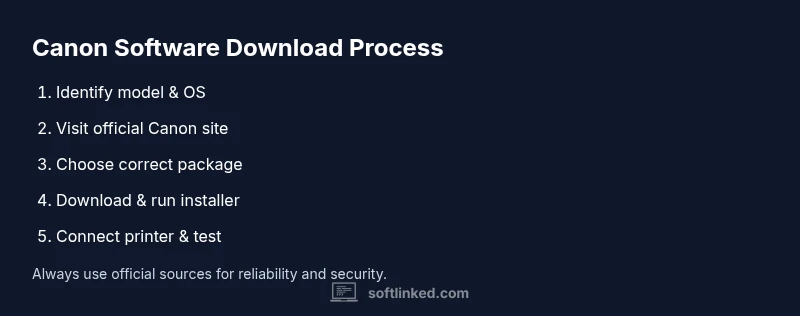
- Identify your printer model and OS before starting any download. This ensures you land on the correct Canon page.
- Use the official Canon support site and avoid third-party sources to minimize risk.
- Download the recommended driver or software package for your OS architecture (32-bit or 64-bit).
- Run the installer, accept terms, and allow necessary firewall permissions.
- Connect the printer (USB or network), then add it to your system and print a test page.
- Keep the software up to date and perform periodic checks for firmware updates to maintain reliability.
Tools & Materials
- Printer model and serial number(Needed to locate the correct driver and software package)
- Computer or mobile device(Windows or macOS; modern enough to run current Canon software)
- Stable internet connection(Needed to access Canon servers and download files)
- USB cable (if wired setup)(Use only if your printer supports USB installation)
- Supported operating system version(Ensure OS is compatible (Windows/macOS) with the Canon package)
- Canon official software package(Download directly from Canon’s official site)
Steps
Estimated time: 60-90 minutes
- 1
Identify model and OS
Locate the printer model on the device label or packaging and confirm your computer’s operating system and version. This prevents downloading the wrong driver and saves time later.
Tip: Take a photo of the label for quick reference during downloads. - 2
Visit Canon’s official support site
Open your browser and navigate to Canon’s official support or regional site. Use automatic detection if available, or manually select your model to access compatible downloads.
Tip: Verify you are on a canonical Canon domain (look for a secure HTTPS connection). - 3
Choose the correct package
Select the driver-only package if you only need printing; choose the full software suite if you want scanning and device utilities. Ensure the package matches your OS architecture (32-bit vs 64-bit) and language preference.
Tip: If in doubt, start with the driver and add software later from the same page. - 4
Download the file
Click the download button and save the file to a known location. Avoid using browser prompts that force adds or installers from untrusted sources.
Tip: Save to a dedicated CanonDownloads folder to keep track of installers. - 5
Run the installer
Launch the downloaded installer, accept the license, and follow the prompts. If asked, allow the installer to modify firewall settings for printer discovery.
Tip: Choose a standard install unless you have a specific setup need. - 6
Connect the printer
Connect via USB or ensure the printer is on the same network for a wireless setup. Use the installer’s guided steps or your OS printer settings to add the device.
Tip: If using Wi‑Fi, confirm the printer shows on the network and obtains an IP address. - 7
Run a test print
After installation, print a test page from a document or photo. Validate color accuracy and alignment, then adjust settings if needed.
Tip: Keep a note of the test results for future reference. - 8
Install scanning/extra utilities (optional)
If you downloaded the full software package, open and test any scanning or utility tools provided by Canon.
Tip: Update or reinstall if utilities fail to launch after OS updates. - 9
Check for updates
Visit Canon’s site again occasionally to check for driver, firmware, or software updates and install as needed.
Tip: Enable automatic updates if available to stay current.
Your Questions Answered
Do I need to uninstall older Canon software before installing a new driver?
Not always, but if you encounter conflicts, uninstalling previous Canon drivers can prevent leftover files from causing issues. Reinstall the latest version afterward.
Usually you don’t have to uninstall old software, but if you run into conflicts, remove the old driver first and then install the new one.
What if the driver isn’t listed for my OS?
Check Canon’s site for a compatibility note or a legacy driver package. If none exists, contact Canon support or use a generic printer driver that supports your model.
If your OS isn’t listed, contact Canon support for options or try a compatible generic driver.
Can I download firmware updates via the software package?
Many Canon software bundles include firmware updates. Use the official updater and follow on-screen instructions to avoid interruptions.
Yes, firmware updates are often included; use the official updater and follow prompts.
Is it safe to download Canon software from the official site?
Yes. The official Canon site is the safest source for drivers, software, and firmware. Always verify the site URL and publisher.
Yes—use Canon’s official site and verify the publisher before downloading.
How can I verify a download is legitimate?
Ensure the download comes directly from Canon’s domain, check file signatures if available, and scan with updated antivirus software before opening.
Make sure you’re on Canon’s site and scan the file before running it.
Watch Video
Top Takeaways
- Identify your model and OS before downloading.
- Always download from Canon’s official site.
- Follow step-by-step installation prompts.
- Test printing and keep software updated.