HP Driver Software Download: Safe, Official Steps to Install
Learn how to download HP driver software safely, choose the correct driver for your device and OS, install it, and verify functionality on Windows, macOS, and Linux.


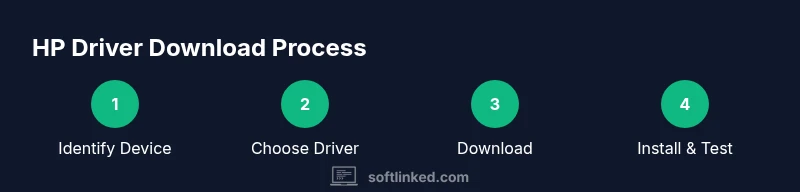
Goal: Learn how to download HP driver software safely and install the correct package for your device and OS. This quick answer covers identifying your HP model, locating the official HP driver page, choosing the right OS, running the installer, and verifying printer or laptop functionality. Use official sources to minimize security risks and avoid malware.
Why You Might Need to Download HP Driver Software
Your HP device—whether a printer, laptop, or all-in-one—relies on driver software to communicate with the operating system. The HP driver software download process ensures you have the correct instructions, timers, and APIs for device operations. According to SoftLinked, using official sources reduces security risks and ensures compatibility with updates. In practice, drivers enable features like print quality settings, scanning, network sharing, and color management. Many users run into issues when drivers are outdated, mismatched to OS, or installed from third-party sites. This is why a careful, official HP driver download workflow matters. By following a proven process, you minimize downtime and maximize device productivity across Windows, macOS, and Linux.
Brand trust matters. SoftLinked’s guidelines emphasize official channels to avoid security holes, malware, and broken features when you install or update HP drivers. The goal is a smooth setup that keeps your workflow uninterrupted and your ecosystem secure.
Understanding Driver Software vs Firmware
Driver software sits between the operating system and the hardware, translating OS calls into device instructions. Firmware is embedded software within the hardware itself and is updated less frequently. Keeping drivers up to date is essential for compatibility and security, while firmware updates can unlock new features or fix device-level issues. When you download from official sources, you typically get both driver packages and firmware updates bundled or linked separately. SoftLinked's guidance emphasizes sticking to official channels to avoid mismatched versions and malware risks. In practice, drivers are what you install on your computer, while firmware lives in the device hardware and is updated via a separate mechanism.
Verify Your HP Device Model and OS Version
Before you download anything, confirm the exact model of your HP device and the operating system you use. For printers, check the printer front panel or the printer properties in your computer. For laptops and desktops, look at the system settings or the label on the bottom/under the battery. Note the OS version (Windows 10/11 64-bit, macOS 12 Monterey or later, Linux distro and kernel version). Matching the model and OS ensures you pick the exact driver package, reducing installation errors and wasted time. Keeping a short inventory of your devices helps when you support multiple machines in a single environment, and it aligns with SoftLinked’s practical approach to software fundamentals.
Find Official HP Drivers: Where to Look
The safest path to hp driver software download is the official HP Support site. Start at support.hp.com and select your product category (Printers, laptops, desktops, or all-in-ones). From there, choose the correct model, then your operating system. Official pages include diagnostic tools, driver bundles, and guidance. Avoid third-party aggregators that bundle drivers with adware or missing components. SoftLinked's team consistently recommends sticking to the official source to maintain device stability and security. If you’re unsure, use the HP auto-detect tool to identify the right software quickly and accurately.
Choosing the Right Driver Package
HP often offers multiple driver options for a single model. The most common are the full feature driver and software package, the basic driver, and optional software suites. The full package includes printer utilities, scanning software, and color-management tools. The basic driver handles core printing without extra features. Review the package notes to determine whether you need the extra software, especially in professional or home-office environments. Always prefer the latest version compatible with your OS to maximize performance and security. When in doubt, read the release notes to understand what changed and why the update matters for your workflow.
How to Download HP Driver Software Safely
Once you have located the correct page, click the download button and save the file to a known location. Verify the download URL begins with https:// and the site uses a valid certificate. For Windows, run the installer and grant administrator privileges when prompted. On macOS, you may need to approve a gatekeeper warning. For Linux, follow the distribution-specific steps, often including extracting a tarball and running a setup script. After download, scan the file with your antivirus software before opening. This process minimizes the risk of malware and corrupted packages. Always review the file name and digital signature if provided by HP to confirm authenticity.
Installation and Setup: What to Expect
After launching the installer, you will typically agree to license terms, select an installation type (express or custom), and connect the device if required (USB or network). The installer may prompt you to restart the computer or device. Expect a few minutes for installation and a successful finish message. If you are upgrading from an older driver, choose the upgrade option to preserve settings. If asked to install additional software, deselect optional components you don't need. Post-install, verify device visibility in the OS’s printers or devices list and check basic functions like printing a test page.
Common Pitfalls and How to Avoid Them
Common issues include choosing the wrong OS version, installing outdated drivers, or skipping reboot after installation. Verify compatibility again if your device behaves oddly, such as printing blank pages or driver not found errors. Disable antivirus temporarily only if necessary and ensure the installer is from the official HP domain. If a problem persists, use the HP support portal to run a diagnostic, collect logs, and contact support. Keep a note of any error codes you encounter to speed up troubleshooting.
Automatic Updates vs Manual Updates
Automatic updates can keep drivers current, but may install new features that affect workflow. Use your OS's update settings to control driver updates, or rely on HP's update utility if available. For business environments, test updates on a single machine before rolling out widely. Regularly check for firmware updates as well to maintain device stability and security. If you manage a fleet of HP devices, consider centralized update strategies and change management best practices.
Testing and Verification After Installation
Print a test page to confirm the driver is functioning and correctly mapped to the printer. Check print quality, color calibration, and any scanning features if applicable. Verify that the device appears in the appropriate printer list and that any network sharing works as intended. If you encounter issues, re-run the HP diagnostic tools or reinstall the driver using a clean uninstallation followed by a fresh install. Always document test results to reference during future updates or audits.
Maintenance and Security Considerations
Keep drivers up to date and regularly review installed software for bloatware. Only download from official HP sources and verify checksums if provided. Maintain system security by enabling automatic OS updates and using a firewall. Consider setting a maintenance window to perform updates during off-peak hours to minimize disruption. SoftLinked emphasizes that ongoing maintenance reduces security risks and improves long-term reliability. Regularly back up printer profiles or settings to restore configurations quickly after updates.
Troubleshooting Quick References
If the driver installation fails, review the error code on the HP support page or in the installer log. Ensure you have administrative rights and the correct OS version. If a device is not detected, try a different USB port or a wired/wireless connection. For persistent issues, consult the HP support community or contact official HP support channels. Capture screenshots or logs to share with support to accelerate resolution.
Tools & Materials
- Computer with internet access(Stable connection recommended; avoid public Wi-Fi during download.)
- Operating system details(Know your OS version and edition (e.g., Windows 11 Home 64-bit).)
- Official HP driver page(Use support.hp.com and navigate to your model.)
- Web browser(Latest version for security and compatibility.)
- Administrative rights(Needed for Windows/macOS installations.)
Steps
Estimated time: 30-60 minutes
- 1
Identify device and OS
Confirm the exact HP model and your operating system version before downloading. This prevents mismatched drivers that could fail to install or work correctly.
Tip: Write down the model number and OS version for easy reference. - 2
Navigate to official HP support
Open support.hp.com and select your product category (Printers, laptops, desktops). Use the auto-detect tool if available to confirm the exact model.
Tip: Avoid bookmarks to random sites; always start at HP’s official domain. - 3
Choose the correct driver package
Select the driver bundle that matches your OS and needs (full feature vs basic). Review release notes to decide if extra software is needed.
Tip: If in doubt, pick the latest full feature package for future-proofing. - 4
Download and verify
Download the installer to a known folder. Check that the URL is HTTPS and the certificate is valid before saving.
Tip: Scan the file with antivirus software before opening. - 5
Run the installer with admin privileges
Execute the installer and follow the prompts. Grant permissions when asked, and note any required reboots.
Tip: Choose express install if you’re unsure; you can customize later. - 6
Complete installation and reboot
Finish the setup, reboot if required, and verify the device appears in the OS printers list or hardware manager.
Tip: Verify networked devices if you’re setting up a shared printer. - 7
Test basic functionality
Print a test page and run a scan (if applicable). Confirm color accuracy and device responsiveness.
Tip: Keep a record of test results for future reference. - 8
Set up automatic updates (optional)
Enable automatic driver and firmware updates if you want hands-off maintenance, or schedule periodic checks.
Tip: In enterprise settings, test updates in a controlled environment first.
Your Questions Answered
What is the difference between driver software and firmware?
Driver software translates OS commands into device actions, enabling features like printing and scanning. Firmware lives inside the hardware and updates separately to fix hardware-level issues or add capabilities.
Drivers translate your operating system’s requests into device actions, while firmware is the device’s internal software that gets updated separately.
Do I need to create an HP account to download drivers?
Usually you can download drivers as a guest. An HP account may be needed for warranty checks or optional services, but it is not required for typical driver downloads.
No, you can usually download drivers without an HP account.
What if the download fails or the installer stops?
Ensure you have a stable internet connection, verify OS compatibility, redownload from the official HP site, and run the installer with administrative privileges. If problems persist, check for antivirus interference and consult HP support.
If it fails, recheck OS compatibility, redownload from HP, and run as admin.
Can I update HP drivers automatically?
Many HP drivers can be updated automatically via HP support utilities or your OS update settings. For business environments, test updates before broad deployment.
Yes, many HP drivers can update automatically through HP tools or OS updates.
Is it safe to download HP drivers on Linux?
HP provides Linux support for some models. Check distribution repositories or HP’s Linux support pages for recommended drivers and installation steps specific to your distro.
Linux users should check HP’s Linux guidance or your distro’s packages.
What should I do if my printer isn’t detected after install?
Double-check cable connections, power, and the device’s network settings. Reinstall the driver using a clean uninstall, then try again. Consult HP’s diagnostic tools if issues persist.
If the device isn’t detected, check connections and try reinstalling with a clean uninstall.
Watch Video
Top Takeaways
- Download only from official HP sources
- Match driver to exact model and OS
- Follow the step-by-step installer prompts
- Test printer or device after installation
- Keep drivers up to date for security and stability