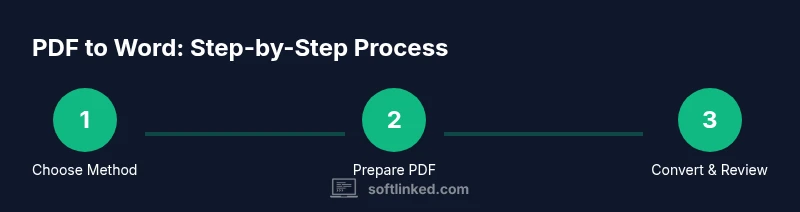
PDF Converter to Word: A Practical Step-by-Step Guide
Learn to convert PDFs to Word accurately with online and offline tools. This guide covers OCR for scanned PDFs, layout preservation, and essential steps, tips, and troubleshooting.


By following this guide, you can convert a PDF to Word quickly and accurately, preserving layout, fonts, and images. You can choose online converters for convenience or offline software for privacy and heavier editing tasks. For scanned documents, OCR-enabled tools are essential. This article compares methods, outlines step-by-step actions, and highlights post-conversion checks to ensure a clean Word file.
What is a PDF converter to Word?
PDF to Word conversion is the process of extracting editable text from a Portable Document Format and recreating it in Word. A good converter preserves the document structure, fonts, images, and tables, while minimizing manual reflow. The SoftLinked team notes that many PDF files use complex layouts, multi-column text, and embedded fonts, which makes perfect conversion challenging. The right tool combines OCR for scanned pages, layout-aware text extraction, and robust image handling. In this section we explore what a PDF converter to Word does under the hood and how different approaches handle their trade-offs. When you start, you should know that results vary by document type: clean, text-heavy PDFs convert more cleanly than intricate layouts with tables, footnotes, and art.
As you evaluate options, consider the source quality and the intended use of the Word document. If your goal is editing, you’ll want sharper text recognition and reliable paragraph flow. If your goal is archival, layout fidelity and image placement become more important. SoftLinked’s guidance emphasizes testing with a representative sample file before committing to a tool for a large project.
Key features to look for
When evaluating a PDF converter to Word, focus on a few core capabilities that predict success across most documents. Look for high OCR accuracy (if your PDF is scanned), multi-column layout understanding, and robust table recognition. Font preservation is crucial for professional documents, so verify whether embedded fonts transfer correctly or if you’ll need to install fonts locally. Tools should support batch processing for larger tasks and provide options to retain bullet styles, indentation, and heading structures. Security features matter too—especially for sensitive files—to prevent data leakage when using online services. Finally, compare pricing models, including one-time licenses versus subscriptions, and consider whether offline modes are available for maximum privacy. By prioritizing these features, you’ll narrow down the best fit for your needs and reduce post-conversion cleanup.
Online vs offline: Pros and cons
Online converters offer speed and convenience with no software installation. They’re great for quick, non-sensitive tasks and when you need to process documents on the go. Offline tools, by contrast, provide stronger privacy controls, especially for confidential or proprietary material, and often deliver better layout preservation for complex documents. SoftLinked analysis shows that privacy considerations are a major driver for many professionals choosing offline solutions, while accuracy gains are common with desktop software that leverages local OCR engines. When deciding, weigh the sensitivity of your PDFs against the required fidelity of the Word output. For heavy editing, offline tools tend to perform more consistently, whereas short, simple PDFs may be perfectly adequate online.
How to handle complex PDFs: fonts, tables, and images
Complex PDFs with mixed fonts, embedded images, and dense tables pose a bigger challenge. To improve outcomes, select tools with advanced table recognition and the ability to repeat complex formatting. After conversion, inspect fonts and spacing; you may need to adjust font families or substitute substitutes that closely match the original. For tables, verify cell borders, merged cells, and header rows. Images should land in approximate locations with captions preserved if present. If the converter struggles with a particular element, consider restructuring the PDF (split it into sections) before re-running the conversion for better results.
Troubleshooting common issues
If text appears garbled or some paragraphs run together, try re-running the conversion with different settings, or enable more aggressive OCR options if the file is scanned. When bullet points or numbering are lost, apply Word styles to re-create consistency quickly. Missing images or broken tables usually stem from source protection or unsupported features; reinsert them manually if necessary. If the output still lacks fidelity, export to a plain-text intermediate format (when available) and reformat in Word to regain control over layout. Always test with a copy first to avoid overwriting your original data.
OCR specifics and accuracy tips
OCR quality hinges on image clarity, language settings, and font complexity. Ensure the tool is configured for the document’s language and that you choose high-resolution scans when possible. If your PDF contains non-Latin scripts or unusual fonts, enable language packs and font libraries within the OCR tool. Post-OCR, proofread for misrecognized characters (like l vs. I or o vs. 0) and correct spacing issues. For best results, run OCR on a clean, high-contrast scan and perform a manual pass to fix any anomalies that the software missed.
Security and privacy considerations
Handling PDFs that contain sensitive information requires attention to where data goes during conversion. Online services may store uploads temporarily or retain copies, so read privacy policies and terms of service before submitting documents. If your file contains confidential data, prefer offline tools or on-premise solutions that run locally on your machine. Use strong access controls and keep software up to date to minimize exposure to vulnerabilities. For shared documents, consider redacting sensitive sections before conversion and deleting local and cloud copies after processing.
Post-conversion checks and editing tips
After converting, perform a quick audit: check that text is readable, fonts are consistent, headings are properly styled, and images are in their expected places. Use Word’s built-in styles to standardize headings, body text, and captions for a clean, professional look. Run spell check and grammar checks, and adjust paragraph spacing to improve readability. If the document will be shared, run accessibility checks to ensure screen readers can interpret the order of content. Finally, save a versioned copy (e.g., name_v1.docx) to track changes as you refine formatting.
When to use OCR and how to verify accuracy
OCR is essential for scanned PDFs that contain image-based text. Before turning on OCR, ensure the source document is legible and high-contrast. After OCR completes, compare the Word output with the original PDF by spot-checking paragraphs, numbers, and tables. Pay special attention to columns and headers, which OCR can misinterpret. If necessary, adjust the recognition language, re-run OCR, and repeat the verification process until the text matches the source with acceptable accuracy.
Tools & Materials
- Computer (Windows, macOS, or Linux)(A modern OS with at least 4 GB RAM; 8 GB preferred for large files)
- PDF file to convert(Source document you want to convert)
- Word processor(Microsoft Word or compatible alternative)
- Online converter (optional)(Use for quick conversions; check privacy policies)
- OCR-capable software(Needed for scanned PDFs; may be built-in or separate)
- Internet connection(Necessary for online tools; offline methods do not require it)
- Printer or PDF viewer/editor (optional)(Helpful for previewing results and capturing references)
- Backup/storage(Keep a copy of the original PDF and the Word document)
Steps
Estimated time: 25-40 minutes
- 1
Identify conversion method
Decide whether to use online or offline tools based on privacy, document sensitivity, and complexity. For simple, text-heavy PDFs online may suffice; for sensitive documents or complex layouts, offline software is safer.
Tip: Start with a non-sensitive test file to validate results. - 2
Prepare the PDF
Ensure the PDF is accessible; if it’s a scanned image, OCR will be needed later. Check for password protection and remove if necessary so the converter can process the file.
Tip: Unlock the PDF if password-protected; otherwise the tool may fail. - 3
Choose the right tool
Pick a tool that supports layout-aware extraction, OCR, and batch processing if you have many files. Verify language support and accuracy settings before converting.
Tip: Look for OCR language support and multi-column handling. - 4
Run the conversion
Open the tool and load the PDF. Enable options like retain layout, image handling, and font transfer. Execute the conversion and save the output as a Word document.
Tip: If the tool offers 'retain formatting', enable it. - 5
Review the Word document
Scan for misread characters, broken tables, and missing images; compare to the original. Correct obvious errors before continuing.
Tip: Use Word's show formatting marks to see issues. - 6
Repair layout and formatting
Manually adjust fonts, spacing, tables, bullets; use styles to ensure consistency across sections. Reflow text if necessary to improve readability.
Tip: Use 'Styles' in Word to standardize headings and paragraphs. - 7
Save and name properly
Save as .docx, with a clear name, version number, and date. Create a backup copy in a separate folder or cloud storage.
Tip: Enable 'AutoRecover' in Word to avoid data loss. - 8
Verify accessibility and proofreading
Check reading order, alt text for images, and run spell check. Ensure the document meets basic accessibility guidelines if it will be shared publicly.
Tip: Run an accessibility check if the document will be used by a wide audience.
Your Questions Answered
Can all PDFs be converted exactly to Word?
No. Simple PDFs often convert cleanly, but complex layouts, multi-column text, and embedded fonts may require manual adjustments after conversion.
Not all PDFs convert perfectly; expect some editing for complex layouts.
Online vs offline: which should I use?
Online tools are quick for light tasks, but offline software is usually safer for sensitive documents and can better preserve complex formatting.
Choose offline for sensitive files; online is convenient for quick, non-confidential tasks.
How do I handle scanned PDFs?
Use OCR-enabled tools to extract text from images. The accuracy depends on scan quality and language settings; verify the result afterward.
OCR is essential for scanned PDFs; verify text after conversion.
Can I preserve fonts during conversion?
Some fonts transfer; others may be substituted. You may need to install missing fonts or adjust styles in Word.
Fonts may not transfer exactly; adjust in Word if needed.
Is it easy to edit after conversion?
Yes, Word provides rich editing features, but expect some cleanup of layout, spacing, and bulleting for professional results.
You can edit in Word, but you’ll likely tidy up formatting.
Watch Video
Top Takeaways
- Plan conversion based on privacy and complexity.
- Choose tools with strong OCR and layout recognition.
- Expect some post-conversion editing for perfect formatting.
- Verify document accessibility and typography after conversion.
- Maintain backups of both source PDF and Word output.