Word to PDF Converter: A Complete How-To Guide
Master the Word to PDF conversion with built-in tools or trusted third-party methods. This comprehensive guide covers methods, best practices for preserving formatting, accessibility, and troubleshooting for reliable PDF output.


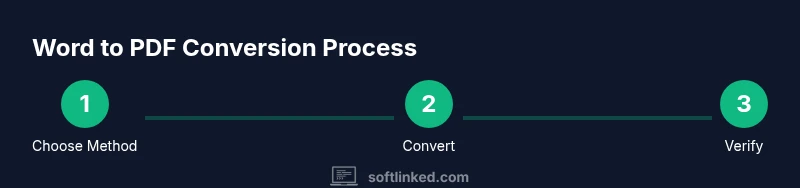
Learn to convert Word documents into PDF using built-in Word features or trusted third‑party tools. This guide helps you pick the right method, preserve formatting, and verify the final PDF. You’ll master multiple conversion paths, consider privacy and accessibility, and avoid common pitfalls. This quick answer points you toward reliable options and what to expect from each.
Why a Word to PDF Converter Matters
In education, business, and publishing, turning Word documents into PDF is a daily necessity. A reliable word to pdf converter preserves layout, fonts, images, and metadata, so your content looks the same on every device and platform. For students drafting essays, for professionals sharing reports, or developers compiling project sheets, predictable PDFs reduce back-and-forth and formatting surprises. According to SoftLinked, a strong conversion workflow reduces manual cleanup and ensures accessibility compliance. The core idea is simple: choose a method that keeps your original document structure intact, embeds necessary fonts, and produces a file that anyone can open with a standard PDF viewer.
Word documents often contain complex elements: tables, embedded images, headers and footers, footnotes, and style definitions. When you convert, misalignment can occur if fonts are missing, margins differ, or hyperlinks lose their targets. A good converter checks these elements and renders them consistently. You will also consider what matters most for you: speed, privacy, cost, offline capability, or batch processing. This section helps you map those priorities so you can choose between built-in Word options, desktop software, or online conversion tools. The keyword here is reliability: the best word to pdf converter minimizes surprises and keeps your workflow moving.
As you read, think about the audience of your PDF. If distribution is internal, you may deprioritize accessibility features. If the PDF is public-facing or archival, you’ll want proper tags, bookmarks, and metadata. This is not just about turning a document into a static file; it is about preserving intent, ensuring legibility, and enabling future edits if needed. By the end of this guide, you’ll understand which path fits your needs, how to validate results, and how to troubleshoot common pitfalls.
Built-in Word Options: Save As and Export
Microsoft Word provides straightforward ways to produce PDFs without extra software. Using Save As or Export keeps formatting, hyperlinks, and images intact when the document is simple, while still accommodating more complex layouts with careful settings. The built-in path is especially attractive for students and professionals who want reliable results without installing anything extra. You can choose a destination folder, select PDF as the file type, and adjust options like preserving document structure, embedding fonts, and optimizing for online viewing. SoftLinked’s guidance emphasizes testing the output on multiple devices to ensure consistency across environments. When done, review the PDF in a basic reader to confirm that all pages render correctly and that special elements, such as footnotes and tables, retain their positions. This approach is fast, privacy-friendly, and generally sufficient for most everyday tasks.
Free vs Paid Tools: What to Choose
There are both free and paid pathways to convert Word to PDF, and the choice usually boils down to feature needs and volume. Free options often cover a single document at a time, with basic fidelity guarantees and no subscription costs. Paid tools—whether desktop applications or online services—tend to offer batch processing, higher fidelity with complex layouts, searchable text, metadata customization, and enhanced security options. If you routinely convert large 문서를 or require advanced features (like OCR for scanned documents or accessibility tagging), a paid solution might justify its cost. From SoftLinked’s perspective, start with a baseline free method to establish a control, then evaluate whether upgrading provides measurable value in speed, accuracy, and privacy.
Online vs Desktop: Pros and Cons
Online converters can be convenient when you don’t want to install software or need to convert on a device that lacks Word. They are typically cross‑platform and fast for small files. However, online tools raise privacy questions, especially for confidential documents, and may impose size limits or feature constraints. Desktop solutions, including Word itself and dedicated PDF creators, offer greater privacy and often deeper control over fonts, compression, and accessibility tags. They work offline, which can be a significant advantage in secure environments. When choosing between these options, consider data sensitivity, file size, and whether you value speed or security more.
How to Convert in Microsoft Word (Windows/macOS)
Converting a Word document to PDF using Word’s built-in features is a common, reliable approach. On Windows, you typically choose File > Save As, select PDF, and confirm any options such as “Best for printing” or “Minimum size.” On macOS, use File > Save As or File > Export To > PDF, then choose your settings. These methods preserve most layouts and allow you to embed fonts. SoftLinked notes that if your document contains fonts not supported by the target PDF, you may see substitutions; embedding fonts during export can mitigate this. After saving, open the PDF with a viewer to verify page order, images, and hyperlinks.
Alternative Methods: Print to PDF, Google Docs
If Word isn’t available, you can still produce PDFs by printing to a PDF writer or by using Google Docs’ built‑in export feature. Printing to PDF uses the system’s virtual printer to generate a PDF file from any printable document, preserving layout in many cases. Google Docs can import Word files and export them as PDFs, which is helpful when collaboration or quick sharing is needed. Be mindful of font availability and formatting differences between platforms; always review the final document.
Accessibility, Metadata, and Verification
A high-quality PDF isn’t just about appearance—it should support accessibility and searchability. Add document structure tags, bookmarks, and alt text for images where possible. Ensure that the PDF’s metadata describes the document’s title, author, and subject. Verification is essential: run a quick pass with a screen reader if possible, scroll through the document to ensure headings are ordered correctly, and check that links work. These steps help your PDF meet accessibility standards and improve long‑term discoverability.
Troubleshooting Common Issues
Even with a reliable word to pdf converter, you may encounter issues like font substitutions, broken hyperlinks, or broken tables. Common fixes include embedding fonts during export, adjusting page margins to prevent content clipping, and converting fonts to vectors where supported. If images appear low resolution, try exporting with higher image quality or using a dedicated printer driver’s settings. For batch problems, consider using a workflow that standardizes fonts, page sizes, and metadata before conversion.
Tools & Materials
- Word document (.docx)(The file you want to convert)
- PDF viewer(To verify the resulting PDF)
- Computer with internet access(Needed for online tools or software installation)
- Microsoft Word (latest version)(If using built-in Save As/Export options)
- Alternative converter software or online service(Optional for advanced features or batch processing)
- Privacy-aware online converter(Use only for non-sensitive documents)
- Batch conversion tool (optional)(Useful when processing many documents)
Steps
Estimated time: 15-25 minutes
- 1
Open your Word document
Launch Word and review the document for any last-minute changes. Confirm fonts, images, and links appear as you expect before conversion.
Tip: Save a backup copy before converting to avoid data loss. - 2
Choose your conversion method
Decide whether you’ll use built-in Word options or a third‑party tool based on the document’s complexity and privacy needs.
Tip: If you anticipate many conversions, plan a workflow to streamline the process. - 3
Convert with Word’s built-in Save As/Export
File > Save As, select PDF as the format, and choose any available options like embedded fonts or document structure preservation.
Tip: Always test the PDF after export on a second device. - 4
Alternative: Print to PDF
If Word is unavailable, use a system PDF printer or Print to PDF option from the print dialog to generate a PDF.
Tip: Check page sizing and margins to avoid clipped content. - 5
Verify and annotate the PDF
Open the PDF, inspect page order, hyperlinks, and image clarity. Add bookmarks or metadata if needed to improve navigation.
Tip: Run a quick accessibility check if your audience includes assistive technology users. - 6
Batch processing (optional)
If converting many files, use batch tools or automation to apply consistent settings across documents.
Tip: Standardize fonts and page sizes before batch conversion to minimize surprises. - 7
Share and archive
Save the final PDFs in a structured folder, assign meaningful names, and store an original Word file for future edits.
Tip: Keep a changelog if modifications were made during conversion.
Your Questions Answered
What is a Word to PDF converter?
A Word to PDF converter is a tool or feature that turns Word documents (.docx) into PDF files while attempting to preserve formatting, images, and hyperlinks. It can be built into Word, a desktop app, or an online service.
A Word to PDF converter turns Word documents into PDFs, keeping formatting and links as much as possible.
How do I save a Word document as a PDF in Word?
In Word, go to File > Save As, choose PDF as the format, then adjust options like embedding fonts and preserving structure. Alternatively use Export to PDF for a cleaner workflow.
In Word, use Save As or Export to save your document as a PDF and adjust the settings as needed.
Are online converters safe for confidential documents?
Online converters are convenient but pose privacy risks for sensitive material. If confidentiality matters, prefer offline methods or trusted services with clear privacy policies.
Online converters can be risky for confidential documents; use offline options when privacy matters.
Can I convert multiple Word files at once?
Yes, many tools support batch conversion. Look for batch processing features in desktop software or online services and standardize settings to ensure consistent output.
Batch conversion is available in many tools; choose a method that keeps settings uniform across files.
What’s the difference between Save As and Export in Word?
Save As saves a copy in a chosen format; Export may offer a streamlined path with preset options. Both can produce PDFs but might differ in available settings.
Save As and Export both can create PDFs, but Export often provides a faster, preset workflow.
What if the formatting changes after conversion?
Check font embedding, margins, and image resolution. If needed, adjust Word document formatting before converting or tweak PDF options like compression and font embedding.
If formatting shifts, adjust fonts and margins in Word or tweak PDF embedding settings before re-converting.
Watch Video
Top Takeaways
- Choose a method that fits document complexity and privacy needs
- Use built-in Word export for simple files and trusted tools for complex layouts
- Always verify the PDF output before sharing
- Consider accessibility and metadata for archival quality