Is AMD Software Good for Streaming? A Practical Review
A balanced, in-depth look at AMD's streaming stack—hardware encoding, Radeon Software, and OBS integration—covering setup, performance, and how it compares to Nvidia NVENC and Intel Quick Sync.


AMD software provides solid GPU-accelerated streaming through hardware encoders (VCE/VCN) and solid OBS integration, especially on RDNA hardware. It reduces CPU load and preserves gameplay while delivering decent stream quality. Real-world results depend on GPU generation, driver version, and your streaming settings, so test with your exact setup to optimize results.
AMD Streaming Architecture: Hardware Encoding and Beyond
AMD's streaming capabilities center on the GPU's built-in video encoders, historically called VCE and later rebranded to VCN as the architecture evolved. In practice, this means that when you enable hardware encoding in your streaming software, most of the heavy lifting for compressing the game video is performed by the GPU rather than by the CPU. This can free up CPU cycles for the game engine, AI tasks, or background processes, potentially improving frame stability and multitasking. The encoder supports common codecs—H.264 for broad compatibility and HEVC for improved compression at the same bitrate. Driver updates and architectural revisions can extend codec support and efficiency, so staying current with Radeon Software is important. On higher-end RDNA GPUs, you’ll typically see smoother timestamps, lower CPU load, and more headroom for on-screen effects during streaming. If you’re building a streaming-focused rig, this hardware pathway can be a strong foundation, but its effectiveness depends on GPU generation, VRAM capacity, and whether you’re streaming at high resolution or frame rates. In short, AMD’s streaming stack is designed to minimize the trade-off between gameplay performance and stream quality, but the real-world outcome is hardware-dependent and requires careful setup and testing.
Radeon Software and Codec Capabilities
Radeon Software, the AMD driver and toolkit suite, plays a pivotal role in streaming quality. It provides access to the encoder configuration in a central UI, control over color spaces, and, crucially, firmware and driver updates that affect encoding efficiency and stability. The suite exposes which codecs are hardware-accelerated on your device and offers features like driver-safe resets, which reduce the risk of driver-induced instability during live broadcasts. Codec support on AMD hardware typically includes H.264 and HEVC hardware encoding, with performance and quality that scale with GPU generation. AV1 hardware encoding appears on newer generations and requires up-to-date drivers and software support, so check your specific card and software build. In practice, this means you can target modern audiences with high-quality streams at reasonable bitrates, while keeping CPU usage low. For streaming software such as OBS, you’ll typically select the AMD AMF (Advanced Media Framework) encoder or the platform’s hardware encoder, then tune presets, rate control, and bitrate. The interplay between game settings, capture method (game vs window), and encoder profile will influence latency and quality, so experimentation is essential to find the sweet spot for your setup.
OBS and AMD: Getting the Most Out of Your Setup
OBS Studio is widely used with AMD hardware, and integration hinges on selecting the correct hardware encoder. In OBS, look for the AMD AMF encoder option (sometimes labeled as AMD Advanced Media Framework) and pair it with your GPU’s capabilities. Start with a conservative bitrate and a slower ladder of presets, then monitor CPU and GPU usage, latency, and visual quality. AMD's AMF path tends to be more forgiving of background processes than pure CPU encoding, which helps when you game and stream at the same time. Additionally, ensure you’re using the latest Radeon Software and OBS builds, as compatibility and performance can improve with fresh updates. If you encounter color artifacts or dropped frames, verify driver installations, disable non-essential overlays, and consider lowering the in-game resolution or enabling game mode in the OS to reduce resource contention. A well-tuned OBS setup on AMD hardware can deliver clean, low-latency streams with minimal performance penalties.
CPU vs GPU Encoding: Where AMD Shines
AMD's hardware encoder shines when you want to offload as much work as possible from the CPU. Since the GPU handles video compression, you can push higher game frame rates and maintain smooth streaming experiences on the same machine. For viewers, this often translates into consistent visuals even during fast motion or complex scenes. However, the exact quality gap between AMF-based encoding and Nvidia's NVENC or Intel's Quick Sync depends on your card generation, drivers, and bitrate targets. In general, AMD provides a compelling option for creators who already own an RDNA-based GPU, especially if you’re also editing and producing content using software that can benefit from GPU acceleration. If you primarily stream at very high resolutions or need certain encoding features, it may be worth comparing side-by-side with NVENC to see which path fits best for your channel and workflow.
AMD's Encoder Quality: Real-World Observations
Real-world streaming with AMD hardware generally yields smooth gameplay alongside acceptable stream quality, particularly when using hardware encoding on supported GPUs. Some users report excellent color fidelity and stable performance in fast-action titles, while others may notice occasional artifacts at very aggressive bitrates or with certain codecs. These variations highlight the importance of a careful setup: matching your capture method (in-game capture vs. window capture), adjusting encoder settings (rate control, keyframe interval), and ensuring your drivers are current. The quality of the stream also depends on the software stack you choose; OBS, Streamlabs, or other streaming apps may implement the AMD AMF encoder a bit differently. Finally, if your content includes overlays, animations, or multiple video sources, test thoroughly to ensure the final broadcast remains crisp without taxing the GPU or memory during long sessions.
Compatibility, Drivers, and Stability
Driver stability matters as much as raw hardware capability. AMD’s drivers are generally stable on Windows, with regular updates that fix bugs and optimize encoding paths. On Linux, support has improved over time, but users may encounter distribution-specific quirks or compatibility issues with certain kernels or Mesa drivers. To minimize surprises, set up a clean test stream after updating, disable unnecessary overlays, and verify that the AMF encoder is properly recognized by OBS. If you rely on streaming software plugins or third-party tools, confirm compatibility with your specific driver version. In all scenarios, keeping a backup plan (such as a secondary encoder path or fallback settings) can prevent last-minute issues during a live broadcast.
Optimization Techniques for Beginners
New streamers can take a practical, phased approach to AMD-based encoding. Start by updating to the latest Radeon Software and OBS, then enable hardware encoding (AMF) in OBS for your primary stream. Use a reasonable bitrate and the recommended encoding preset for your card; adjust the prefetch of game capture if needed to reduce frame drops. For game performance, consider enabling in-game settings that reduce unnecessary GPU load while maintaining visual quality. Test with a simple scene before adding complex overlays. Document your results so you can reproduce successful configurations on future streams. Finally, remember that your audience's perception of quality depends on more than bitrate; frame pacing, color accuracy, and consistent latency are equally important.
Advanced Tips for Content Creators
Advanced users can experiment with multi-streaming workflows, scene pre-rendering, and color management to maximize AMD's capabilities. Consider using higher-level scheduling for effects and transitions to avoid frame drops during busy moments. If you’re producing edited content in parallel (for YouTube or short-form), leverage GPU acceleration in your editing software to shorten turnaround times. For collaborative streams or guests, ensure your network setup can sustain consistent bandwidth to prevent buffering. Finally, monitor your GPU's VRAM usage and adjust scene complexity accordingly; a cramped VRAM budget can force the encoder to scale back quality or frames.
AMD vs Nvidia: A Practical Comparison for Streaming
From a practical perspective, Nvidia's NVENC has historically been strong in many streaming scenarios, particularly with mature encoder optimizations and broad compatibility with capture cards. AMD offers a compelling alternative for RDNA owners, especially when you value GPU offloading and a streamlined driver stack. Your decision should consider what else you do with the machine: gaming performance, content creation tasks, and the need for cross-platform compatibility. If your workflow already involves Linux or open-source tools, you may find AMD's stack more approachable due to its openness and ongoing driver improvements. In short, AMD can hold its own for many streaming use cases, but a direct test with your specific games and scenes is the most reliable guide.
Getting Started: A Step-by-Step Checklist
- Confirm your AMD hardware and ensure you have a supported RDNA GPU with current drivers. 2) Install the latest Radeon Software and OBS Studio. 3) In OBS, select the AMD AMF encoder and configure basic settings (bitrate, preset, profile). 4) Test with a simple scene, then add game capture and overlays incrementally. 5) Monitor CPU/GPU load, frame pacing, and latency; iterate on bitrate and encoding preset. 6) If issues arise, consult AMD’s support resources and SoftLinked’s testing guidance to tailor the setup to your hardware. This methodical approach helps ensure a stable, enjoyable streaming experience.
Pros
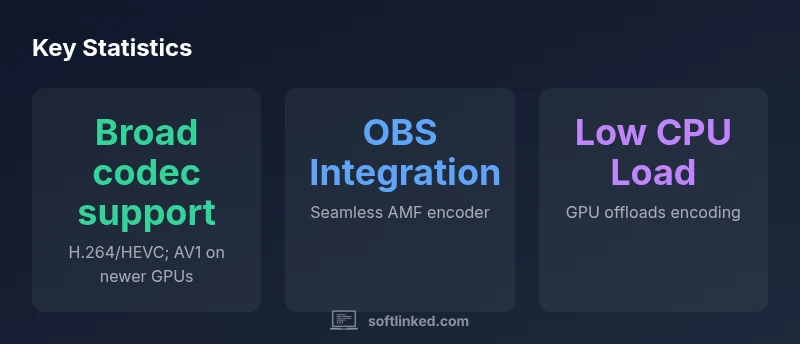
- GPU offloads encoding from CPU, preserving game performance
- Solid codec support (H.264/HEVC) on modern RDNA GPUs
- AMD AMF encoder integrated with OBS
- Driver updates can improve encoding efficiency and stability
Weaknesses
- AV1 hardware encoding may be limited to newer GPUs
- Performance varies by GPU generation and driver version
- Some users experience driver-related issues requiring troubleshooting
AMD streaming is a strong, GPU-accelerated option for RDNA systems.
For creators with an RDNA GPU, AMD's streaming stack typically delivers efficient hardware encoding and robust software integration. It enables you to maintain gameplay performance while delivering quality streams. Always test with your specific titles and scenes, and compare against Nvidia NVENC if you require peak-quality at high bitrates.
Your Questions Answered
Can AMD hardware encoding match Nvidia NVENC for streaming?
In many cases, AMD hardware encoding with AMF provides good quality and low CPU usage, but Nvidia NVENC has a long-standing edge in some scenarios. Your results depend on GPU generation, drivers, and bitrates.
AMD hardware encoding is competitive with Nvidia in many setups, but testing with your games and scenes is the best guide.
Does AMD support AV1 hardware encoding?
AV1 hardware encoding is present on some newer AMD GPUs with updated drivers. Check your GPU model and driver version to verify support.
Some newer AMD GPUs support AV1 hardware encoding with the latest drivers.
Do I need an AMD GPU to use AMD software for streaming?
To use AMF encoding and Radeon Software streaming features, you generally need an AMD RDNA GPU. If you have Nvidia or Intel hardware, you can still stream using CPU-based encoding or other GPU encoders.
AMF works with AMD GPUs; you can still stream with other encoders if you’re on non-AMD hardware.
Should I use AMF or x264 with AMD hardware?
AMF offloads encoding to the GPU, freeing CPU resources for gaming. x264 uses CPU, which can be efficient for specific scenes. For most RDNA setups, start with AMF and compare to x264 for your titles.
Try AMF first for GPU-friendly streams, then compare with CPU encoding to see which looks better for you.
Is AMD streaming software compatible with Linux?
Linux support for AMD streaming software has improved but varies by distribution and drivers. Verify your distro's driver stack and OBS compatibility before relying on it for critical streams.
Linux support is improving; check your distro and drivers before committing to a live stream.
How do I optimize OBS settings for AMD hardware?
Begin with hardware encoding enabled, select a reasonable bitrate and preset, and test across scenes. Adjust bitrate, keyframe interval, and color settings based on feedback from your streams, then iterate.
Enable hardware encoding first, then fine-tune bitrate and presets via testing.
Top Takeaways
- Test the AMD AMF encoder with OBS on your exact rig
- Offload encoding to the GPU to preserve CPU performance
- Keep Radeon Software and OBS up to date for best results
- Compare AMD with Nvidia NVENC for your titles to choose the best path