How to Stop a Software Update on Mac: Step-by-Step Guide
Learn how to stop a software update on Mac safely. This guide covers pausing, delaying, and preventing updates with clear steps, best practices, and troubleshooting tips for macOS users.


Steps: How to stop a software update on a Mac. This guide covers pausing or canceling an in-progress update, delaying automatic installs, and adjusting system settings to prevent unexpected updates. You’ll need admin access, a stable internet connection, and a recent macOS in use. Note that interrupting updates can risk data integrity or security—proceed with caution.
Why stopping a macOS update might be necessary
If you’re wondering how to stop a software update on a Mac, there are legitimate reasons to pause or delay an upgrade: limited bandwidth, essential work that can’t wait for a reboot, battery or power constraints, or compatibility concerns with critical apps for a test environment. According to SoftLinked, intervening in an update should be done with clear intent and a plan to minimize risk. In practice, stopping an update is most reasonable when you anticipate data disruption, reduced productivity, or hardware constraints that could worsen during installation. This section explores why you might pause, and how to balance convenience with security and stability.
By understanding the update lifecycle and your device’s role, you can choose the safest path forward. The SoftLinked team emphasizes that preparation—especially backups—dramatically reduces risk when you must interrupt an update. Consider whether the update is optional, whether your Mac is on battery power, and if there’s a known compatibility issue with your essential software before proceeding.
This is not a decision to take lightly. Interrupting an update can leave your system in an inconsistent state if files are mid-written. If you proceed, do so with a plan to re-establish a clean state, restore from backup if needed, and reattempt updates when conditions are favorable.
Understanding update flows on macOS
macOS updates follow a structured flow: discovery, download, preparation, and installation. Depending on the update type (security, feature, or large OS upgrade), progress indicators may appear in System Settings (or System Preferences on older macOS versions) and occasionally in the Dock. If a download is progressing, macOS will often show a progress bar or a notification banner. The update may consist of many small components or a single large package, which affects pausing and cancellation capability. In many cases, you can pause a download or cancel it from the Software Update pane, but installation steps could begin automatically after a certain threshold or when you reboot. It’s important to know where you are in the process before taking action. The SoftLinked analysis highlights that interruptions later in the flow carry higher risk because more system files may be in use or locked for updates.
Key places to check: the Software Update pane in System Settings, any prompts asking to restart, and the status icons in the menu bar. If your Mac is tied to an Apple ID with a managed profile, some controls may be restricted by your IT department. In those cases, you may need to contact your administrator for permission or guidance. Always ensure your data is backed up before attempting to interrupt the process.
Pausing, canceling, or delaying updates: what's possible
macOS offers several ways to control updates, but what works depends on the moment you intervene. Pausing a download is usually possible from the Software Update interface, which appears during the download phase. If a download is already complete but installation hasn’t started, you may still have options to delay or cancel the installation by toggling automatic install settings. Delaying future updates is often achieved by adjusting the “Automatically keep my Mac up to date” settings or by disabling specific options like “Install macOS updates” or “Download new updates when available” in the Advanced settings. For corporate or school devices, some options might be restricted by device management, making it critical to consult your IT policies before proceeding. In general, pausing during download is safer than interrupting during installation, as it reduces the risk of partial file corruption.
Practical implications: pausing a download can resume later from the same point, while canceling can require starting over. Delaying updates helps you align maintenance with project timelines, but be mindful that critical security updates may require timely installation. The SoftLinked team notes that the safest approach is to pair any pause or delay with a clear reattempt plan and a verified backup.
Risks and safeguards when interrupting an update
Interrupting a software update is not without risk. If the update process is terminated mid-write, you may encounter boot loops, missing system files, or unstable behavior after reboot. Restoration from a backup is often the fastest recovery path if issues arise. Always perform a complete backup before stopping an update, and verify the backup integrity afterward. If you’re dealing with a failed update, you may need to run Disk Utility to repair the drive or reinstall macOS from recovery mode. The SoftLinked guidance stresses proactive safeguards: ensure power is stable (plug in or use a reliable power source), avoid interrupting during critical phases of installation, and plan a reattempt during a low-usage window.
Additionally, consider whether your Mac is part of a single-app workflow or a development environment where a software update could affect multiple tools. In those cases, pausing updates might be essential to prevent downtime, but you should still coordinate with teammates and schedule a later maintenance window. By following best practices, you can minimize risk while maintaining control over when updates occur.
Step-by-step approach to delay future updates safely
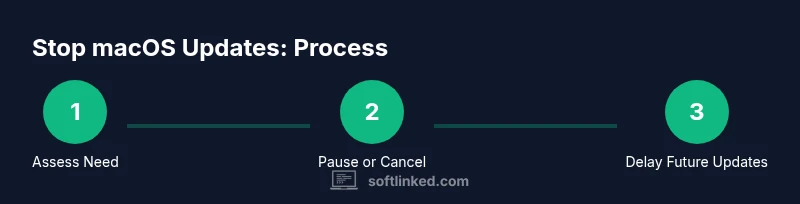
Delaying future macOS updates is often safer than repeatedly interrupting ongoing upgrades. The following strategy provides a systematic approach to minimize disruption while staying secure:
- Assess current dependencies and schedule maintenance during off-peak hours.
- Back up critical data using Time Machine or an equivalent backup solution.
- In System Settings, navigate to General > Software Update > Advanced, and disable options such as Download new updates when available and Install macOS updates automatically.
- Keep a log of when changes were made and set reminders to review updates on a regular cadence.
- If you foresee project-critical work, use a separate test device to validate updates before rolling them out broadly.
These steps help you maintain control over update timing without compromising security or data integrity. The SoftLinked framework emphasizes that deliberate planning and documented procedures are key to success when stopping or delaying updates.
Aftercare: verification and next steps
Once you’ve stopped or delayed an update, it’s important to verify that the settings you changed are active and that the system remains stable. Reopen System Settings > General > Software Update to confirm the status, and check that automatic update toggles reflect your desired configuration. Run a quick health check: launch essential apps, open a few documents, and ensure that there are no startup warnings or unusual behavior. If the update was paused mid-download, resume it at a later time using the same path you used to pause. If the update was canceled and will be retried later, set a calendar reminder and confirm there is sufficient disk space and power to complete the installation when you’re ready. Finally, document any changes for future reference, especially if this device is shared among team members or used in a managed environment. The SoftLinked perspective puts emphasis on clear documentation as a safeguard against configuration drift.
Troubleshooting common issues after stopping an update
Sometimes stopping an update leaves residual prompts or inconsistent states. Common issues include a persistent update notification, a stalled download indicator, or intermittent boot prompts asking to install updates. If you encounter such issues, try the following: restart your Mac, boot into Safe Mode to perform repairs, and re-open Software Update to verify status. If problems persist, consider resetting NVRAM/PRAM or contacting Apple Support for guided recovery. Remember that maintaining current backups is your safety net in case a reversion or reinstallation is needed.
Tools & Materials
- Mac computer(With admin access and current password)
- Active internet connection(Wi-Fi or Ethernet with stable bandwidth)
- Admin password(Needed to adjust system settings)
- Backup method(Time Machine or another reliable backup)
- Power source(Plug in to prevent power loss during update)
- Device management awareness(If this is a managed Mac, consult IT policies)
Steps
Estimated time: 15-25 minutes
- 1
Prepare and assess risk
Identify why you need to stop the update and what could be affected. Confirm you have a current backup and know your admin credentials. Decide if pausing, canceling, or delaying is the safest option for your scenario.
Tip: Back up first; a clean restore is faster than firefighting after a failed install. - 2
Check update state
Open System Settings > General > Software Update to view progress. Note whether the update is downloading, preparing, or installing, and locate any prompts or options to pause or cancel.
Tip: If you don’t see pause/cancel, the update may be in a stage where cancellation isn’t feasible. - 3
Pause or cancel download
If a download is in progress, use the pause or cancel control in Software Update. If only installation is pending, proceed cautiously with the next steps.
Tip: Pausing is safer than canceling during installation; use cancel only if you must free resources immediately. - 4
Delay future updates
In Advanced settings, disable automatic download and installation options. This helps you control when updates occur without interrupting a current process.
Tip: Document the new policy and set a clear schedule for future reviews. - 5
Verify settings and health
Revisit Software Update settings to confirm the changes. Run a quick health check and verify critical apps behave normally.
Tip: If you notice instability, revert to a known-good backup and re-evaluate the update plan. - 6
Plan a safe reattempt
If you must reattempt the update, choose a low-usage window, ensure power stability, and watch for prompts that indicate required reboots or post-install steps.
Tip: Schedule a maintenance window and communicate with any teammates affected.
Your Questions Answered
Can stopping a macOS update cause data loss?
Yes, interrupting an update can lead to partial files or system instability. Always back up before stopping an update and consider reinstalling if issues arise.
Yes. Interrupting an update can cause partial files or instability, so back up first and be prepared to reinstall if needed.
Is it possible to resume a paused update later?
In most cases, you can resume a paused download from Software Update. If the update has been canceled, you may need to start over and reinitiate the download.
Yes, you can usually resume a paused download, but a canceled update may require restarting the download.
Will stopping updates affect security?
Delaying updates can leave security patches unapplied. Treat pauses as temporary and reattempt installation as soon as feasible.
Delaying updates can leave security patches uninstalled, so reattempt installation when possible.
How do I stop automatic updates on a managed Mac?
Managed devices may restrict update controls. Contact your IT administrator to coordinate updates or request an approved maintenance window.
Managed devices often restrict update controls; check with your IT admin to plan a safe window.
What should I do if a stopped update leaves the system unstable?
If instability occurs, restore from a known-good backup, run Disk Utility checks, and consider reinstalling macOS if necessary.
If instability happens, restore from backup and try a repair or reinstall if needed.
Can I permanently disable all future macOS updates?
Permanently disabling updates is not recommended due to security risks. You can minimize automatic updates, but periodic manual updates are advised.
Disabling updates permanently isn’t recommended; minimize automatic updates and perform periodic manual updates.
What’s the difference between pausing a download and delaying installation?
Pausing affects the download phase, while delaying installation postpones the actual upgrade. Both aim to reduce disruption, but have different outcomes for reattempt timing.
Pausing affects the download; delaying installation postpones the upgrade. Both delay disruption, but have different reattempt timings.
Watch Video
Top Takeaways
- Pause or delay updates only when necessary and safe.
- Back up before attempting any interruption.
- Verify settings after changes and monitor system health.
- Delay is often safer than canceling mid-install.
- Document changes for future maintenance.