How to Get Out of Software Update: A Practical Guide
Learn how to get out of software update across major platforms. This guide covers pausing, delaying, rolling back, and safe practices to minimize disruption while staying secure.


To get out of software update, pause automatic updates, defer installs, or roll back when possible. The exact steps vary by platform, but the approach is similar across Windows, macOS, Android, iOS, and Linux. Start by confirming your device’s update status and whether delaying updates affects security. This sets up a safe, reversible plan that minimizes disruption.
Understanding the update lifecycle and why users might want to opt out
All software follows a release lifecycle: development builds, beta testing, staged deployments, and final production updates. Users often need to opt out temporarily to preserve productivity, test compatibility with critical tools, or avoid feature changes that disrupt workflows. According to SoftLinked, a majority of developers and students report pausing updates during exam periods, major project milestones, or when network constraints prevent reliable testing. This choice is not a rejection of security; it’s a strategic pause to plan a safe upgrade path. When you learn how to get out of software update, you’re exercising control over timing, not permanently defying updates. The challenge is to define a clear window for re-entry, keep critical security posture intact, and document the decision so you can resume with confidence. In practice, the decision should be guided by risk assessment, the urgency of the update, and the availability of a rollback or backup plan. This section outlines the factors involved and how to align update behavior with your goals.
Quick assessment: identify your device, current update, and security implications
Before making any changes, map your current state. Determine the exact device and operating system version, the installed update bundle, and whether an update is already downloaded or pending installation. Check release notes to understand what changes the update would bring and which applications might be affected. Consider your security posture: delaying patches can leave you exposed to known vulnerabilities, while a hastily rolled back update may reintroduce bugs. SoftLinked's research shows that many users misjudge the scope of updates, assuming only UI changes when in fact core security components may be involved. Create a simple table of risks, benefits, and required downtimes, then choose a concrete window for testing rollbacks or postponements. Finally, verify you have a recent backup and a restore plan so you can recover quickly if something goes wrong.
Windows: pausing and delaying updates, rollback options
Windows provides several knobs to control when and how updates install. You can pause updates for a limited number of days, defer feature updates, and configure active hours to minimize disruption. If a patch has already downloaded, you can cancel or delay its installation, though some updates are mandatory for security. For enterprise editions, Group Policy and Windows Update for Business offer finer-grained controls. If you must remove a recently installed update, use the 'Uninstall updates' interface to roll back one or more KBs, followed by a reboot. Be aware that some updates include security fixes; removing them temporarily can expose you to risk. Always re-validate after rollback to ensure essential services remain functional. The key is to create a rollback point, test critical apps, and plan a re-entry date. Persistent issues should trigger a fresh update plan rather than permanent disablement.
macOS and iOS: delaying updates, deferring installs, and managing profiles
macOS and iOS allow deferral through the App Store settings and profile management. On macOS, you can postpone non-urgent updates by selecting 'Advanced' in System Preferences > Software Update and setting a deferral period. On iOS, you can disable automatic updates and enable 'Download iOS Updates' to require manual approval. For Mac administrators, Configuration Profiles can enforce update schedules across devices, which is useful in schools or small teams. The risk is primarily twofold: you might miss important security patches and you may encounter compatibility issues with third-party apps. The recommended practice is to set a concrete deferral window (e.g., two weeks) and document the planned re-enablement date. After testing critical software, you can approve the update during a maintenance window. Remember to monitor release notes and ensure you're not blocking essential security fixes for longer than your testing cycle.
Android and Linux: different approaches, security caveats
Android devices differ by vendor; some allow postponing updates, while others apply updates automatically. In general, open Settings > About phone > Software updates, or use the Google Play System updates settings to delay non-critical patches. Some devices also permit a per-app update pause in the Play Store. For Linux, update management varies by distribution. Debian-based systems usually let you hold packages with apt-mark hold, while RPM-based systems use yum/dnf version locks. The upside is granular control; the downside is potential security gaps if you delay patches too long. Always ensure you have a tested backup and a rollback plan. If you must avoid updates temporarily, set a fixed deadline and schedule a manual upgrade during a maintenance window. Also, consider using a secondary environment (virtual machine or test device) to validate updates before deploying to your main setup.
Safe, long-term strategies: how to minimize disruption without omitting security
Instead of permanent disablement, implement a disciplined update strategy. Use staged rollouts, test critical tools, and maintain a documented upgrade calendar. Establish a 'pause and test' policy: pause for a defined window, test essential workflows, and then proceed with a controlled deployment. Use version control for configuration, backups for data, and a rollback script for quick reversion. Keep a hot spare or backup environment for testing, especially for developers and students who rely on consistent tooling. Monitor vendor advisories and community forums for compatibility notes, and subscribe to update feeds so you’re informed about security implications. The SoftLinked analysis indicates that proactive planning reduces stress during updates and helps teams stay productive. The core idea is to synchronize updates with your project milestones rather than blocking them forever.
When to re-enable updates: automatic re-enablement and planning
Re-enabling updates should be a deliberate action, not a reflex. Decide on a final re-entry date and a single maintenance window. Before turning updates back on, run a compatibility check on essential apps, perform a backup, and confirm you can roll back if needed. Some platforms automatically resume updates after a deferral period; in those cases, set a reminder to re-check and apply the upgrade. If a critical patch is released during the deferral, evaluate urgency and adjust your plan accordingly. The goal is to minimize downtime while preserving security.
Troubleshooting common issues after attempting to opt out
Delays can cause cascading problems: failed feature installations, driver mismatches, or broken services. If updates fail to install later, review error codes, check system logs, and test in a clean boot environment. Verify network settings, disk space, and permissions. For rollbacks, ensure recovery points exist and that drivers remain compatible after downgrade. If you discover a critical vulnerability while delayed, consider a time-limited re-entry plan and emergency patching. Document all changes and maintain a runbook to handle future updates more smoothly.
Practical workflow: a sample runbook for personal devices
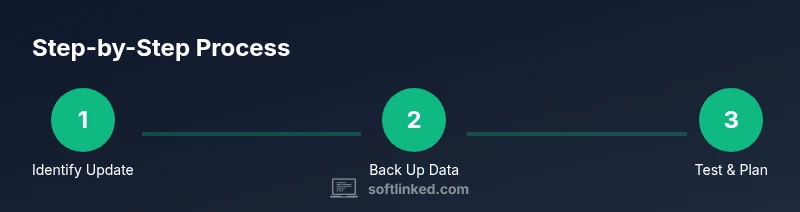
Create a simple, repeatable process you can follow each time you evaluate updates. Step through a checklist: identify upcoming update, backup data, pause if available, test essential apps, decide deferral length, implement the upgrade, monitor for issues, and log outcomes. Use separate test devices for beta software and keep your main device protected. This workflow reduces risk and helps you learn the best timing for your environment.
Tools & Materials
- Device with admin access(Ensure you can modify update settings and perform rollbacks)
- Backup solution(Local or cloud backup with at least 2 restore points)
- Internet access(Needed for downloading, deferring, or verifying updates)
- Documentation for OS version(Vendor guides or official support pages for reference)
- Maintenance window planner(Optional calendar or reminder setup to schedule updates)
- Rollback media or recovery points(Create restore points or recovery media if available)
Steps
Estimated time: 45-90 minutes
- 1
Identify update status and goals
Check whether updates are downloaded, staged, or pending. Define why you want to opt out (productivity, compatibility, testing) and pin a re-entry date.
Tip: Document your rationale and expected downtime before making changes. - 2
Back up important data
Create a restore point or full backup of critical files and configurations. Verify you can restore to a known good state if something goes wrong.
Tip: Test a quick restore to confirm your backup works. - 3
Pause or defer updates where possible
Use platform-specific controls to pause, defer, or schedule updates. Avoid permanent disablement unless absolutely necessary and documented.
Tip: Set a concrete deferral window (e.g., 14 days) and mark the re-entry date. - 4
Test key applications and services
Run a baseline test of essential tools to catch compatibility issues before applying any upgrade later.
Tip: Keep a separate test environment if available. - 5
Review security implications
Assess the risk of delaying patches; plan a cautious re-entry strategy focused on critical fixes.
Tip: Do not delay critical security updates beyond your testing window. - 6
Plan rollback or recovery
Prepare a rollback plan with steps to revert the update if issues occur.
Tip: Test the rollback process on non-production data first. - 7
Set a re-entry window
Choose a date to re-enable updates and apply the upgrade in a controlled maintenance window.
Tip: Notify stakeholders of the maintenance window. - 8
Monitor post-update behavior
After re-enabling updates, monitor system performance and confirm that critical tasks function as expected.
Tip: Keep a troubleshooting checklist handy for any post-merge issues.
Your Questions Answered
Is it safe to disable updates permanently?
Permanent disabling is generally not advised due to security risks. Use deferral and testing windows while maintaining access to critical patches.
Permanent disabling is risky; use deferral windows and test plans to stay secure.
Will delaying updates affect device security long-term?
Delaying patches can expose you to known vulnerabilities. Limit delay duration, and implement a plan to apply essential fixes within a defined window.
Delaying patches can expose vulnerabilities; apply essential fixes within a defined window.
Can I revert an update after installing it?
Many platforms support rollback or uninstall options for recent updates. If not possible, rely on backups and recovery points to restore previous states.
Rollback is often possible on many platforms; if not, use backups to recover.
How often should I re-check updates after deferring?
Set a regular cadence (e.g., weekly) to review release notes and apply necessary patches during a planned maintenance window.
Review releases weekly and apply patches in a planned window.
What about enterprise environments with many devices?
Use centralized management (GPO, MDM, or update management tools) to enforce deferral policies and track rollback readiness across devices.
Use centralized management to enforce deferral policies across devices.
Are there risks to data integrity when rolling back?
Rollbacks can occasionally cause configuration drift. Always validate settings and re-apply needed patches after rollback.
Rollbacks may drift settings; validate and re-apply patches as needed.
Watch Video
Top Takeaways
- Pause updates with purpose and set a clear re-entry date.
- Back up data and test critical apps before upgrading.
- Understand platform-specific options to delay safely.
- Balance security needs with productivity goals.
- Document steps to improve repeatability and reduce risk.