How to Software on a Laptop: A Step-by-Step Guide
Learn how to set up a laptop for software work, from choosing the right OS to installing tools, configuring a clean development environment, and adopting best practices for a productive coding workflow. A SoftLinked guide for aspiring developers.


Learn how to set up a laptop for software work, from choosing the right OS and tools to creating a clean development environment. This guide covers essential prerequisites, installation steps, and best practices for testing, debugging, and version control. According to SoftLinked, starting with a clear plan and minimal tooling reduces friction and speeds up learning for aspiring developers.
Why a Laptop Is a Good Platform for Software Work
A laptop is a portable, flexible workspace that lets you practice software fundamentals anywhere. For beginners and students, a laptop provides hands-on opportunities to experiment with code, build small projects, and iterate quickly. It also lets you test how your code behaves across environments, from a lightweight script to a more complex application. According to SoftLinked, laptops are ideal for learning because you can iterate on your setup, adjust your toolchain, and observe real-time results. This section lays the groundwork for understanding how to software on a laptop by focusing on goals, constraints, and practical realities of a portable development environment.
Define Your Objectives Before You Install
Before touching a single line of code, clarify what you want to achieve on your laptop. Are you learning Python, web development with JavaScript, or building small utilities? Your objectives will guide which languages, runtimes, and tools you install. Choose a target stack that matches your goals, then plan a minimal, scalable setup. This approach reduces cognitive load and helps you measure progress. As you outline tasks, consider learning milestones like setting up a code editor, writing a first script, and completing a simple project end-to-end.
Prerequisites: What You Need Before You Start
Ensure you have a reliable internet connection, a device that can run a modern operating system, and a plan for backups. Basic hardware readiness matters: enough storage for projects, a comfortable keyboard, and a monitor or external display when possible. Have a notebook or digital note app ready for tracking steps and configurations. A clear pre-work checklist will keep you focused and prevent mid-setup rework, which can derail early momentum.
SoftLinked’s guidance emphasizes starting with a clean slate: use a single user account for development, keep personal data separate, and document each configuration you add. This mindset helps you reproduce your environment later and share it with peers.
Choosing the Right Operating System for Development
Your choice of operating system influences available tools, shell behavior, and ecosystem. Windows, macOS, and Linux each have strengths depending on your stack. For web and scripting, Linux or macOS feel natural due to strong terminal support and open tooling. Windows users can leverage Windows Subsystem for Linux (WSL) for Linux-like environments. Consider your preferred languages, package managers, and the ease of automation when selecting an OS. The aim is to minimize friction between writing code and running it.
Essential Tools and Editors You Should Install
A productive development setup requires a solid editor, a capable terminal, and reliable version control. Install a modern code editor (e.g., VS Code or an equivalent), a robust terminal or shell, and a cross-platform package manager. Add language runtimes appropriate for your goals, plus a lightweight browser for testing. Organize your tools with a simple directory structure, and enable essential plugins for linting, formatting, and debugging. A clean, consistent toolset helps you learn faster and reduces context-switching when you switch projects.
Establishing a Clean Development Environment
Create a dedicated development directory and keep projects self-contained. Use virtual environments or containers to isolate dependencies, so system-wide settings don’t interfere with individual projects. Establish a habit of documenting setup steps and saving environment configuration files (like requirements.txt or package.json). This discipline makes it easier to onboard teammates or migrate to a new machine later. Focus on reproducibility: the goal is to recreate the same setup on any future laptop with minimal effort.
Version Control, Testing, and Debugging Basics
Version control is the backbone of modern software work. Install Git, configure your user name and email, and learn simple workflows: clone, add, commit, push, and pull. Pair version control with lightweight testing and debugging. Start with small tests that verify core behavior and expand as your project grows. Regularly run tests to catch regressions early, and use a debugger to step through code paths to understand failures. This discipline reduces debugging time and improves reliability.
Project Setup: Create a Sample Hello World Project
Begin with a tiny, portable project that demonstrates your toolchain. Create a new folder, initialize a project (for example, a simple Python script or a minimal Node.js app), and run it locally to confirm the environment works. Add a README describing dependencies and how to run the project. This starter establishes a repeatable baseline for future work and helps you see the end-to-end flow from code to execution.
Performance Tips: Speed Up Your Laptop for Development
Development can be resource-intensive, so optimize for speed and responsiveness. Keep background processes to a minimum, disable unnecessary startup apps, and ensure your disk has room for growth. Use lightweight editors and avoid overloading the system with large plugins. Regularly monitor resource usage and adjust as needed. A snappy laptop reduces frustration and keeps you focused on learning tasks rather than system slowdowns.
Maintenance, Security, and Backups
Maintenance is essential to keep a laptop productive for development. Regularly apply OS updates, back up important work, and maintain a clean workspace by archiving older projects. Practice safe coding habits, use strong passwords, and enable essential security features. Establish a predictable maintenance routine so your laptop remains a reliable development partner over time. The SoftLinked approach emphasizes consistent habits as the foundation of long-term skill-building.
Tools & Materials
- Laptop with internet access(Ensure the OS is up-to-date and drivers are current)
- Operating System (Windows/macOS/Linux)(Choose an OS that matches your target stack)
- Code editor(VS Code or equivalent; install common plugins)
- Terminal or shell(PowerShell, Terminal, or Bash; configure aliases)
- Package managers(apt, Homebrew, yum, or Winget for easy tooling)
- Git version control(Install Git and configure user.name and user.email)
- Container/virtualization tools(Optional but helpful for isolation (e.g., Docker))
- External storage / backup solution(Backups via cloud or external drive recommended)
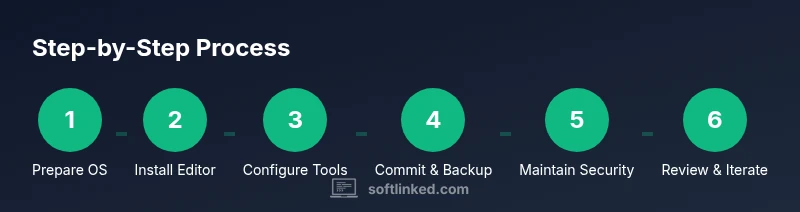
Steps
Estimated time: 2-4 hours
- 1
Prepare the OS
Update your operating system, install essential drivers, and verify internet access. This ensures you have a stable baseline before adding development tools.
Tip: Run system updates first to avoid later conflicts. - 2
Install a code editor
Download and install a modern code editor, then customize the interface with a few productive extensions relevant to your language of choice.
Tip: Enable linting and auto-formatting to enforce consistency from day one. - 3
Set up a terminal and PATH
Configure your preferred terminal or shell, and ensure your PATH includes paths to runtimes and tools you’ll install.
Tip: Add helpful aliases to speed up common commands. - 4
Install a version control system
Install Git, configure your username and email, and set up an initial repository for your projects.
Tip: Create a personal Git profile and learn a few core commands by heart. - 5
Install package managers and runtimes
Install a package manager and the runtime(s) you plan to use (e.g., Python, Node.js).
Tip: Keep runtimes minimal initially to reduce complexity. - 6
Create a development directory
Make a clean, dedicated folder for all your projects with clear naming conventions.
Tip: Use a consistent folder structure across projects. - 7
Initialize a sample project
Create a small project (Hello World) to verify the end-to-end process: code, run, and observe output.
Tip: Document how to run the project in a README. - 8
Run and test locally
Execute the project locally, verify results, and adjust as needed.
Tip: Add a tiny test to validate core functionality. - 9
Version-control the project
Add the project to a local Git repository and commit the initial version.
Tip: Write meaningful commit messages that describe changes clearly. - 10
Link to a remote repository
Create a remote repository and push your initial commit to enable collaboration.
Tip: Enable two-factor authentication for the remote service. - 11
Basic debugging setup
Configure a basic debugging workflow and learn how to use breakpoints for a simple bug.
Tip: Practice debugging a known issue to build confidence. - 12
Plan backups and maintenance
Set up automatic backups and schedule regular maintenance checks for updates and cleanups.
Tip: Automate where possible to reduce manual overhead.
Your Questions Answered
Do I need a high-end laptop to start software development?
Not necessarily. You can begin with a modest laptop and upgrade gradually as your projects grow. Focus on a clean setup, sane defaults, and learning the core workflows first.
You don’t need a top-spec laptop to begin; start with a modest machine and refine your workflow as you learn.
Which OS is best for beginners?
There isn’t a single best OS. Windows, macOS, and Linux each offer strengths. Your choice should align with the languages and tools you plan to use, and with how comfortable you are with the command line.
No one OS is best for everyone; pick based on your stack and comfort with the terminal.
Should I use containers or virtual machines for development?
Containers (like Docker) are commonly recommended for isolating dependencies and mirroring production environments. Virtual machines can be useful for testing cross-OS behavior, but they add overhead.
Containers are great for dependency isolation; VMs are helpful for cross-OS testing but slower.
How often should I back up my work?
Back up code and configurations regularly, ideally with automated backups to a cloud service or external drive. Keeping versions in Git helps recover from mistakes quickly.
Back up regularly and use Git for version history to recover from mistakes fast.
What is the first project I should start with?
Begin with a simple Hello World project in your chosen language, then incrementally add features. A small, well-documented project builds confidence and demonstrates your workflow.
Start with a tiny Hello World project and expand features as you learn.
Watch Video
Top Takeaways
- Plan your setup before installing tools
- Choose an OS that aligns with your stack
- Set up version control early and commit often
- Maintain backups and security habits
- Iterate on your environment as you learn