How to Put Software on a Laptop: A Step-by-Step Guide
Learn a safe, practical method for installing software on a laptop, covering official sources, verification, and platform-specific steps for Windows, macOS, and Linux.


You’ll learn a safe, step-by-step method to install software on a laptop. The guide covers choosing trusted sources, verifying installers, and completing setup across Windows, macOS, and Linux. It also highlights safety practices, post-install updates, and basic troubleshooting to keep your system secure and reliable. Whether you’re new to computers or upgrading, these steps help you avoid malware, bloatware, and licensing issues.
Why Safe Installation Matters
When you ask how to put software in laptop, the safest answer is to follow a structured, security-focused process from source to setup. A sloppy install can expose you to malware, unwanted bloatware, or licensing pitfalls. According to SoftLinked, adopting a deliberate approach not only reduces risk, it also leads to cleaner configurations and easier maintenance over time. This is especially important for students, developers, and professionals who rely on dependable tools daily.
A proper installation starts with choosing official sources and verifying the installer’s integrity before you execute anything. Even small applications can carry hidden risks if downloaded from untrusted mirrors or bundled with extra software. By prioritizing authenticity and provenance, you minimize the chance of tampered packages and version mismatches. The steps you’ll read about here apply across Windows, macOS, and Linux, because the underlying principles—trust, verification, and post-install hygiene—are universal. The habit of verifying sources, inspecting file signatures, and performing post-install checks will serve you for every software decision, from a lightweight utility to a full development toolkit.
Sourcing and Verifying Software
To begin, only download software from official sources such as the vendor’s website or trusted app stores. Avoid mirrors or third-party distributors that bundle extra software. If a checksum or digital signature is provided, use it to verify the installer’s integrity before running anything. SoftLinked analysis shows that this verification step dramatically reduces the risk of malware and corrupted installations. Additionally, beware installers that request unnecessary permissions or bundled addons; opt for a custom install option when available and deselect optional components you don’t need.
Documenting the source and keeping a record of the installer’s version helps track updates and compatibility with future system changes. For developers and students, maintaining a small installation log can simplify rollback if something goes wrong during setup.
Platform Considerations: Windows, macOS, Linux
Each major operating system has its own conventions for installing software. Windows commonly uses executable installers or the Microsoft Store; macOS relies on DMG or App Store entries; Linux often uses package managers like apt, dnf, or pacman, plus containerized options for isolation. Understanding these differences helps you plan a consistent workflow. For example, Windows and macOS installations frequently require administrative privileges and caution with bundled software, while Linux emphasizes package verification and dependency resolution. Across all platforms, prioritize official repositories or vendor downloads and apply the same verification mindset to avoid compromised packages. This cross-platform mindset is essential for developers who juggle multiple environments.
The Post-Install Hygiene: Updates, Licenses, and Backups
Install is not the end of the process. After you complete the installation, enable automatic updates where possible and verify that the software integrates with your security tools, such as antivirus and firewall settings. Keep licenses organized and note down activation details if required. Creating a restore point or a fresh backup before large installs provides a safe fallback if you need to revert. Regular maintenance—checking for updates, reviewing permissions, and testing functionality—keeps your system secure and reliable over time.
SoftLinked emphasizes that post-install checks are as important as the initial download. A calm, methodical follow-through minimizes surprises and ensures you stay productive with the tools you rely on.
Common Pitfalls and How to Avoid Them
Even with best intentions, missteps happen. Common pitfalls include downloading from untrusted sources, skipping verification steps, and rushing through installers without reading prompts. To avoid these issues, pause at critical junctures: verify the source URL, inspect the file size and checksums, and choose a custom install when offered. If a security alert appears, stop and verify the installer’s legitimacy before proceeding. By following a deliberate workflow, you reduce risk and improve long-term software health.
Putting It into Practice: A Sample, Platform-Agnostic Routine
A practical routine begins with planning: identify the software you need, confirm platform compatibility, and locate the official download page. Next, download the installer and verify its integrity, then launch the installer with the appropriate privileges. During setup, opt for a custom install to control bundled components and install location. Finally, launch the software, check for updates, and document the installation in your notes. This approach keeps your device secure and your toolkit dependable across projects.
Tools & Materials
- Computer with internet access(Stable connection recommended; ensure power if performing large installs.)
- Official installer from vendor/site(Download from the official site or trusted app store.)
- Administrative access(Needed on Windows/macOS for installation; may require password.)
- Checksum utility(Verify SHA-256 or equivalent if provided.)
- Backup solution(Create a system restore point or file backup before major installs.)
- Antivirus/anti-malware up-to-date(Scan downloads before running installers.)
- Disk space check(Ensure at least 1–2x the installer size free.)
- Optional: isolated testing environment(Test new software in a VM or sandbox if available.)
Steps
Estimated time: 30-45 minutes
- 1
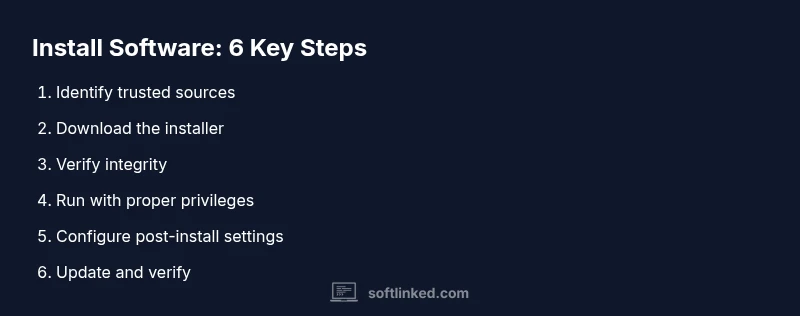
Identify trusted sources
Open the vendor’s official page, verify the domain, and confirm you’re on the legitimate site before downloading any file. Look for HTTPS and a valid certificate. This step reduces exposure to tampered installers and counterfeit software.
Tip: Check the URL carefully and avoid shortened links or redirects. - 2
Download the installer
From the official site or store, select the correct version for your OS and architecture. Avoid third-party mirrors that bundle extra software or adware.
Tip: Prefer a direct download when possible; avoid installers bundled with toolbars. - 3
Verify integrity
If a checksum or digital signature is provided, compute it on your downloaded file and compare it to the published value. This confirms the file hasn’t been altered.
Tip: Use a trusted hashing utility and document the results for future reference. - 4
Run the installer with proper privileges
On Windows or macOS, right-click and choose Run as administrator or provide the admin password when prompted. Grant only the permissions the installer requests.
Tip: Choose a custom install if offered to limit unwanted components. - 5
Configure post-install settings
Follow prompts for installation paths, shortcuts, and optional features. Disable any bundled extras you don’t need to keep the system lean.
Tip: Keep defaults conservative unless you have a specific need. - 6
Update and verify after install
Launch the software and check for updates. Verify the software works as expected and that security settings are in place. A quick reboot may be necessary after major installs.
Tip: Enable automatic updates if available to stay protected.
Your Questions Answered
Do I always need admin privileges to install software?
Most software installations require admin rights on Windows or macOS, especially for system-wide changes. Linux often uses root privileges via package managers. If you don’t have rights, ask an administrator or use portable alternatives when available.
Most installs require admin rights; check with your system administrator if you’re in a managed environment.
Can I install software from unverified sources?
Avoid downloading from unofficial or unknown sites. They may host malware or counterfeit installers. Always prefer official vendor sites or trusted app stores and verify the source.
Avoid unverified sources; stick to official sites or trusted stores.
How do I uninstall software later?
Use your operating system’s built-in uninstaller. Windows: Apps & Features; macOS: Applications folder; Linux: package manager or remove command. This ensures clean removal of files and dependencies.
Uninstall via your OS’s built-in tools to remove it cleanly.
What about software updates and security patches?
Turn on automatic updates when available and check for patches regularly. This reduces vulnerabilities and improves compatibility with other tools and drivers.
Enable automatic updates or check periodically for patches.
What should I do if the installer is blocked by antivirus?
Pause the installation, verify the source, rescan the file, and re-download from the official site if needed. If it remains blocked, contact vendor support for guidance.
If blocked, verify the source and re-download from the official site.
Is it safe to install software on a school/work device?
Follow your organization’s policies. Use approved software sources and report any security concerns to IT. Avoid personal installs on managed devices unless permitted.
Follow organizational policies and get IT approval for installations.
Watch Video
Top Takeaways
- Always use official sources for downloads.
- Verify installer integrity with checksums or signatures.
- Follow platform-specific prompts and install options.
- Enable updates and maintain backups for safety.
- Document installations to simplify future maintenance.