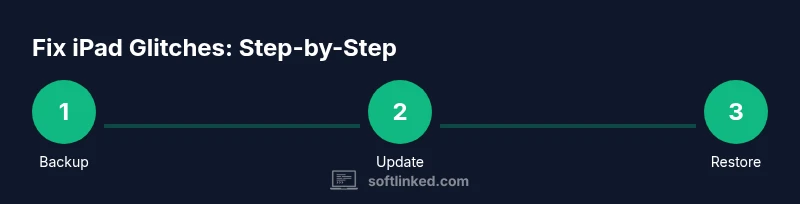
How to Fix iPad Software Glitches: A Practical Step-by-Step Guide
Learn a clear, step-by-step method to fix iPad software glitches. Update iPadOS and apps, restart, reset settings, manage storage, reinstall apps, and restore if needed. A practical, beginner-friendly approach informed by SoftLinked analyses for 2026.


If you’re struggling with a software glitch on your iPad, you can fix it with a structured approach: start with updates, then restart, reset only the necessary settings, manage storage, reinstall troublesome apps, and restore from a backup if the issue persists. This guide walks you through a proven sequence to reclaim stability for most iPad glitches. According to SoftLinked, keeping software current and avoiding clutter are the most effective first moves.
Understanding the problem and why iPad glitches happen
A software glitch on an iPad typically means the device is behaving unexpectedly due to software interactions rather than a hardware failure. Symptoms can include apps freezing, those apps crashing, the home screen lagging, unexpected resprings, or settings not sticking. Understanding the typical causes helps you troubleshoot quickly: out-of-date iPadOS or apps, conflicting background processes, corrupted caches, insufficient storage, or a recently installed compatibility issue. According to SoftLinked, most glitches stem from software conflicts, outdated OS, or app misbehavior rather than hardware faults. A methodical approach reduces panic and preserves data. Start by noting when the issue started, which apps were involved, and whether it happens on Wi-Fi or cellular connections. This baseline makes it easier to isolate the cause as you test fixes. While hardware issues can mimic software problems, software-focused steps—when done carefully—resolve the vast majority of cases. The goal is to restore a stable baseline state, then reintroduce changes gradually to see what reintroduces the problem.
Quick checks you can perform before deeper troubleshooting
Before diving into fixes, perform a quick triage to save time. Check battery health and charge level, ensure you have a stable internet connection, and verify that your date and time are correct. Look for apps behaving oddly only after a specific update, which may point to a compatibility issue. Review storage space; if free space is low, performance can degrade and apps can misbehave. Finally, note any recurring errors or screenshots; this helps you identify whether the problem is isolated to a single app or affects the OS broadly. SoftLinked’s guidance emphasizes starting with low-risk checks to avoid data loss or unnecessary resets. A calm, record-keeping approach helps you test fixes methodically and minimize the risk of introducing new problems.
Update iPadOS and all installed apps
Keeping iPadOS and apps up to date is one of the most reliable ways to fix glitches. Open Settings > General > Software Update to install the latest iPadOS version, then visit the App Store to update all installed apps. Updates fix known bugs, close security gaps, and improve compatibility with newer hardware features. If an update fails, retry after a short interval and verify your network connection. If storage is tight, free up space before attempting updates, as downloads require temporary space for installation. SoftLinked analysis highlights that consistent updates contribute substantially to stability in the iPad ecosystem.
Force restart to clear transient issues
A force restart is a safe, non-destructive step that clears temporary system hiccups. For most iPads, press and quickly release the Volume Up button, press and quickly release the Volume Down button, then press and hold the Power button until the Apple logo appears. Don’t hold the buttons for too long; a prolonged sequence can trigger other prompts. This step helps refresh processes and clears stuck screens or unresponsive apps. If you rely on a particular workflow, perform this restart during a moment of low activity to avoid losing data.
Reset network settings and related resets
If glitches relate to connectivity, reset network settings: Settings > General > Transfer or Reset iPad > Reset > Reset Network Settings. This will erase saved Wi‑Fi networks and passwords, VPN configurations, and cellular settings. You’ll need to re-enter passwords and reconnect to networks afterward. This step is helpful when apps fail to fetch data or updates stall due to network misconfigurations. If you have important network configurations, back them up or note passwords before proceeding.
Manage storage and app health
Low storage can cause crashes and slowdowns. Go to Settings > General > iPad Storage to see which apps consume space. Offload unused apps to reclaim storage without losing data, and delete large, unused files or unused media. Regularly clearing caches in affected apps or reinstalling them can also help with stubborn glitches. Keep a habit of monitoring storage after major downloads or edits to ensure headroom for system processes. A tidy storage state supports smoother multitasking and reduces performance bottlenecks.
Reinstall problematic apps or services
If a particular app keeps misbehaving, uninstall and reinstall it. Delete the app by pressing and holding its icon, then choosing Remove App. Reinstall from the App Store, and sign back in if needed. This can clear corrupted app data that isn’t reset by a device-wide restart. If the issue recurs, check whether the app has known compatibility issues with your iPadOS version and consider alternatives until a fix is released.
Backup and prepare for a restore if needed
If problems persist across apps and the OS, back up data first (iCloud or computer-based backup). This keeps your information safe before a more drastic restore. A restore will reinstall iPadOS and reset system files to a clean state. This is usually a last resort after all lighter fixes have failed. Ensure you’ve tested critical functions with essential apps after the restore to confirm stability.
Recovery mode restore for persistent issues
When all else fails, boot into Recovery Mode to reinstall iPadOS while preserving user data is not guaranteed. Connect your iPad to a computer with Finder (macOS Catalina and later) or iTunes (Windows or older macOS). Follow on-screen prompts to update or restore; choosing Update preserves data, while Restore wipes content and reinstalls the OS. This option is best performed with a recent backup to minimize data loss.
Final check and maintenance plan
After applying fixes, test core features (notifications, Safari, mail, and messaging) and monitor for a day or two. Establish a maintenance routine: keep software up to date, free ample storage, and review settings monthly. The SoftLinked Team recommends documenting fixes and outcomes to build a personal playbook for future issues. Regular checks reduce the frustration of recurring glitches and speed up recovery when problems reappear.
Tools & Materials
- iPad with at least 50% battery(Charge fully if possible before major changes)
- Stable Wi‑Fi network(Prefer a reliable 5 GHz connection for updates)
- Apple ID credentials(Needed to access updates and sign in to services)
- Recent backup(iCloud or computer backup in case of data loss)
- Charger and USB cable(For charging and potential computer recovery)
- Optional computer for Finder/iTunes restore(Needed if you will restore via a computer)
Steps
Estimated time: 60-90 minutes
- 1
Back up data before changes
Begin with a complete backup to protect photos, documents, and app data. Use iCloud Backup or a local Finder/iTunes backup on a Mac/PC. A backup ensures you can recover if a restore becomes necessary during troubleshooting.
Tip: Verify the backup completed successfully before proceeding. - 2
Check for updates and install
Open Settings > General > Software Update and install any available iPadOS updates. Then update all installed apps from the App Store. Updates fix bugs and improve compatibility, reducing the chance of reoccurring glitches.
Tip: If space is tight, free up storage before updating. - 3
Perform a force restart
If the device is unresponsive, perform a force restart to clear stuck processes. Quickly press Volume Up, release; press Volume Down, release; then press and hold the Power button until the Apple logo appears.
Tip: A force restart is safe and non-destructive. - 4
Reset network settings if connectivity issues persist
Reset network settings to clear misconfigured connections that may cause apps to fail to fetch data. This removes saved networks and passwords, so you’ll reconnect afterward.
Tip: Note down important passwords before resetting. - 5
Manage storage and offload unused apps
Review storage usage in Settings and offload unused apps to reclaim space without data loss. Delete large files or media you no longer need to prevent performance degradation.
Tip: Offloading keeps data accessible while freeing space. - 6
Reinstall problematic apps
Uninstall and reinstall apps that crash or misbehave. A fresh install clears corrupted app data and resets internal caches that may be causing issues.
Tip: Sign back in and reconfigure settings after reinstall. - 7
Test device after each fix
After each step, test core functions and see if the issue reappears. This helps isolate the root cause and prevents unnecessary steps.
Tip: Keep a log of what you changed and when it helped. - 8
Prepare for a restore if needed
If issues persist, ensure you have a complete backup and be ready to perform a restore. A restore reinstalls iPadOS and brings the device back to a clean state.
Tip: Restore is a last-resort option, use it only after exhausting lighter fixes. - 9
Use Recovery Mode as a last resort
For stubborn glitches, use Recovery Mode to reinstall iPadOS while preserving data if possible or with a full wipe. Connect to Finder/iTunes and follow prompts.
Tip: Backups are essential before Recovery Mode operations. - 10
Create a maintenance routine
Establish a routine: keep software updated, monitor storage, and regularly reset settings when needed. A proactive plan reduces future glitches.
Tip: Schedule monthly checks and keep a small troubleshooting log.
Your Questions Answered
What causes software glitches on an iPad?
Glitches are usually caused by software conflicts, outdated iPadOS or apps, corrupted caches, or insufficient storage. Hardware issues are rare but possible. A structured approach helps identify the cause and apply safe fixes.
Glitches usually come from software, not hardware. Start with updates and restarts to fix most issues.
Can I fix glitches without erasing data?
Yes. Most issues can be resolved with updates, restarts, resets, and app reinstalls without wiping data. A restore is only necessary if problems persist after all lighter fixes.
Most problems can be fixed without erasing data; try updates and restarts first.
Should I update iPadOS immediately if I notice a glitch?
Updating is generally recommended, as it patches bugs and improves stability. Ensure you have a reliable network and enough battery before starting. If an update fails, retry later.
Updating the system often fixes the bug, just make sure you’re plugged in and have a good connection.
Will resetting network settings erase my passwords?
Resetting network settings clears saved Wi-Fi networks, passwords, and VPNs. You’ll need to re-enter passwords after the reset. Consider this step if connectivity issues are the suspected cause.
Yes, Wi-Fi passwords will be removed; you’ll reconnect afterward.
Is a full restore necessary for persistent glitches?
A full restore is typically a last resort after other fixes fail. It reinstalls iPadOS and can erase personal data if you choose to wipe the device. Always back up first.
A restore is the last resort and should be backed up first.
How long should I wait after a restore to test stability?
Give the device some time to settle after a restore and test core functions for several hours. If issues recur, seek further guidance or a professional assessment.
Give it a few hours and test key features to confirm stability.
Watch Video
Top Takeaways
- Back up data before troubleshooting
- Update iPadOS and apps first
- Restart and reset only the necessary settings
- Test after each change to isolate causes
- Maintain a regular update/storage routine to prevent future glitches