How to Clean Software on Your Phone: A Practical Guide
A practical, safety-first guide to cleaning your phone's software—clearing caches, managing apps, tightening permissions, and preserving data. Learn step-by-step techniques, built-in tools, and best practices to boost performance and privacy without risking data loss.


By the end of this guide, you'll confidently clean the software on your phone—improving speed, freeing storage, and protecting your privacy. You’ll use built‑in tools, safe app practices, and a tested checklist to remove junk, review permissions, and limit background activity. This approach emphasizes safety and reversibility, so you can back up data before you begin and avoid risky resets.
What 'cleaning software' on a phone really means
According to SoftLinked, cleaning software on a phone means optimizing the device's software state to improve performance, privacy, and storage—without performing a risky factory reset. It focuses on manageability: removing redundant caches, reviewing app permissions, and reducing unnecessary background tasks. The goal is to maintain a healthy software environment where your apps run smoothly and your personal data stays protected. This involves both built-in tools provided by Android and iOS and careful use of any third-party utilities from official app stores. A well-executed software clean helps you reclaim storage space, extend battery life, and reduce memory pressure on the system.
Key building blocks: caches, data, apps, and permissions
A crucial part of cleaning software is understanding what to target. Caches are temporary files apps store to speed up operations; over time they can occupy substantial space. App data includes downloaded files, offline content, and settings that can accumulate. Permissions determine what data apps can access, such as location, contacts, and photos. Background activity, if left unchecked, drains battery and CPU cycles. By mapping these building blocks, you can decide where to intervene with confidence and minimize the risk of breaking essential functionality.
Common myths and misconceptions
Many users believe that every cleaning tool will magically free 30–50% of storage with a single tap. In reality, meaningful gains come from deliberate actions: clearing only large caches, offloading media, and pruning unused apps. Some cleaners claim to reset hidden settings or optimize system files; these claims are often exaggerated or unsafe. The safest approach emphasizes built-in tools and reversible steps, not aggressive, one-click solutions. Always back up before trying new methods and avoid tools that require root access or device unlocking.
A safe, step-by-step approach (overview)
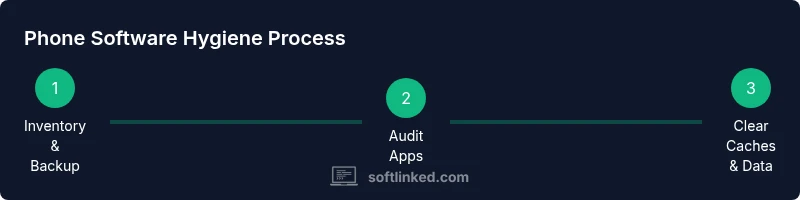
Think of cleaning as a structured process rather than a one-off sprint. Start with a backup, then inventory apps, clean caches in a targeted fashion, review permissions, and finally optimize storage with built-in tools. This approach minimizes risk while maximizing gains in speed, battery life, and privacy. Each step should be reversible, so you can undo changes if something behaves oddly after you finish.
Caches, offline data, and media: what to clear and what to keep
Caches can often be cleared safely because the data is recomputable. Focus on apps that accumulate large caches (messaging, social media, and video streaming). Do not delete caches from apps you actively rely on; if in doubt, clear data only for apps that clearly store outdated or unnecessary offline content. For media and downloads, move large files to cloud storage or a computer to reclaim local space while preserving access.
Managing background activity and permissions on Android and iOS
On Android, you can restrict background activity per app, limit background data usage, and disable auto-start permissions for nonessential apps. On iOS, offload unused apps and examine location, camera, and microphone permissions in Privacy settings. The goal is to minimize ongoing tasks that waste resources while preserving core functionality. Regularly reviewing permissions also helps protect privacy over time.
Using built-in tools: Android Storage Manager, iOS Storage & Offload
Android’s Storage Manager and iOS’s Manage Storage offer guided cleanup experiences. Use them to identify large apps, unused files, and redundant data. These tools typically provide suggestions like offloading apps, reviewing large attachments, and clearing temporary files. By leaning on official features, you avoid destabilizing system components and ensure smoother updates.
Privacy and security considerations during cleaning
Cleaning should not compromise security. Back up before changes, especially if you plan to purge data or reset configurations. Confirm that any third‑party cleaners come from reputable sources, preferably from official app stores. After cleaning, review security settings and ensure that essential accounts require authentication. This helps prevent unexpected data loss while preserving privacy protections.
Tools & Materials
- Phone or tablet with charged battery (preferably plugged in)(Avoid interruptions during cleaning to prevent data loss or partial changes.)
- Updated operating system (Android or iOS)(Ensure you have the latest security fixes for best results.)
- Backup method (iCloud/Google Drive/PC)(Back up before making changes to recover data if something goes wrong.)
- Reliable internet connection(Needed for backing up data and accessing store tools.)
- Access to device settings (admin access)(You may need to grant permissions to certain apps during cleanup.)
Steps
Estimated time: 30-60 minutes
- 1
Inventory and backup
Start by listing all apps and large files that you use regularly, as well as anything you rarely touch. Perform a full backup of your phone data to cloud storage or a computer. This creates a safety net in case a cleanup action affects settings or data you want to keep.
Tip: Back up first, even if you think you won’t modify important data. - 2
Audit installed apps
Review each app for usefulness. Uninstall or disable apps you don’t use. For apps you keep, check their storage usage and clear data only if you understand what will be removed (e.g., offline maps, downloaded videos).
Tip: Consider enabling app-by-app backups if available. - 3
Clear caches selectively
Go through apps that accumulate large caches (messaging, browsers, social media). Clear cache for those apps first, then monitor the impact on performance. If an app starts rebuilding cache rapidly, suppress or limit its background activity.
Tip: Clearing caches won’t delete personal data stored in apps. - 4
Review and adjust permissions
Open Settings > Privacy or Apps and review access like location, camera, and contacts. Revoke permissions that aren’t necessary for core functionality. This reduces data exposure and can improve battery and speed where permissions trigger background tasks.
Tip: Only keep permissions that are essential to the app’s function. - 5
Limit background activity
On Android, restrict background data and auto-start for nonessential apps. On iOS, enable 'Background App Refresh' only for apps you trust and use often. This reduces battery drain and CPU cycles.
Tip: Test after changing to ensure essential apps still perform as needed. - 6
Offload large files
Move large media files, downloads, and attachments to cloud storage or a computer. This frees device space without sacrificing access to your files. Reorganize your downloads folder to keep only what you’ll use in the near term.
Tip: Maintain a regular offload schedule to prevent buildup. - 7
Use built-in storage tools
Run the device’s own storage optimizer (Storage Manager on Android or iPhone Storage) to identify space hogs and recommended cleanups. Follow guided steps rather than ad-hoc deletions.
Tip: Rely on official tools to avoid destabilizing the system. - 8
Test performance and finalize
Restart the device, monitor app responsiveness, battery life, and storage availability for the next 24–48 hours. If performance improves, document the changes; if not, retrace your steps and revert any questionable actions.
Tip: Keep a simple log of changes to track what works.
Your Questions Answered
What does it mean to clean software on a phone?
Cleaning software on a phone means optimizing the device’s software state by removing unnecessary data, caches, and permissions that don’t serve you. It focuses on safe, reversible steps that improve speed, storage, and privacy. It does not involve wiping the device unless you explicitly choose to reset.
Cleaning a phone means optimizing software, removing junk, and tightening privacy settings without factory resets.
Is clearing caches safe for all apps?
Clearing caches is generally safe and can free up space. Some apps may rebuild cache automatically after use. If you’re unsure about an app, start with its own cache and monitor how it behaves.
Clearing caches is usually safe, but watch how apps respond afterward.
Will cleaning delete my personal data?
Cleaning practice should avoid deleting personal data. Focus on caches, temporary files, and non-essential app data. Always back up before modifying apps or files to recover anything accidentally deleted.
Cleaning should not delete personal data if you stick to built-in tools and safe steps.
Should I use third‑party cleaners?
Avoid aggressive third‑party cleaners. Use only trusted apps from official stores and rely on device‑native tools first. Unverified cleaners can misbehave or request excessive permissions.
Be cautious with third-party cleaners and prefer official tools.
How often should I clean my phone’s software?
Aim for a monthly quick check, with a deeper clean every 3–6 months depending on usage. If you notice slowdowns or storage issues earlier, adjust the schedule accordingly.
Do a light check monthly and a deeper cleanup every few months if needed.
Can cleaning fix performance issues after an OS update?
Often, OS updates can temporarily slow devices. A targeted cleanup can help reclaim space and reduce background tasks, but if issues persist, consider a controlled reset after backing up data.
Cleaning may help after an OS update, but persistent problems may need further steps.
Watch Video
Top Takeaways
- Back up your data before starting
- Prioritize built-in tools over third-party cleaners
- Review permissions regularly to limit data access
- Monitor device performance after changes