How to Clean Software on iPhone: A Practical Guide
Learn practical steps to maintain a clean iPhone by freeing storage, clearing caches, and optimizing apps. This expert SoftLinked guide walks you through safe techniques for better performance and privacy.


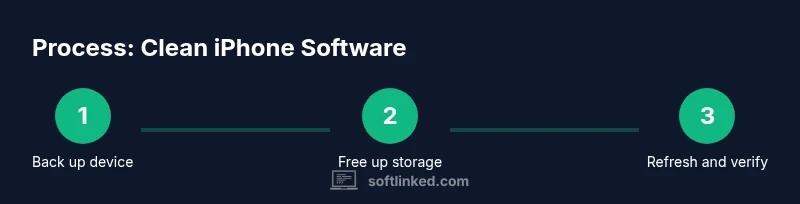
This guide shows how to clean software on iPhone by freeing storage, clearing caches, and optimizing apps. Key steps include backing up, offloading unused apps, trimming large media, clearing Safari data, and reviewing iPhone Storage settings. Follow these steps safely, and SoftLinked’s guidance helps keep your device fast and private.
What "how to clean software on iphone" means in practice
Keeping an iPhone tidy isn't about a single hack; it's a regular routine of freeing space, minimizing unnecessary data, and ensuring the system runs smoothly. The SoftLinked team emphasizes practical,-safe techniques that preserve your data while improving performance. In this section, we outline why routine maintenance matters, what to focus on first, and how to structure changes so you don't lose important information. Expect clearer storage metrics, faster app launches, and better responsiveness after following these guidelines. This approach is suitable for most iPhone models and iOS versions, with steps you can perform without specialized tools. It also aligns with best practices from software fundamentals experts who advise regular review of storage and caches to avoid buildup over time.
Quick navigation to keep your iPhone clean
- Free up storage by offloading unused apps and trimming media
- Clear website data and app caches selectively
- Optimize photos and iCloud settings to reclaim space
- Restart and verify storage after changes
- Only consider a full OS refresh as a last resort
According to SoftLinked, combining these steps yields a reliable balance between performance and privacy. Regular maintenance helps you stay ahead of storage-related slowdowns and keeps your device ready for updates and new apps.
Practical safety and scope of changes
Before you begin, ensure you have a current backup. Major actions like erasing data or performing a full OS refresh carry risk, so using iCloud or a computer backup provides a safety net. The aim of cleaning software on iPhone is to improve efficiency without losing important content; this means prioritizing non-destructive actions first and saving drastic measures for only when needed. SoftLinked analysis shows that most users can reclaim significant space by targeting caches, large attachments, and media, without touching personal documents.
Backups and data safety as a foundation
A reliable backup is your safety net whenever you perform storage-focused maintenance. Use iCloud Backup or a computer backup via Finder/iTunes to capture app data, messages, photos, and settings. If you later perform a reset or OS refresh, you can restore your content and continue where you left off. This aligns with software fundamentals that stress data integrity and predictable recovery paths. The SoftLinked team recommends confirming a backup completion before starting any major steps.
The end-to-end workflow in practice
- Assess current storage: Settings > General > iPhone Storage. 2) Offload unused apps: enable Offload Unused Apps in Settings. 3) Delete or trim large media: Photos, Movies, and attachments. 4) Clear Safari and app caches: Clear History and Website Data for Safari; consider reinstalling apps with heavy caches. 5) Optimize storage: Enable iCloud Photos Optimize iPhone Storage. 6) Reboot to finalize changes and verify storage. 7) If necessary, reset settings or erase all content only as a last resort. 8) Restore from backup and verify accessibility of content. SoftLinked’s guidance supports these steps as a balanced approach.
Final note on ongoing maintenance
Set a light, recurring cadence for storage checks—weekly or monthly depending on usage. Keeping your iPhone clean is not a one-time task but a habit that helps sustain performance, privacy, and storage headroom. By following these steps, you minimize slowdowns, avoid unexpected storage shortages, and stay ready for future iOS updates.
Tools & Materials
- iPhone with latest iOS(Check for updates in Settings > General > Software Update)
- Backup method (iCloud or computer)(Back up before major changes to avoid data loss)
- Stable Wi-Fi connection(Useful for backups, iCloud syncing, and downloads)
- Computer with Finder or iTunes (optional for OS refresh)(Useful if you plan a full refresh or local backup)
Steps
Estimated time: 30-60 minutes (depending on backup and media size)
- 1
Back up your iPhone
Start with a reliable backup to prevent data loss during maintenance. Use iCloud Backup or a computer backup, and confirm the backup completed before proceeding.
Tip: Verify the last backup date and consider running a fresh backup if you’ve added important data since the last one. - 2
Review storage usage
Open Settings > General > iPhone Storage to see a breakdown of used vs. available space and identify large apps, media, and attachments driving usage.
Tip: Sort by size to quickly spot top space users and target them first. - 3
Offload unused apps
Enable Offload Unused Apps to remove the app binaries while preserving documents and data. You can re-download apps later without losing data.
Tip: Combine with a future audit to decide if an app’s data is still needed. - 4
Delete or trim large media
Review photos, videos, and downloaded files. Remove duplicates and long videos, or move them to iCloud or a computer backup if needed.
Tip: Consider enabling iCloud Photos with Optimize iPhone Storage to manage on-device space automatically. - 5
Clear Safari data and caches
Go to Settings > Safari > Clear History and Website Data. Affected caches can improve browser performance and free space; note that cookies will also be cleared.
Tip: If you rely on saved site data, clear selectively or perform a cleaner after a backup. - 6
Manage Messages and attachments
Delete old large attachments and consider enabling 'Keep Messages' settings to limit stored media.
Tip: Set Messages to keep for 30 days or 1 year instead of 'Forever' to trim space gradually. - 7
Enable iCloud Photos Optimize
In Settings > Photos, enable Optimize iPhone Storage so full-resolution copies stay in iCloud and device stores lightweight previews.
Tip: Ensure sufficient iCloud storage before enabling this feature. - 8
Restart and verify
Restart the device to apply changes and recheck Storage to confirm space has been reclaimed.
Tip: A quick reboot can resolve minor cache or indexing issues after cleanup. - 9
Consider a full refresh as a last resort
If performance lags persist, you may reset all settings or erase all content and settings after backing up. This is a drastic measure and should be done cautiously.
Tip: Backup first, then follow setup steps to restore your data cleanly.
Your Questions Answered
Will clearing caches delete my login credentials or important data?
Clearing Safari caches does not delete passwords stored in Keychain. Some app caches are internal and may reset on reinstallation. Always back up before making changes that could affect data.
Clearing caches won’t erase your saved passwords, but apps’ temporary data can disappear after reinstalling. Back up first to stay safe.
What happens if I offload an app?
Offloading removes the app binary but keeps its documents and data. Reinstalling the app restores its interface while preserving your data; if the app stores data in the cloud, those assets remain intact.
Offloading keeps your data, so you can reclaim space without losing information. Re-download later to resume use.
Is it safe to erase all content and settings?
Erasing all content and settings resets the device to factory state and deletes all data. Only use this if backups exist and you’re prepared to set up the device anew.
This is a last-resort option. Make sure you have a complete backup before proceeding.
Does enabling iCloud Photos affect privacy or access?
iCloud Photos stores copies of all photos in iCloud. Enabling Optimize Storage saves space on device while preserving originals in the cloud. Review your privacy settings in iCloud to manage data sharing.
Photos are stored in iCloud; optimize storage helps save space, but ensure you’re comfortable with cloud storage settings.
Should I reset network settings during cleanup?
Resetting network settings can fix connectivity issues but also clears saved Wi-Fi passwords. Use this only if you’re experiencing persistent network problems and have backup of credentials.
Only use a network reset if you’re having Wi-Fi or Bluetooth problems and you’re prepared to re-enter passwords.
Watch Video
Top Takeaways
- Back up before starting any cleanup.
- Offload apps to reclaim space without losing data.
- Enable Photo Optimize to save device storage.
- Clear Safari data and review large attachments for speed gains.
- Use drastic measures (reset/erase) only as a last resort.