How to Check When Software Was Uninstalled
Learn step-by-step how to determine exactly when software was uninstalled across Windows, macOS, and Linux. This guide covers logs, package history, and timelines for reliable uninstall verification.


To determine when software was uninstalled, check system logs, package managers, and audit trails across Windows Event Viewer, macOS Console, or Linux journals. Look for uninstall events, service histories, or package removal records, and correlate them with user activity and install dates. This approach works for most major OSes and helps identify when removal occurred.
Understanding uninstall history and why it matters
According to SoftLinked, documenting uninstall events is crucial for security auditing, software license compliance, and troubleshooting system behavior. The ability to establish when a program was removed helps confirm whether a removal was authorized, identify potential tampering, and support post-uninstall cleanup. In practice, uninstall history is a timeline built from multiple data sources: OS logs, installer records, package manager histories, and user activity traces. By combining these signals, you can answer not just when an uninstall happened, but who initiated it and what dependencies or configurations were affected. This knowledge is especially valuable in environments with shared workstations or multi-user accounts, where unclear removal trails can obscure accountability. As you work through this guide, you’ll learn where to look, how to extract relevant events, and how to stitch them into a trustworthy timeline.
OS-agnostic approach to uninstall history
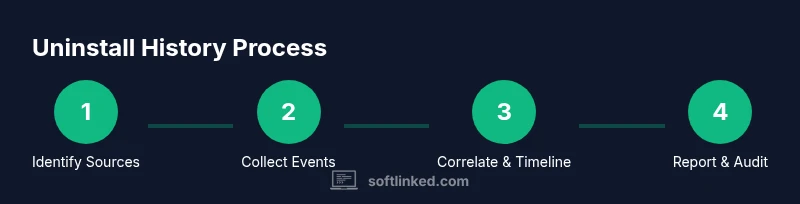
Uninstall events come from several sources and often overlap in time. Start by identifying the systems involved, the software in question, and the expected lifecycle of the application (installation date, version, and removal). Then, gather data from logs, package histories, and configuration management records. The goal is to surface discrete events (remove, uninstall, delete, purge) with timestamps and context such as user accounts, process IDs, and affected components. If you conduct this analysis regularly, you’ll reduce guesswork and improve your ability to audit software changes across diverse environments. SoftLinked’s methodology emphasizes cross-referencing sources to avoid misinterpreting a simple file deletion as a full uninstall.
OS-specific data sources: Windows, macOS, Linux
Each operating system maintains different kinds of evidence for uninstall events. Windows relies on the Event Log and Windows Installer data; macOS uses Unified Logging and receipts; Linux depends on systemd journal entries and package manager histories. Understanding these sources is essential for accurate attribution and timing. In practice, you’ll often compare uninstall timestamps against installation records, license receipts, and user login events to confirm intent and timing. Remember that log retention policies and permissions shape what you can recover, so plan ahead with proper logging configurations.
Windows uninstall evidence: Event Viewer and MSI data
Windows keeps installation and removal events in the Event Log, and the Windows Installer service records detailed transactions. Look for event IDs associated with MsiInstaller, Install, or Uninstall actions, and filter by the software display name. You can also inspect the Programs and Features uninstall entries to corroborate removal timing. If you enable auditing for objects and services, you’ll capture more granular events such as user account activity and process launches related to the uninstall. In large environments, centralized log collection will simplify cross-machine comparisons and timeline construction.
macOS uninstall evidence: Console logs and receipts
macOS tracks software installation and removal through package receipts in /var/db/receipts and through the system log via Unified Logging. Use commands like log show --predicate to search for uninstall messages, or inspect installer receipts to confirm removal dates and versions. The receipts repository can reveal which packages were removed and when, helping you align uninstall events with the original installation. When macOS applications are user-installed, local logs may be less verbose, so combining receipts with system logs yields a fuller picture.
Linux uninstall evidence: journal, package histories, and dpkg/yum/dnf logs
Linux distributions offer multiple sources: systemd journal (journalctl), package manager histories (apt, yum/dnf, pacman), and dpkg logs. Look for terms like uninstall, remove, or purge in journalctl output, and review package manager logs for removals and timestamps. Debian-based systems commonly store actions in /var/log/dpkg.log*, while Red Hat-based systems log in /var/log/yum.log or use dnf history. Arch and other distros maintain their own histories. Correlating these sources helps you build a robust uninstall timeline across diverse Linux environments.
Interpreting timestamps and correlating with activity
Timestamps tell you when an uninstall likely occurred, but context matters. Always convert times to a common time zone and account for clock skew between machines. Cross-reference uninstall times with installation timestamps, user login events, and recent software changes to determine whether removal was user-initiated, automated by a policy, or the result of a security incident. When you see a cluster of uninstall events around a specific time, expand your search to recent updates, configuration changes, or security advisories that might have triggered mass removals.
Common pitfalls and how to avoid false conclusions
A common pitfall is relying on a single log source. Logs can be rotated, truncated, or restricted, leading to incomplete pictures. Another pitfall is misinterpreting benign data (e.g., a failed uninstall attempt) as a completed removal. Always verify with corroborating evidence: multiple logs, installer records, and, if available, change-management tickets. Also beware time-zone mismatches, daylight saving shifts, and incorrect hostnames when compiling timelines from multiple systems. Adopting a standardized format for event records (time, source, action, actor, and rationale) reduces confusion and supports faster audits.
Automating checks with scripts and tools
Automation accelerates uninstall-history investigations and reduces human error. Build scripts that parse Windows Event Logs, macOS log streams, and Linux journals, then extract key fields (timestamp, action, user, application). Store results in a structured timeline (CSV or JSON) and generate a visual timeline or narrative that stakeholders can review. You can schedule recurring checks to keep uninstall histories up to date and set alerts if critical removals occur outside of expected windows.
Keeping a proactive uninstall log for audits
Long-term reliability comes from proactive logging. Implement policy-driven logging that captures installation and uninstallation events, along with relevant metadata (version, license, and dependencies). Regularly back up logs and store them in a central repository with proper access controls. By maintaining an auditable uninstall log, you enable faster investigations, easier licensing compliance, and stronger accountability across your software estate.
Tools & Materials
- Computer with administrative rights(Access to system logs and installer data is essential.)
- OS-specific log viewers(Windows Event Viewer, macOS Console, and Linux journalctl or equivalent.)
- Access to installer/package history(DPKG, RPM, APT, DNF, YUM, pacman histories depending on OS.)
- Text editor or notebook(Annotate findings and build a timeline.)
- Scripting tools (optional)(PowerShell, Bash, or Python for parsing logs and automating tasks.)
- Log retention policy documentation(Know how long logs are kept to plan data collection.)
Steps
Estimated time: 40-90 minutes
- 1
Identify the scope of investigation
Define which software, devices, and time window you will review. Note the OS versions and user accounts involved. A clear scope reduces noise and keeps the effort focused on relevant uninstall events.
Tip: Document the software name, version, and the system where uninstalls occurred. - 2
Enable and verify log sources
Ensure the OS logs that capture uninstall events are enabled. For Linux, verify systemd-journald is active; for Windows, confirm Event Viewer is collecting application logs; for macOS, ensure unified logs are accessible.
Tip: If logs are not enabled, enable them and collect a sample before proceeding to avoid gaps. - 3
Collect uninstall-related events
Query each data source for uninstall or remove actions. Filter by the software name and related executables, and extract timestamps, user accounts, and process identifiers where possible.
Tip: Use precise filters like event IDs or package manager keywords (uninstall/remove/purge). - 4
Correlate uninstall events with installations
Cross-check uninstall timestamps with installation records, license activations, and recent updates. Look for overlaps that indicate deliberate removal versus unrelated events.
Tip: Create a side-by-side timeline to visualize relationships between installs and removals. - 5
Create a timeline and verify with activity
Assemble a chronological narrative including source, timestamp, user, and rationale. Validate discrepancies by checking additional logs (logins, file changes, config edits).
Tip: Timezone normalization is essential when aggregating across machines. - 6
Document findings and create a report
Summarize the uninstall event, sources used, and confidence level. Include caveats and next steps, such as policy changes or further investigation.
Tip: Store the report with audit-friendly formatting for future reviews.
Your Questions Answered
Why might uninstall events be missing from logs?
Logs may have been rotated, not enabled, or restricted by permissions. In such cases, gather alternative sources like receipts, package histories, or change-management records to reconstruct the uninstall.
Logs can be rotated or restricted. If you’re missing uninstall events, check alternative sources like receipts and package histories to reconstruct the timeline.
Can I check uninstall history across different OSes in one pass?
You can, but you’ll need to pull data from each OS separately and then normalize it into a common timeline. Cross-OS analysis benefits from centralized log aggregation.
Yes, but you have to pull data from each OS and normalize it into one timeline.
What should I do if uninstall times don’t align with user activity?
Investigate potential clock drift, delayed log updates, or automated removals triggered by policies. Gather additional context like system updates or security alerts to explain discrepancies.
Check clock drift and policy-driven removals when times don’t align with user activity.
Is automation appropriate for this task?
Automation is valuable for repetitive checks. Build scripts that extract, normalize, and summarize uninstall events to reduce manual effort and improve consistency.
Yes, automation helps a lot for repeated checks and audits.
What’s the best practice for long-term uninstall logs?
Adopt policy-driven logging with centralized storage and access controls. Regularly back up and rotate logs to preserve evidence for audits over time.
Keep centralized, backed-up uninstall logs with clear retention policies.
Watch Video
Top Takeaways
- Identify uninstall events across multiple sources
- Correlate removals with installations to confirm intent
- Build a documented timeline with sources and timestamps
- Automate checks to maintain ongoing uninstall visibility