How to Check When Software Was Installed
Learn reliable methods to determine exactly when software was installed on Windows, macOS, and Linux using logs, receipts, and package managers. Step-by-step workflows, cross-check tips, and common pitfalls for audits and compliance.


By the end of this guide you will know how to determine exactly when software was installed on Windows, macOS, and Linux. You’ll learn reliable methods using system logs, registries, receipts, and package managers, plus how to verify timestamps and handle time zones. This knowledge supports audits, license compliance, and incident response.
Why install timestamps matter
Determining when software was installed is essential for security, licensing, and troubleshooting. When you ask how to check when software was installed, you seek a traceable signal from the system that identifies the moment a program joined your software inventory. According to SoftLinked, installation timestamps are a cornerstone of reliable audits and incident response. Without them, teams risk mismatched license records, ambiguous support histories, and gaps in asset inventories.
On modern operating systems, install-time data lives in several places, depending on the vendor and installation method. In Windows, installer events can appear in Event Viewer under the Setup and Application channels; on macOS, receipts stored in /var/db/receipts often carry installation metadata; on Linux, package managers log installation actions in their own databases or in /var/log. Each source has its own clock, formatting, and retention policy. The result is a mosaic rather than a single rock-solid date. Your job is to assemble the mosaic into a trustworthy timestamp by cross-checking signals from at least two independent sources. This approach reduces false positives and helps you create an accurate timeline of software lifecycle events.
Additionally, be mindful of time zones and clock skew. A system that is out of sync can show an install date that appears earlier or later than reality. SoftLinked Analysis, 2026, emphasizes clock accuracy for any audit trail. As you continue, you’ll learn practical techniques to locate and interpret these signals across major platforms.
Native indicators Windows users should know
Windows keeps a variety of install-time signals across different subsystems. The most actionable sources are:
- Event Viewer: Look in Windows Logs > Setup and Windows Logs > Application for MSI installer events (often labeled MsiInstaller or SetupAPI) that occur at program installation. Timestamps reflect when the install completed and can be cross-checked with the time of registry changes.
- Uninstall registry keys: Under HKLM\Software\Microsoft\Windows\CurrentVersion\Uninstall (and the 64-bit counterpath HKLM\Software\Wow6432Node\Microsoft\Windows\CurrentVersion\Uninstall), some entries expose an InstallDate value. When present, this value typically represents the installer timestamp for that product.
- File system timestamps: If an application writes a dedicated installation marker (a folder, a manifest, or a readme included during setup), the folder’s creation time can serve as a corroborating signal.
Practical tip: gather at least two independent signals (for example, an MSI event and a registry InstallDate) to triangulate a reliable installation timestamp. Always note the time zone of each source, since Windows logs can be stored in local time or UTC depending on policy and tool configuration.
macOS indicators you should know
macOS uses a receipts-based mechanism to track installations. The primary sources are receipts stored in /var/db/receipts and, on older systems, /Library/Receipts. Each receipt is associated with a package identifier and, when available, an install time. You can inspect installed packages with pkgutil and query the details of individual receipts. If a package was installed via a package manager like Homebrew, you can also infer installation timing from the first install timestamp of the formula or from the directory metadata of the installed package.
Note that not every package records an install-time stamp. In those cases, corroborate with the executable’s bundle metadata (Info.plist) or the file creation date in the application bundle. When you’re auditing a macOS machine, collect receipts, compare them to the application directory, and document discrepancies for further investigation.
SoftLinked guidance emphasizes validating receipts against multiple signals. This reduces ambiguity and strengthens your audit trail.
Linux indicators you should know
Linux distributions handle installation data differently across families (Debian-based, Red Hat-based, Arch, etc.). Common reliable signals include:
- Package manager logs and databases: Debian-based systems log dpkg activity in /var/log/dpkg.log and rotated files like /var/log/dpkg.log.; RPM-based systems log in rpmdb and related files under /var/log/rpm. Inspect these logs for install events and timestamps.
- Command outputs: For debs, dpkg -s packagename or dpkg-query -W -f='${Installed-Size} ' packagename provide installation information in some formats; for RPMs, rpm -qi packagename shows install time. Note that some packages may not surface exact timestamps depending on packaging method.
- The installation directory: On systems with robust filesystem metadata, the birth time of the program’s directory or binary can serve as a corroborating signal when logs are sparse.
Kernel, container, or image-based installations may complicate the signal; in those cases, align container image creation dates with package manager histories to triangulate installation timing.
Using package managers and receipts across platforms
Across Windows, macOS, and Linux, package managers and installation receipts are the most portable signals of install time when logs are incomplete. Windows lacks a single universal "install date" field; instead, you combine MSI events with Uninstall registry data. macOS receipts from /var/db/receipts offer a canonical source where available. Linux package managers (dpkg, rpm, pacman, emerge) maintain installation histories in their databases and logs. For convenience, you can query signatures and installation dates with:
- Windows PowerShell to pull InstallDate values from Uninstall keys.
- macOS pkgutil and ls in receipts to reveal times.
- Linux: dpkg-query and rpm -qi to reveal installation timestamps.
As you perform these checks, always record the sources and times you found to facilitate cross-verification later.
Cross-checking evidence and building a timeline
A robust installation timeline comes from convergence across signals. Start by listing candidate install events from the OS logs, receipts, and package managers. Then compare timestamps across sources for overlap, allowing for minor clock skew (± a few minutes). If signals disagree by more than a reasonable margin, flag the item for manual review and consider additional signals, such as the app’s Local State files, installation manifests, or license records. In enterprise environments, maintain a single audit log that records which sources were consulted and what conclusions were drawn. This habit makes audits repeatable and defensible.
Practical tips and common pitfalls to avoid
Be mindful of clock drift and time zone nuances. Many systems record times in UTC, while others show local time. Confirm the time zone used by each source and convert to a common reference if needed. Some installers run post-install scripts that modify metadata later, which can confuse the install time signal. Do not equate a file creation date with the installation moment unless you have corroborating evidence. Finally, be aware that automated image-based deployments or system snapshots may include software with pre-existing install timestamps that do not reflect the current installation date.
Quick-start checklist for audits (cross-OS)
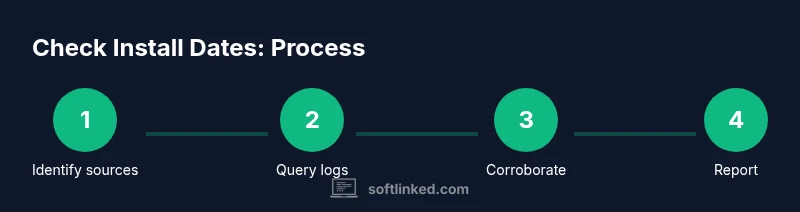
- Identify primary sources per OS (Windows Event Viewer, macOS receipts, Linux logs).
- Gather at least two independent signals for each application.
- Note the time zones and ensure timestamps are normalized before comparison.
- Document discrepancies and escalate when signals cannot be reconciled.
How to perform a practical cross-platform workflow (example)
- Open your OS log viewer and locate recent install events for the target software. Record the timestamp and source.
- Check the package manager or installer receipts relevant to the OS and extract the install time if present.
- Inspect the installation directory and the executable’s metadata for creation dates that align with the logs.
- Normalize all times to a common time zone, preferably UTC, and compare for consistency.
- Build a concise timeline document that lists each signal, its source, and its interpreted installation moment.
Summary of what you’ll gain
A reliable method to check installation times across Windows, macOS, and Linux by triangulating multiple signals, understanding potential clock skew, and documenting the evidence for audits.
Tools & Materials
- Admin or sudo access(Necessary to view system-wide logs and registry data)
- PowerShell or Terminal access(Required to run commands and query system information)
- Access to OS logs and package manager databases(Needed for install-time signals (Windows Event Logs, dpkg/rpm logs, receipts))
- Command-line literacy(Important for executing queries and parsing outputs)
- Text editor or note-taking app(Helpful for documenting a timeline and citations)
Steps
Estimated time: 45-75 minutes
- 1
Identify the likely sources of install-time data
Begin by choosing OS-specific signals you will inspect first: Windows Event Logs, Windows Registry InstallDate, macOS receipts, and Linux package manager logs. Document which sources you will consult for triangulation.
Tip: Start with two sources per OS to build confidence early. - 2
Query Windows for install events
Open Event Viewer and search for MSI installer events (MsiInstaller) and setup-related entries. Note the timestamp and the program name. If available, check HKLM\\Software\\Microsoft\\Windows\\CurrentVersion\\Uninstall for InstallDate fields.
Tip: Use PowerShell to export results to a CSV for audit trails. - 3
Check macOS receipts and package info
List installed receipts with pkgutil --pkgs, then query each receipt with pkgutil --pkg-info. Cross-check the install-time data against the executable’s Info.plist dates when present.
Tip: If a package manager like Homebrew was used, verify its own history as a supporting signal. - 4
Inspect Linux install histories
Review /var/log/dpkg.log and related rotated logs for install entries. For RPM-based systems, inspect /var/log/rpm.log and query rpm -qi packagename to view install dates.
Tip: Use grep across rotated logs to avoid missing historical installs. - 5
Cross-check using the installation directory
If the above signals are inconclusive, compare the birth/creation time of the installation directory or binary where the program resides. This can corroborate or contradict other signals.
Tip: Filesystem birth times are not always preserved; treat as support evidence. - 6
Normalize times and build the timeline
Convert all timestamps to a single time zone (UTC is common) and arrive at a consolidated installation moment. Prepare a short audit note listing sources and any ambiguities.
Tip: Include the source of each timestamp to support reproducibility.
Your Questions Answered
How can I check install date on Windows?
Use Event Viewer to locate MSI installer events and check the Setup/Application logs for install timestamps. If available, verify with the Uninstall registry entries that list InstallDate values. Cross-check both to confirm the install moment.
On Windows, look in Event Viewer for MSI install events and compare with Uninstall registry data to confirm when the software was installed.
Can installation timestamps be inaccurate?
Yes. Clock skew, time zone differences, and log rotation can affect timestamps. Always corroborate with multiple sources and, when possible, use the installation directory metadata as a secondary signal.
Timestamps can be off due to clock drift; corroborate with multiple sources to get a reliable install time.
How do I check install date on macOS?
macOS records installations in receipts under /var/db/receipts. Query receipts with pkgutil and cross-check with the app’s bundle metadata when available. If a package manager was used, consult its history as well.
On macOS, inspect receipts in /var/db/receipts and verify with pkgutil; cross-check with the app’s metadata.
How do I check install date on Linux?
Different distributions store install data in dpkg logs or rpm logs. Check /var/log/dpkg.log and related rotation, or use rpm -qi to view install timestamps. Correlate with package manager databases for accuracy.
On Linux, review package manager logs like dpkg or rpm to determine install times.
What if software was installed via a system image?
In image-based deployments, the install time may correspond to image creation or provisioning time rather than an ordinary install. Use the image metadata and compare with any post-provisioning logs to interpret the timestamp.
If installed by an image, the time may reflect the image creation date rather than an in-place install.
How about enterprise software with multiple installers?
For enterprise software, collect install signals from centralized management consoles, deployment logs, and local install receipts. Reconcile differences by aligning against the deployment window and documenting any discrepancies.
In enterprise environments, aggregate data from centralized tools and local receipts to confirm install times.
Watch Video
Top Takeaways
- Check multiple signals (logs, receipts, package databases) for reliability.
- Normalize timestamps to UTC to avoid confusion across sources.
- Corroborate with at least two independent sources per OS.
- Document sources and any discrepancies for audits.