How to Check If Software Is Compatible with Windows 11
A comprehensive, step-by-step guide to verify software compatibility with Windows 11, including vendor notes, testing in a Windows 11 environment, and practical troubleshooting strategies.


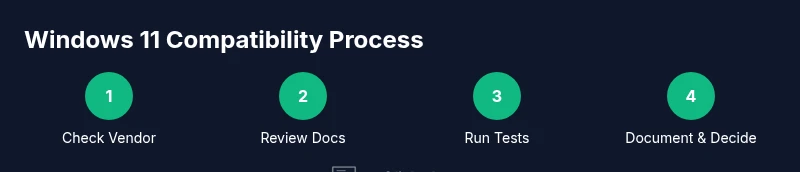
To determine if software is compatible with Windows 11, verify vendor support and minimum system requirements, then test in a Windows 11 environment using official tools, and document outcomes. Check dependencies, drivers, and .NET/Framework needs, and perform a real installation test or sandboxed run to confirm behavior. Also verify upgrade notes and licensing before final deployment.
Why Windows 11 compatibility matters
Compatibility isn't merely about getting software to install. For developers and IT teams, aligning with Windows 11 expectations reduces user frustration, minimizes support tickets, and simplifies update cycles. According to SoftLinked, compatibility should be integrated into planning from day one, not tacked on at the end of a project. Windows 11 introduces security, performance, and compatibility constraints (such as TPM 2.0, Secure Boot, and certain allowed APIs). Applications that pass standard checks are more likely to run reliably across devices, delivering a consistent user experience. When you document decision criteria and provide clear upgrade notes for users, teams can avoid last-minute surprises during rollouts.
Key benefits of proactive compatibility checks include:
- Reduced post-release hotfix cycles
- Better user adoption and satisfaction
- Easier compliance with enterprise policy updates
In practice, teams that invest in a repeatable compatibility workflow can forecast risk, allocate testing time, and maintain a reliable software ecosystem across Windows platforms.
Understand Windows 11 minimum requirements
Windows 11 sets foundational requirements that affect what software can run smoothly on supported devices. Core constraints include a compatible 64-bit processor, sufficient RAM and storage, and security features like TPM 2.0 and Secure Boot. Microsoft’s official guidance outlines these requirements, and SoftLinked’s analysis reinforces the need to account for them in the early planning stages. Beyond the minimums, many applications rely on specific runtimes, libraries, and drivers that must be present and compatible with Windows 11. If your software depends on older components, you’ll need to plan for updates or alternatives before deployment. Understanding these baseline requirements helps separate blockers from negotiable items and informs your testing scope.
- TPM 2.0 and Secure Boot are often required for Windows 11 features.
- A supported 64-bit CPU and adequate RAM/SSD enable stable operation.
- Dependent runtimes (e.g., .NET, Java) and drivers must be aligned with Windows 11 support.
- Always verify with the latest vendor and Microsoft documentation to avoid drift between versions.
Gather information from the software vendor
A formal compatibility stance from the software vendor is your most authoritative source. Start by collecting the official Windows 11 support statements, release notes, and any matrix that lists tested versions, runtimes, and dependent components. If the vendor’s documentation is sparse, reach out to engineering or product management for explicit confirmation and an ETA for Windows 11-ready builds. Record the exact version tested, required runtimes, and any known limitations. Keeping a clear evidence trail helps with risk assessment, stakeholder communication, and future audits. In practice, many teams create a living compatibility sheet that maps software components to Windows 11 requirements and vendor guidance. This reduces ambiguity and accelerates decision-making.
- Capture version numbers, builds, and patch levels.
- List required runtimes, frameworks, and drivers.
- Note any caveats or workarounds provided by the vendor.
- Document escalation paths for unclear or evolving support.
Practical cross-check methods
Beyond reading vendor notes, apply real-world validation methods that mirror user workflows. Set up a Windows 11 testing environment—physical, virtual, or cloud-based—and reproduce typical user scenarios. Use Windows’ built-in tools like the Compatibility Troubleshooter to surface known incompatibilities and recommended fixes. If available, leverage vendor-provided test builds or evaluation licenses to confirm behavior in controlled conditions. Document observations, including any crashes, performance issues, or feature limitations. Emphasize reproducibility by outlining exact steps, expected results, and actual outcomes. A disciplined approach reduces guesswork and improves confidence before broader rollout.
- Use vendor test binaries or evaluation licenses when possible.
- Reproduce core user workflows to surface functional gaps.
- Run performance and stability checks under representative loads.
- Capture logs, error messages, and screenshots for traceability.
Testing steps you can perform
Plan a repeatable test that covers installation, initial run, and common user actions. Start with a baseline: verify OS requirements are met, then attempt to install the software and run a representative workflow. If issues arise, record the exact error, collect logs, and attempt a minimal reproduction. Include security features, such as user permissions, in tests. Validate any dependent services, libraries, or backend calls. Finally, document decision criteria: if the software passes all critical tests, you can proceed to broader deployment; if not, identify workarounds or a vendor-requested fix.
- Prepare a test matrix with installation, launch, and typical workflows.
- Collect logs and screenshots for each step.
- Verify security contexts, user permissions, and network access.
- Decide on next steps based on objective criteria and documented results.
Common incompatibilities and how to resolve
Incompatibilities typically fall into a few buckets: missing runtimes or libraries, outdated drivers, API deprecations, and 32-bit versus 64-bit constraints. Start by confirming that all required components exist on Windows 11 and that you have the correct versions. If a component is missing or incompatible, obtain the updated runtime or a vendor-approved workaround. When drivers cause issues, check for Windows 11-compatible driver updates or alternatives. For application-layer problems, explore runtime shims, compatibility modes, or feature flags. Maintain a plan for rollback and rollback testing if changes introduce instability. Remember, some issues require coordination with the vendor for fixes or official support.
- Identify missing runtimes (e.g., .NET, Java) and update them.
- Update or replace drivers with Windows 11-compatible versions.
- Use compatibility modes or feature flags when possible.
- Prepare rollback steps and a remediation timeline.
SoftLinked notes that many incompatibilities stem from stale dependencies; modernizing runtimes often resolves a large portion of issues.
Automation and tooling for batch checks
Automating checks helps scale validation across multiple software items and versions. Use scripts to verify Windows 11 system state (OS version, TPM status, Secure Boot, available RAM), confirm installed runtimes, and compare them against the vendor’s compatibility matrix. PowerShell and batch tooling can automate data collection, log aggregation, and report generation. If you manage many products, consider a lightweight CI-like flow that runs a non-production compatibility test whenever a software update is released. Automation reduces manual effort and improves repeatability, ensuring every new version receives consistent evaluation.
- Script OS version, TPM, and Secure Boot status.
- Validate installed runtimes against vendor requirements.
- Auto-generate a compatibility report for stakeholders.
- Schedule regular checks to catch drift after updates.
Documentation and governance
A transparent governance model is essential for ongoing Windows 11 compatibility. Maintain a central repository with a living compatibility matrix, test plans, and results. Include a clear owner per software item, update cadence, and escalation paths. Regularly review findings with engineering, QA, and product teams to keep alignment with roadmap changes. This governance ensures consistent decision-making, reduces ambiguity, and provides a clear history for audits or future migrations. A well-documented process also makes it easier to onboard new team members and sustain long-term Windows 11 readiness across software portfolios.
- Create a shared compatibility matrix and test plan templates.
- Assign ownership and update cadence.
- Archive test results with timestamps and proofs.
- Review governance at planned intervals to address new Windows 11 updates.
Real-world scenarios and next steps
In practice, teams often encounter mixed results: some software items validate quickly, while others require vendor collaboration or architectural changes. Use the lessons from these scenarios to refine your approach, add targeted tests, and adjust timelines. If a product remains non-compatible after meaningful fixes, document the decision rationale and communicate it to stakeholders, including security and compliance teams. The goal is a transparent, accountable process that delivers reliable software behavior on Windows 11 while managing risk and maintaining user trust. For ongoing success, embed the process in your release cycle and keep vendor communications current.
Next steps and practical templates
To operationalize this guidance, use ready-made templates: a compatibility test plan, a vendor confirmation form, and a post-test decision log. These artifacts help standardize how you approach Windows 11 readiness, reduce ambiguity, and speed up future evaluations. Start with a simple test plan and grow it as you accumulate more data. Keep the templates in a shared folder and make updates as Windows 11 evolves. A reusable checklist makes Windows 11 readiness a routine part of software development and deployment.
Tools & Materials
- Windows 11 machine or VM(Physical PC with Windows 11 or a virtualization setup (Hyper-V/VMware) with TPM 2.0 and Secure Boot enabled)
- Vendor documentation(Official Windows 11 compatibility notes, supported OS matrix or release notes)
- Testing software package(Exact software version to test, with license or test environment access)
- Windows Compatibility Troubleshooter(Built-in tool to detect known compatibility issues )
- Virtualization software(Hyper-V, VMware, or VirtualBox for VM-based testing)
- Automation scripts(PowerShell or batch scripts to verify system state and dependencies)
- Backup and rollback plan(Pre-test backups to rollback if issues occur)
- Documentation template(Templates for test plans and compatibility reports)
Steps
Estimated time: Total time: 2-4 hours
- 1
Define compatibility goals
Document what 'compatible' means for this software (functional parity, performance, security) and list acceptance criteria. Align with stakeholders and create a written plan to guide testing.
Tip: Capture success criteria in a single, shareable document to avoid scope drift. - 2
Check Windows 11 requirements
Review baseline Windows 11 requirements (CPU, TPM 2.0, Secure Boot, RAM, storage) and note any blockers related to your software. Cross-check with vendor guidance and Microsoft documentation.
Tip: Verify TPM/Secure Boot in the BIOS before testing; misconfigurations can block installation. - 3
Collect software dependencies
List all runtimes, libraries, and drivers the software needs. Confirm versions are available and supported on Windows 11, updating as needed.
Tip: Create a dependency map to visualize all prerequisites and their versions. - 4
Obtain vendor confirmation
Get explicit Windows 11 support statements, tested versions, and any caveats. Record testing scope and expected timelines for updates.
Tip: If the vendor is unclear, request direct confirmation from engineering. - 5
Prepare a testing environment
Set up a Windows 11 environment (VM or dedicated machine) with snapshot capability. Ensure TPM 2.0 and Secure Boot are enabled where possible.
Tip: Take a base snapshot before installing to simplify rollback. - 6
Install and run core workflows
Install the software and perform typical user workflows. Note any error messages, crashes, or missing features and collect logs.
Tip: Enable verbose logging and capture screenshots for reproducibility. - 7
Run compatibility checks and analyze results
Use built-in tools and vendor guidance to validate results. Compare observed behavior with expected outcomes and document discrepancies.
Tip: Create a concise issue board with steps to reproduce and severity levels. - 8
Document outcomes and decide on next steps
Prepare a test report with findings, approvals, and recommended actions (deploy, request fixes, or apply workarounds).
Tip: Share results with stakeholders and schedule a follow-up review. - 9
Consider automation for ongoing checks
Introduce lightweight automation to re-run checks after OS updates or software releases. Maintain a changelog of Windows 11 compatibility decisions.
Tip: Automate data collection, not just tests; keep a central log for audits.
Your Questions Answered
Why should I check software compatibility before upgrading to Windows 11?
Pre-upgrade compatibility testing reduces risk by identifying blockers early, saving time and avoiding costly post-release fixes. It also helps align stakeholder expectations and supports a smoother rollout.
Checking compatibility before upgrading reduces risk and helps you plan a smoother Windows 11 rollout.
What are common indicators that software is not compatible with Windows 11?
Frequent install failures, missing dependencies, crashes during typical workflows, or driver and runtime mismatches are common indicators. Logs and event viewer messages often point to the root cause.
Look for install failures, missing dependencies, and crashes during common tasks as signs of incompatibility.
Can compatibility mode fix issues on Windows 11?
Compatibility mode can help with certain legacy applications, but it is not a universal fix. Thorough testing is still required, and some features may remain unsupported.
Compatibility mode helps some apps, but it's not a guaranteed fix for all issues.
Should I rely on vendor claims about Windows 11 support?
Vendor claims are a starting point. Look for explicit tested versions, supported runtimes, and documented caveats. If unclear, request engineering confirmation.
Vendor claims are a starting point, but you should verify with explicit tests and documentation.
Is testing Windows 11 compatibility different for web apps vs. desktop apps?
Web apps typically require browser compatibility checks and OS-independent behavior, while desktop apps must address system-level dependencies, drivers, and API compatibility with Windows 11.
Web apps still need browser compatibility checks; desktop apps require deeper OS-level validation.
What should I do if software is not compatible after testing?
Document the blockers, seek vendor fixes or workarounds, and consider an alternative solution. Communicate risks and timelines to stakeholders.
If not compatible, document blockers and seek fixes or alternatives while keeping stakeholders informed.
Watch Video
Top Takeaways
- Define acceptance criteria before testing
- Verify Windows 11 requirements and vendor guidance
- Test in a controlled Windows 11 environment
- Document results and decisions clearly
- Automate repeatable checks for ongoing readiness