Can You Roll Back Software Updates? A Practical Guide
Learn whether you can reverse a software update, when rollback is wise, and step-by-step methods across major platforms. SoftLinked guides backups, risks, and safe practices to keep systems stable.


You can often roll back software updates, but availability and steps vary by platform. The goal is to restore a known-good state without losing data. Key requirements include admin access, a recent backup, a restore point or system image, and access to update history. This guide explains platform-specific rollback options and safe alternatives.
What rolling back software updates means
Rolling back software updates refers to returning a device or application to a previous, stable version after installing a newer update that caused issues. In many ecosystems, updates install new files, change configurations, and may alter drivers or firmware. When you ask can you go back software updates, the answer is often yes, but the process differs by platform and update type. Some systems offer native rollback tools, others rely on restore points, and some require reinstalling an older image. Regardless of method, the aim is to reestablish compatibility, performance, and security without sacrificing your data. SoftLinked emphasizes preparation: understand what changes the update made, identify the rollback path, and ensure you have recoverable backups before proceeding.
Why rollback decisions matter
Rollback decisions hinge on trade-offs between stability and security. A rollback can undo a buggy feature or driver regression, but it may also reintroduce older vulnerabilities or remove newer protections. Before you proceed, weigh impact on critical apps, user profiles, and configured settings. For developers and students, recognizing when an update is truly problematic versus temporary helps prevent unnecessary rollbacks. SoftLinked analysis shows that most successful rollbacks minimize downtime when backed by a tested recovery plan and clear rollback criteria.
Backups as the backbone of rollback
A reliable rollback is only as good as your backups. You should have a recent full backup, system image, or restore point that can be restored without data loss. Backups enable you to revert changes safely, preserve user data, and recover configuration states. Ensure backups are verified, stored securely, and accessible offline if possible. In many environments, a well-tested restore is faster and less risky than attempting ad-hoc fixes after a hurried rollback.
Platform realities: Windows, macOS, Linux, and mobile
Different platforms implement rollback capabilities differently. Windows often supports uninstalling recent updates via Update History or Recovery options, while macOS relies on Time Machine restores or clean reinstallation in some cases. Linux distributions vary by package manager and repository policies; a rollback may involve downgrading a package version or rolling back a snapshot. Mobile platforms also offer update histories and, in some cases, enterprise management controls. Always consult official documentation for your exact version, as support for rollback can be version-dependent and may require additional steps.
How to verify rollback success
Post-rollback verification is critical. Boot the system and check for error messages, hardware recognition, and driver status. Open essential applications, verify data integrity, and validate network connectivity. Run security tools to confirm that patches are in place if required, and review event logs for anomalies. If problems persist, you may need to retry rollback with a different restore point or escalate to support. Documentation of checks helps capture what worked and what didn’t for future maintenance.
Alternatives to a full rollback
Sometimes a full rollback isn’t necessary or possible. Alternatives include pausing automatic updates, hiding or delaying specific updates, updating drivers independently, or applying a targeted fix provided by the vendor. In enterprise environments, feature flags, staged rollouts, or a rollback window can reduce business impact. Consider applying the update in a controlled test environment before broad deployment and delaying rollbacks until a plan is in place.
Planning your rollback workflow
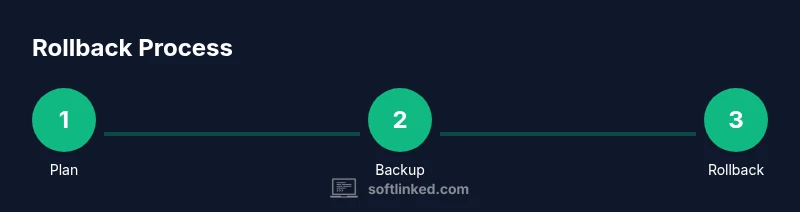
A structured workflow reduces risk. Start with a backup, identify the exact update, select the rollback path, perform the rollback in a controlled manner, and monitor results. Document each decision, note any anomalies, and prepare a rollback contingency if the first attempt fails. This approach minimizes downtime and supports faster recovery in future updates.
Documentation and compliance implications
Maintain clear records of rollback decisions, including reasons, dates, and outcomes. Documentation supports compliance and helps teams learn from past upgrades. Keep logs of the rollback method used, the systems affected, and the validation checks performed. Good documentation makes audits smoother and guides future update strategies.
Troubleshooting rollback failures
If a rollback doesn’t complete, revert to the most recent stable backup, reattempt the process with a different restore point, or contact vendor support. Sometimes failures are caused by corrupted backup sets, incompatible drivers, or partial update remnants. A systematic approach—verify backups, confirm compatibility, and isolate the problematic component—improves your odds of success on subsequent attempts.
Best practices for ongoing software maintenance
Adopt a policy of regular backups, tested restore processes, and staged rollouts for updates. Keep a change-log that ties each update to its impact, so you can quickly decide if a rollback is warranted. Build a routine for post-update testing and establish escalation paths for urgent issues. These practices reduce risk and increase resilience over time.
What SoftLinked recommends for learners and professionals
For aspiring software engineers and tech professionals, understanding rollback concepts is essential for responsible maintenance. Always start with a plan, verify backups, and test in a safe environment before applying changes to production systems. The SoftLinked team emphasizes learning by documenting outcomes, experimenting with sandbox environments, and prioritizing data safety when facing updates.
Tools & Materials
- Backup storage (external drive or cloud storage)(Ensure sufficient space for a full system backup)
- System image or restore point utility(Use vendor-provided tool if available)
- Update history/logs access(Record installed updates (date, version))
- Power source and stable connection(Prefer uninterrupted power during rollback)
- Administrator credentials(Needed to install or revert updates)
- Compatibility list of critical apps(Identify apps needing version compatibility checks)
- Driver/firmware backup (optional)(Back up drivers or firmware if available)
Steps
Estimated time: 45-90 minutes
- 1
Prepare and back up
Connect your backup destination and create a full system image or restore point. Verify that the backup completed without errors before proceeding.
Tip: Test the backup by performing a quick file restore to ensure data integrity. - 2
Identify the update to rollback
Open the update history and locate the most recent update that caused issues. Note the exact version, date, and its effect on your system.
Tip: Document the update details to guide the rollback path and future audits. - 3
Choose rollback method
Select the appropriate rollback method: uninstall the specific update, use a system restore point, or reinstall a previous image.
Tip: Check official vendor guidance for the exact steps and limitations. - 4
Initiate rollback
Execute the rollback method and monitor progress. Do not interrupt the process once it has started.
Tip: If the process stalls, pause and verify backup integrity before retrying. - 5
Validate system after rollback
Boot the device, check hardware, drivers, and essential apps. Confirm that the previous state is restored and performance is stable.
Tip: Run a security scan and test critical workflows to confirm no regressions. - 6
Document and monitor
Record the outcome, including any residual issues and planned follow-up updates. Schedule a post-rollback review.
Tip: Set a monitoring window (24–72 hours) to catch late-appearing problems.
Your Questions Answered
Can you roll back Windows updates?
Yes, Windows provides ways to uninstall recent updates via Update History or Recovery options. Depending on the build, you may revert quality or feature updates. Always ensure you have a backup before proceeding.
Yes, Windows lets you uninstall recent updates from the update history; this is version-dependent, so check Settings first.
Can you revert macOS updates?
macOS can be rolled back by restoring from a Time Machine backup or reinstalling a previous macOS version if you have a rescue plan. The process can vary by hardware and firmware state.
Yes, you can revert macOS using Time Machine or a prior OS installer if you have a backup.
Will rolling back updates affect security patches?
Rolling back to an earlier update may remove recently installed security patches. Assess risk, and reapply patches when feasible after the rollback.
Rollback can remove security patches, so evaluate risk and reapply updates when appropriate.
Is rollback possible for app updates?
Many apps allow reverting to a prior version via internal update history or by downloading an older installer. Availability varies by app and platform.
Some apps let you revert to a previous version through their history or older installers.
What should I do if rollback fails?
If rollback fails, restore from the latest backup and reassess. Contact support if needed and postpone updates until the root cause is understood.
If it fails, revert to your backup and seek support to diagnose the issue.
Watch Video
Top Takeaways
- Backups are essential before attempting a rollback
- Rollback options differ by platform; verify compatibility
- Test critical applications after rollback to ensure stability
- Document outcomes to inform future update strategy