Open Broadcasting Software Download: OBS Studio Guide
Learn how to safely download and install open broadcasting software (OBS Studio), verify sources, and configure streaming and recording settings for reliable performance.


By following this guide, you will safely perform an open broadcasting software download, verify official sources, install OBS Studio on Windows, macOS, or Linux, and configure basic streaming or recording settings for a solid start. You'll learn about safety checks, system requirements, and how to avoid common pitfalls during installation and setup for new users.
What is open broadcasting software download?
Open broadcasting software download refers to the process of obtaining software that enables live streaming, screen capture, and multi-source video production. According to SoftLinked, the term emphasizes legitimate, official sources and careful setup to ensure privacy, security, and performance. The leading example in this space is OBS Studio, an open‑source solution that runs on Windows, macOS, and Linux. With OBS Studio, hobbyists and professionals alike can create professional streams without paying for licenses. The "open" nature of the software means you can examine code, contribute improvements, and customize it with plugins. When you search for an open broadcasting software download, your goal is to install a tool you trust, from sources that verify the integrity of the installer, and that won’t install unwanted software alongside the main program. This guide centers on safe practices, platform variations, and practical setup steps to help beginners gain confidence from download to first stream.
Why OBS Studio stands out
OBS Studio is widely regarded for its balance of power and accessibility. It runs on Windows, macOS, and Linux, which makes it a versatile choice for students, hobbyists, and professionals alike. The SoftLinked team has observed a strong community ecosystem around OBS Studio, including extensive documentation, community-made plugins, and frequent updates that address security and performance. Its open-source license enables transparency and collaboration, which contributes to rapid bug fixes and feature enhancements. For new users, OBS Studio offers a gentle learning curve thanks to a modular interface: you can begin with simple scenes and sources, then scale up with audio mixers, filters, and advanced encoding settings as your needs grow. This combination of accessibility, cross‑platform support, and active development makes OBS Studio a compelling option for open broadcasting software download.
Key features to evaluate before downloading
Before pulling an installer, consider several features that determine how well a tool fits your workflow. First, confirm cross‑platform compatibility (the software should support Windows, macOS, and Linux if you work across systems). Next, check encoding options and performance: hardware encoding (NVENC/AMF) can reduce CPU load, while software encoding offers flexibility on lower-end machines. Scene collections and sources should be flexible enough to accommodate multiple inputs (screen capture, webcam, images, window captures, and game captures). Plugin and extension support can extend capabilities for overlays, chat integration, and automation. Finally, pay attention to stability and update cadence: frequent updates often imply security improvements and feature enhancements. For students and beginners, prioritize ease of use and clear documentation, then grow into advanced features as you gain experience. When evaluating options, also compare the size of the user community and available tutorials, which are invaluable when learning how to use an open broadcasting software download effectively.
How to verify the official download source
Ensuring you download from an official source is crucial to avoid tampered installers and bundled software. Always start at the official project website or the official repository hosting page. Confirm the page uses HTTPS and matches the publisher’s name in the URL. If the project offers a digital signature or checksum (SHA-256/SHA-512), verify it against the downloaded installer. Avoid third‑party mirrors that aren’t clearly associated with the project, and ignore unsolicited download prompts from untrusted sites. SoftLinked recommends bookmarking the official download URL and reconciling it with community references to minimize risk. After downloading, scan the installer with your security software before executing, and consider testing the portable version if the project provides one. By taking these steps, you reduce the risk of installing unwanted software and maintain a stable, clean environment for your broadcasts.
Installation steps on Windows, macOS, and Linux
Installers for OBS Studio are available for Windows, macOS, and Linux, each with a slightly different flow. On Windows and macOS, download the installer from the official site, run it with administrative privileges, and follow the on-screen prompts to complete the installation. Linux users may choose from distribution packages or build-from-source options, depending on their distribution’s package manager. Regardless of OS, you will typically be asked to grant permission for the installer to modify system settings and to approve licenses. After installation, launch the application to verify that it opens correctly. If you encounter permission prompts or dependency errors, consult the official docs or community forums for platform-specific tips. Documenting your installed version helps when seeking support or planning an upgrade.
Basic configuration for streaming and recording
A solid baseline configuration starts with establishing a simple scene and a few sources. Create a scene or two, add your primary video capture source (webcam or capture card), and include a display capture for your screen. Ensure your audio devices (mic and system sound) are correctly routed in the audio mixer. For streaming, select a streaming service, paste the key, and configure a stable bitrate that matches your upload speed. For local recording, choose a high-quality recording format and a destination path on a fast drive. In most cases, starting with a conservative bitrate and a moderate resolution (720p or 1080p) will yield reliable results while you test latency and stability. The initial setup can be refined with filters, color correction, and scene transitions as you gain experience. Visual guides and step-by-step tutorials can accelerate learning; consider saving a basic profile to speed up future setups.
Common pitfalls and how to avoid them
New users often encounter issues arising from incorrect sources, misconfigured audio, or aggressive encoding settings. Common mistakes include adding too many sources, which can degrade performance; using mismatched sample rates between input devices and OBS; and selecting an overly ambitious bitrate for the available upload bandwidth. To avoid these problems, start lean with a single scene and two sources, then gradually add elements as you verify stability. Regularly check your audio levels to prevent clipping, and ensure your output resolution and frame rate align with your display and network capabilities. Avoid running OBS in the background while gaming or streaming on devices with limited GPU resources. Finally, keep your software updated to benefit from security patches and performance improvements.
Performance considerations and system requirements
Performance hinges on how you configure encoding, frames, and scene complexity. For smooth streaming and recording, ensure your system meets the basics: a reasonably modern CPU, sufficient RAM for multitasking, and a capable GPU if you rely on hardware encoding. If you notice dropped frames or high CPU usage, consider lowering the output resolution, reducing the frame rate, or enabling hardware encoding where possible. Some machines benefit from disabling unnecessary background processes during streaming sessions. Memory usage and GPU load can vary depending on the number of sources and filters you use, so start with minimal scenes and gradually increase complexity while monitoring resource consumption. SoftLinked suggests testing your setup with short streams first to identify bottlenecks before committing to longer sessions.
How to update and maintain OBS
Keeping OBS Studio updated is essential for performance and security. Use the built-in update mechanism if available, or periodically check the official site for new releases. Before updating, back up your scene collections and profiles to avoid potential regressions. After an update, recheck your audio and video input sources, as some drivers or plugins may need reconfiguration. Consider enabling automatic updates if you value security posture and wish to receive the latest features promptly. When updating across multiple machines, maintain a version log to track compatibility with plugins and external hardware.
Alternatives to open broadcasting software download
If OBS Studio doesn’t fit your workflow, there are reputable alternatives worth exploring. Streamlabs Desktop offers an integrated experience tailored for streamers with built-in overlays and alerts, while XSplit Broadcaster provides a polished interface and plugin ecosystem. For Linux users seeking a lighter option, consider other open streaming tools that emphasize stability and minimal resource usage. When evaluating alternatives, compare supported features, plugin availability, and community support. SoftLinked recommends trying a few options in a controlled test before committing to a long‑term setup.
Troubleshooting common download issues
Download issues can stem from network problems, firewall restrictions, or blocked installers. Start by checking your internet connection and retrying the download from the official source. If the installer is blocked by your operating system, adjust your security settings to allow the installation, ensuring you trust the source. If a checksum or signature verification fails, re-download from the official page and verify again. For Linux users, dependency errors may require installing missing libraries; consult distro-specific guidance. When in doubt, seek help from official forums or SoftLinked’s community resources to find platform-specific remedies.
Security and privacy considerations when downloading software
Security and privacy should be a constant concern during the open broadcasting software download process. Only download from official sources, verify digital signatures when available, and avoid installers from unknown sites. Keep your system’s security software up to date and scan downloaded files before execution. Be mindful of permissions requested by installers and avoid enabling features you don’t intend to use. Regularly review privacy settings in OBS and related plugins to minimize data sharing and telemetry. By staying vigilant, you reduce exposure to malware and protect your streaming environment.
Tools & Materials
- Computer with internet access(Any modern Windows/macOS/Linux machine)
- Official OBS Studio download page(Use the official site to avoid tampered installers)
- Web browser(Chrome/Edge/Safari/Firefox)
- Checksum utility (optional)(Verify SHA-256/SHA-512 if provided by the download)
- Sufficient storage space(Ensure several hundred MB free for installer and buffers)
- Updated GPU drivers (optional but recommended)(Helps with encoding performance)
Steps
Estimated time: 20-40 minutes
- 1
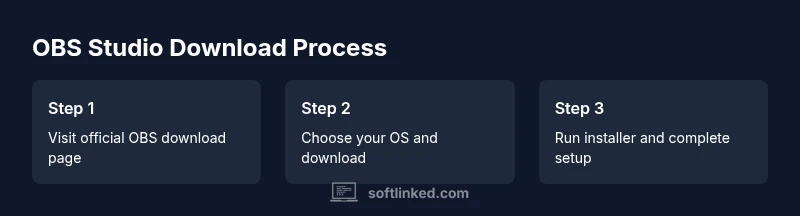
Open official download page
Open your browser and navigate to the OBS Studio download page. Confirm you are on the official site by checking the domain and HTTPS certificate. This step reduces risk from counterfeit installers.
Tip: Bookmark the official URL and verify the site certificate before downloading. - 2
Select your operating system
Choose Windows, macOS, or Linux as appropriate. Official pages typically present distinct installers for each OS to prevent cross‑version issues during installation.
Tip: Double‑check edition (32‑bit vs 64‑bit) if offered; most modern machines use 64‑bit. - 3
Download the installer
Click the official download link and save the installer to a known location. Larger files may take a moment depending on your connection. Avoid downloading from third‑party mirrors unless the project explicitly lists them as trusted.
Tip: If you have bandwidth, download the installer using a wired connection for stability. - 4
Verify the installer (optional but recommended)
If a checksum or signature is provided, compare it with the downloaded file to ensure integrity. This step helps guarantee the file hasn’t been corrupted or tampered with.
Tip: Use a dedicated checksum tool and copy/paste the checksum precisely. - 5
Run the installer with admin privileges
On Windows and macOS, right‑click and choose Run as administrator or equivalent to ensure all components are installed correctly. Accept the license and permissions prompts.
Tip: Close other applications to reduce conflicts during installation. - 6
Complete the installation wizard
Follow the on‑screen prompts to complete the setup. You may be offered optional components; deselect only what you truly don’t need to avoid bloat.
Tip: Note the default install location for easy future updates. - 7
Launch OBS Studio for the first time
Open OBS Studio and check that the program starts without errors. The initial launch may auto‑configure basic settings; review them to suit your system.
Tip: If you’re on a limited system, consider starting with the Auto-Configuration Wizard. - 8
Configure basic audio and video sources
Add at least one video capture source and a microphone, then test input levels. Ensure the sample rate and channel settings align with your hardware.
Tip: Label sources clearly to keep projects organized. - 9
Set up a simple scene for testing
Create a basic scene with a display capture and a webcam source. Position elements, adjust audio, and run a short local recording to check quality.
Tip: Save your scene as a template to reuse later. - 10
Connect streaming or recording destinations
If you plan to stream, sign in to your preferred platform and input your stream key. For local recording, select a destination folder and a high‑quality format.
Tip: Use a separate drive for recordings to prevent performance issues. - 11
Test a short broadcast or recording
Run a short 2–5 minute test to verify audio sync, video latency, and scene transitions. Refine as needed before going live.
Tip: Record a short clip first to confirm export settings. - 12
Establish update and backup practices
Enable automatic updates if available and back up your scenes and profiles. Regular maintenance helps prevent surprises during live sessions.
Tip: Keep a backup of your profile in a separate location.
Your Questions Answered
What is open broadcasting software download?
Open broadcasting software download refers to obtaining software used for live streaming and screen capture; OBS Studio is a leading open-source example.
Open broadcasting software download means getting tools like OBS Studio to stream or record your screen.
Is OBS Studio free?
Yes. OBS Studio is free to use and open-source, with no mandatory license fees.
Yes, OBS Studio is free and open-source.
Is downloading OBS from GitHub safe?
Only download from the official releases page or trusted sources linked by the project; verify signatures if available.
Only download from official pages and verify signatures when possible.
Do I need a powerful computer to run OBS?
OBS runs on a wide range of hardware; performance depends on your intended resolution, frame rate, and number of sources.
You don’t necessarily need a top‑tier PC; start at lower settings and scale up as needed.
Can OBS record and stream at the same time?
Yes. OBS supports simultaneous local recording and live streaming with configurable outputs.
Yes, you can record locally while streaming.
How do I update OBS Studio?
Use the built‑in updater when available, or download and install the latest version from the official site.
Use the built‑in updater or download the latest version from the official site.
Watch Video
Top Takeaways
- Download from official sources
- Verify installer integrity when possible
- Configure basic scenes and audio correctly
- Test streaming/recording before going live
- Keep OBS up to date and well‑documented