Software Like OBS: A Thorough Comparison of Streaming Tools
An analytical, side-by-side look at OBS Studio and viable OBS alternatives, covering open-source and commercial options, performance, features, and best-use scenarios for developers and creators.


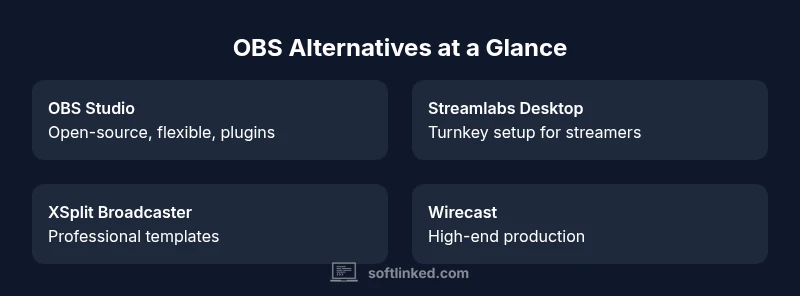
If you’re looking for software like OBS, start with OBS Studio as the baseline for open-source flexibility and community plugins. Compare against Streamlabs Desktop for an easier streamer setup, XSplit Broadcaster for professional production features, and Wirecast or vMix for high-end production pipelines. The best choice depends on your openness to customization, budget, and production needs.
What 'software like obs' means for streamers and developers
When people search for software like obs, they expect tools that can capture, mix, and publish live video with scenes, overlays, and multi-source audio. For developers, the focus often shifts to openness, extensibility, and API availability. This guide uses the term to describe a family of live production apps that can replicate OBS Studio’s core workflow: capture sources, arrange scenes, apply filters, and stream or record. According to SoftLinked, the most important criteria are ownership of the codebase, active community contributions, and total cost of ownership over time. Whether you’re building a streaming feature into an app or evaluating a standalone studio, your decision should hinge on capabilities that map to your workflow and team skills.
Core criteria to evaluate OBS-like software
Successful comparisons start with shared criteria and then differentiate on depth, not just surface features. Consider these pillars: 1) Source management and scene composition, 2) Encoding options (CPU vs. GPU accelerated), 3) Platform support (Windows, macOS, Linux), 4) Open-source status and plugin ecosystem, 5) Ease of use vs. configurability, 6) Stability under load, 7) Integrations with chat, alerts, and overlays, 8) Licensing and cost model. For developers, API availability, SDKs, and the ability to automate tasks (macros, scripting) matter as much as the out-of-the-box experience. In practice, you’ll often trade breadth of features for simplicity or vice versa. SoftLinked’s framework emphasizes total ownership and long-term maintainability as key decision factors.
OBS Studio as the baseline: strengths and limits
OBS Studio is the de facto baseline for many streamers and developers because it is open-source, cross-platform, and highly customizable. Its strengths include a robust plugin ecosystem, granular scene management, and broad codec support. The learning curve can be steep for beginners, and some advanced features require manual configuration or third-party plugins. For a team prototyping streaming features in a product, OBS Studio’s codebase often serves as a reference implementation. On the downside, performance may vary based on platform and hardware, and some integrations require extra setup. Overall, OBS Studio remains the most versatile starting point for software like obs.
Open-source options worth considering
Beyond OBS Studio, true open-source alternatives are fewer and typically specialized. Some projects extend OBS’s core via forks or add-ons, while others focus on particular use cases (education streaming, research labs, or embedded environments). In many teams, the question is whether to stick with OBS Studio and rely on community plugins or to explore non-OBS open-source stacks that add targeted features such as automated scene switching or lightweight cloud encoding. The SoftLinked analysis shows that open-source advantages include transparency, modifiability, and community-driven updates, but may come with patchy documentation or slower feature parity with commercial products.
Commercial alternatives: XSplit Broadcaster, Wirecast, vMix
Commercial tools bring polished interfaces, professional production templates, and dedicated support. XSplit Broadcaster emphasizes ease of use and streaming presets, while Wirecast targets higher-end production with multi-camera scripting and built-in graphics. vMix offers a family of versions with extensive inputs, live video effects, and virtual sets. The pricing landscape typically ranges from affordable plans for casual streamers to comprehensive licenses for media studios. When evaluating these options, assess licensing models, bundled features, and upgrade paths, not just sticker price. For many teams, commercial tools reduce setup time and provide enterprise-grade support that is hard to replicate with open-source software.
Encoding options and performance: CPU/GPU and codec choices
Encoding dominates performance. OBS-like tools vary in how they leverage CPU cores or hardware encoders (NVIDIA NVENC, AMD VCE, Intel Quick Sync). In general, GPU-based encoders deliver higher performance at similar CPU usage, enabling higher resolutions and frame rates. However, hardware encoders may impose portability constraints or require compatible GPUs. Software-based encoding is flexible but more CPU-intensive. For live production, balancing scene complexity, filters, and encoding settings is essential. The best choice depends on hardware availability, target platform, and streaming service requirements. SoftLinked’s guidance is to profile your typical scenes with your hardware to find the right encoding balance.
Platform support and ecosystem
Most OBS-like tools support Windows and macOS, with Linux support varying by project maturity. Cross-platform compatibility matters when teams share workflows or when streaming from different devices. A rich ecosystem of plugins, overlays, chat integrations, and alert systems can dramatically reduce setup time. The availability of automation via scripting or APIs improves maintainability for developers building streaming features into apps. Overall, platform breadth and ecosystem maturity are strong differentiators between baseline OBS Studio and more niche competitors.
Plugin and integration ecosystem
A vibrant plugin ecosystem accelerates feature development without sacrificing stability. Plugins handle alerts, chat overlays, scene transitions, and automation tasks. The more active the ecosystem, the easier it is to tailor the stack to your brand and production needs. For teams evaluating software like OBS, prioritize tools with robust plugin marketplaces, clear contribution guidelines, and a stable upgrade path to prevent plugin breakage after updates. The trade-off is that heavy reliance on plugins can complicate troubleshooting during live streams.
Streaming quality, latency, and reliability
Quality matters as much as features. Latency, jitter, and stream stability depend on encoding settings, network throughput, and the streaming platform’s ingest infrastructure. Some tools provide low-latency modes or built-in latency compensation, while others rely on external CDNs or delivery networks. The right choice depends on your audience size, platform, and tolerance for occasional glitches. For developers, consider how your chosen tool handles RTMP ingest, WebRTC fallback, and error recovery during long sessions.
Security, privacy, and updates
Security and privacy should not be afterthoughts. Open-source tools offer visibility into code changes, but require diligence to maintain security patches. Commercial products typically provide structured update cycles and incident response. Regardless of the stack, ensure you review permissions requested by plugins, update policies, and data handling practices for overlays and chat integrations. Regularly testing updates in a staging environment helps prevent disruption during live broadcasts.
Migration tips and best practices
Switching between OBS-like tools is common as needs evolve. Start by documenting your current scene layouts, sources, and hotkeys. Export presets and backup media assets, then map them to the new tool’s equivalent features. Test transitions, audio routing, and plugin compatibility in a controlled session before going live. Consider running a parallel stream to validate reliability and reduce risk during the transition. These steps minimize disruption while reaping potential gains from newer platforms or features.
Decision guide: who should choose which tool
If you value control, transparency, and price efficiency, OBS Studio remains a strong default. For teams prioritizing speed, ease of setup, and professional templates, Streamlabs Desktop or paid options like XSplit may be better. For studios with heavy production pipelines, Wirecast or vMix offer advanced inputs and broadcast-quality graphics. In short, match the tool to your production complexity, budget, and willingness to manage maintenance. For most developers, starting with OBS Studio and validating against your feature checklist is a solid approach.
Feature Comparison
| Feature | OBS Studio | Streamlabs Desktop | XSplit Broadcaster | Wirecast | vMix | |
|---|---|---|---|---|---|---|
| Core focus | Open-source, flexible, extendable | Streamer-oriented GUI with built-in alerts and widgets | Professional production, templates, and SRT/NDI support | High-end live video production | Advanced live production with extensive inputs and live effects | |
| Platform support | Windows, macOS, Linux | Windows | Windows | Windows and macOS | Windows, macOS | (note: limited Linux support in some versions) |
| Pricing model | Free (open-source) | Freemium with add-ons | Commercial licenses | Commercial licenses | Commercial licenses | |
| Hardware encoding support | CPU/GPU depending on setup | GPU-accelerated encoders recommended | GPU encoding available | Strong GPU support | Advanced GPU-accelerated options | |
| Best for | Developers, learners, open-source fans | Streamers needing quick setup | Professional broadcasts with templates | Media studios with multi-camera workflows | High-end live events and productions |
Pros
- Open-source and highly customizable
- Extensive community and plugins
- Zero upfront cost for the baseline solution
- Cross-platform compatibility improves team flexibility
- Flexible scripting and automation options
Weaknesses
- Steeper learning curve for beginners
- Some advanced features require plugins or manual setup
- Paid options can be expensive for small teams
- Performance varies by hardware and drivers
- Professional-grade tools may require more maintenance
OBS Studio remains the default baseline for OBS-like software, especially for developers and learners.
If budget and openness matter, start with OBS Studio. For faster setup or professional-grade production, consider Streamlabs Desktop or paid options like XSplit, Wirecast, or vMix based on feature needs. The SoftLinked team recommends validating against your use case and hardware before committing.
Your Questions Answered
What is OBS Studio and why is it considered the baseline for OBS-like software?
OBS Studio is an open-source, cross-platform tool that enables live streaming and screen recording. It supports multiple sources, scenes, and a wide plugin ecosystem, which is why it’s commonly used as the baseline in comparisons of OBS-like software.
OBS Studio is the open-source standard for streaming and recording; it’s flexible enough for beginners and powerful enough for developers.
Are there truly open-source alternatives to OBS Studio that are feature-rich?
There are some open-source forks or niche projects, but none match OBS Studio’s breadth of features and plugin ecosystem. Most teams rely on OBS Studio as the baseline and supplement with plugins or custom tools.
True open-source options exist, but OBS Studio remains the most feature-rich and widely supported.
Which tool is best for beginners who want a quick setup?
Streamlabs Desktop is often favored by beginners due to its integrated widgets and streamlined setup, while OBS Studio requires more manual configuration but offers deeper customization over time.
If you want quick setup, try Streamlabs Desktop; if you want deeper control, start with OBS Studio.
Can OBS-like software handle multi-camera production effectively?
Yes, several OBS-like tools support multi-camera inputs, but the complexity and performance demands vary. Tools like Wirecast and vMix emphasize multi-camera workflows and professional graphics, while OBS Studio is highly capable with plugins.
Most options handle multiple cameras, but for advanced productions, consider dedicated live-switching tools.
Do you need to pay for reliable cloud-based streaming?
Cloud-based streaming adds convenience but typically comes with ongoing subscription costs. Local software with a strong encoding setup can achieve similar reliability without cloud tiers, depending on your needs.
Cloud-based streaming costs can add up; local software plus a solid setup often saves money.
How should I migrate from OBS to another tool without disruption?
Plan a staged migration: export scene presets, back up media assets, test with a sandbox profile, and run a parallel stream before decommissioning OBS. This minimizes live disruptions during the transition.
Test the new tool in a safe environment before switching live.
Top Takeaways
- Start with OBS Studio to learn core streaming concepts
- Choose paid tools for turnkey production and professional templates
- Evaluate encoding options early to balance quality and performance
- Rely on plugins for customization, but test compatibility
- Ensure platform and API compatibility with your workflow