Why Logitech Software Won't Open: Troubleshooting
Urgent step-by-step guide to diagnose and fix why Logitech software won't open, with safe fixes, reinstall tips, and prevention steps to restore normal operation quickly.


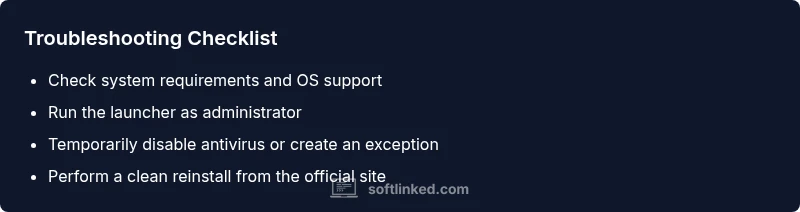
The most likely reason Logitech software won't open is a conflict with system permissions or an interrupted install. Start by verifying the app is allowed to run in your OS, checking for updates, and temporarily disabling antivirus to test; if needed, reinstall Logitech Options or Logitech G Hub. This quick check helps rule out common blockers before deeper fixes.
Why Logitech software not opening
If you're asking why Logitech software not opening, you're not alone. The issue is almost never one single fault; it's usually a small but stubborn blocker that stops the launcher from initializing. In many cases, applications fail to start because of permission blocks, background processes left from a prior update, or a corrupted installation. The goal of this guide is to give you a practical, repeatable flow to identify the blocker and apply a safe fix without risking your system. By approaching the problem with a methodical checklist, you can recover access to Logitech software quickly and with confidence. The SoftLinked team emphasizes calm, evidence-based steps so you can regain control without guesswork.
Check system requirements and compatibility
Logitech software relies on a compatible operating system, sufficient resources, and up-to-date runtimes. Before you dive into fixes, confirm your OS version is supported and that you have enough free RAM and disk space for the installer. If your device runs an older or unsupported build, even a correct install may fail to launch. In addition, verify that you are using a 64-bit system if the Logitech product specifies 64-bit requirements, and ensure other Logitech apps installed on the same machine aren’t creating a conflict. Keeping drivers and system components up to date reduces the chance of runtime conflicts that prevent startup. This compatibility check helps explain many cases where the software simply refuses to open.
Quick checks you can do before reinstall
Some fixes are fast and non-disruptive. Start by running the program as an administrator to bypass basic permission hurdles. Check your antivirus and firewall settings to ensure they aren’t blocking the application. Temporarily disable security software to test whether it’s the culprit, but re-enable protection immediately after testing. Close any background Logitech processes from Task Manager or Activity Monitor, then try launching again. If you have multiple Logitech apps (Options vs. G Hub), see if one is running in the background and causing a launch conflict. Finally, review recent updates to catch a faulty patch that could block startup.
Diagnostic flow you can follow
When Logitech software won’t open, think in terms of symptom → diagnosis → solution. If the launcher doesn’t start at all, the likely causes are a blocked execution path or a broken install. If the updater runs but the app won’t open, focus on permissions and conflicts with security software. If you see a specific error message, note the text and search for that exact code or phrase; it often points to a missing runtime, corrupted user data, or a known compatibility issue. This flow keeps you oriented and avoids wasted steps. Remember to validate each fix with a fresh launch after applying it.
STEP-BY-STEP: Detailed fixes for common causes
- Run as administrator and check OS compatibility. Right-click the Logitech launcher, select Run as administrator, and confirm you have an admin account. If the app still won’t open, check for OS updates and ensure compatibility mode isn’t forcing an older runtime. 2) Repair or reinstall the software. Use the official uninstaller to perform a clean remove, then reinstall the latest version from Logitech’s site. During reinstall, close other Logitech apps to prevent file conflicts. 3) Temporarily disable antivirus/firewall and test. Some security software blocks new executables; disable temporarily, then re-enable after testing. If the program opens, add an exception for the Logitech folder. 4) Remove conflicting software. If you have multiple Logitech programs, uninstall duplicates and reboot before reinstalling. 5) Reset user data. If corruption in the app data folder is suspected, back up profiles and recreate a fresh config after reinstall. 6) Hardware and drivers check. If nothing works, verify your USB devices and chipset drivers, as conflicts can manifest as startup failures.
tipDTOExtractionNeededOnlyReasoningNeededForEachStepAllowedForThisStepToBeConciseOnlyInThisBlockOnlyIfNeededForClarityIfThisContainsList
Steps
Estimated time: 45-60 minutes
- 1
Verify Administrative Privileges
Right-click the Logitech installer or launcher and choose Run as administrator. If the app still won’t open, confirm your user account has admin rights and that any device management policies aren’t restricting execution. Corporate devices may require IT support for elevated permissions.
Tip: Administrative access is often the simplest fix; ensure you’re using an admin account. - 2
Check for OS and app updates
Open your system update utility and install any pending OS updates. Then download the latest Logitech software from the official site and compare the version against what’s installed. A mismatch or stale installer can prevent launch.
Tip: Keeping both OS and apps current reduces startup conflicts. - 3
Temporarily disable security software
Temporarily disable antivirus or firewall protection to test whether they’re blocking the Logitech executable. If the software opens, re-enable protection and add an exception for the Logitech directory or process.
Tip: Do not leave security software disabled for long; use exceptions instead. - 4
Close background Logitech processes and restart
Use Task Manager (Windows) or Activity Monitor (macOS) to end any running Logitech processes. Restart the computer, then attempt to launch the app again to ensure a clean startup. This clears stuck processes that can block opening.
Tip: A clean reboot often resolves hidden lockups. - 5
Repair or reinstall the software
Run a repair if offered by the installer; if not, perform a full uninstall followed by a fresh install from Logitech’s official site. Ensure you remove residual files from the previous installation to prevent conflicts.
Tip: Choose the latest installer from the official source for best results. - 6
Remove conflicting software and reset data
If you have multiple Logitech programs, uninstall duplicates and reboot. If startup issues persist, reset application data by renaming or moving the config folder and then restarting.
Tip: A clean slate for config files can fix stubborn issues.
Diagnosis: Logitech software won't open on Windows/macOS
Possible Causes
- highPower/OS permission issue
- highInterrupted or incomplete install
- mediumAntivirus or firewall blocking the executable
- lowConflict with other Logitech software (Options vs G Hub)
- lowCorrupted user profile or registry/ini files
Fixes
- easyRun as administrator and check for OS updates
- easyRepair or reinstall the Logitech software using official installer
- easyTemporarily disable antivirus or create an exception
- mediumUninstall conflicting Logitech apps and perform a clean reinstall
- mediumCreate a new user profile or reset app data if needed
Your Questions Answered
Why does Logitech software fail to start after a Windows update?
Windows updates can reset permissions or introduce compatibility gaps. Recheck admin rights, run the installer as admin, and ensure the app is compatible with the current OS version. If problems persist, reinstall the Logitech software.
Windows updates can change permissions or break compatibility; try admin run and reinstall if needed.
What should I do if reinstalling doesn’t fix the problem?
Perform a clean uninstall, remove leftover files, reboot, and reinstall from the official site. Check for conflicting versions and disable startup items that may block the launcher.
If reinstalling fails, do a clean uninstall and reinstall from the official site, removing leftovers first.
Can antivirus software block Logitech?
Yes, some antivirus suites may block new executables. Temporarily disable protection or add an exception for the Logitech folder and launcher, then test launching again.
Antivirus can block the app; test with protection temporarily disabled or an exception added.
Is it safe to run Logitech software in compatibility mode?
Yes, running in compatibility mode can resolve issues on older systems. Choose a recent supported mode in the program properties and test launching again.
Compatibility mode can help on older systems; try a recent supported mode.
What if I have both G Hub and Logitech Options installed?
These apps can conflict. If possible, uninstall one and use the other consistently, then reinstall the preferred app to ensure clean startup.
If both are installed, pick one and uninstall the other to avoid conflicts.
When should I seek professional help?
If startup issues persist after all fixes, or if you suspect hardware or driver problems, contact Logitech support or a qualified technician.
If persists after fixes, contact support or a technician for deeper issues.
Watch Video
Top Takeaways
- Verify admin rights first
- Update OS and Logitech software
- Use safe reinstall to clear corruption
- Avoid long-term disabling of security tools
- Choose a single Logitech app to prevent conflicts