What Software for XP-Pen: A Practical 2026 Guide for Artists
Explore compatible XP-Pen software, from free open-source options to professional tools. Compare Krita, MediBang, Clip Studio Paint, and Photoshop for Windows, macOS, and Linux.


If you're wondering what software for XP-Pen, the short answer is: XP-Pen tablets are compatible with virtually all major drawing and design apps, so your best choice depends on workflow. For free options, Krita and MediBang are strong starters. For professionals, Clip Studio Paint, Adobe Photoshop, and Corel Painter are popular, with each offering strengths for illustration, photo editing, and painting.
Understanding XP-Pen hardware and software compatibility
XP-Pen tablets are designed to be versatile input devices for digital artists. The key to getting the most from your XP-Pen is understanding how hardware and software interact. At the hardware layer, XP-Pen devices rely on drivers to communicate with your computer, translating tilt, pressure, and rotation into stylus input. On the software side, most modern drawing and painting programs respond to pen pressure and tilt automatically, but you may need to adjust brush settings or enable pressure curves to match your stylus. For aspiring artists asking what software for xp pen, the strategy is to pick applications that support pressure sensitivity and mapping to your tablet’s express keys. Because XP-Pen works with Windows, macOS, and many Linux distributions, your choice should align with your operating system and preferred workflow. In practice, you’ll typically install the driver package, calibrate pressure, map express keys, and customize a handful of brushes that feel natural with the XP-Pen nib. According to SoftLinked, this basic alignment sets the stage for a smooth creative flow.
Free and open-source options that pair well with XP-Pen
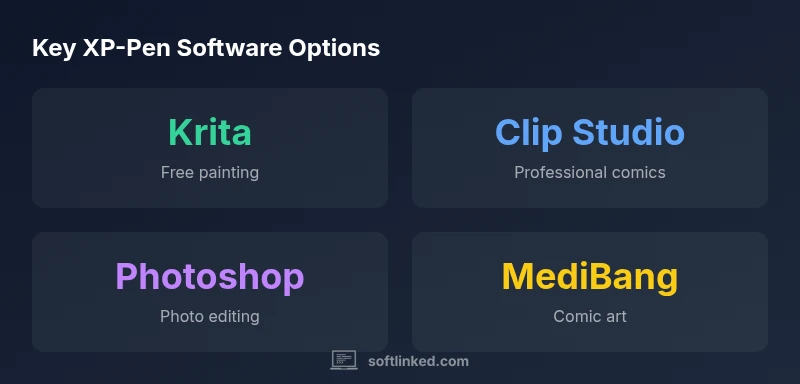
If you want to start creating with minimal upfront cost, open-source or free software can be very effective with an XP-Pen tablet. Krita is widely praised for its brush engine, brush stabilization, and extensive customization, making it a strong fit for concept art and illustration. MediBang Paint offers a lighter, cloud-friendly workflow with comic-focused tools and cloud syncing, which can be convenient for students sharing work across devices. FireAlpaca remains an option in some ecosystems, though updates can be sporadic. When pairing with XP-Pen, ensure you enable pressure sensitivity and calibrate your brush settings to suit your pressure curve. Free software also provides a low-risk environment to experiment with layer management, mask usage, and color management before investing in paid tools. In sum, Krita and MediBang establish a solid entry point for artists starting with XP-Pen.
Industry-standard paid software for professional workflows
Clip Studio Paint is popular among comic artists and illustrators because of its vector and raster brushes, perspective rulers, and strong text tools. Adobe Photoshop remains a staple for photographers and designers who rely on advanced photo editing and compositing, as well as painterly effects. Corel Painter offers a traditional painting feel with natural media brushes and texture controls. Each of these applications supports XP-Pen input well, but the best choice depends on your goals: fast concept sketching, polished illustrations, or photo-centric editing. If you are training for a professional portfolio, investing in one or two of these tools can yield a robust, industry-ready workflow.
How to optimize performance: drivers, settings, and canvas workflow
Driver setup matters: always install the latest XP-Pen drivers from the official site, reboot, and test basic input before software tuning. In your art apps, enable pen pressure, tilt response, and smoothing where available. Create default brush presets that exploit the tablet’s pressure curve, and map express keys to actions like undo, brush size, or layer visibility. Canvas workflow matters too: keep a clean layer stack, use non-destructive editing with adjustment layers, and structure your files with consistent color profiles. If you’re editing large canvases, consider enabling GPU acceleration if your device supports it. Finally, save incremental versions to preserve your XP-Pen-based experiments and avoid losing progress during rapid iterations.
Platform considerations: Windows, macOS, and Linux compatibility
XP-Pen support across platforms remains strong on Windows and macOS, with official drivers providing robust pressure sensitivity and button customization. Linux compatibility is more variable, often depending on community drivers and distribution support. If you’re on Linux, you may need to rely on generic Wintab or HID drivers or use a VM or dual-boot setup to access well-supported software. On Windows and macOS, you’ll benefit from smoother performance, easier access to professional-grade apps, and more consistent updates. When choosing software, consider how it aligns with your OS, your hardware, and your long-term plans for collaboration or cross-device work.
Use-case driven recommendations: beginners, illustrators, photographers
For beginners, Krita or MediBang combined with XP-Pen provides a gentle learning curve and fast feedback. For illustrators and comic artists, Clip Studio Paint offers concise panel tools, scalable brushes, and frame templates that pair naturally with XP-Pen’s stylus capabilities. Photographers and designers who want to extend their editing to illustration can lean on Photoshop for advanced compositing and color workflows. Students should consider software with education licenses and cross-device syncing. In a professional portfolio setting, a hybrid setup—Krita for rough concepts, Clip Studio for final line art, and Photoshop for finishing touches—can leverage XP-Pen hardware effectively.
Practical setup: step-by-step to configure XP-Pen with chosen apps
Step 1: Install the XP-Pen driver and calibrate the pen pressure; Step 2: Open your chosen app and enable pen pressure; Step 3: Create a default brush in your app with a pressure curve that matches your XP-Pen nib; Step 4: Map XP-Pen express keys to frequent actions; Step 5: Set up a simple file workflow (new document, layers organized, color profile). Optional: export to common formats for sharing. By following these steps, you can begin productive work quickly while refining your preferences over time.
Common pitfalls and how to avoid them
Many users struggle with inconsistent pen pressure between apps or misconfigured express keys that impede workflow. To avoid this, standardize your pressure curve across programs or save app-specific presets and switch with a single key. Ensure the correct color management settings, monitor calibration, and export formats. Regular driver updates and periodic re-optimization of brush settings can prevent drift when you upgrade software or OS. Finally, keep a lightweight backup of your XP-Pen profile so you can restore it after system changes.
Advanced tips: customization and workflow ideas
Leverage XP-Pen’s hardware buttons by creating context-specific shortcuts per app (e.g., brush toggle, color picker, and layer visibility). Explore brush libraries that simulate traditional media but adjust pressure and tilt to your preference. For cross-device projects, maintain a shared color space and consistent DPI settings. Consider pairing Krita with an external color management tool for precise color pipelines, or use Photoshop with smart objects for complex compositing. With deliberate setup and mindful practice, XP-Pen users can build a powerful, efficient creative workflow.
Common XP-Pen software options and their fit
| Software | Price (USD) | Best For | Platform |
|---|---|---|---|
| Krita | Free | Illustration & concept art | Windows, macOS, Linux |
| MediBang Paint Pro | Free | Comic art & light illustration | Windows, macOS, Android, iPadOS |
| Clip Studio Paint | Paid (one-time or subscription) | Professional illustration, comics | Windows, macOS |
| Adobe Photoshop | Paid (subscription) | Photo editing & digital painting | Windows, macOS |
Your Questions Answered
Which XP-Pen software is best for beginners?
For beginners, Krita and MediBang offer intuitive interfaces, strong brush systems, and zero upfront cost. They let you learn pen pressure and layer management before investing in premium tools.
Krita and MediBang are great for beginners, with intuitive brushes and zero cost.
Is XP-Pen compatible with Windows and macOS?
Yes. XP-Pen provides drivers for Windows and macOS that enable pressure sensitivity and button customization across many apps.
Yes, Windows and macOS are supported with drivers.
Can XP-Pen run on Linux?
Linux support exists but is less consistent, often relying on community drivers. You may need to adjust integration per distribution.
There can be compatibility issues on Linux; check drivers for your distro.
Free vs paid software for XP-Pen?
Free tools like Krita and MediBang are excellent to start; paid options like Clip Studio Paint or Photoshop add advanced features and polish.
Start with free apps, then consider paid tools for extra features.
Do XP-Pen drivers affect performance?
Yes, updated drivers improve pen latency, tilt response, and stability. Always keep drivers current and test after OS updates.
Update drivers to improve performance and stability.
Best workflow with XP-Pen for photo editing?
Pair Photoshop or Krita with XP-Pen for precise edits and painting. Use layers, masks, and pressure-sensitive brushes for non-destructive edits.
Use Photoshop or Krita with layers and masks for great results.
“XP-Pen tablets unlock a wide range of creative workflows; the best results come from pairing capable hardware with software that matches your goals.”
Top Takeaways
- Start with Krita or MediBang to learn XP-Pen basics.
- Match software to art goals: illustration, photo editing, or comics.
- Fine-tune drivers and brush presets for consistency.
- Consider OS compatibility when selecting apps.
- Experiment with shortcuts to streamline workflows.