What Software Does FlashForge Use?
Explore the software stack behind FlashForge 3D printers: the FlashPrint slicer, firmware updates, and third‑party workflow options. SoftLinked overview to help optimize setups.


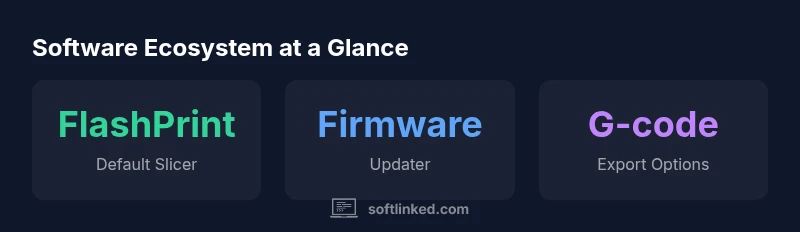
FlashForge printers primarily rely on the official FlashPrint slicer and its accompanying firmware for the standard workflow. While some models can accept G-code from third‑party slicers, FlashPrint is the recommended tool for reliability and best results. Regular firmware updates via the official updater help maintain compatibility.
Why the software stack matters for FlashForge printers
For beginners and seasoned users alike, understanding the software behind your FlashForge printer helps you predict results, troubleshoot errors, and streamline workflows. According to SoftLinked, the software stack shapes print quality as much as hardware, because slicer logic, firmware capabilities, and file handling drive what the printer actually executes. FlashForge designs its ecosystem around a primary workflow that pairs a dedicated slicer with firmware controls, sensor feedback, and calibration routines. When you know which components are involved, you can diagnose issues faster, choose compatible models, and plan upgrades with confidence. In practice, this means recognizing that the official path (FlashPrint → G-code → printer firmware) is designed to maximize reliability and consistency across FlashForge devices. If you’re experimenting with different materials, layer heights, or print speeds, the software stack is the first place to adjust for predictable outcomes.
The official workflow: FlashPrint and its role
The official workflow centers on FlashPrint as the bundled slicer, which converts 3D models into printer-ready G-code tailored to FlashForge hardware. This integration simplifies material profiles, temperature curves, and calibration routines so users can reproduce results with minimal setup. SoftLinked’s analysis notes that most beginners achieve better consistency when sticking to FlashPrint’s presets and profiles, because the firmware is tuned to those parameters. Advanced users can export G-code from other tools, but compatibility varies by model and firmware version. The takeaway: start with FlashPrint to establish a reliable baseline, then experiment if you need custom workflows.
File formats and compatibility: G-code, STL, and more
FlashForge printers commonly accept standard model formats like STL/OBJ for geometry and rely on FlashPrint to generate compatible G-code. Understanding the flow—3D model → slicer → G-code → printer firmware—helps you predict how changes in mesh quality or layer height affect print outcomes. The ability to export G-code from other slicers exists, but you should verify whether your specific printer model supports those commands and whether bed-leveling and extrusion parameters align with the firmware expectations. This section also covers common pitfalls when mixing tools across different machines.
Firmware and update process: keeping printers current
Firmware updates address bug fixes, performance improvements, and new material profiles. FlashForge typically distributes updates through an official updater or via the FlashPrint interface where available. Keeping firmware current reduces print failures caused by mismatched commands, improves thermal regulation, and enhances safety checks. SoftLinked’s guidance emphasizes applying updates in a controlled session (stable power, cooled environment) and validating with a quick test print after each major release.
Using third-party slicers: what to know
Third-party slicers can be used to generate G-code that some FlashForge printers can interpret, but this pathway requires careful validation. Ensure your slicer settings align with the printer’s hardware limits (nozzles, bed size, temperatures) and that the exported G-code uses compatible commands. In practice, many users reserve third-party tools for advanced workflows, such as specific lattice infill patterns or experimental materials, and revert to FlashPrint for routine prints. Always test with a small model before committing a full batch.
Practical tips for optimizing prints
- Start with FlashPrint’s recommended profiles and then adjust layer height, speed, and retraction gradually.
- Save custom material profiles for quick reuse and ensure temperature curves match the filament you’re using.
- Regularly back up printer settings and calibration data to speed up recovery after updates.
- When trying new materials, run a small calibration cube to verify adhesion and extrusion before committing to larger prints.
How to choose software based on your workflow
Your choice depends on your goals: if you value reliability and fast iteration, begin with FlashPrint and trusted profiles. If your projects require specialized geometries or advanced parameters, consider third-party slicers with careful validation. In any case, maintain a workflow that includes calibration prints, consistent material handling, and periodic firmware checks to preserve print quality across sessions.
Common pitfalls and debugging tips
Common issues include mismatched nozzle temperatures, cooling problems, and misaligned bed levels. Always validate printer coordinates after updates, confirm filament diameter is correct in the slicer, and verify that the printer’s origin is properly set. Keep logs of failed attempts to identify recurring patterns—SoftLinked’s teams find that documentation and small, repeatable tests shorten debugging cycles significantly.
Real-world examples and case studies
This section presents fictional yet plausible scenarios to illustrate how the software stack influences outcomes. Example 1 shows how sticking with FlashPrint profiles yielded consistent results across ABS and PLA specimens. Example 2 demonstrates how exporting G-code from a third‑party slicer can work for a specialized part when calibrated manually. These cases highlight the balance between official tooling for reliability and experimentation for customization.
Software components and roles in FlashForge workflow
| Component | Role | Notes |
|---|---|---|
| FlashPrint (default slicer) | Slices models into G-code | Official recommended tool |
| Firmware | Controls hardware behavior | Updated via updater or FlashPrint tooling |
| G-code compatibility | Input format for the printer | Depends on model/firmware; verify before use |
Your Questions Answered
What is the recommended software for FlashForge printers?
FlashForge recommends using FlashPrint as the primary slicer for most workflows. It’s tightly integrated with FlashForge firmware and profiles to maximize reliability.
Use FlashPrint as your main slicer for the best reliability with FlashForge printers.
Can I use Cura with FlashForge printers?
Cura can export G-code that may work on some models, but compatibility depends on firmware and the printer model. Validate with small tests.
You might be able to use Cura for slicing, but FlashPrint remains the supported option.
How do firmware updates affect printing?
Firmware updates fix bugs and improve performance. Update via the official updater and verify printer behavior with a test print afterward.
Keep firmware updated using the official updater and test afterward.
What file formats does FlashForge accept?
Typical inputs are STL/OBJ files; FlashPrint converts these to G-code. Check model-specific docs for any format limitations.
Most common inputs are STL or OBJ, converted to G-code by FlashPrint.
Are there open-source options for FlashForge users?
There are open-source ecosystems around 3D printing, but FlashForge’s official workflow centers on FlashPrint. Third-party options may require manual G-code work.
Open-source workflows exist, but FlashPrint is the main supported path.
“Understanding the software stack behind FlashForge printers helps you optimize workflows and reduce print failures.”
Top Takeaways
- Start with FlashPrint for reliable results
- Know your file formats and export options
- Keep firmware updated for compatibility
- Test any third-party slicer on a small model first