TeamViewer Download: Safe, Step-by-Step Guide
A comprehensive, educational guide to downloading TeamViewer safely, verifying official sources, choosing the right edition, installing correctly, and securing remote sessions.


In this guide you will learn how to download TeamViewer from the official source, choose the right edition, and install it securely. You’ll verify the URL, avoid third-party mirrors, and complete setup in under 25 minutes. This steps-based approach keeps your system safe and ready for remote support or collaboration.
What you’re downloading and why
Downloading TeamViewer is not just about obtaining a remote-access tool; it’s about choosing a trustworthy, efficient, and privacy-respecting solution for support, collaboration, or unattended access. According to SoftLinked, starting with the official download page reduces risk and simplifies updates. TeamViewer provides a main client for desktop, plus specialized variants like QuickSupport and Host modules for different use cases. If you are a developer, IT admin, or student coordinating a remote lab, understanding what you’re installing helps you avoid bloatware and licensing pitfalls. In this section we’ll outline what TeamViewer is, the main components you’ll encounter, and how to recognize legitimate installers from fakes. You’ll also learn how to distinguish between personal-use, business-use, and enterprise licensing so you can select the edition that aligns with your needs.
Where to download TeamViewer safely
The safest path is the official TeamViewer website. Always verify the URL starts with https and that the page shows a valid digital certificate. Avoid third-party mirrors, software bundles, or popup downloaders that promise “TeamViewer download” outside the official domain. SoftLinked’s analysis shows that unsafe sources are a common vector for bundled software and adware. To stay protected, bookmark the official site, disable browser extensions that hijack downloads, and scan installers with a trusted antivirus before opening. After you reach the official page, confirm you are on the genuine TeamViewer site by checking for security indicators and the correct branding. This extra step saves time in later updates and minimizes risk of credential compromise or malware.
Choosing the right version for your needs
TeamViewer offers multiple variants to fit different scenarios. For casual remote help, the free personal edition is often sufficient, but commercial environments require a proper license. If you need unattended access to a device, the Full Client with permanent access features is typically used. QuickSupport is suited for on-demand remote assistance without the need for an installation, while Host modules enable ongoing access. Evaluate your use case, licensing terms, and whether you will be coordinating with others or performing scheduled support sessions. This upfront selection prevents unnecessary installations and ensures you are compliant with licensing terms from the start.
System requirements and prerequisites
Before downloading, confirm your device meets basic prerequisites for a smooth setup. TeamViewer runs on major operating systems including Windows, macOS, Linux, iOS, and Android, with newer versions generally supported for security and performance. Ensure you have a stable internet connection, administrator rights on the device for the initial install, and enough disk space for the installer and the application. If you’re on a corporate network, verify that firewall rules or proxy settings won’t block the service. Preparing these prerequisites in advance reduces the chance of installation halts or post-install connectivity issues.
Step-by-step download and install
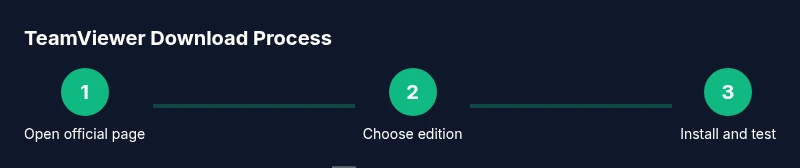
To begin, open the official TeamViewer download page and choose the edition that matches your needs. Click the download button and save the installer to your device. Run the installer, review the license terms, and select the installation type (typical is fine for most users). Allow any system prompts for permissions, then complete the installation and launch TeamViewer. Sign in with a TeamViewer account if you have one, or create a new account for additional features like unattended access. Finally, verify that you can establish a test remote session with a trusted device to confirm everything is working as expected.
Verifying the download and installer integrity
Always verify that the downloaded installer is genuine. Use the official site’s checksum or digital signature if provided, and compare the checksum with the value published on the download page. Look for a valid certificate and a digital signature from TeamViewer on Windows or macOS. If you encounter security warnings from the browser or antivirus, stop the process and re-download from the official page. This extra verification helps prevent false installers and protects your credentials during setup.
First launch and basic configuration
On first launch, you’ll typically be prompted to sign in or create a TeamViewer account. Configure basic preferences such as startup behavior, session quality, and privacy controls. For unattended access, set a strong, unique password and enable two-factor authentication if available. If you’re collaborating with teammates, configure access permissions and specify which devices or teams can connect. After setup, perform a quick test by initiating a session with a known device to ensure the connection is stable and responsive.
Security considerations and privacy
Security should govern every step of your download and use. Enable two-factor authentication, use strong passwords, and review access permissions regularly. Keep the software updated to receive security patches and feature improvements. Be mindful of what you authorize during remote sessions and only connect to trusted devices. On shared or public computers, log out after sessions and avoid saving credentials on devices you don’t control. Following these practices helps protect sensitive data and maintain control over remote access.
Troubleshooting common issues during download and install
If the download stalls, pause and retry on a stable network. Firewalls, antivirus software, or VPNs can block installers, so temporarily disable conflicting software or add exceptions for the TeamViewer installer. If an error occurs during installation, restart the computer and run the installer as an administrator. For corporate devices, consult IT about policy restrictions and licensing, as some environments require approval before remote access tools can be installed. If you still have trouble, visit the official support resources or community forums for guided troubleshooting steps.
Tools & Materials
- Stable internet connection(Broadband or faster; avoid metered connections during download)
- Supported OS(Windows, macOS, Linux variants; mobile OS for companion apps)
- Administrative privileges(Needed to install on Windows/macOS in most cases)
- Official TeamViewer installer(Download only from the official domain to avoid bundled software)
- Test device for remote session(Useful for validating the connection before critical use)
Steps
Estimated time: 15-25 minutes
- 1
Open official download page
Navigate to the TeamViewer official site and locate the download button for your OS. Ensure the URL is correct and that you are on a secure page (https).
Tip: Bookmark the official page to avoid phishing sites and ensure you always download from the legitimate source. - 2
Choose the right edition
Select the edition that matches your use case (personal, business, or enterprise). This prevents licensing issues and ensures you get the correct features.
Tip: For casual home use, start with the personal edition if permitted; for work, verify licensing with IT. - 3
Download the installer
Click the download button and save the installer file to your computer. Do not run other installers from popups or third-party sites.
Tip: Avoid clicking “Download anyway” from questionable prompts; only download from the official domain. - 4
Run the installer
Execute the installer and review the license terms. Choose an installation type (typical is sufficient for most users) and allow required permissions.
Tip: If prompted, run as administrator to ensure full installation capabilities. - 5
Complete setup
Finish the installation and launch TeamViewer. Sign in with an account if you have one, or create a new one for enhanced features.
Tip: Enable unattended access only if you trust the device and use a strong password. - 6
Test a remote connection
Attempt a connection to a known device to verify performance, permissions, and firewall settings.
Tip: If latency is high, adjust session quality in preferences to improve responsiveness.
Your Questions Answered
Is TeamViewer free for personal use?
TeamViewer offers a free personal license for non-commercial use. Businesses should obtain a commercial license. Always check the current terms on the official site to avoid violations.
TeamViewer has a free personal use option, but businesses must license it. Check the terms on the official site.
Which operating systems are supported by TeamViewer?
TeamViewer supports Windows, macOS, Linux, iOS, and Android. Availability of certain features may vary by platform, so review the product page for your OS.
TeamViewer works on Windows, macOS, Linux, iOS, and Android. Features vary by platform.
Should I download TeamViewer from a third-party site?
Downloading from third-party sites is not recommended due to potential malware or tampered installers. Always use the official TeamViewer domain.
Avoid third-party sites; download from the official TeamViewer site to stay safe.
Do I need admin rights to install TeamViewer?
In most cases, yes, you will need administrator privileges to install TeamViewer on desktop platforms. You may be prompted to enter an admin password during installation.
Usually admin rights are required to install TeamViewer on desktops.
How can I verify the downloaded installer is legitimate?
Use the checksum or digital signature published on the official download page to verify the installer. If the signature is missing or invalid, re-download from the official site.
Check the installer's signature or checksum on the official page and re-download if it’s not valid.
What should I do if TeamViewer won’t install due to a firewall?
Temporarily disable conflicting firewall rules or add an exception for the TeamViewer installer. If the issue persists, contact IT or consult TeamViewer support for guidance.
If the firewall blocks installation, add an exception or contact IT for help.
Watch Video
Top Takeaways
- Download from the official site to reduce risk
- Choose the correct edition for your use case
- Verify installer integrity before install
- Configure security settings after installation
- Test a session to confirm functionality