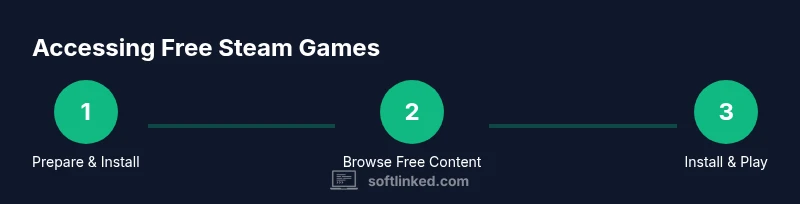
Steam Free Games: Safe, Legal Ways to Download & Play
Discover safe, legal paths to enjoying Steam free-to-play games, demos, and trials. Learn how to install the Steam client, find legitimate free content, and manage updates while avoiding piracy.


Goal: legally access Steam games for free, including free-to-play titles, demos, and trials. Requirements: a Steam account, a computer with internet, and safe sources (Steam store). This guide shows how to find legitimate free content, install the Steam client, and manage updates while avoiding pirated downloads. You’ll learn the differences between free-to-play, demos, and trials, plus how to use Steam’s library features to optimize space and performance.
What 'steam game software free download' really means
In the context of digital games, a steam game software free download is typically the result of accessing free-to-play titles, demos, or trials on Valve's Steam platform. This guide explains legal, safe paths to play several games without upfront purchases. According to SoftLinked, most legitimate free content on Steam is funded by developers through microtransactions within the game or through promotional events. The SoftLinked team found that the majority of free-to-play games on Steam offer substantial playtime and community features without initial costs.
- Free-to-play means games that are free to download and play, with optional purchases.
- Demos are time-limited or content-limited trials of a game.
Why this matters:
- Safe access reduces risk of malware and phishing.
- Free content still supports developers and publishers.
How the Steam Client Enables Free Content
The Steam client acts as a centralized gateway for discovering, downloading, and launching games. Free-to-play titles and promotions are tagged in the Steam Store, and your Library automatically tracks progress, achievements, and cloud saves. When you log in, you can filter by Free-to-Play, Demos, and Promotions, making it simple to find legitimate content. The Steam client also handles updates, anti-cheat checks, and regional restrictions, so you stay compliant with licensing while exploring content from around the world. As SoftLinked notes, the client’s ecosystem encourages sustained engagement through community hubs, user reviews, and creator workshops, all funded by in-game purchases rather than upfront costs.
Key points:
- Use the Free-to-Play filter to surface eligible titles.
- Keep Steam Guard enabled for account security.
- Cloud saves help you continue play across devices.
Finding Free Games: Free-to-Play, Demos, and Trials
Steam’s storefront emphasizes free content with clear labels. Free-to-Play titles let you play at no initial cost, while Demos and Trials provide time-limited access to full games or selected chapters. To locate these options, browse the Free-to-Play section, check game pages for “Demo” or “Trial” tags, and watch for special events or promotions during holidays and Steam sales. It’s important to verify that downloads come from Steam or official publisher pages to avoid counterfeit installers. Based on SoftLinked research, a substantial portion of the Steam catalog offers legal, high-quality free content that remains attractive for long-term play due to updates and community features.
Practical tips:
- Check system requirements before downloading.
- Review user comments for stability and anti-cheat notices.
- Prefer titles with positive reception and ongoing updates.
Monetization and Ethics of Free Content
Free-to-play games are free to start, but many include optional microtransactions, cosmetic items, or expansion packs. The ethics of free content revolve around respecting in-game monetization and avoiding misleading or deceptive promotions. As you explore, you’ll notice that some games rely on fair cosmetic purchases rather than pay-to-win models, while others may offer time-limited events or seasonal passes. Understanding these models helps you decide whether to invest in in-game purchases later or stick to free content. The SoftLinked team emphasizes responsible gaming habits and mindful spending, ensuring you get value without overspending on optional items.
Key ideas:
- Free content can still be rewarding without purchases.
- Be cautious of “paywall” traps that block core gameplay behind microtransactions.
- Track in-game costs to avoid unexpected expenses over time.
Safety: Avoid Piracy and Malware
Pirated downloads and unofficial installers are common vectors for malware, scams, and stolen data. Stick to Steam’s official storefront and publisher pages. Before downloading, verify the source URL, check for HTTPS, and read user reviews about the installer’s legitimacy. If a deal seems too good to be true, it probably is. SoftLinked’s guidance in 2026 stresses that secure, official channels protect your device and personal information, while still delivering high-quality gaming experiences.
Protective practices:
- Enable Steam Guard and keep recovery codes in a safe place.
- Avoid executable files from third-party sites outside Steam.
- Run a reputable antivirus and keep it updated.
Library Management and Storage
Free content can accumulate quickly, so proactive library management is essential. Use Steam’s sorting and filtering to separate Free-to-Play games, Demos, and Trials. Regularly review installed games to uninstall inactive titles, freeing space for new content. Cloud saves ensure progress isn’t lost if you switch devices. SoftLinked recommends periodic housekeeping to maintain a tidy library and smooth performance on your hardware.
Storage tips:
- Prioritize updates for frequently played titles.
- Move rarely played games to external storage if supported.
- Use Steam’s Disk Cleanup tool to reclaim space when needed.
Performance and System Considerations
Free-to-play games vary widely in their hardware demands. If you’re on a modest PC, start with lightweight titles and adjust in-game graphics to low or medium presets. Steam’s built-in performance analytics can help you identify bottlenecks, while Windows or Linux performance guides offer tweaks for GPU and CPU efficiency. Regular driver updates and proper power settings contribute to a smoother experience during long sessions.
Optimization tips:
- Lower texture and shadow settings for older GPUs.
- Disable background processes during gaming sessions.
- Ensure the latest graphics drivers are installed.
Updates, Cloud Saves, and Future-Proofing
Steam automatically updates free content, but you can customize update rules by title to avoid bandwidth spikes. Cloud saves let you continue playing on another device without manual transfers. Staying current with Steam client updates ensures you have the latest security features and performance improvements. For future-proofing, enable beta participation judiciously and monitor patch notes for any compatibility changes that might affect your free titles.
Pro tips:
- Schedule updates during off-peak times.
- Use Steam Cloud for most played titles.
- Review beta options before opting in.
Getting More from Free Content: Community Tools and Events
Beyond free games, Steam supports community-driven content like guides, fan-made mods (when permitted by the publisher), and user-created tutorials. Watch for seasonal events, double XP weekends, and free weekends that extend playtime without cost. Community hubs provide reviews, tips, and multiplayer matchmaking, enhancing your experience with minimal upfront investment. The SoftLinked team highlights that engaging with community content can dramatically expand what you can do with free content while staying within legal channels.
Community boosts:
- Follow official announcements for free weekends and events.
- Explore user guides and video walkthroughs.
- Participate in forums to learn best practices.
Tools & Materials
- Computer or laptop with internet access(Stable connection; meets minimum system requirements for Steam and target games)
- Steam account(Create a free account at store.steampowered.com)
- Antivirus/antimalware software(Keep real-time protection enabled and scan downloads)
- Web browser and/or Steam application(For initial Steam download and store browsing)
- Sufficient storage space(At least 20 GB free for multiple demos and titles; larger for many games)
- Optional external storage(Useful for offloading installed games if space is tight)
Steps
Estimated time: 60-90 minutes
- 1
Prepare your system
Check minimum system requirements for Steam and any free title you plan to try. Ensure your operating system is up to date and that you have reliable internet. This reduces installation issues and ensures smoother gameplay.
Tip: Run a quick disk cleanup and update your graphics drivers before installation. - 2
Install the Steam client
Download the official Steam client from store.steampowered.com and install it on your computer. The installer handles the Steam framework and initial setup.
Tip: Choose a secure path on your primary drive to avoid performance bottlenecks. - 3
Create or sign in to your Steam account
If you don’t have an account, create one using a valid email. If you already have one, sign in and enable two-factor authentication for security.
Tip: Use a strong, unique password and store recovery information securely. - 4
Browse Free-to-Play content
Use the Store’s Free-to-Play filter and the Demos/Trials sections to surface legitimate content. Read reviews and check the publisher page for authenticity.
Tip: Filter by your hardware capability to avoid underpowered choices. - 5
Install a free title
From a game page, click Install and wait for download. The game will appear in your Library when the download completes.
Tip: Start with a lightweight title to confirm your setup works before trying larger files. - 6
Play and manage updates
Launch the game from your Library and monitor updates. You can adjust automatic updates per title to manage bandwidth.
Tip: Enable Cloud Saves if offered to keep progress across devices. - 7
Secure your account
Enable Steam Guard and keep recovery options up to date. This prevents account compromise during promotions or events.
Tip: Regularly review connected devices in account settings. - 8
Optimize storage
Periodically review installed games and uninstall ones you no longer play. Use external storage if needed to free space.
Tip: Sort by last played date to quickly spot dormant titles. - 9
Explore community content
Visit forums, guides, and official event pages to discover free weekends, bundles, or user-created content that enriches your experience.
Tip: Engage with the community to learn tips and best practices.
Your Questions Answered
Is Steam free to use, and do I need to pay to download anything?
Yes, creating an account and using the Steam client is free. You pay only for games or in-game purchases. Free content includes Free-to-Play games, demos, and limited-time trials.
Steam is free to use, and you pay only for games or in-game purchases; free content includes free-to-play titles and demos.
Are free-to-play games safe to download from Steam?
Generally yes when downloaded from Steam or official publisher pages. Avoid third-party installers and check user reviews for authenticity and stability.
Yes, as long as you download from Steam or publisher pages and avoid third-party installers.
Can I play free games offline after downloading?
Some free games support offline mode after installation. Steam’s Offline Mode can help you play without an active internet connection, though you may need to log in online periodically.
Some free games let you play offline after installing; you may need occasional online verification.
What’s the difference between a free-to-play game, a demo, and a trial?
Free-to-play games are fully playable at no cost, with optional purchases. Demos and trials provide limited access, either by time or by restricting features, to preview a game before buying.
Free-to-play games are free to play; demos and trials give you limited access to preview before buying.
Do I need to pay for updates or new content in free titles?
Updates for free titles are typically free, but some games offer paid expansions or cosmetic items. Track your spending within the title’s store page to avoid surprises.
Updates for free games are usually free, but some expansions or cosmetics may cost money.
What about Steam Family Library Sharing for free content?
Steam Family Library Sharing allows others on your home network to play your games, but not all titles support sharing. Check individual game pages for eligibility.
Family Sharing lets others use your library if the title supports it; check each game’s page.
Watch Video
Top Takeaways
- Access legitimate free content via Steam’s Free-to-Play filter.
- Download only from official Steam pages to stay safe.
- Manage storage and updates to keep the library organized.
- Cloud saves and security features improve long-term usability.