Software or Hardware Encoding in OBS: A Practical Comparison
A thorough, objective comparison of software and hardware encoding in OBS. Learn how each affects CPU/GPU usage, quality, latency, and compatibility, with practical guidance for different hardware setups.


Software encoding in OBS (x264) and hardware encoding (NVENC, AMF, Quick Sync) each serve different goals. For quality and CPU headroom, software encoding shines, especially on modern CPUs with SIMD. Hardware encoders reduce CPU load and can deliver smoother streams on modest systems, but may trade slightly for compression efficiency. Your choice hinges on your hardware, latency needs, and target resolution.
Understanding OBS and Encoding Basics
OBS Studio is a popular open-source broadcasting tool used by streamers and content creators to capture, composite, encode, and broadcast live video. Encoding is the process of compressing video data into a streamable format for delivery over the internet. In the context of OBS, you often hear about software encoding vs hardware encoding, and the choice can dramatically impact CPU load, image quality, and latency. According to SoftLinked, many streamers underestimate how much encoding choice affects both image quality and system responsiveness. In this guide, we dissect the trade-offs of software or hardware encoding obs, illustrate how each path interacts with your hardware, and provide practical steps to test and optimize for real-world scenarios.
What Software Encoding in OBS Means
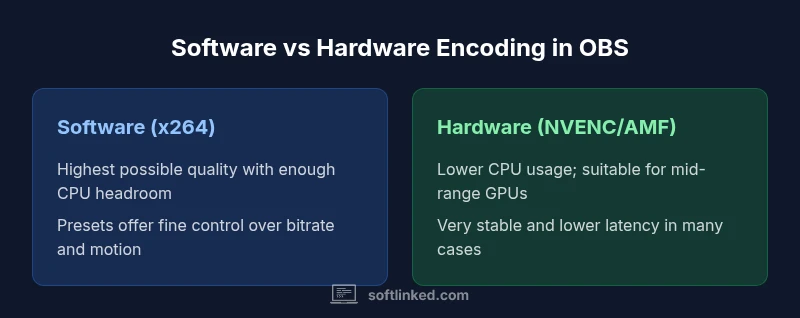
Software encoding refers to using the CPU to run the encoder, most commonly x264 in OBS. This path can deliver exceptional image quality at a given bitrate, especially with modern CPUs that support advanced SIMD instructions. The quality-per-bit and flexibility of x264 presets (from ultrafast to veryslow) give editors and streamers precise control over motion rendering, bitrate efficiency, and noise handling. However, software encoding is CPU-intensive; in scenes with heavy motion or multiple sources, the CPU can become a bottleneck, impacting game performance or other processes running on the machine. When you choose software encoding obs, you should expect higher CPU utilization and plan your streaming workflow accordingly. The SoftLinked team notes that this option is often preferred when maximum quality is non-negotiable and the system has spare CPU headroom.
What Hardware Encoding in OBS Means
Hardware encoding delegates the encoding task to dedicated hardware units on your GPU or integrated graphics (NVENC, AMF/Media Foundation, Quick Sync). This approach dramatically reduces CPU load, leaving more headroom for game logic, overlays, or other tasks. Hardware encoders are designed to efficiently compress video in real-time, which makes them ideal for live streaming on mid-range systems or laptops. While hardware encoders can deliver smooth streams with lower CPU temperature and fan noise, the resulting quality at a fixed bitrate may lag slightly behind software encoding, depending on the encoder version and preset. In practice, hardware encoding obs often provides a reliable balance between performance and quality for most content creators.
Key Differences at a Glance
- CPU vs GPU offload: Software uses CPU, hardware uses GPU/accelerator.
- Quality vs efficiency: Software can yield higher quality at the same bitrate; hardware offers efficiency and stability.
- Latency and stability: Hardware often provides steadier performance on constrained systems; software can achieve finer quality with skillful tuning.
- Platform and driver considerations: Hardware encoders depend on GPU drivers and platform support, whereas software encoding is relatively portable across systems.
Performance Trade-offs: CPU, GPU, and System Load
In many setups, the decision boils down to CPU headroom. If your CPU is already under stress (for example, while gaming or running multiple applications), hardware encoding obs reduces the risk of dropped frames and stuttering by taking the encoding load off the processor. Conversely, if you have a contemporary CPU with ample cores and a quiet system, software encoding can push for higher quality by exploiting advanced x264 presets and rate-control options. SoftLinked’s analysis shows hardware encoding can free substantial CPU capacity for other tasks, but the ultimate balance depends on your hardware configuration, the scenes you stream, and your bitrate targets. Consider performing side-by-side tests with your typical scenes to quantify the trade-offs for your rig.
Quality Considerations: Visual Fidelity and Color
The perceptual difference between software and hardware encoding often hinges on motion complexity, color depth, and bitrate. x264 presets like 'medium' or 'slow' can deliver superior artifact suppression and finer motion rendering, particularly in high-motion scenes. Hardware encoders have improved significantly and can match quality at many settings, but some scenes may exhibit blocking or banding if the bitrate is too aggressive for the encoder. Manage bitrate, keyframe interval, and rate control mode (CBR/VBR) to keep artifacts in check. Practically, if your content features a lot of fast motion and detailed textures (e.g., gaming with dense scenes), test both modes at your target resolution and streaming platform.
Latency and Real-Time Streaming
Low-latency streaming is a common requirement for interactive streams, chats, or competitive gaming. Encoding latency is influenced by the encoder and preset selection. Software encoders can introduce slightly higher latency if you choose slower presets for quality, while hardware encoders often optimize for lower latency with efficient pipelines. The exact impact varies by hardware and OBS version. If latency is critical, perform real-world tests by streaming short test runs and measuring end-to-end delay from capture to viewer playback to determine which path serves your needs best.
Compatibility and Drivers
Software encoding obs using x264 is broadly compatible across operating systems and hardware configurations, but it relies on CPU capabilities. Hardware encoders depend on GPU drivers and platform support (NVIDIA NVENC, AMD AMF, Intel Quick Sync). Some GPUs deliver excellent hardware encoders, while others may have limited feature sets or quirks at specific resolutions. Keeping drivers up to date and testing encoder presets on your hardware are essential steps before committing to a full schedule. If you use macOS, Windows, or Linux, check the availability and stability of hardware encoders for your platform as part of your OBS setup.
Use Case Scenarios: When to Pick Software Encoding
If you are a content creator who prioritizes maximum image quality at a given bitrate, software encoding obs on a capable CPU is often the preferred path. This is especially true for recorded content or streams where sources are heavy, and your system has headroom to spare. You also may choose software encoding when using advanced color grading pipelines or when your scene composition is complex, as x264 can provide more nuanced compression. Real-time apps that demand maximum control over bitrate distribution will benefit from software encoding and careful tuning of presets and rate control.
Use Case Scenarios: When to Pick Hardware Encoding
Hardware encoding shines when the CPU is a bottleneck or when you want to maintain consistent streaming performance on mid-range hardware. For laptop streamers, living-room PCs, or laptops used for on-the-go broadcasts, GPU offload helps prevent thermal throttling and keeps the game running smoothly. If you expect livestreams to run for long periods or feature variable scene complexity, hardware encoders offer dependable real-time performance with lower CPU temperatures and energy use. Testing both paths on your typical games/scenes is recommended to pick the most reliable option.
Troubleshooting Common Encoding Issues in OBS
Common problems include dropped frames, encoding lag, artifacts, or unexpected CPU spikes. Start by testing with a known-good scene and a fixed bitrate to establish a baseline. Confirm you are using the appropriate encoder for your hardware (x264 for software, NVENC/AMF/Quick Sync for hardware) and verify that you have updated drivers. If artifacts appear, adjust rate control mode, bitrate, and keyframe interval. On laptops, ensure power plans allow full GPU performance and that OBS has exclusive access to GPU resources. When in doubt, run a clean scene in a controlled environment to isolate variables and identify the root cause.
How to Benchmark and Compare in Your Setup
Benchmarking involves running controlled tests with both encoders under identical conditions. Use the same scene, same bitrate, same resolution, and same recording/streaming settings. Collect objective metrics such as FPS stability, CPU/GPU utilization, encoder load, and end-to-end latency. Also, gather subjective feedback on visual quality, artifact presence, and streaming stability. Document the results and repeat tests across multiple scenes to determine a robust winner for your specific needs.
Best Practices for Choosing Encoding Settings in OBS
Create a decision framework that weighs your CPU headroom, GPU capability, and target platform. Start with safe defaults (e.g., 720p for low-end hardware, 1080p for mid-range, higher for strong setups) and adjust presets progressively. Favor a static bitrate or CBR for live streams and consider VBR for recordings. Keep color depth consistent with display capabilities and test with your actual content to observe motion artifacts. Finally, maintain clean OBS profiles and preserve a known-good configuration to simplify recovery after updates.
Comparison
| Feature | Software encoding (x264) | Hardware encoding (NVENC/AMF/Quick Sync) |
|---|---|---|
| CPU/GPU Utilization | High CPU usage with x264 | Low CPU usage; GPU/accelerator dependent |
| Output Quality | Potentially higher quality at fixed bitrate with slow presets | Quality comparable at many presets; may vary by GPU |
| Latency | Depends on preset; can be moderate to high with quality-focused presets | Often lower latency with optimized hardware pipelines |
| Compatibility | Broad OS support; fewer driver dependencies | GPU-driver dependent; platform-specific nuances |
| System Load | Higher load on CPU; leaves GPU idle | Lower CPU load; potential GPU temperature considerations |
| Best For | Quality-focused streams on strong CPUs | Mid-range or constrained systems needing stability |
Pros
- Offers maximum quality potential on capable CPUs
- Allows fine-grained control over bitrate and rate control
- Hardware offloads reduce thermal and fan noise on laptops
- Open-source options for software encoders provide transparency
Weaknesses
- Software encoding can overwhelm limited CPUs
- Hardware encoders vary by GPU and driver support
- Quality gains with software may not justify cost on low-end hardware
- Hardware encoders may introduce artifacts on certain scenes
Hardware encoding generally provides a reliable balance for most mid-range setups; software encoding excels when maximum quality is needed and CPU headroom exists.
Choose hardware encoding if your goal is steady performance on constrained hardware and lower CPU load. Choose software encoding if your CPU is powerful enough to spare cycles for higher quality, especially with demanding scenes. Always test with your content to confirm the best option.
Your Questions Answered
What is OBS and why does encoding choice matter?
OBS Studio is a broadcasting tool that captures, encodes, and streams content. Encoding choice matters because it directly affects CPU/GPU load, image quality, latency, and stability. Your decision should align with your hardware capabilities and streaming goals.
OBS is a streaming tool; encoding choice changes performance and quality. Pick based on your setup and goals.
Which encoding yields better quality, software x264 or hardware NVENC?
Generally, software encoding with x264 can deliver higher quality at the same bitrate, especially on strong CPUs. Hardware NVENC can approach that quality on many GPUs but may show artifacts in some scenes. Test with your content to decide.
Software often looks better, but hardware is more efficient; test your scenes to choose.
Does hardware encoding reduce CPU load on all GPUs?
Yes, hardware encoding offloads work from the CPU to the GPU or dedicated encoder. The magnitude depends on your GPU model and driver implementation, so verify with practical tests.
Hardware encoding lowers CPU load, but results depend on your GPU.
How do I enable NVENC in OBS?
In OBS, open Settings > Output, set Output Mode to Advanced, choose the streaming encoder as NVENC (new) or NVENC (classic), then adjust bitrate and preset. Update GPU drivers if you encounter issues.
In OBS, pick NVENC in Output settings and tweak bitrate.
Can I mix software and hardware encoding for different outputs?
OBS generally allows one encoder per output. You can set up separate outputs or scenes to utilize different encoders, but you cannot assign two encoders to a single stream simultaneously without separate outputs.
You can use different encoders for different outputs, not for the same stream.
What is the best encoder for streaming on a low-end PC?
On low-end PCs, hardware encoding is usually the safer bet to achieve stable streams, but you should test with your scenes to ensure quality remains acceptable.
If your PC is weak, try hardware encoding and test for quality.
Top Takeaways
- Test both encoders with your typical scenes
- Prioritize hardware encoding on limited CPUs for stability
- Use software encoding when CPU headroom exists for quality
- Keep drivers and OBS updated for best results
- Benchmark end-to-end latency in real streaming scenarios