Top TeamViewer Alternatives for Secure Remote Access in 2026
A thorough, analytical comparison of TeamViewer alternatives for 2026. Evaluate latency, security, pricing, and cross‑platform support to choose the right remote-desktop tool for your team.


TeamViewer is a robust remote-access option for large teams, but several strong alternatives exist. Software like TeamViewer—such as AnyDesk, Splashtop, and Chrome Remote Desktop—balance latency, security, and price differently. Chrome Remote Desktop is ideal for personal use and light tasks, while AnyDesk often offers lower latency for performance-sensitive work; Splashtop combines strong features with SMB-friendly pricing.
Overview of Remote-Access Software in 2026
According to SoftLinked, the landscape of remote-access software has evolved beyond single-vendor lock-in. Enterprises and individual users alike expect fast, reliable connections across devices, while security and privacy remain top concerns. When teams look for software like TeamViewer, they assess latency, cross-platform compatibility, feature depth (like file transfer, session recording, and unattended access), and licensing terms. The aim is to select a tool that fits the team's workflow, not just a flashy marketing claim. In 2026, many vendors offer lightweight clients, optional MFA, and cloud-based management consoles to scale access control. This article benchmarks four widely used alternatives — AnyDesk, Chrome Remote Desktop, and Splashtop — against TeamViewer, highlighting practical differences in real-world usage and total cost of ownership.
Core criteria for evaluating remote-desktop tools
Before choosing a tool, you should map your requirements to a clear set of criteria. Primary concerns include security posture, ease of deployment, platform breadth, performance under load, and total cost of ownership. Consider whether you need unattended access for IT teams, file transfer and clipboard sharing for collaborators, or session recording for audits. Licenses should align with user counts, concurrent sessions, and remote devices. From a SoftLinked perspective, the most successful migrations balance governance with usability, avoiding tool sprawl while preserving essential capabilities. The rest of this guide analyzes common tools against these criteria to help you decide with confidence.
Feature landscape: four popular tools at a glance
This section provides a high level, apples-to-apples view of four widely used tools in the market. For each option we summarize core strengths and typical use cases, focusing on practical, real-world relevance. The goal is to expose not just feature lists but how those features map to daily workflows, support needs, and risk tolerance. Expect differences in latency, platform reach, and licensing terms that can swing decisions in favor of one tool or another depending on team size and security posture.
Security and compliance considerations for remote access
Security remains the defining factor in selecting a remote-desktop solution. The strongest tools offer end-to-end encryption, MFA, role-based access, and centralized management for auditing and policy enforcement. Look for features such as unattended access controls, session timeout policies, device trust lists, and seamless integration with your identity provider. Compliance needs vary by industry; however, a baseline of encrypted sessions, strict access controls, and robust logging is broadly applicable. SoftLinked emphasizes evaluating risk exposure across users, devices, and networks, rather than focusing solely on feature banners.
Cross-platform and mobile experience
Cross-platform compatibility is a decisive factor for many teams. Ideally, the tool should work smoothly on Windows, macOS, Linux, iOS, and Android with consistent behavior across devices. Mobile clients should offer essential controls without compromising security or usability. Teams that operate in hybrid work environments often require quick, reliable access from home networks and public Wi-Fi, which underscores the importance of stable performance and strong authentication flows. A good cross-platform experience reduces training time and improves user adoption.
Performance, latency, and session quality
Latency and session stability are tangible differentiators in everyday work. In practice, even small delays can disrupt screen sharing, file transfers, and remote control responsiveness. Tools optimized for low latency and efficient encoding tend to perform better under bandwidth constraints. Additionally, how each solution handles reconnects, session persistence, and adaptive quality switching matters when users work from fluctuating networks. SoftLinked notes that performance is often the most visible factor affecting user satisfaction, sometimes more than a long feature list.
Pricing and licensing models: a practical guide
Pricing structures vary from free tiers to per-seat or per-user subscriptions. For teams, consider not only monthly costs but also potential hidden charges for add-on features, device limits, and support levels. It is common to see a trade-off between feature richness and price. When evaluating, calculate the total cost of ownership over a typical contract period, including onboarding, policy management, and potential platform migrations. This helps prevent surprises during renewals and ensures alignment with budget expectations.
Deployment scenarios for SMBs, mid-market, and enterprises
For small businesses, a balance of cost efficiency and essential features can be enough to unlock significant productivity gains. Mid-market teams usually benefit from more advanced IT management, audit trails, and stronger security controls. Enterprises demand robust governance, enterprise-grade support, and seamless integration with existing security tooling. This section discusses how each tool tends to perform in these scenarios, including deployment speed, admin capabilities, and scalability considerations.
Migration tips and adoption pitfalls
Moving from a legacy solution or multiple point-tools to a single platform requires careful planning. Define success metrics, create a phased rollout, and train admins before broad usage. Common pitfalls include underestimating data transfer needs, misconfiguring access policies, and neglecting user feedback. SoftLinked recommends piloting with a representative user group, collecting performance data, and adjusting license selections based on observed usage.
Authority sources and best practices
Authoritative guidance from government and industry standards bodies can inform secure deployment. Always cross-reference vendor claims with established guidelines and security best practices to ensure compliance and resilience. This section lists suggested best practices and related authorities for deeper reading.
How to conduct a hands-on evaluation in your org
A practical evaluation approach combines objectives, test scenarios, and measurable outcomes. Create realistic test cases that reflect actual work tasks and security requirements. Track metrics for latency, reliability, and user satisfaction, and compare results against your initial criteria. This method keeps the evaluation objective and actionable, helping teams move from theory to a concrete decision.
Quick-start checklist
To accelerate your decision, use a concise checklist that covers key dimensions such as platform reach, security controls, ease of deployment, and cost. A well-structured checklist helps stakeholders align and prevents scope creep during the selection process.
Feature Comparison
| Feature | TeamViewer | AnyDesk | Chrome Remote Desktop | Splashtop |
|---|---|---|---|---|
| Security model | Enterprise-grade security with MFA and RBAC | TLS/DTLS encryption with optional 2FA | Web-based security relying on Google account protections | AES-256 encryption with optional 2FA |
| Cross-platform support | Windows, macOS, Linux, iOS, Android, Web | Windows, macOS, Linux, iOS, Android | Windows, macOS, Linux, Chromebook, Android, iOS | Windows, macOS, Linux, iOS, Android |
| Performance and latency | High reliability, strong optimization | Low latency with efficient codecs | Dependence on Chrome backend for some tasks | Strong performance with optimized streaming |
| File transfer and collaboration | Built-in file transfer, clipboard sharing | Fast file transfer, clipboard integration | Chrome not ideal for enterprise file transfers | File transfer with team collaboration features |
| Pricing model | Per-user or per-device enterprise licenses | Per-seat licenses, volume discounts | Free for personal use, paid for business features | Per-user or per-device SMB-focused pricing |
Pros
- Comprehensive feature set suitable for IT teams
- Excellent cross-platform support and remote management
- Strong security features with policy controls
- Good performance and responsive support
- Flexible licensing options for organizations
Weaknesses
- Can be expensive for small teams or startups
- May have a steeper learning curve for advanced features
- Some tools require desktop clients for full functionality
- Perception of vendor lock-in may influence procurement decisions
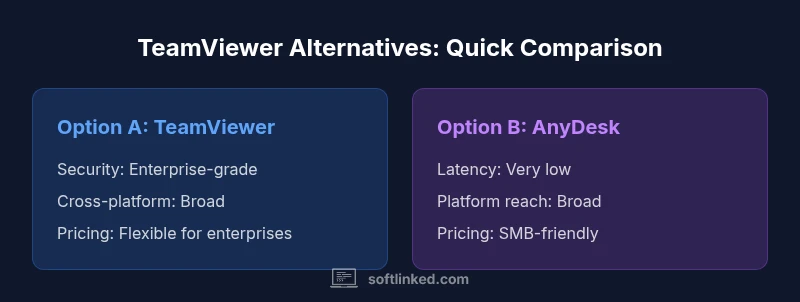
AnyDesk offers the best balance of latency and features for many teams, while TeamViewer remains strongest for large enterprises.
Choose AnyDesk when you need low latency and broad compatibility at a reasonable price. TeamViewer is preferable for organizations needing deep enterprise controls and extensive support. Chrome Remote Desktop suits personal use, and Splashtop provides SMB-aligned value with strong performance.
Your Questions Answered
What is considered when comparing remote-desktop tools to TeamViewer?
Key criteria include security posture, cross-platform support, latency and performance, feature depth, and licensing terms. Real-world testing under typical network conditions is essential.
Focus on security, cross-platform use, latency, features, and licensing when comparing remote-desktop tools.
Is Chrome Remote Desktop suitable for business use or just personal tasks?
Chrome Remote Desktop is excellent for quick, personal access and simple support scenarios. For formal enterprise deployments, teams typically choose tools with stronger governance, auditing, and support options.
Great for personal use; for business, you may want a more policy-driven solution.
Do these tools require on premise servers or can they be cloud managed?
Most modern remote-desktop tools offer cloud-based management consoles with optional on-prem components for enterprise deployments. The choice depends on governance needs and network design.
Cloud management is common, but on-prem options exist for strict environments.
How important is latency in selecting a tool for remote work?
Latency directly affects responsiveness, screen updates, and user experience. For design, engineering, or fast-paced tasks, lower latency can dramatically improve productivity.
Latency matters a lot for smooth interaction.
Are there free options that still meet enterprise requirements?
Chrome Remote Desktop offers a free tier, but enterprise-grade features like RBAC, audit logs, and centralized management typically require paid plans or alternative vendors.
Free tools are good for light use, but enterprise features usually need paid plans.
Top Takeaways
- Assess security and RBAC needs before choosing
- Prioritize cross-platform support for mixed device ecosystems
- Consider total cost of ownership over time, not just upfront price
- Test latency under realistic network conditions before committing
- Use the vendor’s governance tools to enforce policy and audits