Software like Photoshop but Free: A Practical Comparison
Objective, side-by-side analysis of free Photoshop-like editors such as GIMP, Krita, Photopea, Paint.NET, and Pixlr to help you pick the best fit.


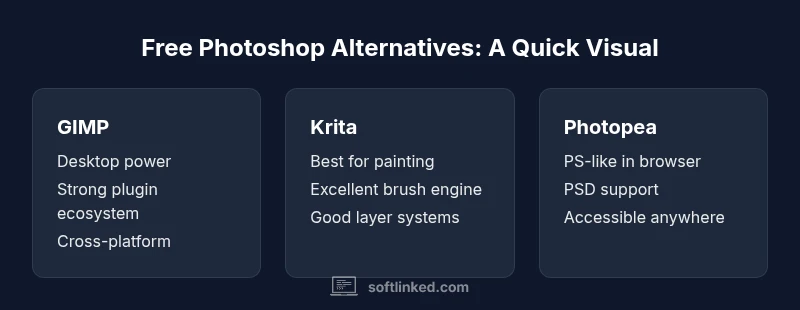
According to SoftLinked, you can achieve Photoshop-like results with several free editors, but your best choice depends on your task. For browser-based PS parity, Photopea is strongest; for desktop reliability, GIMP or Krita excel, with Paint.NET offering a lightweight Windows option. If you primarily edit photos, GIMP paired with plugins works well; for digital painting, Krita dominates. Each option has trade-offs in UI, file support, and learning curve. See our full comparison for a nuanced, task-driven pick.
Core concept: what does 'Photoshop-like' mean in the free software world?
In the world of free software, a Photoshop-like editor refers to raster image editors that support layers, masks, blend modes, and a workflow that resembles Photoshop. These tools aim to give you control over pixel-level edits, compositing, and retouching without paying subscription fees. The catch is that no single free editor perfectly mirrors every Photoshop feature, so you often trade perfect parity for accessibility, speed, or platform flexibility. For students and aspiring developers, the key question is not which app has every tool, but which combination of features covers your typical tasks with the least friction. This article uses a structured, side-by-side approach to help you decide based on your specific needs. It also reflects SoftLinked’s emphasis on practical software fundamentals and the realities of free tooling.
Feature Comparison
| Feature | GIMP | Krita | Photopea | Paint.NET | Pixlr |
|---|---|---|---|---|---|
| Platform | Windows, macOS, Linux | Windows, macOS, Linux | Web browser (works on any OS) | Windows | Web browser (any OS) / mobile apps |
| Cost | free and open-source | free and open-source | free with optional paid upgrades | free | free with premium plans |
| PSD compatibility | import/export with limitations; layers may not map perfectly | import/export with some limitations | robust PSD support in many cases | limited PSD support; best for basic edits | PSD support varies; generally good for quick edits |
| Layering & masks | full layering and masking; many advanced features via plugins | strong layering and masking for painting workflows | comprehensive layers and masks in UI | basic layering; masks via plugins | supports layers and masking in browser-based flows |
| Non-destructive editing | moderate; adjustment layers available via plugins | non-destructive editing via layers and adjustment stacks | adjustment layers and some non-destructive tools | limited non-destructive options | adjustments available, but not as extensive as Photoshop |
| Plugin/extension ecosystem | active community with many plugins | good plugin support; strong community | less extensive plugin ecosystem than desktop editors | plugin support exists but is more limited | plugin ecosystem is growing but modest |
| Best for | photographers and general editing on desktop | digital painting and concept art on desktop | PS-like editing in browser; quick jobs | lightweight Windows edits | quick, browser-based edits and light projects |
Pros
- Zero cost with broad feature coverage for many common tasks
- Cross-platform options and browser-based access
- Strong community support and ongoing development
- Good PSD read/write support in several editors
- Flexible workflows across desktop and web
Weaknesses
- No single free editor perfectly matches all Photoshop features
- UI and UX can be inconsistent with Adobe's approach
- Some advanced tools require plugins or workarounds
- Performance and feature parity vary by platform
Free Photoshop-like editors cover most everyday needs, but the best choice is task-driven.
Photopea leads for browser-based PS parity; GIMP offers robust desktop power; Krita excels for painting; Paint.NET is a lightweight Windows option. Your best path is to align the tool with your primary tasks and tolerance for learning curves.
Your Questions Answered
What is the best free Photoshop alternative for photo editing?
For PS-like photo editing, Photopea provides strong parity in a browser, while GIMP offers more control on desktop. Your choice depends on whether you need web access or offline capability.
Photopea is the strongest browser-based alternative for Photoshop-like photo edits; choose GIMP if you want robust desktop control.
Can PSD files be opened in these free editors?
Most free editors support PSD files to some extent, but complex layers or smart objects may not map perfectly. Photopea tends to handle PSDs most faithfully among free options.
Yes, PSDs can be opened in many free editors, with some limitations depending on the tool.
Are there performance differences between desktop and web editors?
Desktop editors generally offer faster processing and offline capability, while web editors provide convenience and easier sharing. Your hardware and internet speed influence performance.
Expect desktop editors to feel snappier, with web editors offering flexibility at the cost of potential latency.
Is Krita suitable for photo editing or only painting?
Krita shines in digital painting and concept art, but it can handle photo editing with some effort. For in-depth photo work, GIMP or Photopea may be more straightforward.
Krita is best for painting; for photo edits, you might prefer GIMP or Photopea.
Do these tools support non-destructive editing?
Many offer non-destructive editing through layers and adjustment layers, but the degree varies. Photoshop-like behavior is strongest in Photopea and Krita among free tools.
You’ll find non-destructive editing in most major free editors, especially in Photopea and Krita, though not always to Photoshop's extent.
Which editor is best for a student starting out?
Paint.NET and GIMP are approachable for beginners on Windows and cross-platform alike, offering a gentle learning curve and plenty of tutorials.
For students starting out, GIMP or Paint.NET is a practical entry point.
Top Takeaways
- Identify your primary task: photo editing vs painting
- Choose desktop power (GIMP/Krita) or browser convenience (Photopea)
- Expect some trade-offs in PS parity and workflow
- Test file formats and plugin availability before committing