QuickBooks Software for Mac: A Practical Guide
Explore QuickBooks software options for Mac, including QuickBooks Online and Desktop for Mac, with setup tips, data considerations, and best practices by SoftLinked.


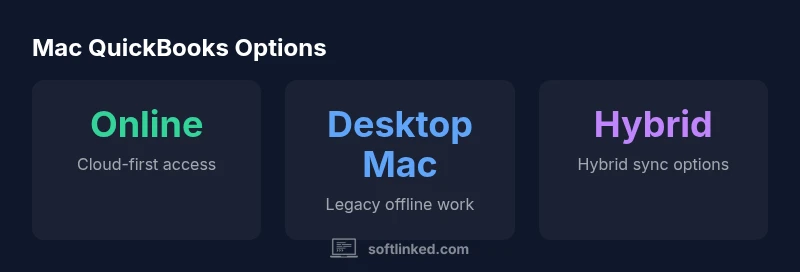
For Mac users, there are two primary routes to run QuickBooks: QuickBooks Online (web-based) and QuickBooks Desktop for Mac (legacy native app). In practice, most Mac users choose QuickBooks Online due to cross-device access, real-time data syncing, and automatic updates, while the desktop Mac version offers limited cloud features and offline capability.
Why QuickBooks for Mac matters
For macOS users, quickbooks software for mac offers two primary routes to run QuickBooks: QuickBooks Online (web-based) and QuickBooks Desktop for Mac (legacy native app). According to SoftLinked, Mac users benefit from understanding the two paths to run QuickBooks and aligning with workflow needs. The choice is not merely about platform preference; it determines how data is entered, synced, backed up, and shared with teammates. In 2026, cloud-first workflows dominate many small businesses and student projects because they simplify collaboration and ensure access from multiple devices. A clear understanding of your team’s access patterns will save time during implementation and ongoing use.
QuickBooks Online vs Desktop for Mac: What It Means
The two pathways differ in access model, feature depth, and collaboration capabilities. QuickBooks Online runs in a browser or mobile app, delivering real-time syncing across devices and centralized data security managed by Intuit. This makes it a natural fit for teams that work remotely, use multiple Macs, or switch between macOS devices. Desktop for Mac, by contrast, is a native application designed for offline work and heavy reporting, but it relies more on local data storage and may require workarounds to enable cloud sharing. For many Mac users, Online covers the majority of everyday accounting tasks (invoicing, expenses, reconciliation) with fewer setup hassles. For specialized reporting or offline access, Desktop for Mac remains a niche option. When selecting, map your workflows: invoicing cadence, bank feeds, and whether your team needs real-time cloud access across devices will drive the right choice.
Setup and Migration: From Other Systems to QuickBooks on Mac
Migration planning matters for a smooth transition. Start with a data map of accounts, customers, vendors, and product items. Export data from prior systems in common formats (CSV, QBY, or equivalent) and validate field mappings before import. In QuickBooks Online, you’ll usually import lists through built-in tools; for Desktop for Mac, ensure data integrity with local backups before syncing to the cloud if you enable any hybrid workflows. Use a staged approach: run a test dataset, verify balances, and reconcile before going live. Documentation and a simple checklist (data map, test run, backup plan, and rollback steps) keep the process controlled and predictable.
Common Limitations and Workarounds on macOS
Mac users sometimes encounter limitations related to offline access, certain integrations, and report customization that depends on the cloud layer. QuickBooks Online provides broad compatibility with macOS browsers and most iOS apps, but some desktop features or third-party add-ons may be unavailable. Workarounds include using Online for day-to-day tasks and turning to Desktop for specialized reporting, when offline capability is essential. Always verify browser compatibility and keep your macOS up to date to minimize issues with web-based interfaces. Regularly review bank feeds, app permissions, and API limits to avoid data gaps.
Security, Compliance, and Data Residency for Mac QuickBooks
Security is central to modern accounting software. QuickBooks Online relies on cloud-based encryption and secure authentication, while Desktop for Mac keeps data locally and periodically syncs to the cloud if you enable online features. For teams handling sensitive financial information, enforce strong password policies, enable multi-factor authentication, and implement automated backups. Understand where data is stored and how long it remains accessible to collaborators. Compliance considerations—such as audit trails, user access controls, and change logs—should align with your organization’s policies and any regulatory requirements relevant to your industry.
Expert Tips for Mac Users: Productivity, Shortcuts, and Integration
Leverage macOS features to enhance QuickBooks usage: use Spotlight for fast access to QB entries, customize keyboard shortcuts for common tasks, and enable auto-fill or templates for recurring invoices. Consider consolidating banking via a single integration point to streamline reconciliations, and use cloud storage for document attachments to keep file management organized. If you collaborate with Windows users, ensure alignment on data formats and use export/import features for one-off data transfers. Finally, test each major workflow in a sandbox environment before applying changes to your live books.
Mac QuickBooks options overview
| Platform | Edition | Notes |
|---|---|---|
| MacOS (desktop) | Desktop for Mac | Legacy features; local data storage |
| Web | QuickBooks Online | Cross-device access; cloud-based |
| Mobile | QuickBooks Online App | Limited offline mode; on-the-go access |
Your Questions Answered
Is QuickBooks Desktop for Mac still supported?
Intuit currently emphasizes QuickBooks Online for Mac. Desktop for Mac exists as a legacy option with limited updates; check the official support pages for the latest status.
QuickBooks Online is the recommended Mac path today; Desktop for Mac is legacy with limited updates.
Can I run QuickBooks on Mac without Windows?
Yes. QuickBooks Online runs in a browser on macOS, and you can use the QuickBooks Online mobile app. Desktop for Mac can run natively but may require virtualization if you need Windows features.
Yes, you can run QuickBooks on Mac without Windows by using QuickBooks Online or the macOS app.
What are best practices for data migration to QuickBooks on Mac?
Plan carefully: map accounts, export data from the legacy system, test imports with a small dataset, verify balances, and keep a rollback plan and backups ready.
Plan, test with a small dataset, and back up before going live.
Are there macOS-specific limitations I should know?
Some integrations and advanced reporting may rely on cloud features. Offline functionality is stronger in Desktop for Mac, while Online emphasizes cloud access and browser-based tools.
Expect some limits on offline access and integrations; Online emphasizes cloud-based tools.
Is there a trial for QuickBooks Online on Mac?
Trials are commonly available via the official QuickBooks site for QuickBooks Online. Desktop for Mac trials are not typical.
You can usually try QuickBooks Online from the official site.
“Mac users benefit most when leveraging QuickBooks Online for real-time collaboration and seamless updates; Desktop for Mac remains a niche, legacy option best suited for offline workflows.”
Top Takeaways
- Choose the Mac path that fits your workflow.
- Prioritize cloud access for multi-device teams.
- Plan migration with a data map and test run.
- Enable strong security and regular backups.
- Test major workflows in a sandbox before going live.