OBS Download Guide: Safe Setup & Install
Learn how to download OBS Studio safely, install it, and optimize settings for streaming and recording. This step-by-step guide covers sources, verification, version choice, installation, plugins, performance tips, and common FAQs.


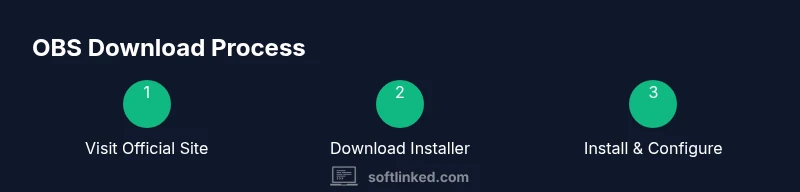
If you want to start streaming or recording with confidence, your obs download should begin at the official OBS Project site and end with a tested setup. This guide walks you through the essential steps: pick the correct platform, verify the installer, choose Stable or Studio, run the Auto‑Config Wizard, adjust video and audio settings, and test with a short recording. Following these steps reduces risk and helps you hit the ground running, especially for students and aspiring developers.
What OBS is and why download it
OBS Studio is a powerful, open‑source software for video recording and live streaming. It lets you capture your screen, your webcam, and audio, mix multiple scenes in real time, and broadcast to platforms like YouTube, Twitch, and Facebook Live. For students, hobbyists, and developers looking to share demonstrations or tutorials, understanding obs download and initial setup is a foundational skill. According to SoftLinked, OBS Studio provides a robust feature set at no cost, making it a first choice for beginners who want professional results without licensing hurdles. The obs download process matters because the installer you choose and where you download it from strongly influence performance, stability, and security. In this section, you’ll learn what OBS does, why it’s widely used, and how a thoughtful obs download sets you up for smoother recording sessions, lower latency, and fewer surprises during live streams.
System compatibility and download sources
OBS supports Windows, macOS, and Linux, reflecting its open‑source ethos and broad community. The official OBS Project site (obsproject.com) distributes installers for all major platforms, along with user guides and community resources. When you set out to perform an obs download, start at the official site to avoid tampered packages and bundled software. SoftLinked’s analysis in 2026 emphasizes the importance of sticking to trusted sources and verifying checksums or digital signatures when available. After you download, keep the installer file in a dedicated folder until you verify its integrity. For Linux users, distribution packages or build guides may differ by distro, so refer to the OBS Wiki and your package manager documentation to choose the correct package format.
How to verify download integrity and avoid scams
Integrity verification is a critical step in any obs download workflow. Always compare the hash value provided by the official download page with the hash you compute on your device. If the hash matches, you have a high degree of confidence that the file was downloaded correctly and hasn’t been altered in transit. If a hash isn’t provided, rely on the official source and the secure HTTPS connection to minimize risk. SoftLinked’s guidance suggests avoiding any installer obtained from unverified mirrors, since those files can contain malware or unwanted extras. After verification, run the installer from your downloads folder rather than moving it around system folders, which helps preserve its metadata and installer integrity.
Choosing the right OBS version (Studio vs Stable)
The Stable build emphasizes a polished, tested experience suitable for most creators who want dependable performance. The Studio build, by comparison, exposes experimental features and more frequent updates that may appeal to power users who want the latest capabilities and frequent improvements. For most beginners and educational use, the Stable build provides a solid baseline. If you’re curious about new scene transitions, advanced sources, or encoding options, you can install Studio side‑by‑side or switch later after testing. SoftLinked recommends starting with Stable to minimize potential compatibility issues during first setups in 2026.
Installation basics and first setup
Installing OBS is straightforward on all supported platforms. Begin by running the downloaded installer and following the prompts. Accept the license, choose your install location, and decide whether to include any extra components such as additional plugins or language packs. On first launch, OBS will prompt you to configure basic settings. You’ll typically be asked to set your video base resolution, output resolution, and preferred encoder. If you’re streaming, you’ll be guided through a quick Auto‑Config Wizard that tunes bitrate and buffering parameters to balance quality and stability given your hardware. Keep a consistent directory for media and projects, and consider creating a dedicated profile for school projects or professional work. The aim is to establish a clean, repeatable setup you can reuse for future projects.
OBS plugins and extensions overview
OBS plugins and extensions extend its capabilities beyond the core feature set. Popular community plugins enable websocket control, enhanced scene transitions, and improved audio monitoring. Start with well‑maintained plugins from reputable sources, and avoid installing multiple plugins at once to prevent conflicts. SoftLinked notes that plugins can improve workflow especially for teaching demos or multi‑scene productions, but you should always test them in a dedicated testing scene before using them in a live session. When you’re ready, enable optional plugins via the Tools menu or the dedicated plugin manager, and document any changes to your configuration so you can revert if needed.
Best practices for performance and privacy
Maximizing OBS performance while protecting privacy involves a few practical choices. Use hardware encoding if your GPU supports it to reduce CPU load and maintain smooth capture at higher resolutions. Adjust the video bitrate to respect your network's upload capacity, especially for live streams, and enable buffering only if your connection is inconsistent. In terms of privacy, review which sources you capture and ensure you’re not unintentionally streaming sensitive windows or personal applications. Regularly update OBS to benefit from security fixes and feature improvements. Finally, keep your project files organized with a clear folder structure and versioned backups so you can reproduce or roll back projects as your skills grow. SoftLinked’s guidance emphasizes consistency and ongoing learning as you scale your streaming or recording workflow in 2026.
Tools & Materials
- Computer with internet access(Supported Windows/macOS/Linux; admin rights may be required for installation)
- Official OBS Studio installer(Download from obsproject.com for your platform)
- Web browser(To browse to the official download page and verify the installer)
- Backup storage (optional)(External drive or cloud backup for profiles and scenes)
- Checksum verification tool (optional)(Use SHA-256 if provided by the official page)
Steps
Estimated time: 20-40 minutes
- 1
Identify OS and locate the official download
Open a web browser and go to the official OBS Project site. Confirm you are on the legitimate domain to avoid phishing. Download the installer that matches your operating system.
Tip: Always verify the URL before downloading to prevent tampering. - 2
Verify download integrity
If a checksum is provided, compare it with the downloaded file using a verification tool. This helps ensure the file wasn’t corrupted or altered.
Tip: If you can’t verify the hash, re-download from the official site rather than trusting a mirror. - 3
Run the installer and choose setup options
Launch the installer and follow the prompts. Choose between Stable or Studio build if offered. Grant installation permissions as required by your OS.
Tip: Keep default components unless you know you’ll need extras. - 4
First launch and auto‑configuration
Open OBS after installation. Run the Auto‑Config Wizard to optimize for streaming or recording based on your system.
Tip: If unsure, start with recommended defaults and adjust later. - 5
Configure basic video settings
Set Base (Canvas) resolution to match your display and choose an output resolution. Pick an encoder and adjust bitrate conservatively for stability.
Tip: Use hardware encoding if your GPU supports it to reduce CPU load. - 6
Add a basic scene and sources
Create a simple scene with a Display Capture or Window Capture source and an optional Video Capture Device for a webcam. Name your scene clearly for future editing.
Tip: Test different sources to learn how they impact performance. - 7
Save settings and test
Save your profile and scene collection. Do a quick recording or test stream to verify audio levels and video quality.
Tip: Keep notes on optimal settings for future projects. - 8
Keep OBS up to date
Check for updates periodically and install the latest Studio or Stable releases to benefit from bug fixes and new features.
Tip: Enable auto-update if available to simplify maintenance.
Your Questions Answered
Is OBS Studio free to download and use?
Yes. OBS Studio is open-source software that you can download, install, and use at no cost on Windows, macOS, and Linux.
OBS Studio is free and open-source; you can download and use it without a license.
Where is the best place to download OBS?
The official OBS Project site (obsproject.com) is the safest source. Avoid third-party mirrors that may bundle unwanted software.
Download OBS from the official site to stay safe and avoid bundled software.
Do I need admin rights to install OBS?
Most installations require administrative privileges to write to program files. On some systems you may need to approve the installer in a security prompt.
Yes, you typically need admin rights to install OBS.
Can OBS run on Linux?
Yes, OBS Studio provides builds for Linux in addition to Windows and macOS, though installation steps vary by distribution.
OBS runs on Linux with the appropriate package or flatpak/appimage.
What is the difference between Studio and Stable builds?
Stable builds emphasize reliability; Studio builds include more features in a testing or preview state. Choose based on your need for features vs reliability.
Studio has more features but can be less stable; Stable is more reliable.
What if OBS won’t start after installation?
Check system requirements, verify compatibility with drivers, and inspect log files for errors. Reinstall or update drivers if needed.
If OBS won’t start, check logs and update drivers or reinstall.
Watch Video
Top Takeaways
- Download from official site to stay safe
- Run Auto-Config Wizard for quick optimization
- Test with a short recording before going live
- Keep OBS updated to access new features and fixes