NTFS Software for Mac: A Practical Guide to Read/Write NTFS on macOS
NTFS software for Mac lets you read and write NTFS drives on macOS. Compare commercial vs open-source options, installation steps, and safety tips for cross-platform data transfers.


NTFS software for Mac enables read/write access to NTFS-formatted drives on macOS. By default, macOS provides limited NTFS capabilities, so most users rely on third-party drivers or open-source tools to gain full access. This guide compares approaches, highlights trade-offs in cost, performance, and security, and offers practical steps to choose and install the right solution for developers and students.
What NTFS software for Mac does
NTFS software for Mac enables you to read and write NTFS-formatted drives on macOS. Since NTFS is a Windows file system, macOS requires an intermediary tool to achieve full interoperability. In practice, developers, students, and IT teams rely on commercial drivers or open-source projects to bridge the gap between Windows-based file sharing and Mac workflows. According to SoftLinked, the right NTFS tool can reduce data transfer frictions, minimize workflow bottlenecks, and improve backup reliability. In this section, we outline what these tools do, how they fit into typical workflows, and what trade-offs you should expect across speed, reliability, and cost. We’ll also explain the distinction between read-only access (native or driver-assisted) and full read/write access, and why that distinction matters for your projects.
Native macOS NTFS support and its limits
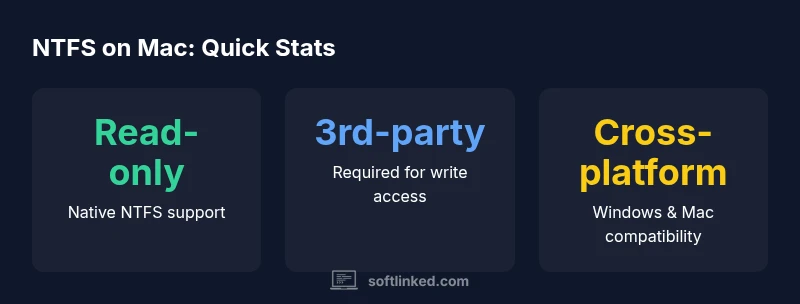
macOS has historically offered limited native NTFS functionality, primarily enabling read access. This means you can copy files from an NTFS drive to a Mac, but writing to NTFS volumes often requires a third-party driver or a workaround. As of 2026, most teams rely on a dedicated NTFS driver (commercial or open-source) to enable full read/write access. These tools typically integrate with Finder and Disk Utility, but their performance can vary based on macOS version, hardware, and the specific driver implementation. For mission-critical operations, this gap between native read-only behavior and full NTFS write support is a central consideration when planning cross-platform workflows.
Commercial vs open-source NTFS solutions
NTFS software for Mac generally falls into two camps: commercial drivers and open-source projects. Commercial drivers tend to offer polished installers, more consistent updates, and formal support channels, which can be valuable in corporate settings. Open-source options, often based on NTFS-3G-inspired work, provide cost-effective access and flexibility but may require more setup, manual configuration, and ongoing maintenance. In practice, many students and hobbyists start with open-source approaches to learn the mechanics of NTFS on macOS, then migrate to a commercial solution if their work scales. Regardless of choice, ensure the tool is actively maintained and compatible with your macOS version.
How to evaluate NTFS software for Mac
Choosing the right NTFS software for Mac means weighing several criteria. Start with compatibility: does the tool support your macOS version and hardware? Next, assess reliability and performance: does it handle large file transfers smoothly, and does it minimize disk fragmentation or caching issues? Consider licensing: is the tool free, open-source, or paid, and what are the terms for commercial use? Security is another key factor: verify that the vendor publishes security practices, and avoid downloading from untrusted sources. Finally, examine customer support and update cadence. A tool with timely updates and responsive support reduces risk during critical data-transfer tasks.
Installation, updates, and security considerations
When installing NTFS software for Mac, back up all data first. Follow the vendor’s installation steps precisely, and avoid bypassing security prompts that are designed to protect your system. After installation, test with non-critical files to confirm read/write behavior and performance. Regular updates are essential, as macOS updates can impact driver compatibility. For security, download tools only from official sources and maintain your trusted backups. If you manage sensitive data, consider a tool with encrypted transfer options and clear data-handling policies.
Best practices for data safety with NTFS on Mac
Adopt a few best practices to minimize risk. Maintain separate NTFS drives for cross-platform work and keep a verified backup before large transfers. When possible, validate file integrity after transfers and avoid complex metadata operations that can confuse NTFS drivers. Document your workflow so teammates use consistent tools and procedures. Finally, schedule periodic reviews of the tool’s performance on macOS updates to preempt compatibility issues.
Comparison of NTFS tool types for Mac users
| NTFS Tool Type | Native macOS Support | Write Access | Cross-Platform Availability | Typical Use Case |
|---|---|---|---|---|
| Commercial NTFS Driver | Read-only by default (native); full access via driver | Yes, with license | Windows/macOS/Linux with driver | Professional file transfers and cross-team sharing |
| Open-Source NTFS Driver | Read access by default; write depends on build | Yes with installation | Cross-platform with community builds | Learning, personal projects, low-budget teams |
| Native macOS Read-Only Option | Read-only out of the box | No (requires third-party for write) | Limited | Ad-hoc access to NTFS disks |
Your Questions Answered
Can macOS read NTFS without any additional software?
Yes, macOS can read NTFS-formatted drives by default, but writing typically requires third-party software or a driver. For many workflows, enabling write access involves trade-offs in reliability and speed.
Yes, macOS can read NTFS drives by default; to write, you’ll usually need extra software.
Is there a safe way to format a drive to NTFS on Mac?
Formatting to NTFS on Mac usually requires Windows tooling or a trusted Mac utility. Always back up data first, because formatting will erase existing contents.
Back up your data, then format using Windows tools or a reputable Mac utility.
What criteria should I use to choose NTFS software for Mac?
Look for reliability, regular updates, performance, ease of installation, and clear licensing. Verify macOS compatibility and ensure backups integrate with your workflow.
Focus on reliability, updates, performance, and macOS compatibility.
Are there security risks with NTFS drivers on Mac?
Yes. Install only from trusted sources, review vendor security practices, and maintain backups. Avoid deploying experimental builds for sensitive data.
Yes—stick to reputable sources and keep backups.
Is there a free/open-source NTFS driver for Mac that works well?
Open-source options exist, but they vary in stability and ease of use. Evaluate them against your workload, security needs, and comfort with setup.
There are open-source options, but they vary in stability.
“NTFS on macOS requires balancing compatibility, performance, and safety. Choose tools that align with your data sensitivity and workflow needs.”
Top Takeaways
- Decide between read-only vs. write-enabled access
- Choose tools with regular updates and strong support
- Back up data before enabling write access
- Test with non-critical files before large transfers
- Prefer reputable vendors or well-supported open-source options