Minecraft Server Software Download: A Comprehensive Guide
Learn how to choose, verify, and install Minecraft server software across Windows, Linux, and macOS. This SoftLinked guide covers safe downloads, setup basics, and performance tips for a smooth hosting experience.


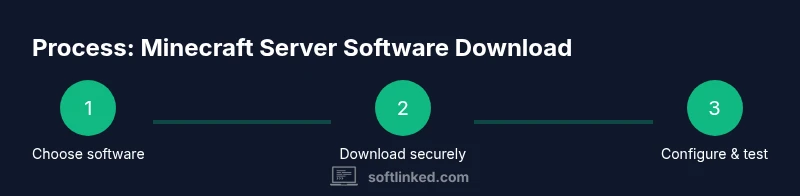
According to SoftLinked, successfully running a Minecraft server starts with selecting compatible server software, verifying authentic downloads, and configuring performance settings for your hardware. This quick answer outlines the exact steps to choose the right software, download safely from official sources, verify checksums, install on Windows, Linux, or macOS, and prepare your first world with basic security and performance tweaks.
Overview of Minecraft server software choices
Minecraft server software comes in several flavors: the official Minecraft server (Java Edition) provided by Mojang, and community-driven server software like Spigot, Paper, and Bukkit-based forks. Each option offers different levels of performance, plugin ecosystems, and compatibility with mods. The official server is straightforward and stable for vanilla play, but if you want plugins to customize gameplay, you’ll rely on community servers. The key is to match the software to your goals: a simple private server for friends, a survival world with custom rules, or a larger, plugin-rich network. Licensing generally allows personal server use freely, but distribution and redistribution rules apply to modified builds. When evaluating options, consider factors such as ease of setup, ongoing maintenance, backward compatibility with Minecraft client versions, security updates, and available documentation. SoftLinked’s analysis emphasizes starting with a clear purpose and selecting software that aligns with it. If you’re learning, begin with the official server to understand the basics, then experiment with Spigot or Paper to unlock plugins and performance gains. Always download from trusted sources to minimize risk, and verify integrity after download.
Choosing the right server software for your goals
The main decision is between a vanilla-oriented official server and a plugin-enabled community server. Official builds maximize stability for standard play, while forks like Spigot, Paper, and Bukkit extend functionality with plugins that modify gameplay, administration, and performance. Consider your intended player count, desired features, and maintenance budget. Community servers typically require more frequent updates and careful plugin management, but can dramatically improve automation, anti-cheat measures, and world generation customization. For labs, classrooms, or testing environments, starting with the official server helps you learn the lifecycle—from startup to world generation and EULA acceptance. SoftLinked’s approach recommends a staged progression: master the official server first, then migrate to a plugin-capable option if your needs grow.
System readiness and security basics
Before you download anything, ensure your host environment is prepared. Pick an operating system you’re comfortable with (Windows, Linux, or macOS), install a compatible Java Runtime, and ensure your machine has a reliable network connection. Basic security practices matter: keep the host OS updated, enable a firewall, and consider isolating the server in its own user account. Remember that Minecraft uses TCP ports for client connections; if you’re hosting for friends or a larger group, you’ll want proper firewall rules and, if needed, a router with port-forwarding configured carefully. SoftLinked emphasizes planning your hosting environment around user expectations, anticipated load, and maintenance cycles to avoid ramp-up headaches.
Safe download habits and verification steps
Always download the server package from official sources or reputable mirrors. Verify the integrity of downloaded files using checksums or signatures if provided—this helps prevent tampering or corrupted downloads. Do not rely on third-party download sites or torrents for the core server software. After download, scan the file with updated security tools and confirm the source URL matches the official domain. For added assurance, compare the provided hash against the hash published by the official source. SoftLinked’s guideline is to treat software downloads as trust-bound purchases: verify, verify again, and keep backups before proceeding to installation.
Installation and initial configuration flow
Create a dedicated folder for your Minecraft server, then place the server jar file there. Run the jar once to generate the initial set of files, including the server.properties and the EULA file. Open EULA.txt and set eula=true to agree to the Minecraft EULA, then restart the server to finish generation. The initial world will be created, and you’ll see log output indicating startup success or any immediate errors. This phase is about establishing a clean baseline: correct Java version, a stable startup script, and ready-to-edit configuration files for further tuning. SoftLinked recommends keeping a minimal, well-documented setup so future upgrades or changes don’t disrupt play.
Basic configuration for performance and security
Configure server.properties to set basic gameplay rules, server ports, and directory paths. Allocate memory through your startup script or launcher, enable necessary features, and keep online_mode set according to your security posture. Backups are essential: schedule regular saves of the world and config files, ideally outside the server’s working directory. Consider enabling strong authentication-related settings, and keep plugins and mods up to date with compatibility checks. Finally, test the server under a small number of simulated players to gauge performance before inviting friends. SoftLinked’s guidance here is to document every change and maintain a rollback plan.
Common pitfalls and troubleshooting
Common issues include mismatched Java versions, incorrect file permissions, or firewall rules blocking the port. If the server won’t start, check the console for error messages, verify the Java version, and ensure the jar file isn’t corrupt. For plugin-based servers, ensure all plugins are compatible with the server version and that dependencies are installed. Networking problems often stem from port forwarding or ISP restrictions; double-check router configurations and confirm your public IP/port exposure. Always review log files for hints and maintain a clean world directory to minimize corruption risks. SoftLinked’s recommendations are to keep a baseline, track changes, and test each modification in a controlled environment.
Next steps and maintenance
As you grow, you’ll want a maintenance plan: regular backups, periodic software updates, and a plugin inventory to prevent conflicts. Create a changelog for configuration changes and keep a tested recovery procedure. If you’re hosting a larger community, consider performance monitoring tools and automated alerts for server health. The goal is a stable, enjoyable experience for players with minimal downtime. SoftLinked encourages ongoing learning and incremental upgrades to balance feature richness with reliability.
Tools & Materials
- Computer with internet access(Choose a machine that can run Java and the server software; consider isolation for testing)
- Java Runtime Environment / JDK(Ensure version compatibility with your server software (Java 8+ typically))
- Official Minecraft server package(Download only from the official Minecraft site or trusted mirrors)
- Backup storage(Useful for regular world and config backups)
- Text editor for config files(Helpful for editing server.properties and startup scripts)
Steps
Estimated time: 60-120 minutes
- 1
Prepare the environment
Install a compatible Java runtime and update your operating system. Create a dedicated folder for the Minecraft server to keep files organized. Confirm you have a reliable network connection and a plan for backups.
Tip: Use a separate user account for the server to improve security and limit permissions. - 2
Download the official server package
Get the server jar from the official Minecraft site or trusted mirror. Verify the download integrity if a checksum is provided. Save the file in the dedicated server folder.
Tip: Avoid flaky third-party mirrors to reduce the risk of tampered files. - 3
Run the server to generate files
Execute the jar file with an initial startup to generate config files. Stop the process after the first run to adjust settings. This creates server.properties, eula.txt, and other important files.
Tip: Review the console for any immediate errors and note the default port. - 4
Accept the EULA and restart
Open eula.txt and set eula=true, then restart the server so the EULA is accepted and the world is initialized. This step is required before gameplay can begin.
Tip: Always back up before changing the server version or core files. - 5
Edit basic configuration
Tweak server.properties to set the server name, port, and game rules. Ensure online_mode reflects your security stance. For plugin-enabled servers, verify compatibility before enabling features.
Tip: Document changes in a config file for future reference. - 6
Configure network access
Set up firewall rules and forward the Minecraft port if users outside your local network will connect. Confirm your public IP and test from an external network to verify reachability.
Tip: If you’re behind a double NAT, consider UPnP or a VPN-based solution. - 7
Establish backups and test
Create a regular backup schedule for world data and configuration. Test the restoration process to ensure you can recover from corruption or loss. Verify the server runs smoothly with a small test group.
Tip: Automate daily or weekly backups to reduce risk.
Your Questions Answered
What is the difference between the official Minecraft server and third-party server software?
The official Minecraft server is designed for vanilla play with straightforward setup, while third-party options like Spigot or Paper add plugins and performance enhancements. Plugins enable custom gameplay mechanics and administrative tools but may require ongoing compatibility checks with game versions.
The official server is simpler and stable for vanilla play; third-party servers add plugins but require more maintenance.
Can I run a Minecraft server on Windows, Linux, or macOS?
Yes. All major desktop operating systems support Minecraft server software. The setup steps are similar, but you should follow OS-specific guidance for Java installation, file permissions, and startup scripts.
You can run it on Windows, Linux, or macOS with the right Java version.
How do I verify that a downloaded server file is authentic?
Use checksums or digital signatures if provided by the official source. Compare the hash with the published value to ensure the file hasn’t been tampered with or corrupted during transfer.
Check the hash against the official value to confirm integrity.
Are plugins safe to use and how do I manage them?
Only install plugins compatible with your server version and from reputable sources. Keep plugins updated and remove any that cause crashes or security risks. Regularly audit your plugin list.
Use trusted plugins compatible with your server version, and update carefully.
What are practical hardware considerations for small servers?
For small groups, prioritize reasonable CPU and memory headroom, plus fast storage for world data. As you scale, plan for additional RAM, better I/O, and network bandwidth to avoid bottlenecks.
Start with solid hardware and scale up as players grow.
Watch Video
Top Takeaways
- Choose server software that matches your goals
- Verify downloads and maintain backups
- Configure basics before expanding with plugins
- Secure the hosting environment and monitor performance
- Document changes to simplify future maintenance