Lenovo Drivers: A Practical Guide for Installation and Maintenance
A practical guide to Lenovo drivers—what they are, how to update safely, and best practices for keeping Lenovo hardware running smoothly on Windows and Linux.


Lenovo drivers are software packages that ensure Lenovo hardware components like graphics, chipset, audio, and network adapters work correctly with your operating system. They come from Lenovo’s official channels (Lenovo Vantage, System Update, or support.lenovo.com) and from the OS provider’s update services. Keeping these drivers current improves stability, performance, and security across Lenovo laptops and desktops.
Lenovo drivers: what they are and why they matter
Lenovo drivers are the lifeblood of a Lenovo computer's hardware stack. They are specialized software components that translate between the operating system (Windows or Linux) and the device hardware—graphics processors, chipsets, audio subsystems, and network adapters. When Lenovo releases a new driver, it often patches compatibility issues, closes security gaps, and enhances performance for specific hardware revisions. For developers and students, understanding how Lenovo drivers fit into the software stack clarifies why drivers matter for baseline functionality (boot, audio, display) and for advanced tasks (GPU acceleration, virtualization, or OpenGL/Vulkan workloads).
From SoftLinked’s perspective, reliable driver management reduces unexpected behavior and keeps devices aligned with ongoing OS updates. In practice, this means staying current with Lenovo Vantage or System Update, ensuring you’re on the right driver family for your model, and recognizing when a driver upgrade justifies a restart or a compatibility check with essential software tools. Lenovo drivers are not a single file; they are a curated set of packages that collectively enable a smooth user experience across hardware configurations and software ecosystems.
sourcePlatformExplicitlyMentionedFlagedNameIfNeededForTheBlockUpsellIfRequired
Typical Lenovo driver maintenance matrix
| Driver Category | Typical Update Channel | Recommended Frequency |
|---|---|---|
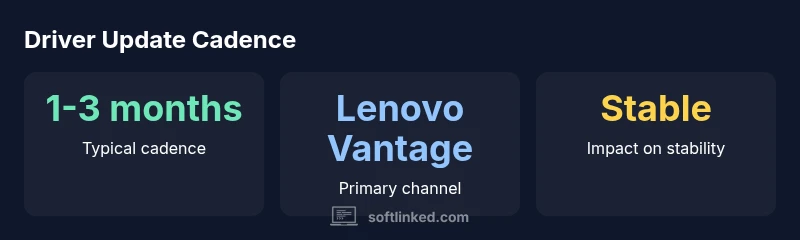
| Graphics | Lenovo Vantage / Windows Update | 1-3 months |
| Chipset | Lenovo Vantage / System Update | 1-3 months |
| Audio | Lenovo Vantage / System Update | 1-3 months |
| Network | Lenovo Vantage / System Update | 1-3 months |
Your Questions Answered
Do I need to install every Lenovo driver package?
No. You should install only the drivers your device needs, focusing on core components such as graphics, chipset, audio, and network. Lenovo Vantage and System Update typically identify the relevant packages for your model.
No—focus on the essential drivers like graphics, chipset, audio, and network, which are most likely to affect stability.
How can I verify that I have the latest Lenovo drivers?
Check Lenovo Vantage or Windows Update to see available updates, then compare the installed driver version in Device Manager with Lenovo’s listed version for your model. For Linux, use distro-provided tools to verify kernel modules and firmware.
Use Lenovo Vantage or Device Manager to confirm you have the latest versions.
Can I update Lenovo drivers on Linux?
Linux often provides open-source drivers that work with Lenovo hardware, supplemented by firmware updates via the distro’s update mechanism. Some hardware may need vendor-provided firmware or kernel modules; check your distro’s documentation for compatibility.
Yes, but it depends on hardware; you may rely on open-source drivers and distro updates.
What should I do if a driver installation fails?
If a driver install fails, rollback to the previous version, ensure a clean restore point, and try updating one component at a time. If the problem persists, consult Lenovo Support for model-specific guidance.
Try rollback and reattempt updates one component at a time.
Is it safe to download drivers from third-party sites?
Only rely on official sources or well-known OS vendors. Third-party drivers may pose malware risks or compatibility problems. When in doubt, stick to Lenovo’s official pages and Microsoft/OS-provided update channels.
Stick to official sources to avoid malware and compatibility issues.
How often should I update Lenovo drivers?
Typically every 1-3 months, or sooner if Lenovo releases a critical fix. Always verify compatibility with your exact OS version and hardware revision before updating.
Update regularly, but check compatibility first.
“Regular driver maintenance is a key component of system reliability. Lenovo drivers are specifically tuned for device hardware to minimize compatibility issues.”
Top Takeaways
- Identify your Lenovo model to grab the right drivers.
- Use Lenovo Vantage or System Update as primary sources.
- Update Lenovo drivers regularly to maintain stability and security.
- Back up the system before major driver updates.
- Avoid third-party driver sites unless absolutely necessary.